Only System Administrators and Graphic Designers can create new icon sets, upload icons into existing icon sets, and configure the Icon Color: setting in a theme.
- Identify an existing icon set with all black icons or create an icon set that can be customized by uploading icons that are all black (e.g., #000000 in the SVG code). For example, the CourseArc Round icon set will be selected for the Icon Set: option in step 3.
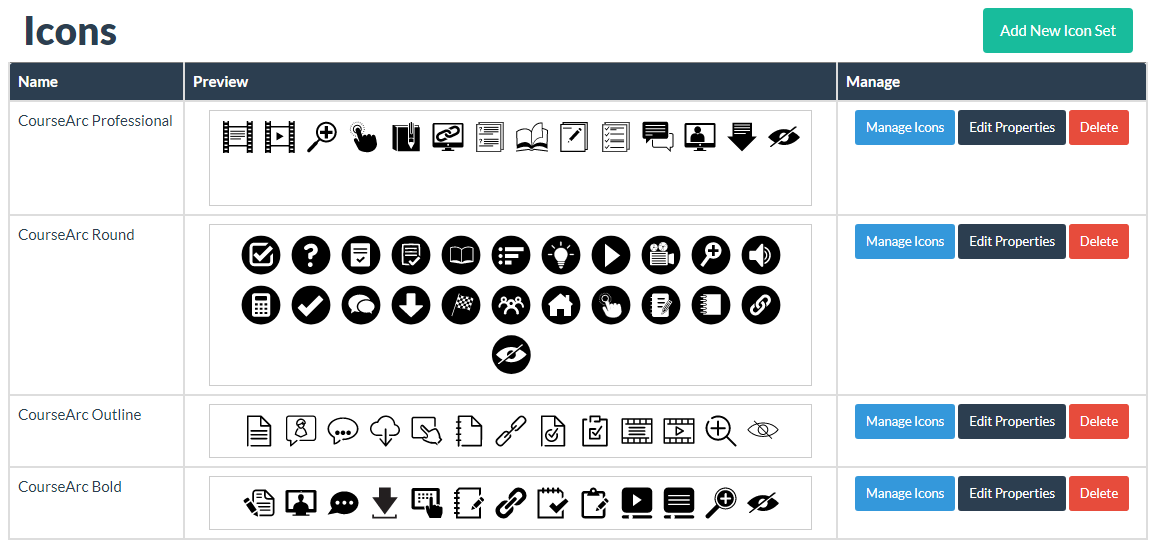
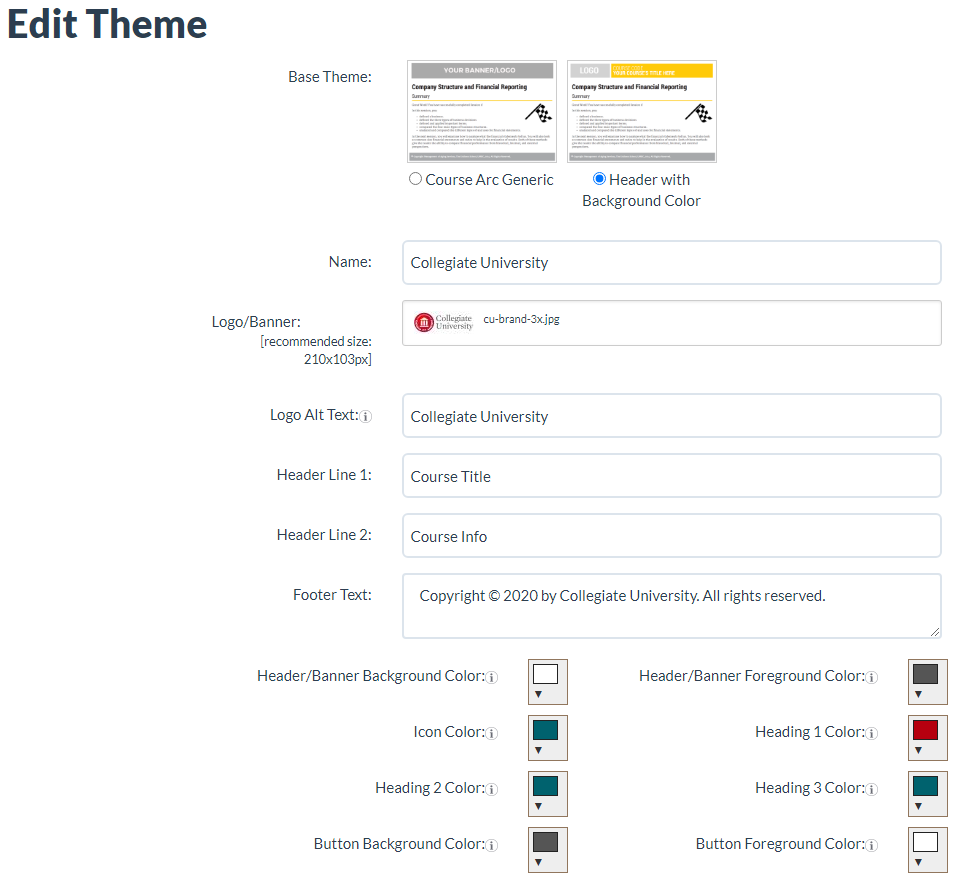
- Create a theme or select an existing theme; and configure the Icon Color: setting to the color needed for the course icons. The Collegiate University theme will be selected in step 3.
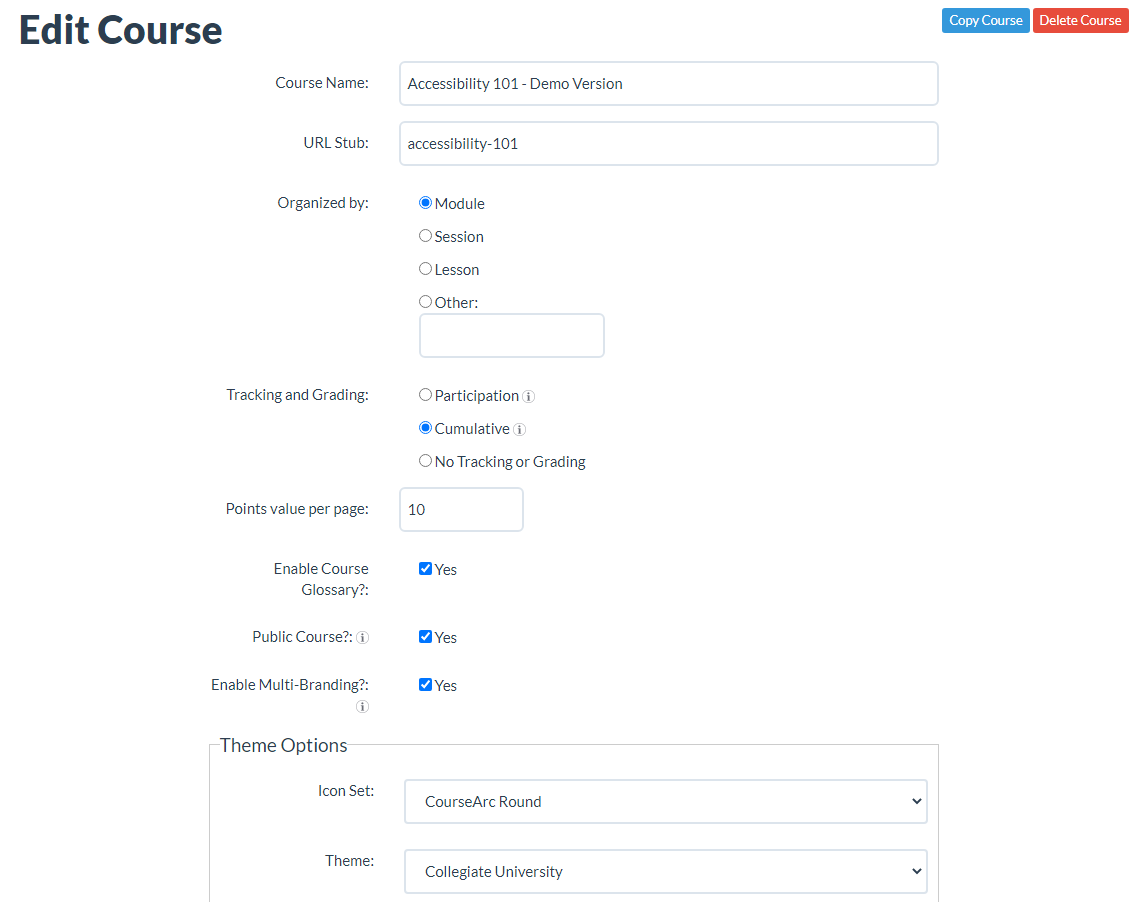
- Configure the course's Theme Options to use the theme, Collegiate University; and the icon set, CourseArc Round.
- The course's icons will display in the course with the color designated in the assigned theme's Icon Color: setting.

Was this article helpful?
That’s Great!
Thank you for your feedback
Sorry! We couldn't be helpful
Thank you for your feedback
Feedback sent
We appreciate your effort and will try to fix the article