Embedding blocks within a block allows content creators to nest additional content—such as images, videos, or HTML—inside a Tabs and Accordions section or a Quiz block question prompt. This lets you combine multiple content types within a single organized section, rather than limiting each tab, accordion, or question prompt to plain text alone.
Blocks that can be embedded in a Tabs and Accordion block section or a Quiz block question prompt:
- Audio
- Citation (formerly Creative Commons Attribution)
- Generic Video
- HTML
- Icon and Text
- Icon and Link to Popup Text
- Image
- Interactive Graphs
- Self Check*
- Standout
- Vimeo Player
- YouTube Video
*not available for embedding in the Quiz block question prompt; and can only be added to a Tabs and Accordions block that was added to the page prior to the Self Check block creation
- Add and save a Tabs and Accordions or Quiz block on the page — this will serve as the host block. (See the Tabs and Accordions or Quiz article for setup steps.)
Note: If the blocks you plan to embed already exist on the page, the host block must be saved first, or the Add Block from Page button won't work.
- Add and configure the content blocks you want to embed. Create them in the order you want them to appear inside the host block.
Note: Blocks can technically be created in any order, but it's recommended to build them on the page in the order they'll be embedded.
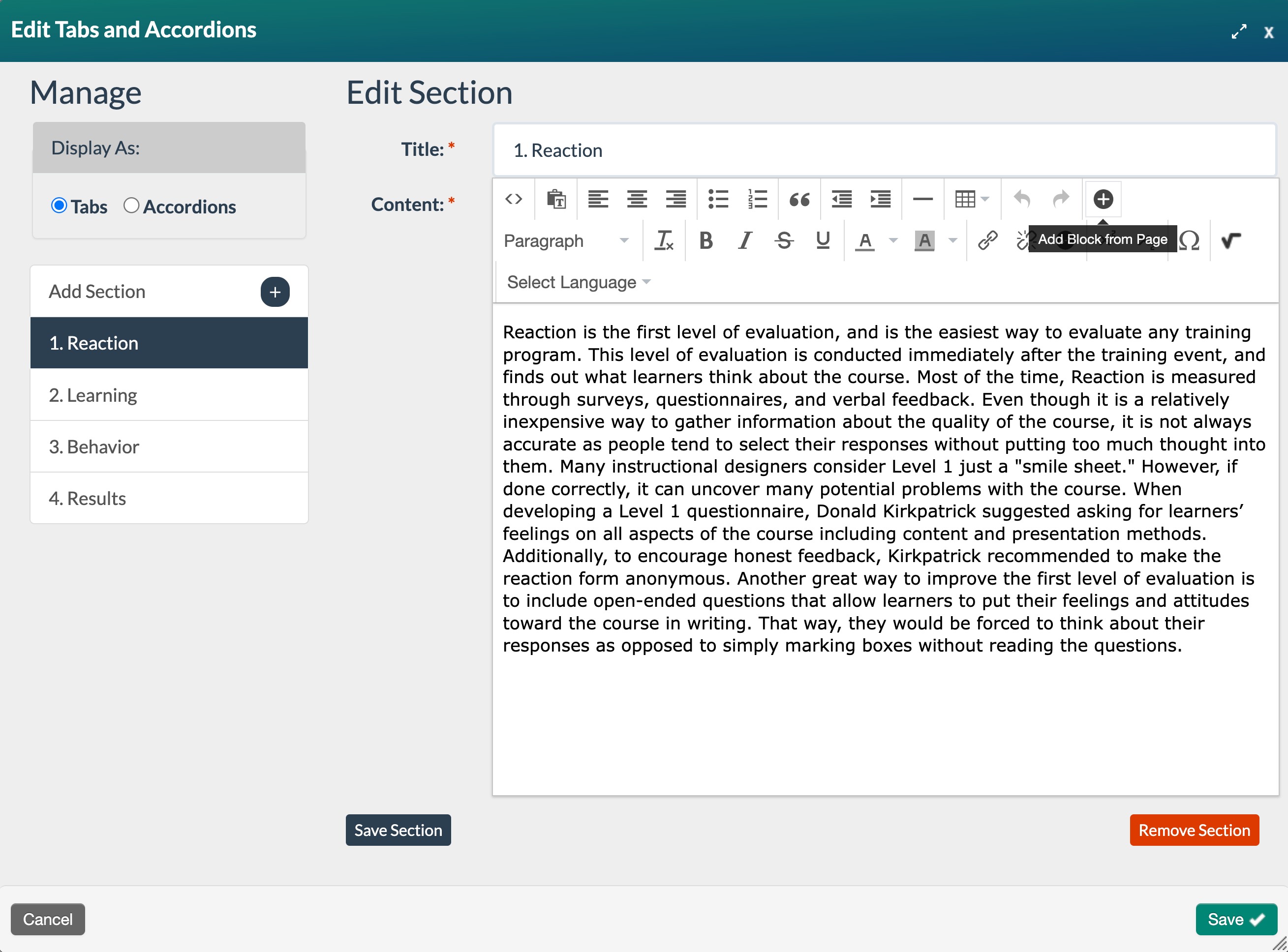
- Open the host block (Tabs and Accordions section or Quiz question) for editing. Put your cursor where you want to embed the block and then select Add Block from Page.
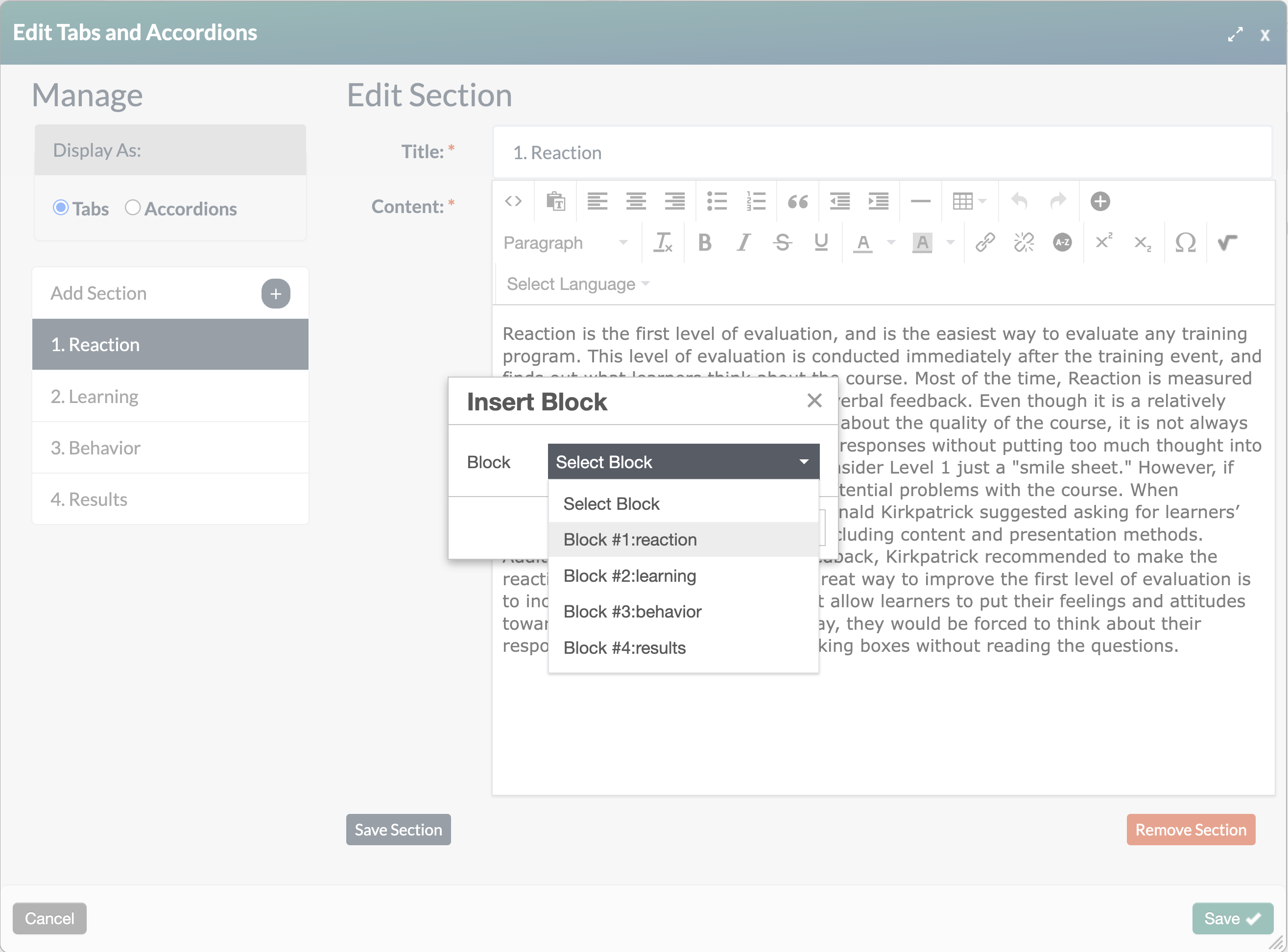
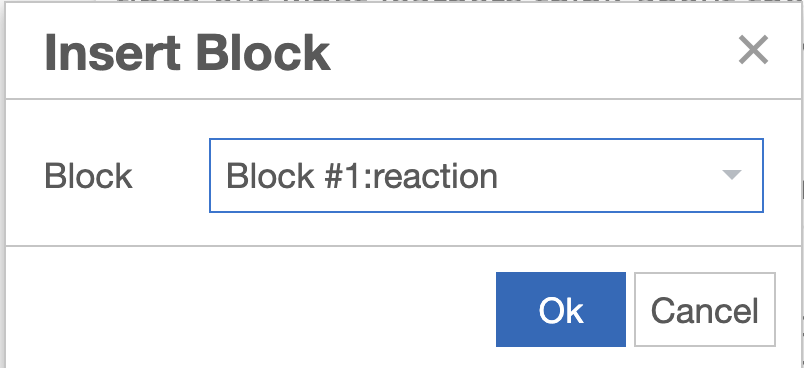
- In the Insert Block popup, choose the block to add from the dropdown and select OK.
Note: Each content block should only be embedded once. If embedded more than once, it will only display in the last location it was added.
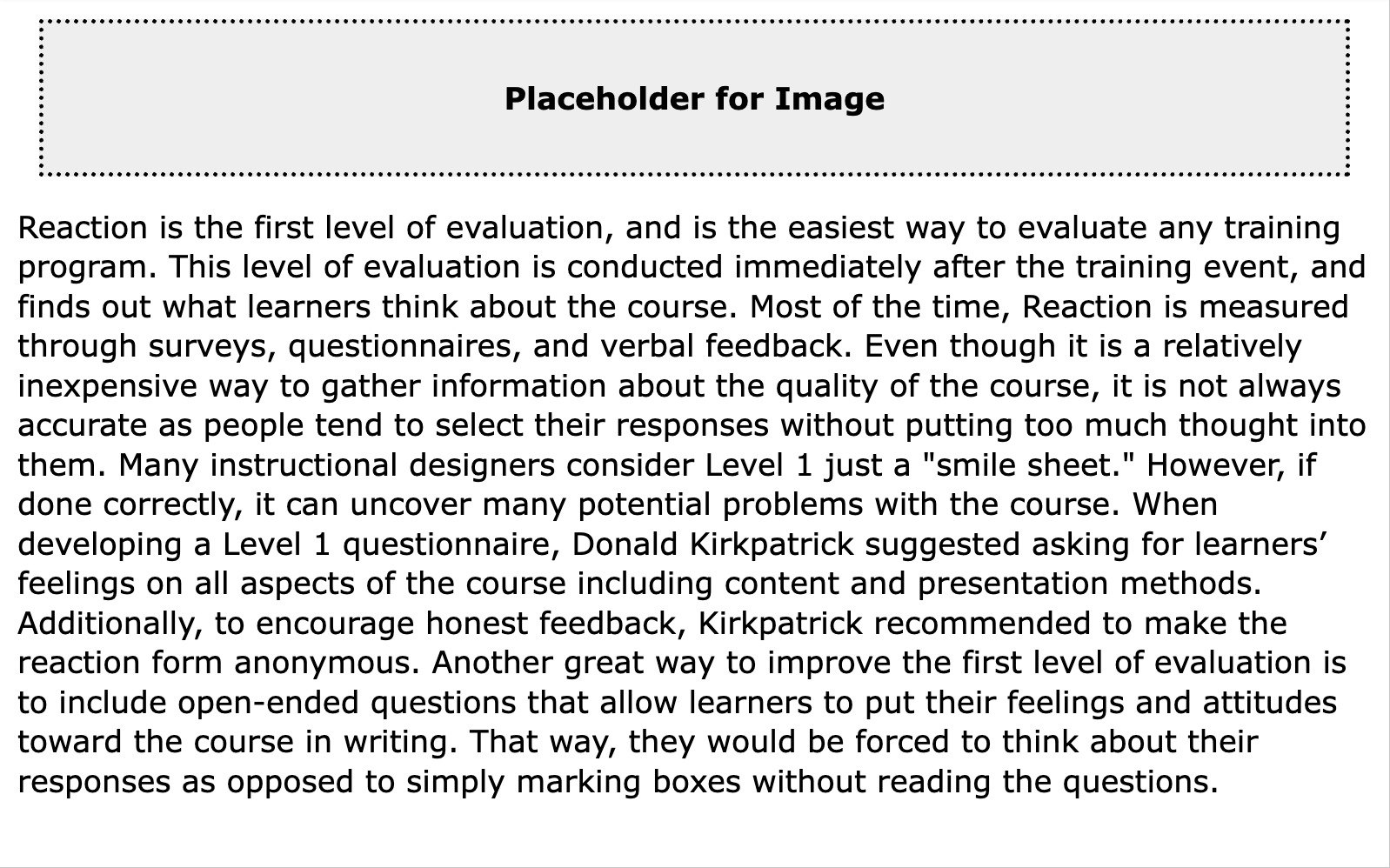
- The placeholder graphic shows that an Image block has been embedded in the Tabs section Reaction.
- Repeat this process for each additional block you want to embed.
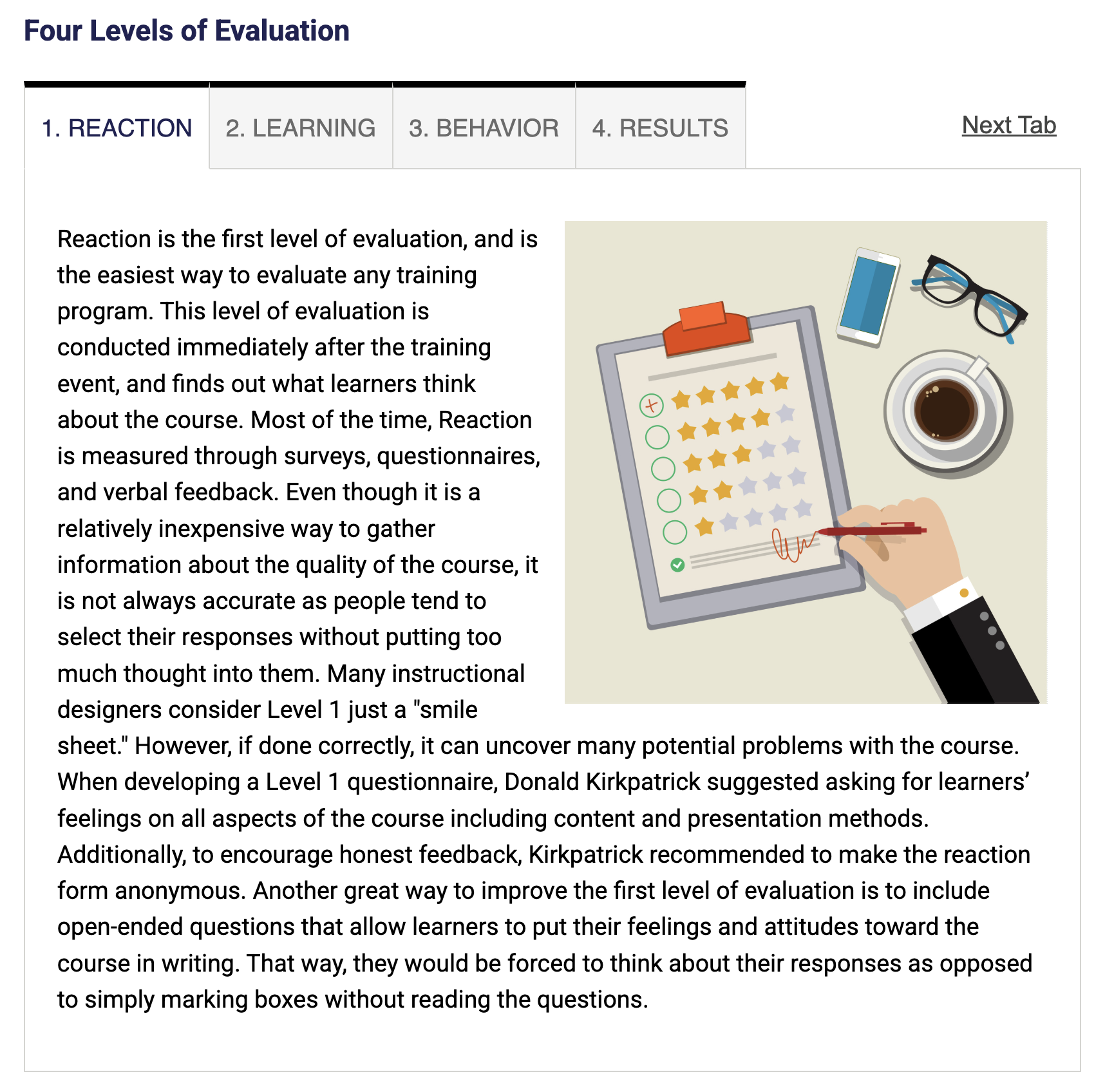
- The Tabs and Accordion and the Image block will appear separately on the page in Edit Mode. The embedded block is only visible in Publish or Preview mode. A red, dotted line appears around the block to indicate that the blocks are editable.
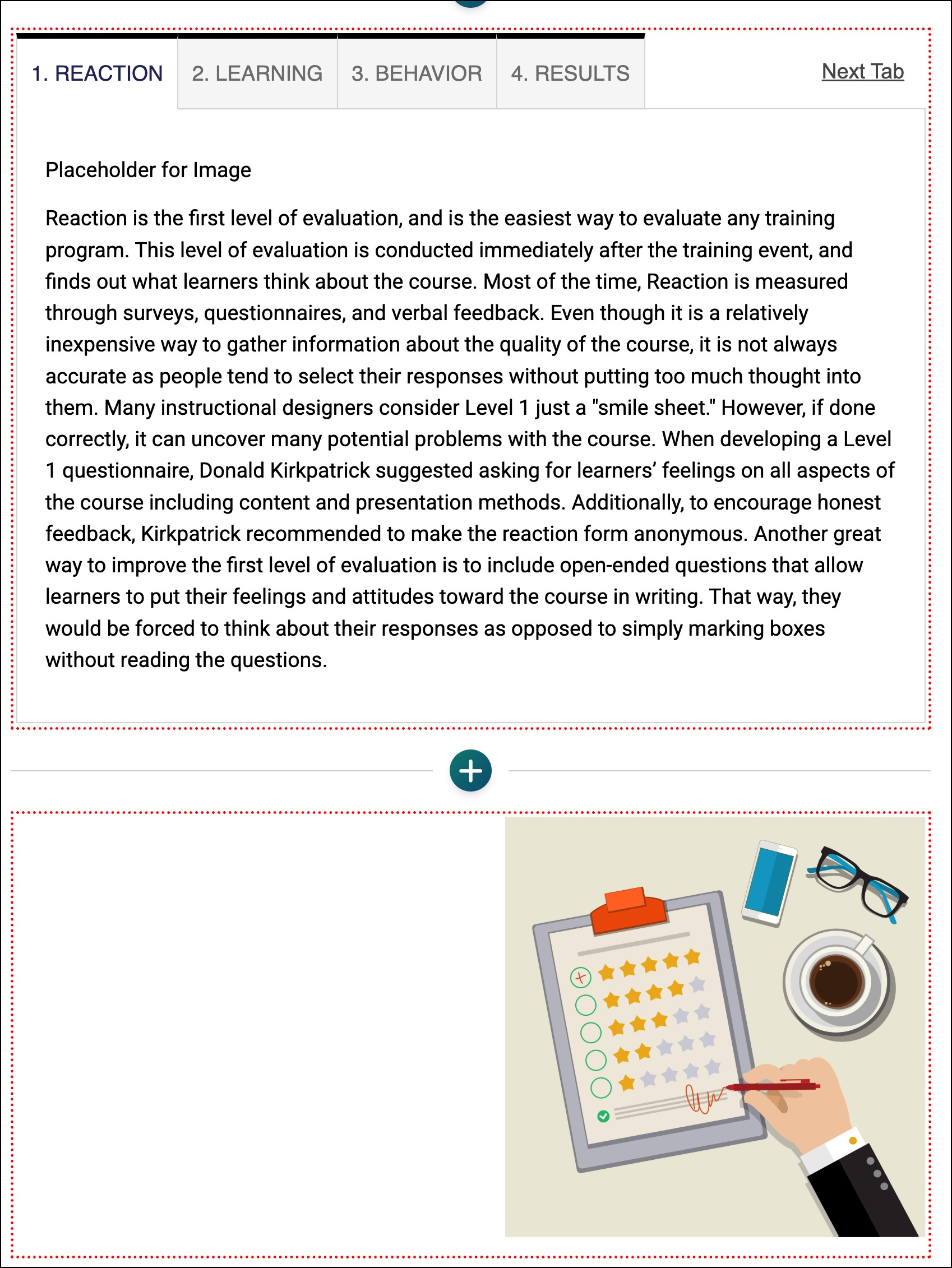
- Select the Publish My Edits button to save the course page and see the embedded block(s) as it will appear to learners.
Learn More
Was this article helpful?
That’s Great!
Thank you for your feedback
Sorry! We couldn't be helpful
Thank you for your feedback
Feedback sent
We appreciate your effort and will try to fix the article