▶Click the link to watch a video demonstration of copying or moving a page to another module.
The Copy function creates a duplicate of a page in a new location and keeps the source page in its original location. The Move function moves a page to a new location and removes the page from its original location.
Only System Administrators, Course Administrators, Course Leaders, or Editors can copy or move a page to another module.
- Go to the Manage Module view that includes the page that needs to be copied.
- To copy a page, click the page's Action dropdown in the Manage column and select Copy.
Note: To move a page to another module, select Move in the Action dropdown.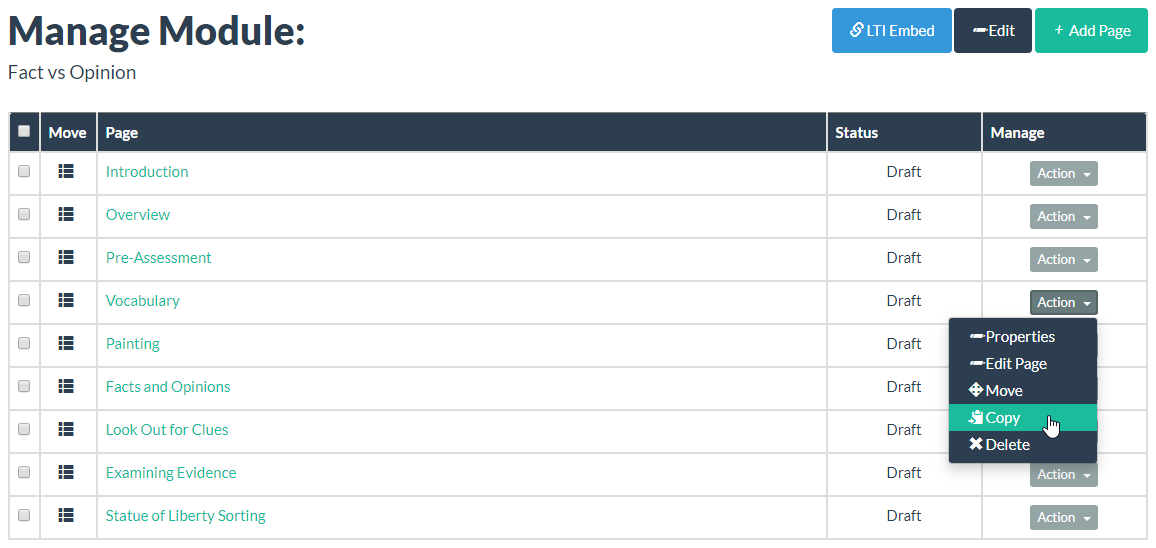
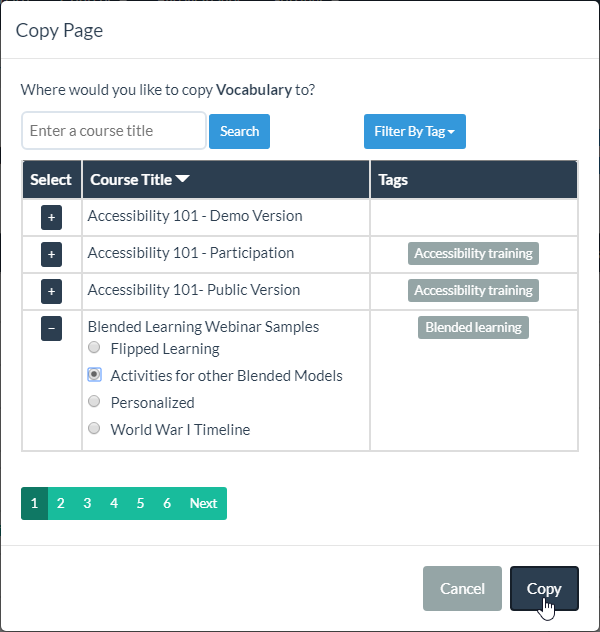
- The Copy Page dialog will appear. Choose the module to copy the page to by enabling the corresponding radio button and then click the Copy button.
- After the page is copied, a confirmation message appears at the top of the Manage Module page.
Note: When moving a page, navigation to the selected destination module is required to access the moved page.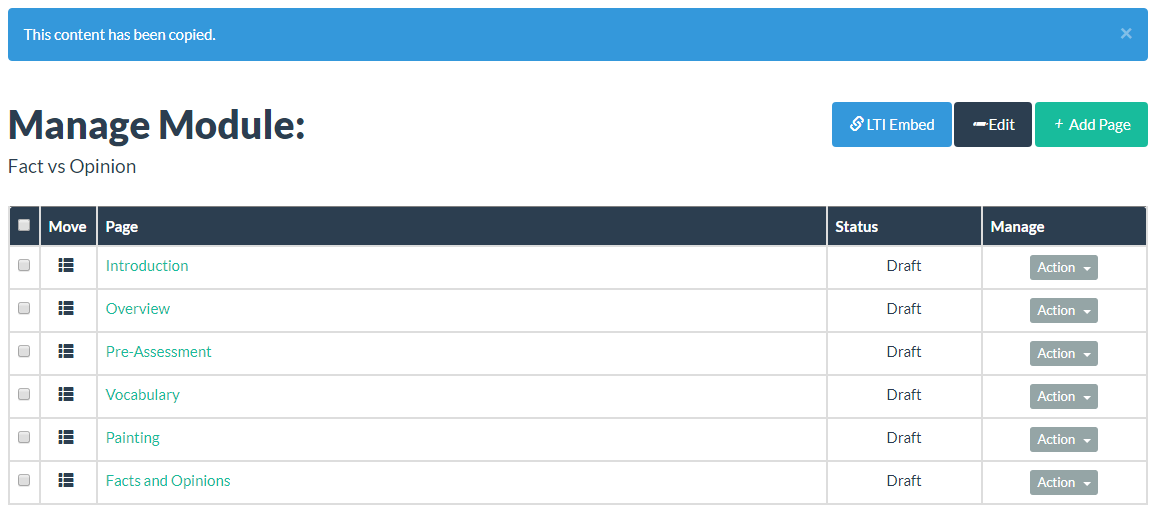
Video
Watch the video to learn more about copying (chapter 6) or moving (chapter 10) a page to another module.
Content Organization from CourseArc on Vimeo
Was this article helpful?
That’s Great!
Thank you for your feedback
Sorry! We couldn't be helpful
Thank you for your feedback
Feedback sent
We appreciate your effort and will try to fix the article