The Citation block allows content creators to add properly formatted rights and attribution information to works included in their content. A range of licensing options are supported:
- All Rights Reserved for fully protected works,
- Creative Commons licenses (with all CC variants available) for openly licensed content,
- No Known Restrictions, U.S. Government, and Public Domain for works free of copyright limitations, and
- Other for works that fall outside standard categories.
Each license option automatically pulls in the appropriate license image, where applicable.
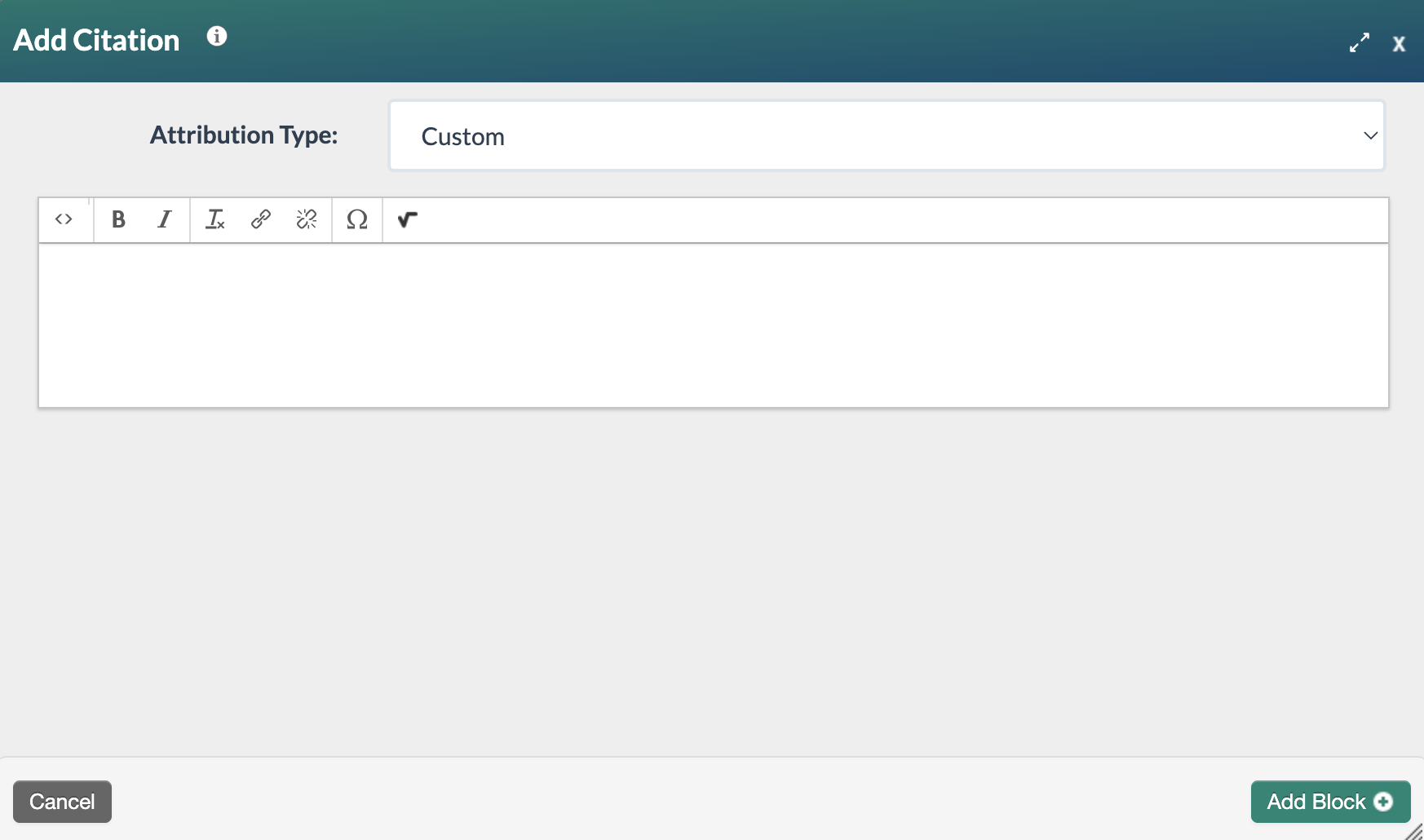
A Custom option is also available, providing a WYSIWYG editor for creators who need to write their own attribution text.
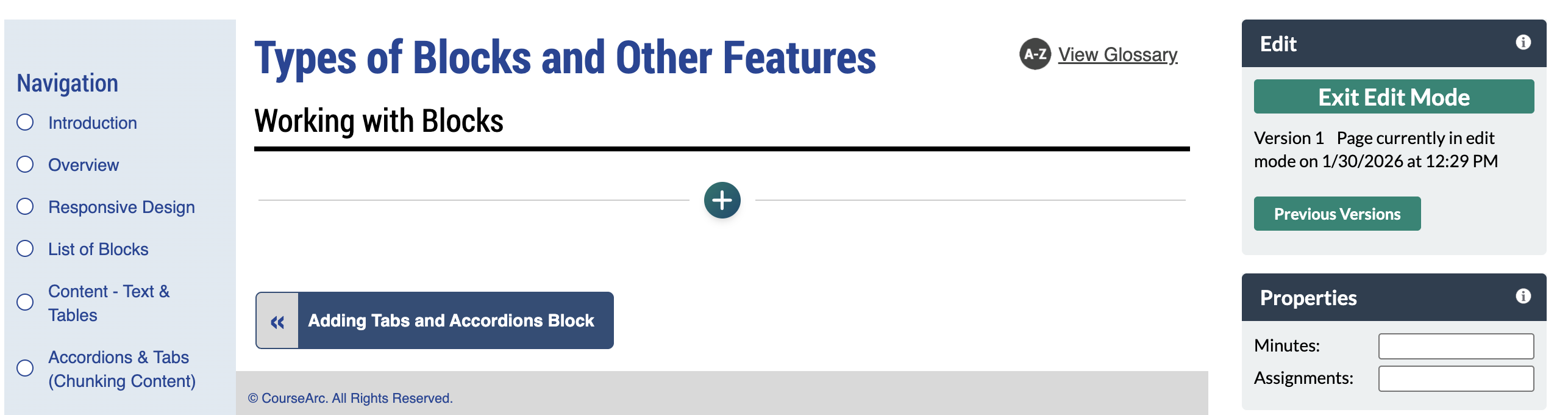
- Navigate to the page and select Edit this Page. Find the position you want to add a block and select the plus (+) icon.
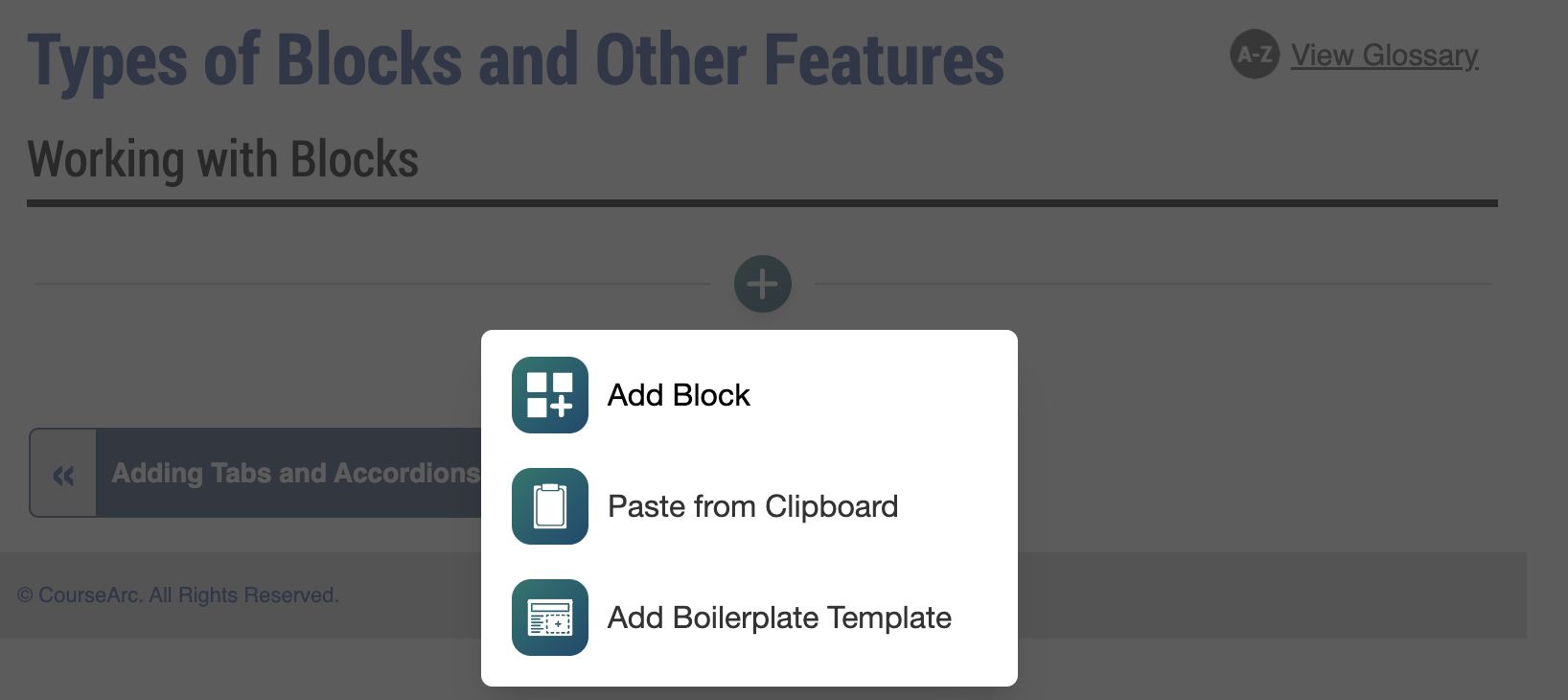
- From the dropdown, select Add Block.
- In the Add Block modal, you can either:
- Use the Search field to find a block by keyword
- Select a block from your custom list of Favorites
- Scroll through the list of All Blocks to select one
- Use the various categories in the side panel to filter by block type
- Select the star icon to add or remove blocks in your Favorites list
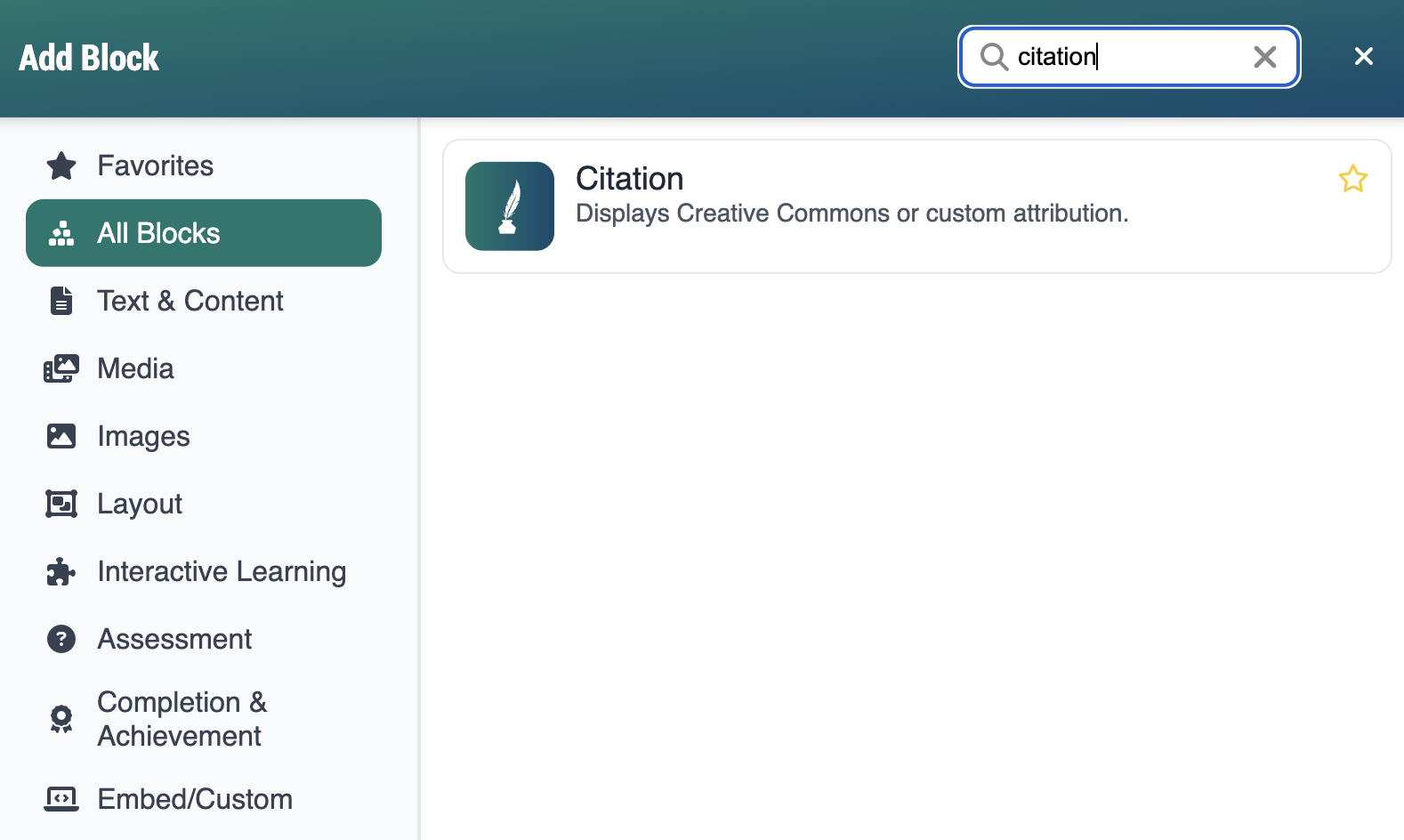
- Select the Citation block. The Add Citation form will open.
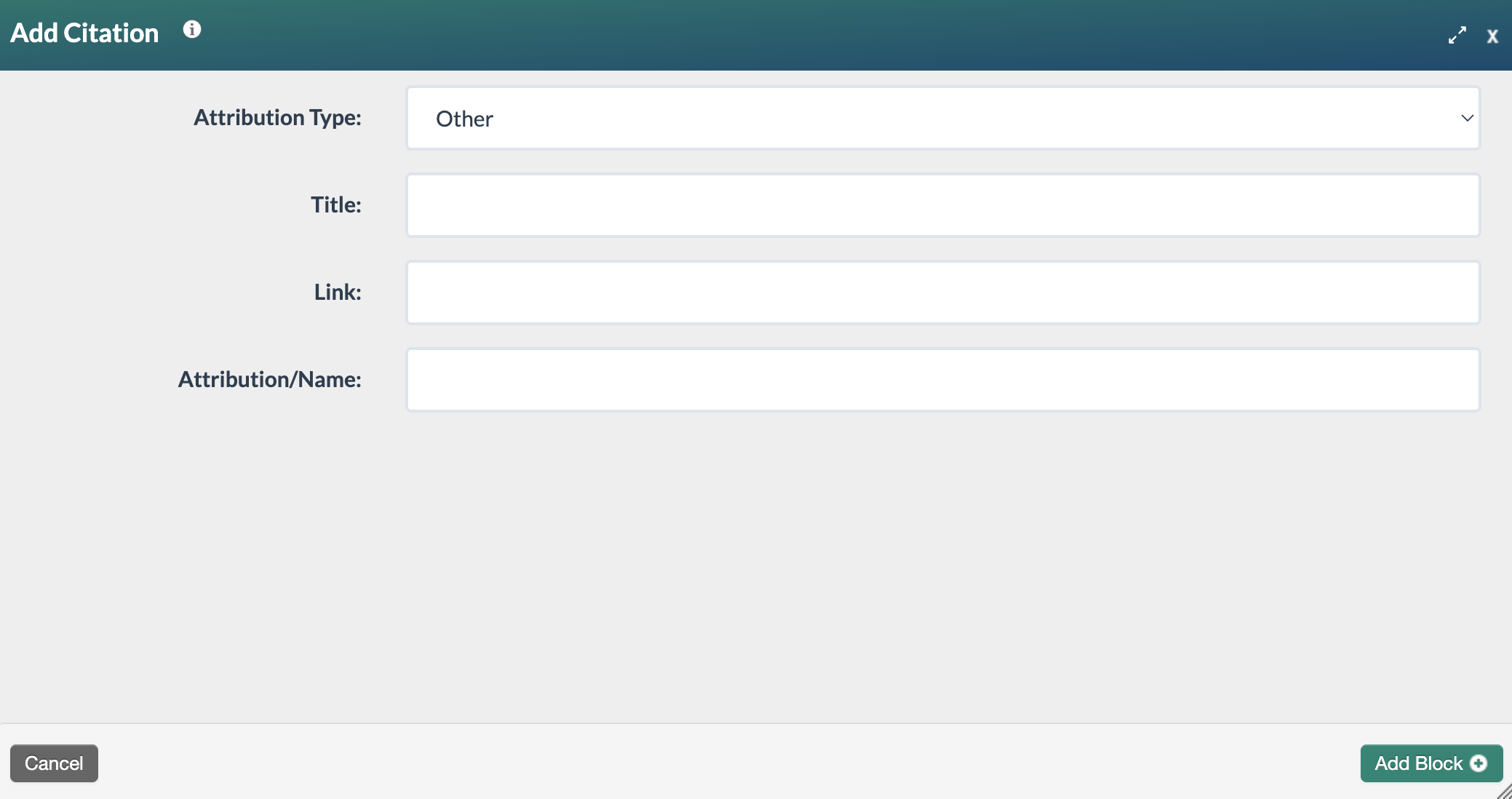
Complete the form as follows:
- Attribution Type: Select a license type from the Attribution Type dropdown. If a Creative Commons option is selected, a Version field will appear at the bottom of the form.
Title: Enter the title of the work being cited.
- Link: Enter the creator's URL in the Link field.
Attribution/Name: Enter the name of the person or organization that created the work in the Attribution/Name field.
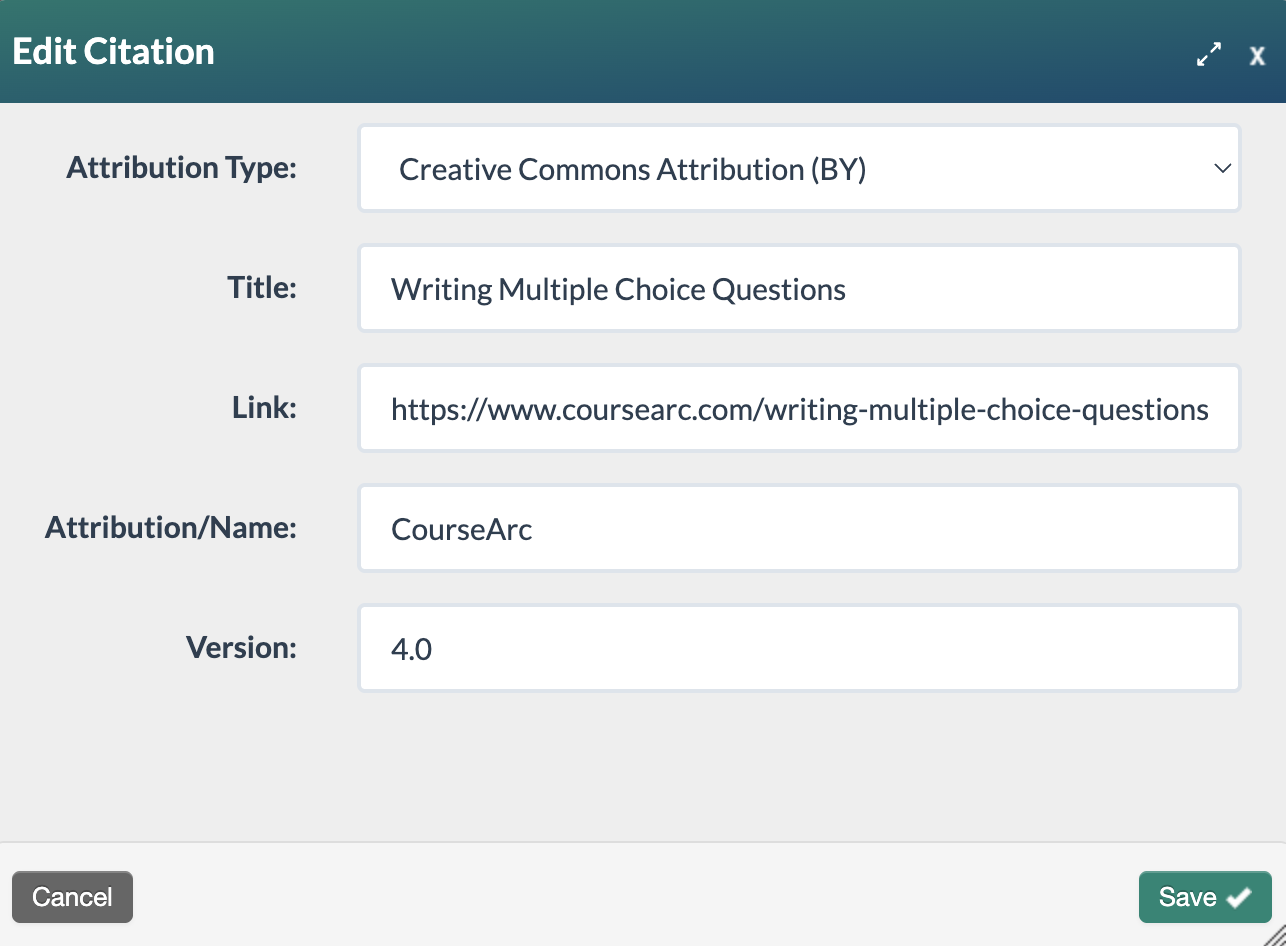
- Once all the required sections have been saved, select the Add Block+ button to save the block to the page.
- The new block will appear on the page in Edit Mode with a red, dotted outline indicating it's editable

- Select the Publish My Edits button to save the block to the course page and see the content as it will appear to learners.

Custom Attributions
The Custom option provides a WYSIWYG editor for creators who need to write their own attribution text. The text is unlimited.
Was this article helpful?
That’s Great!
Thank you for your feedback
Sorry! We couldn't be helpful
Thank you for your feedback
Feedback sent
We appreciate your effort and will try to fix the article