The block Clipboard stores individual user-created blocks of content that can be copied to any course page. Using the block Clipboard saves time configuring blocks and helps provide a consistent look and feel across courses.
For information about creating a group of preconfigured blocks of content that can be copied to any course page, check out What is a Boilerplate?.
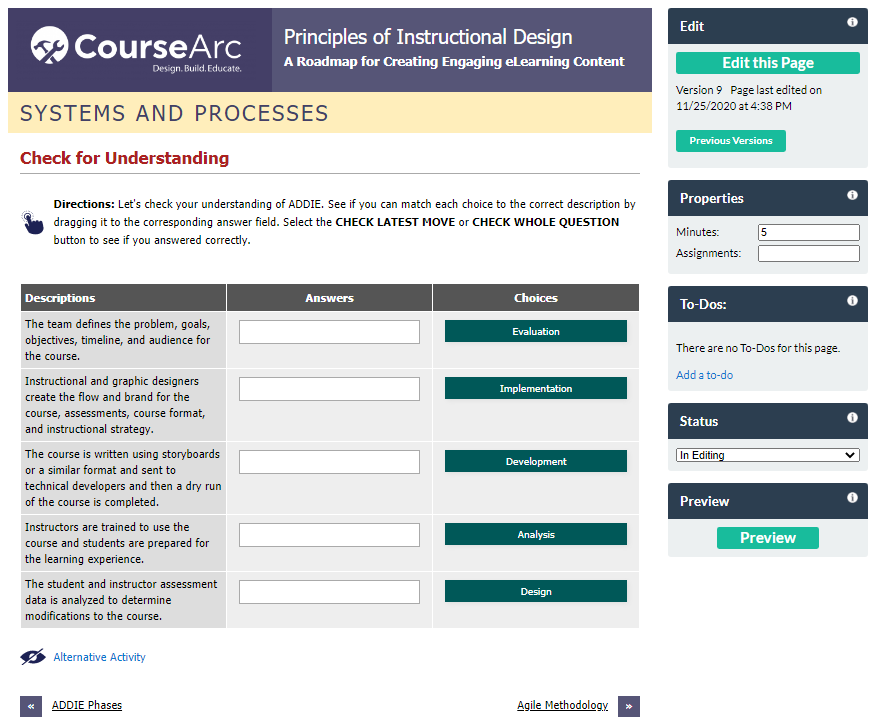
- Navigate to a page with a block of content that needs to be added to the Clipboard.
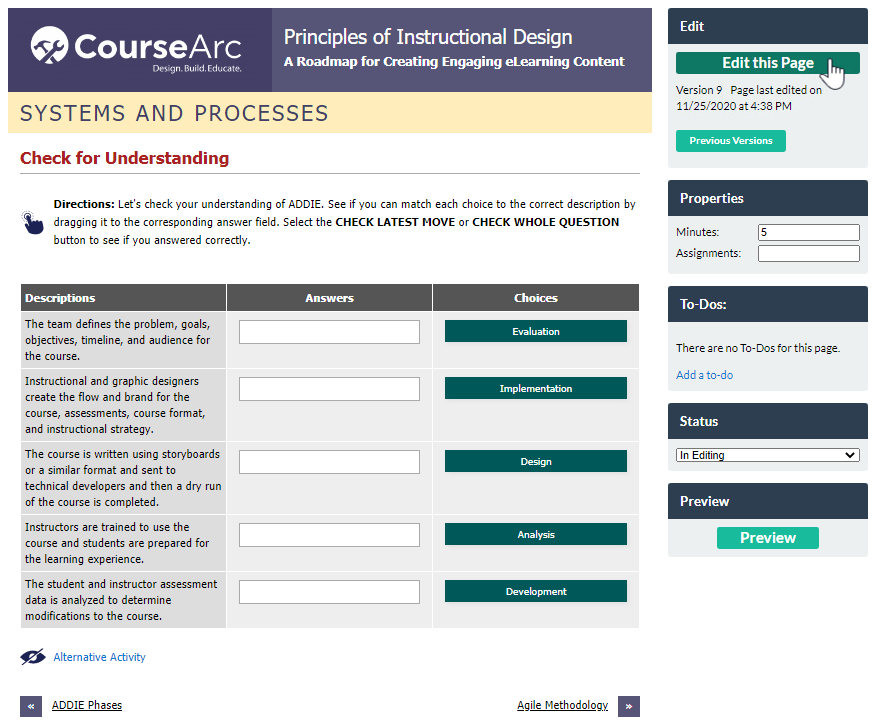
- Click Edit this Page to put the page in edit mode.
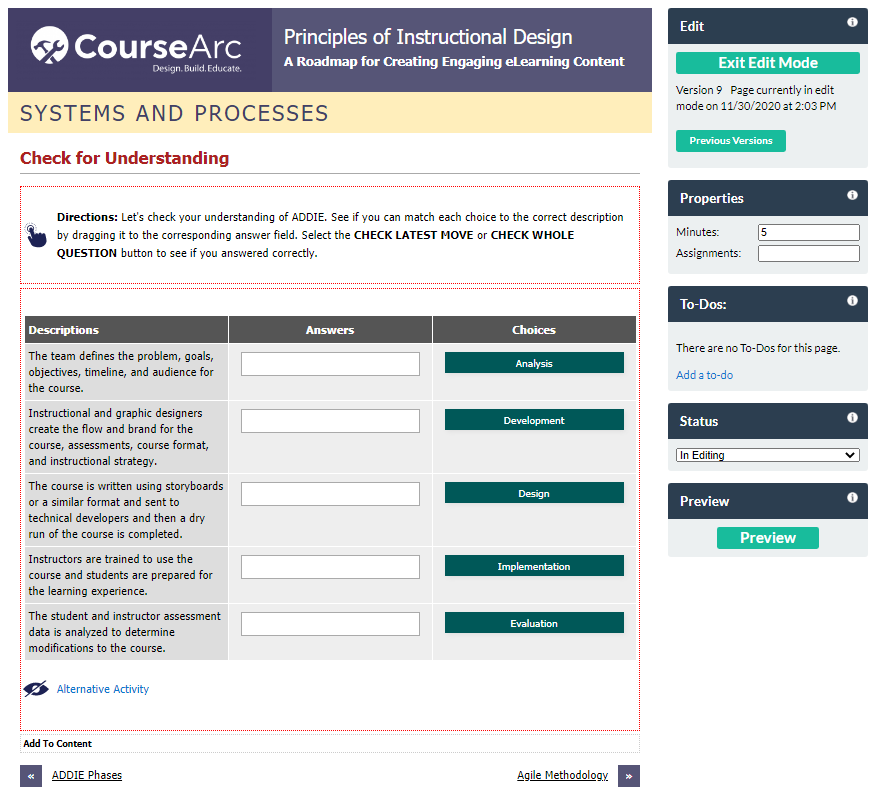
- The page displays in edit mode.
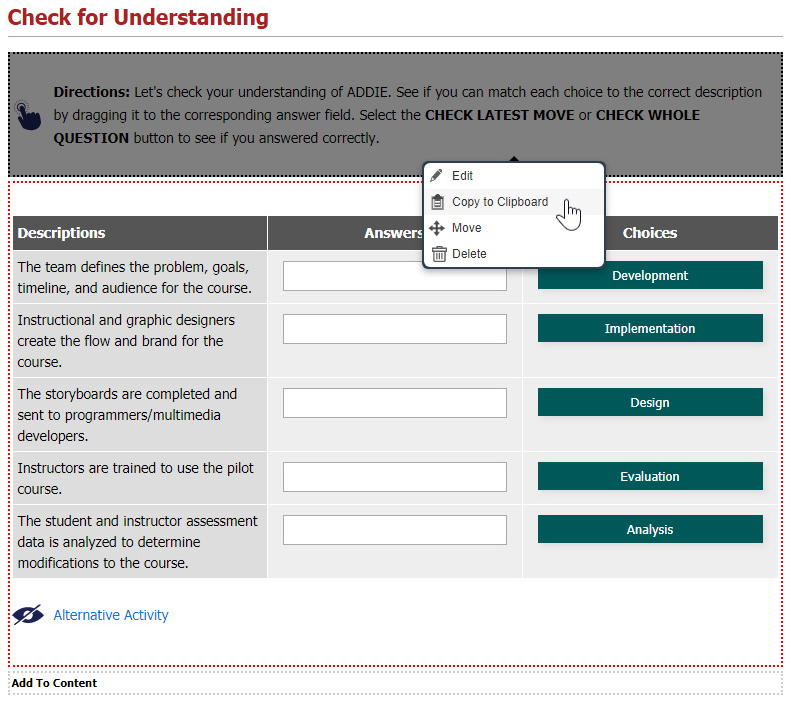
- Click the block to be added to the Clipboard and select Copy to Clipboard.
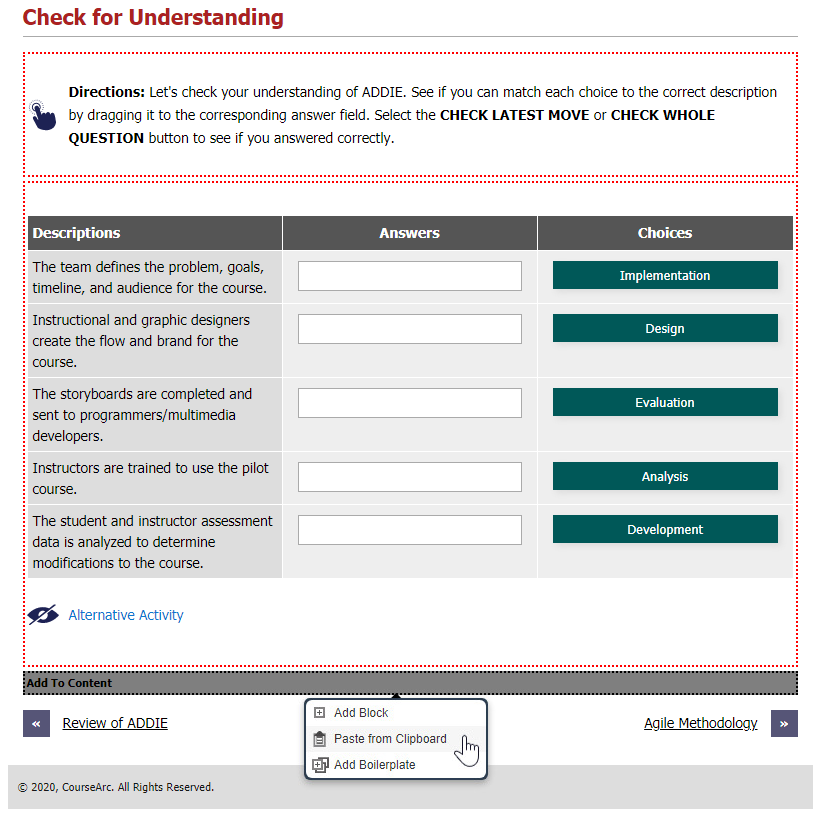
- Click Add To Content and select Paste from Clipboard.
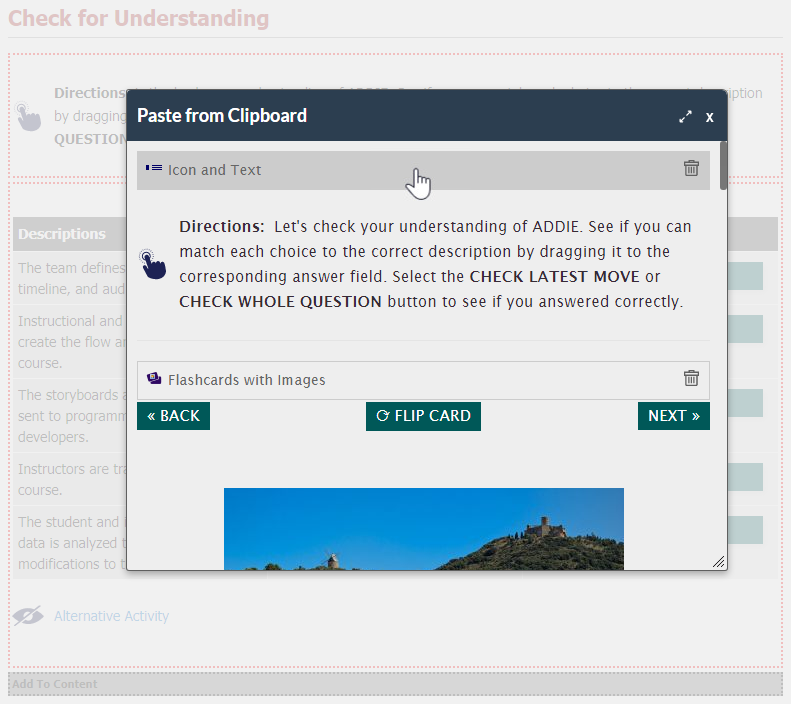
- Select the block that needs to be added to the page from the Paste from Clipboard modal.
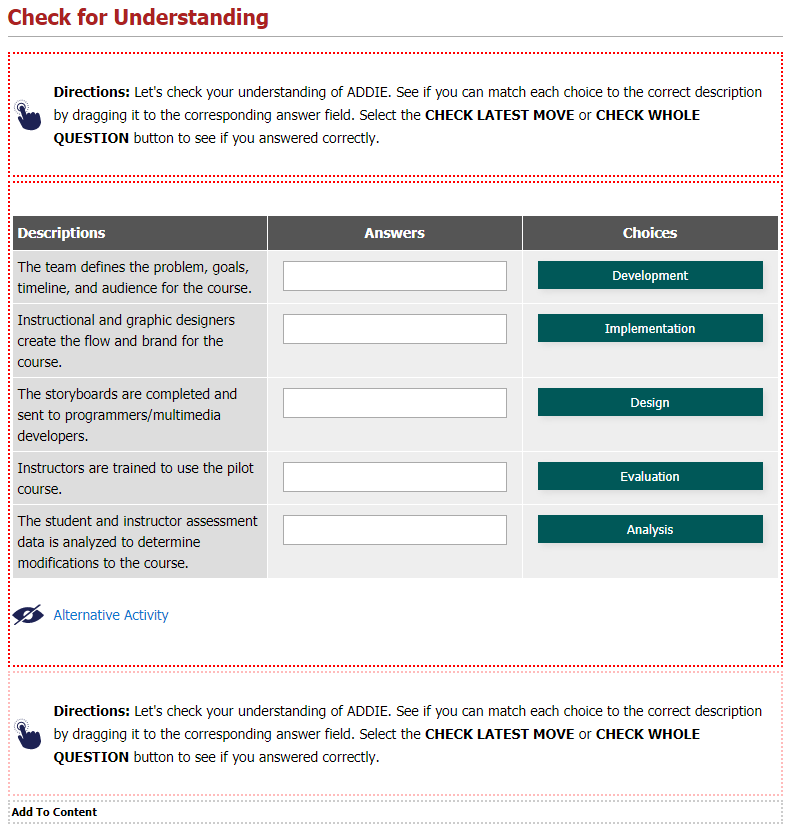
- The selected block is copied to the bottom of the page.
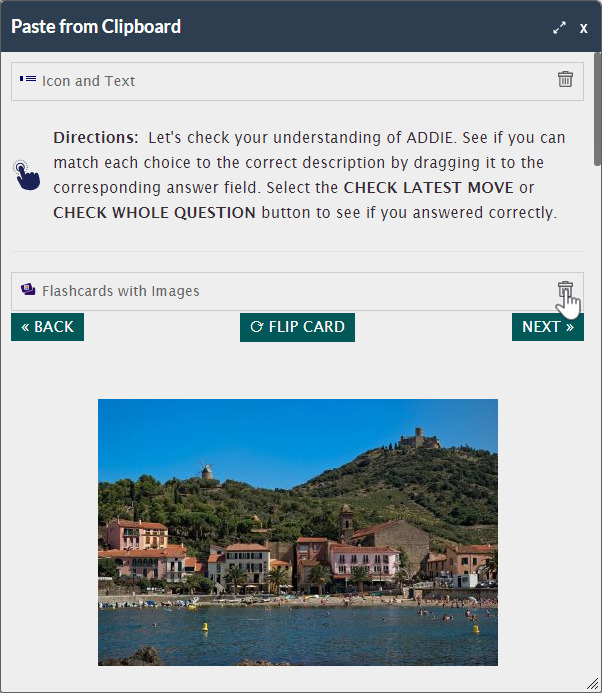
To remove a block from the block Clipboard, click the trash can icon to the right of the block name.
Was this article helpful?
That’s Great!
Thank you for your feedback
Sorry! We couldn't be helpful
Thank you for your feedback
Feedback sent
We appreciate your effort and will try to fix the article