The Self Check block lets content creators build a single standalone question for learners to test their understanding. Three question types are supported: Select Multiple Choice/True False, Text Answer (Checked), and Text Answer (Unchecked). Questions can be graded or ungraded, and content creators can add custom feedback to guide learners toward the correct answer.
Unlike the Quiz block, which presents a set of questions, the Self Check block focuses on a single question at a time—making it well-suited for quick knowledge checks embedded throughout a course.
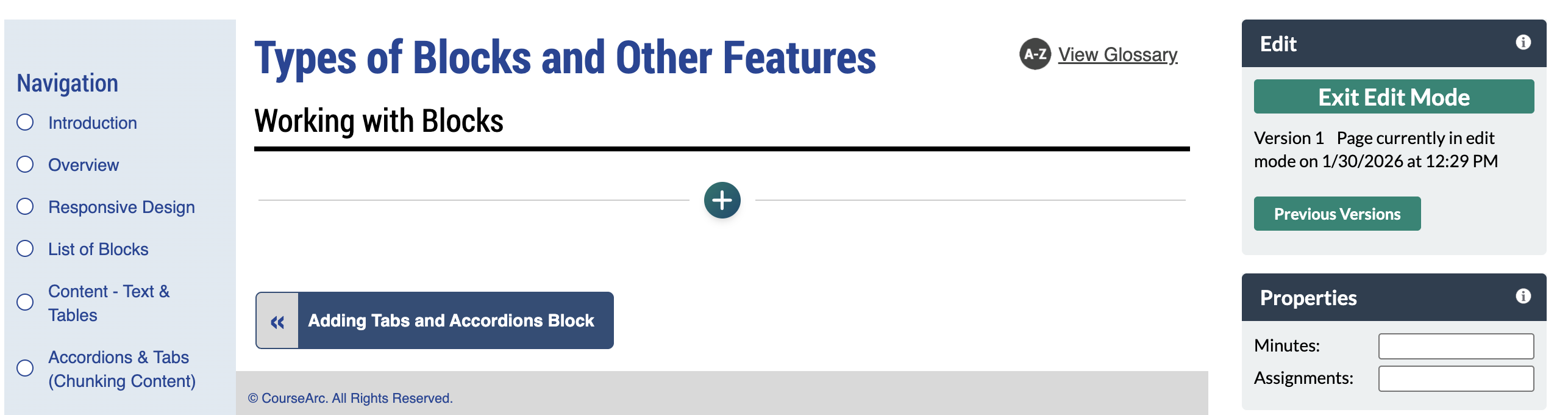
- Navigate to the page and select Edit this Page. Find the position you want to add a block and select the plus (+) icon.
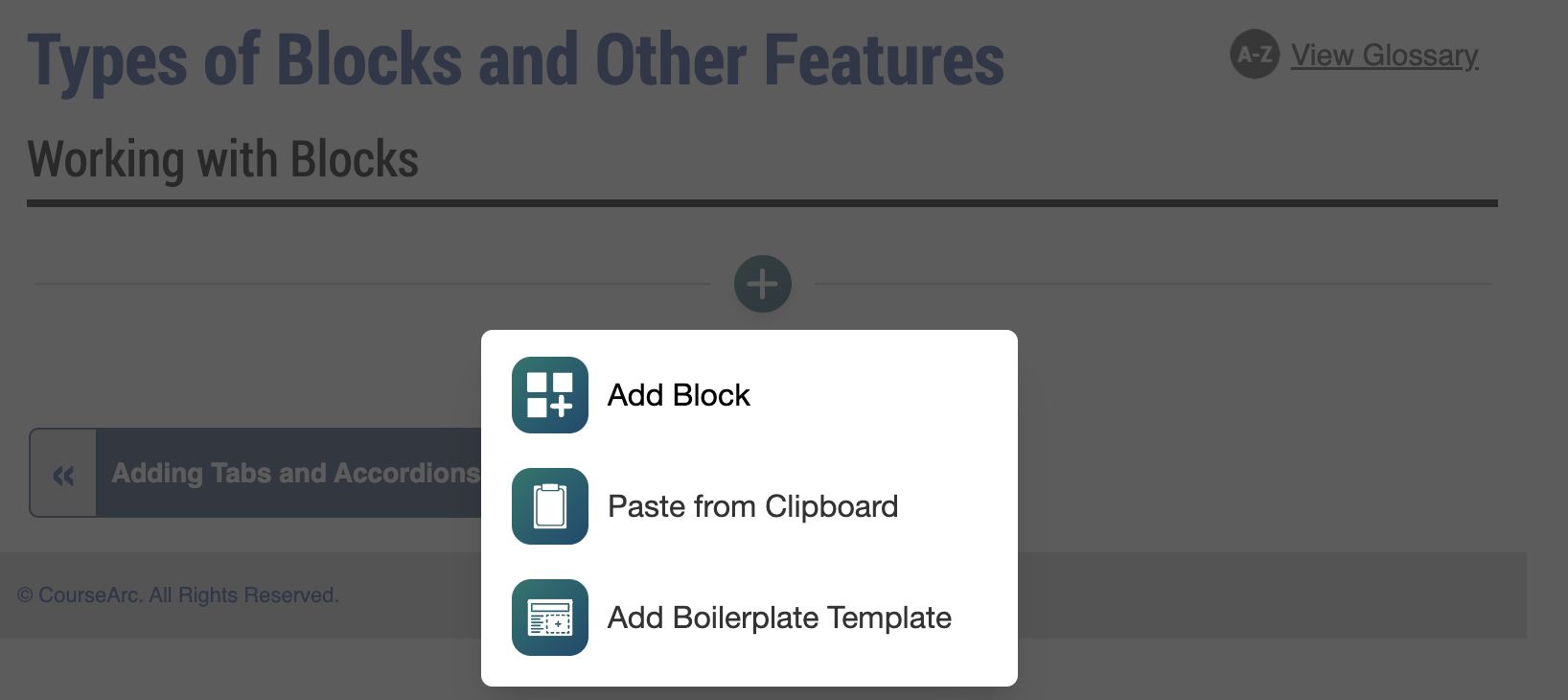
- From the dropdown, select Add Block.
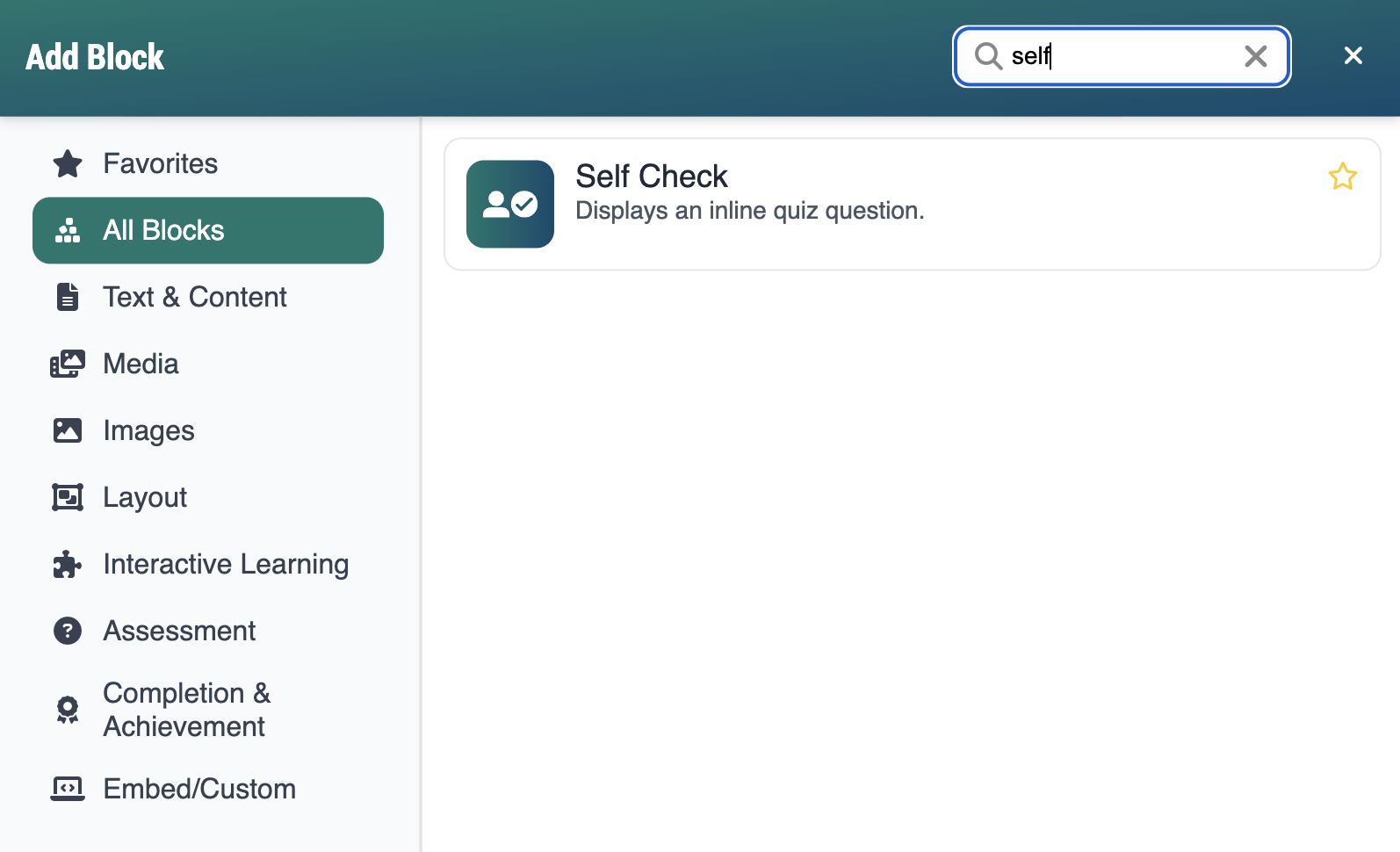
- In the Add Block modal, you can either:
- Use the Search field to find a block by keyword
- Select a block from your custom list of Favorites
- Scroll through the list of All Blocks to select one
- Use the various categories in the side panel to filter by block type
- Select the star icon to add or remove blocks in your Favorites list
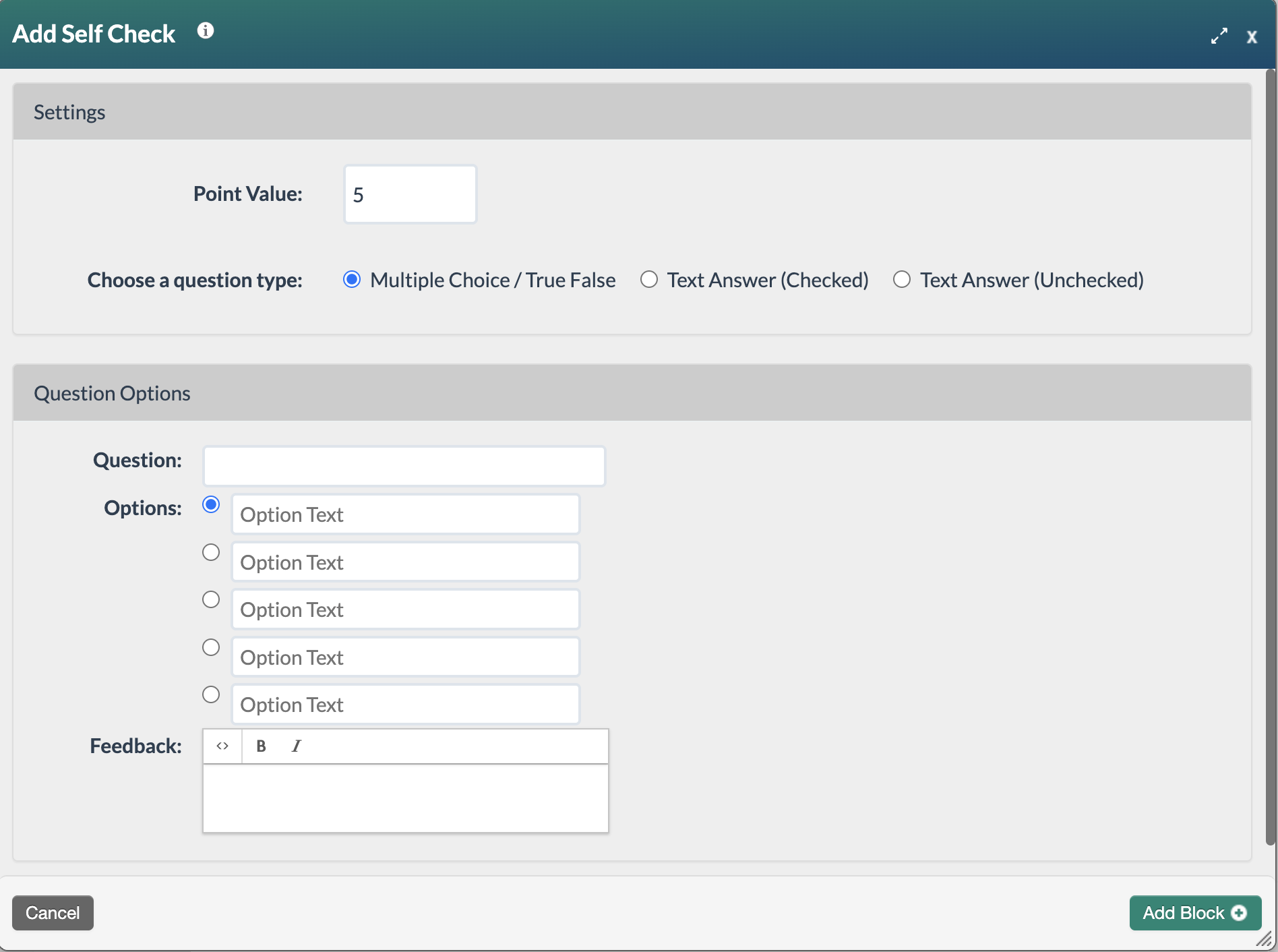
- Select the Self Check block. The Add Self Check form will open. The form has two areas: Settings and Question Options. Complete the Settings with the following information:
- Point Value: This field only appears if the module is being tracked/graded. The point defaults to 5–adjust as needed.
- Choose a question type: Select Multiple Choice/True False, Text Answer (Checked) or Text Answer Unchecked.
Multiple Choice/True False Question
- Choose the question type Multiple Choice/True False and complete the corresponding fields:
- Question: Write the question text.
- Options: Create a list of answer options. Select the radio button next to the correct answer.
- Feedback: Add feedback that the learner will see after submitting their answer.
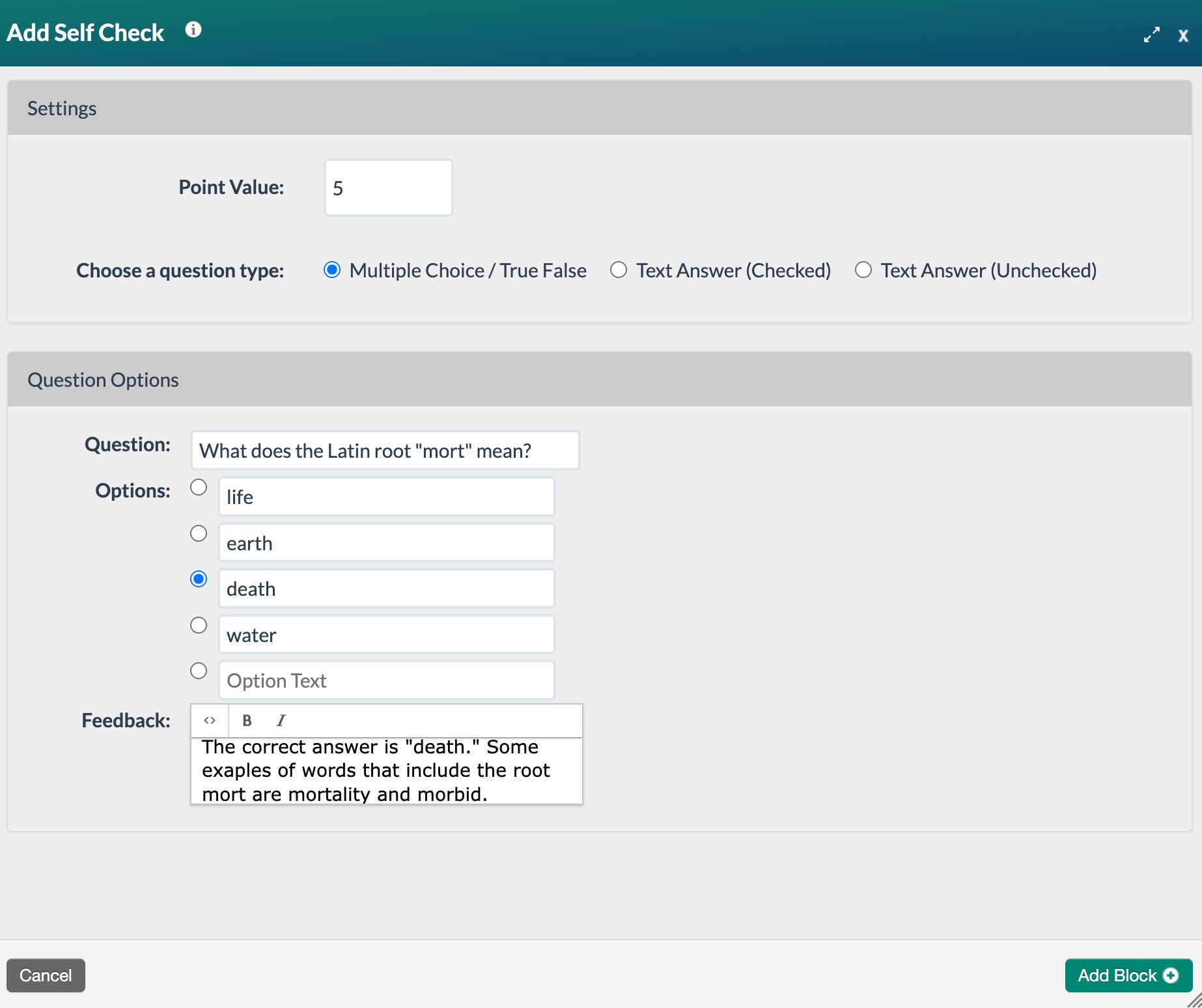
- Select the Add Block+ button to save the block to the page.
- The new block will appear on the page in Edit Mode with a red, dotted outline indicating it's editable.
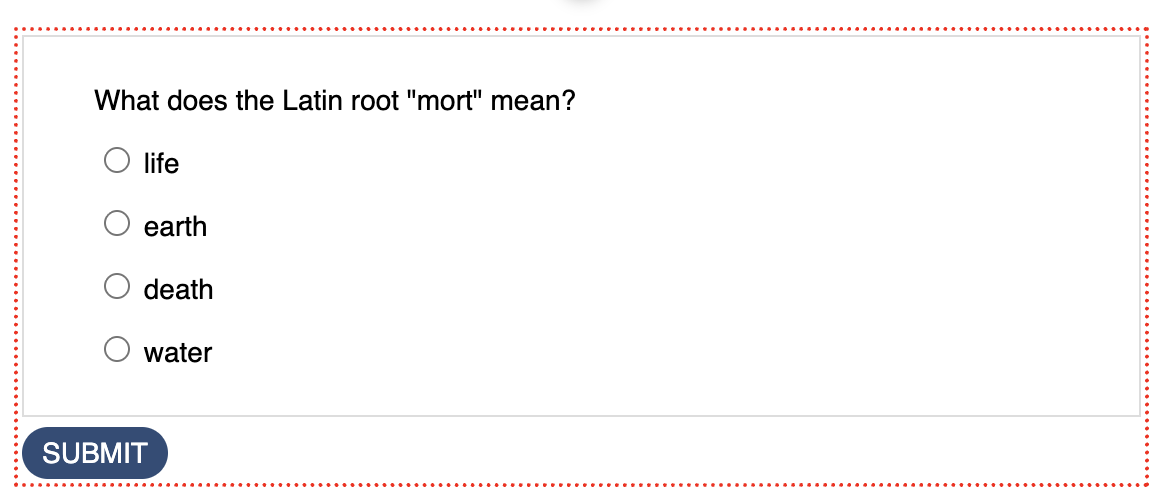
- Select the Publish My Edits button to save the block to the course page and see the content as it will appear to learners.
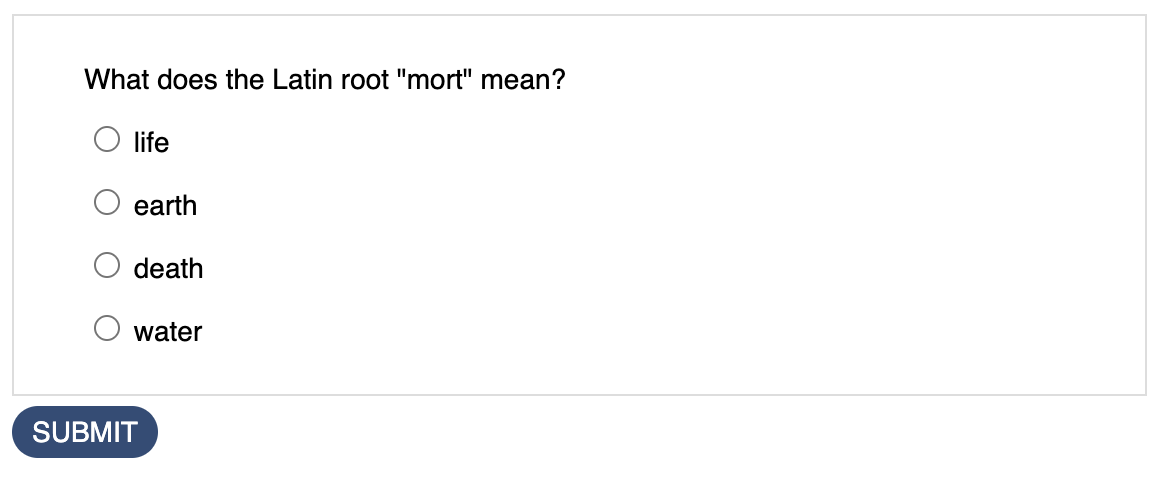
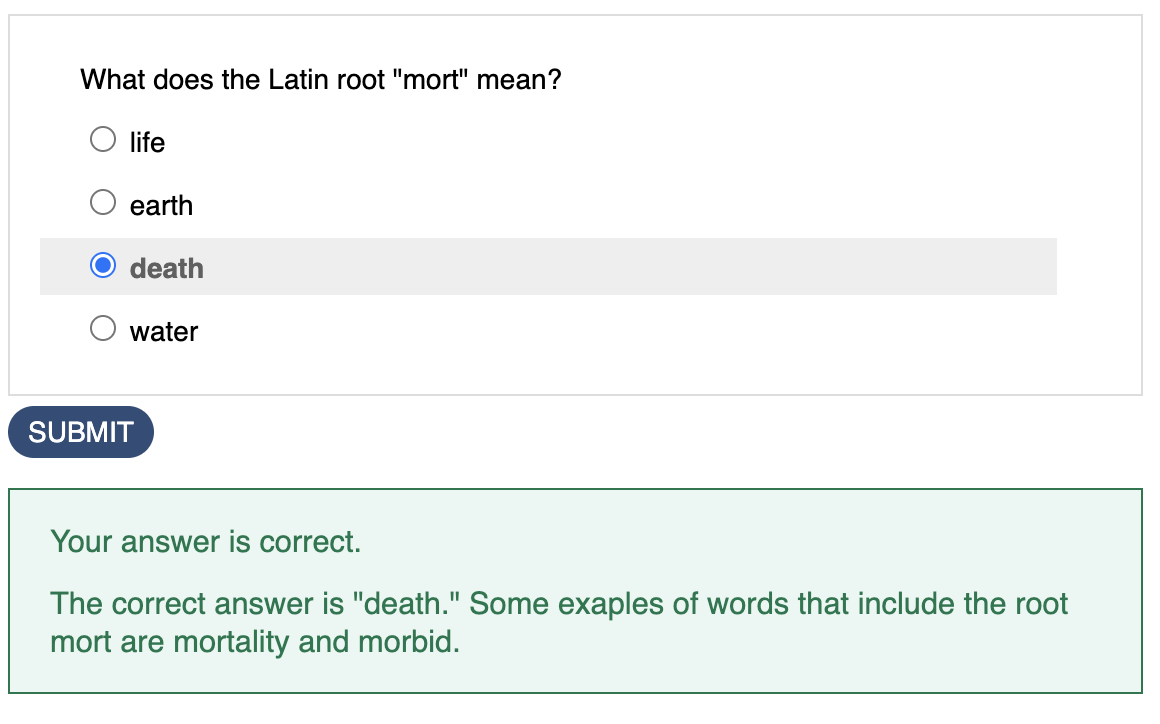
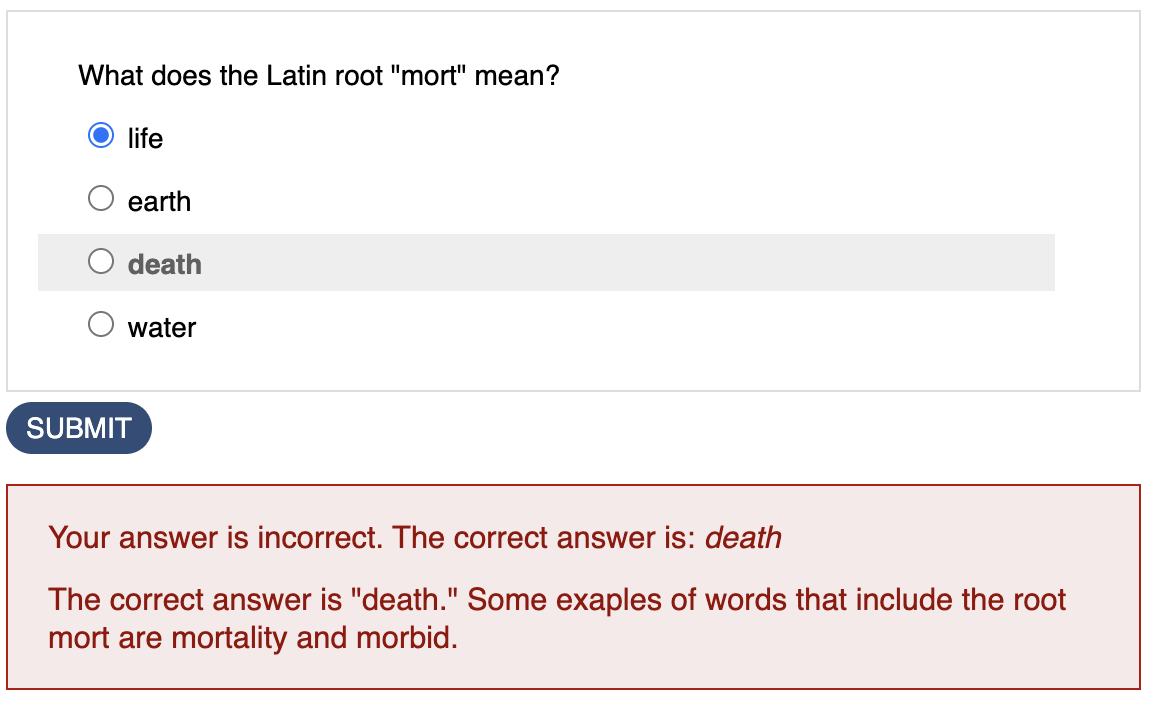
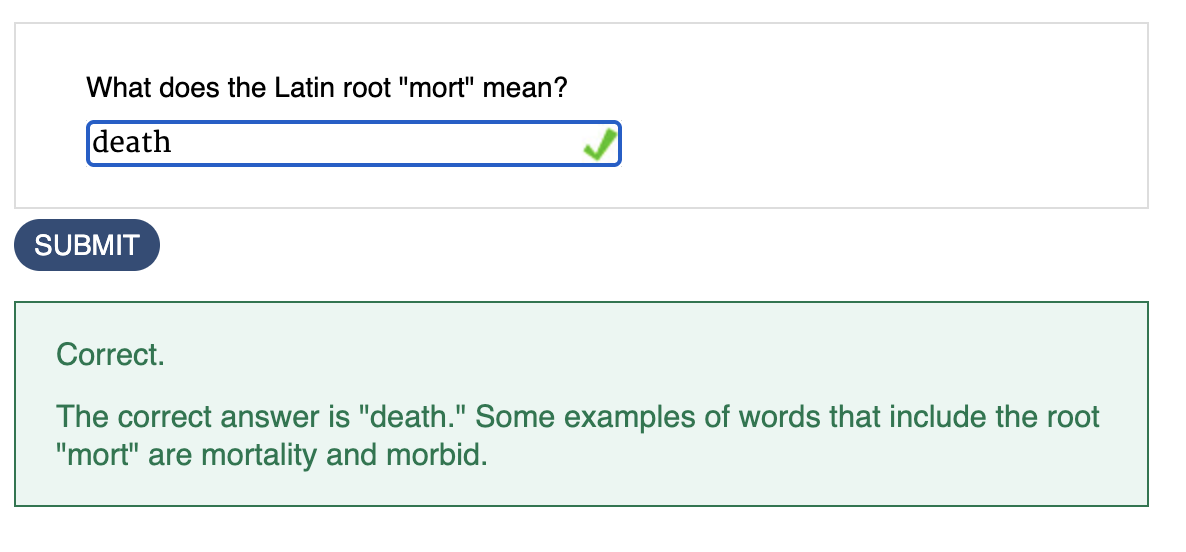
- Learners select the SUBMIT button to check their answer. Results appear immediately after submitting, showing whether the response was correct or incorrect, along with any answer feedback added.
Text Answer (Checked)
- Choose the question type Text Answer (Checked) and complete the corresponding fields:
- Question: Write the question text.
- Answer: Enter the correct answer.
- Feedback: Add feedback that the learner will see after submitting their answer.
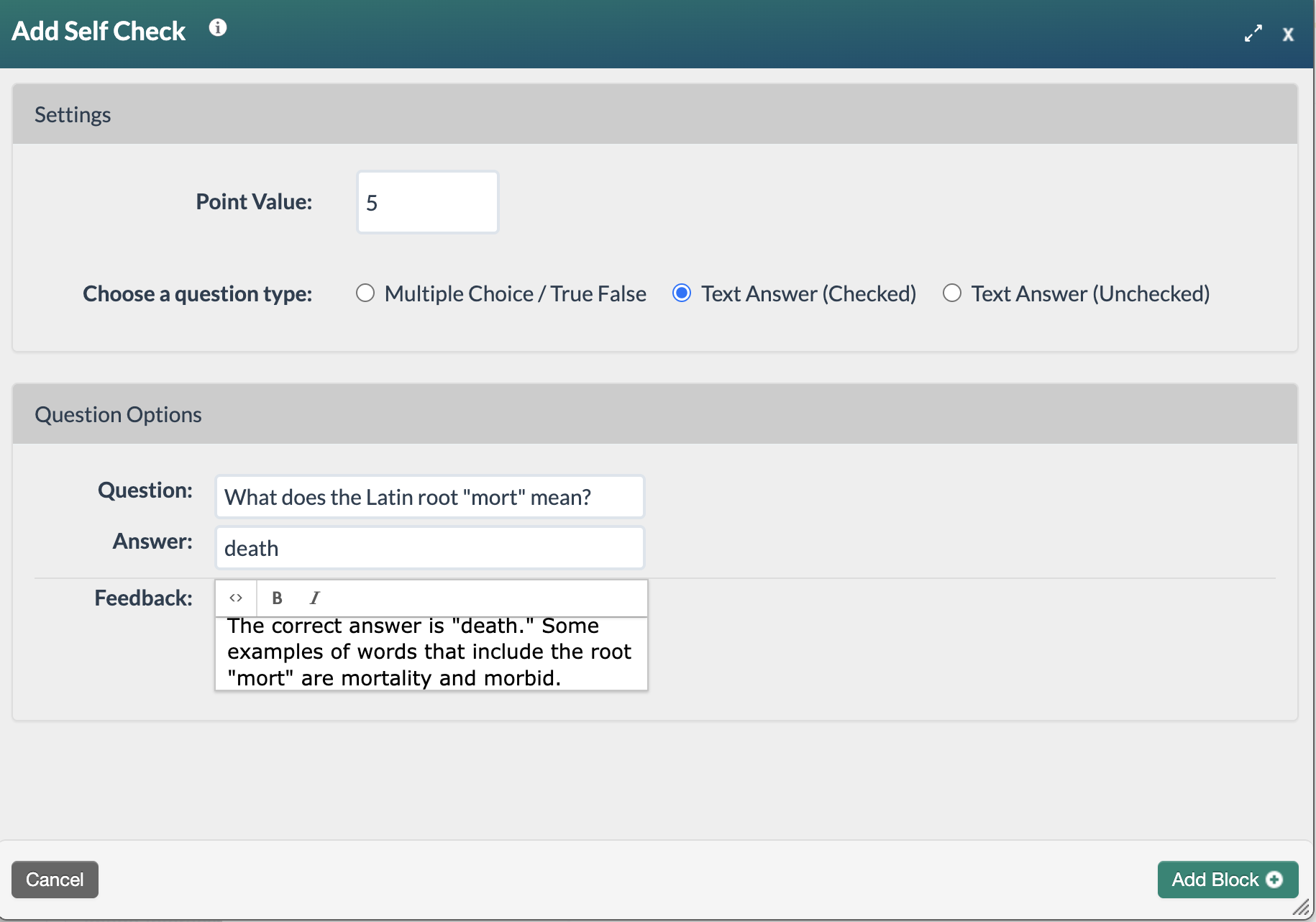
- Select the Add Block+ button to save the block to the page.
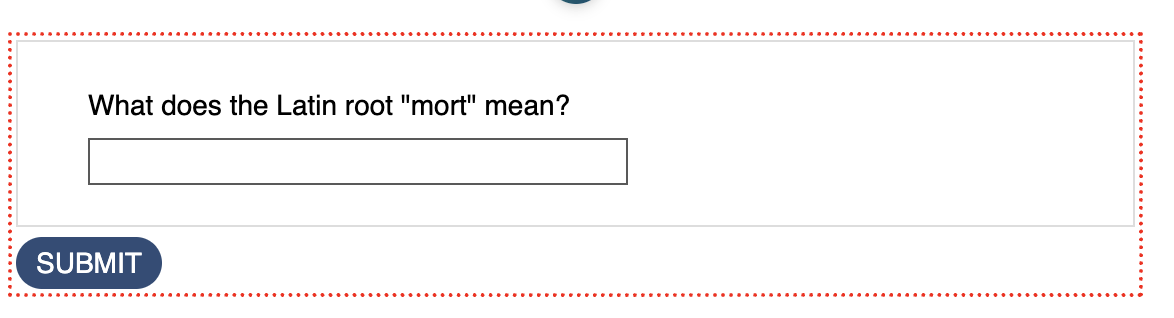
- The new block will appear on the page in Edit Mode with a red, dotted outline indicating it's editable.
- Select the Publish My Edits button to save the block to the course page and see the content as it will appear to learners.
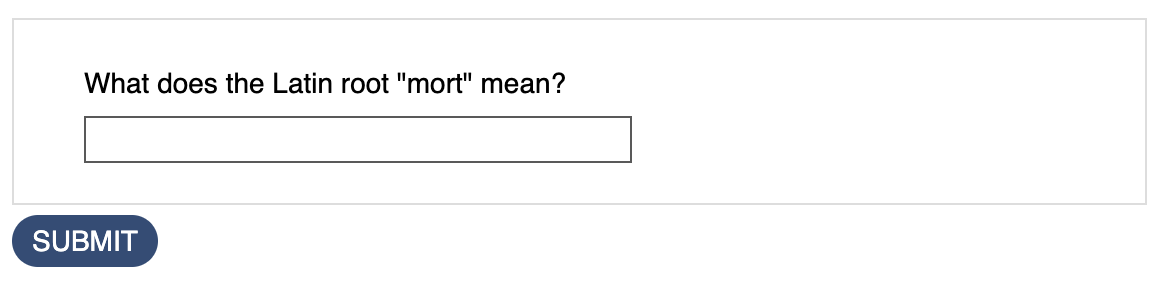
- Learners select the SUBMIT button to check their answer. Results appear immediately after submitting, showing whether the response was correct or incorrect, along with any answer feedback added.
Text Answer (Unchecked)
- Choose the question type Text Answer (Unchecked) and complete the corresponding fields:
- Question: Write the question text.
- Answer: Enter the correct answer.
- Feedback: Add feedback that the learner will see after submitting their answer.
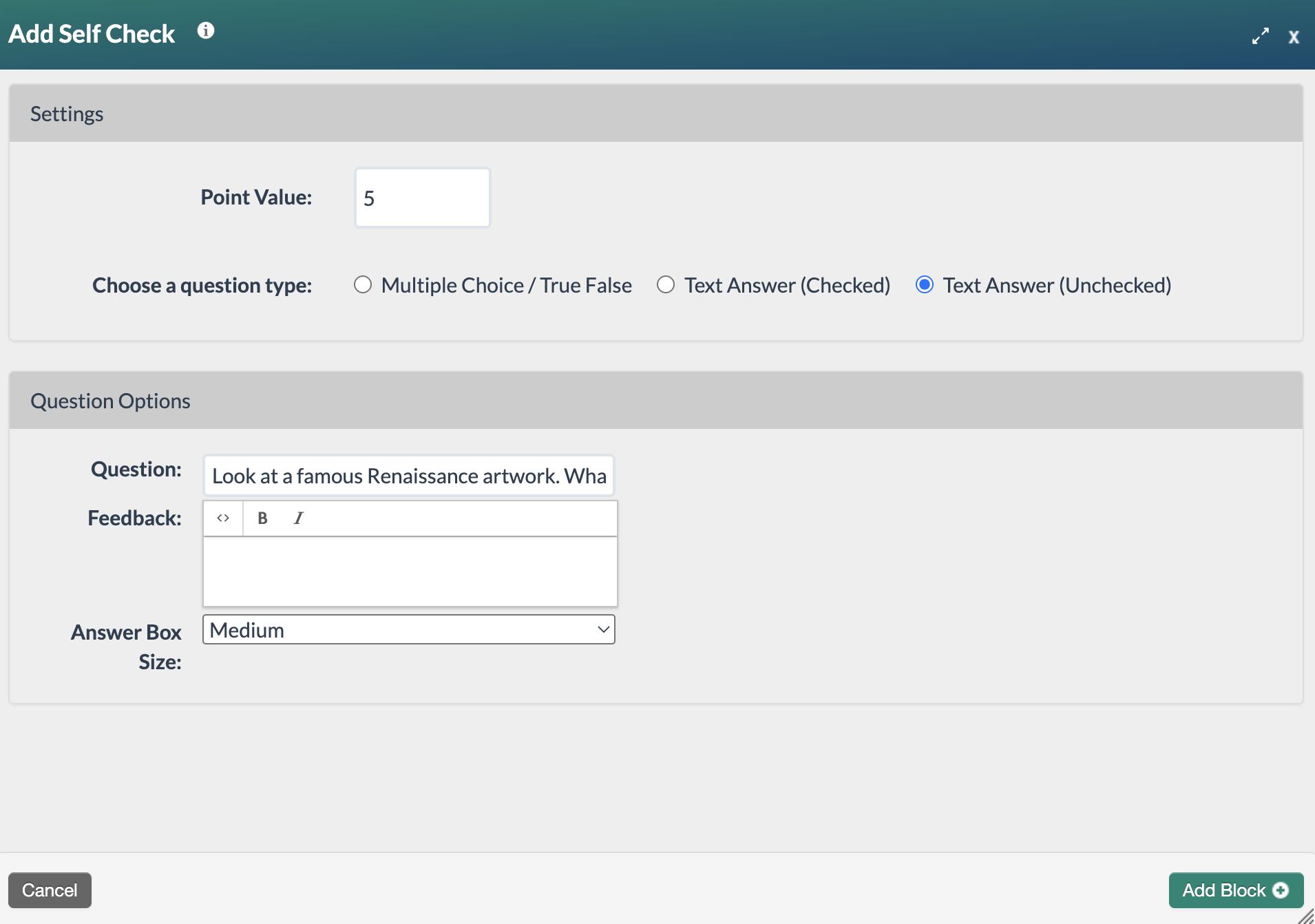
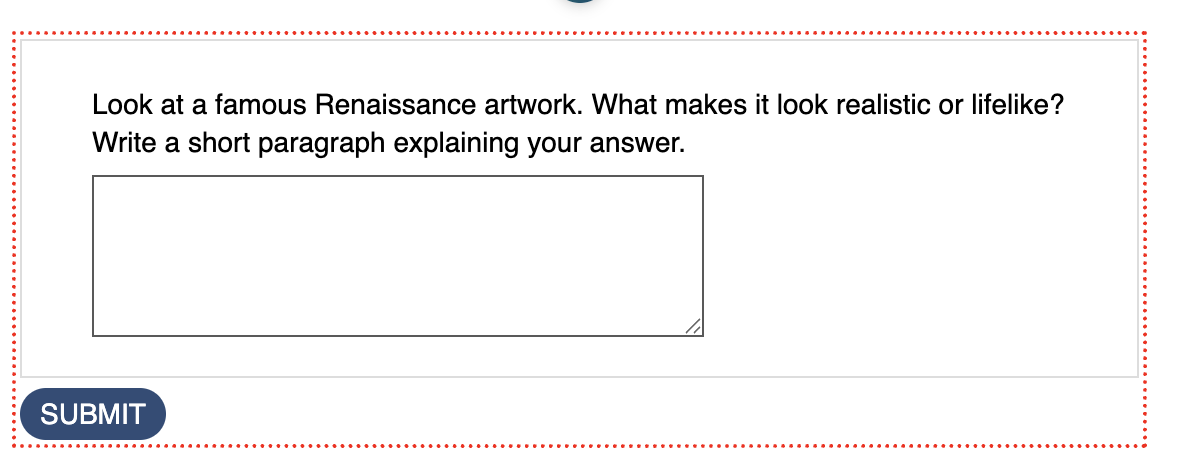
- Select the Add Block+ button to save the block to the page.
- The new block will appear on the page in Edit Mode with a red, dotted outline indicating it's editable.
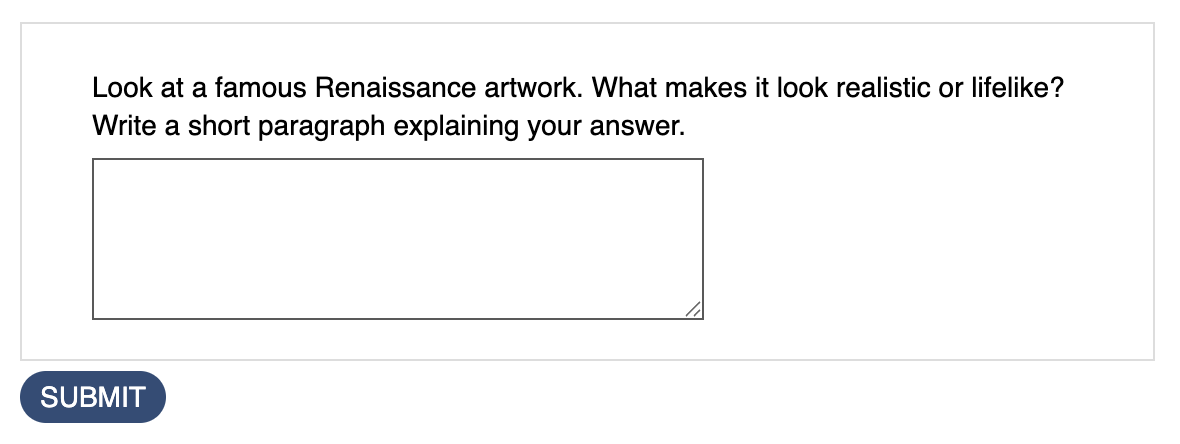
- Select the Publish My Edits button to save the block to the course page and see the content as it will appear to learners.
Was this article helpful?
That’s Great!
Thank you for your feedback
Sorry! We couldn't be helpful
Thank you for your feedback
Feedback sent
We appreciate your effort and will try to fix the article