Only Course Leaders or Editors assigned to a course can edit a page.
- Go to the page that needs to be edited.
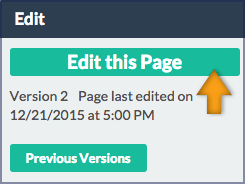
- Select the Edit this Page button.
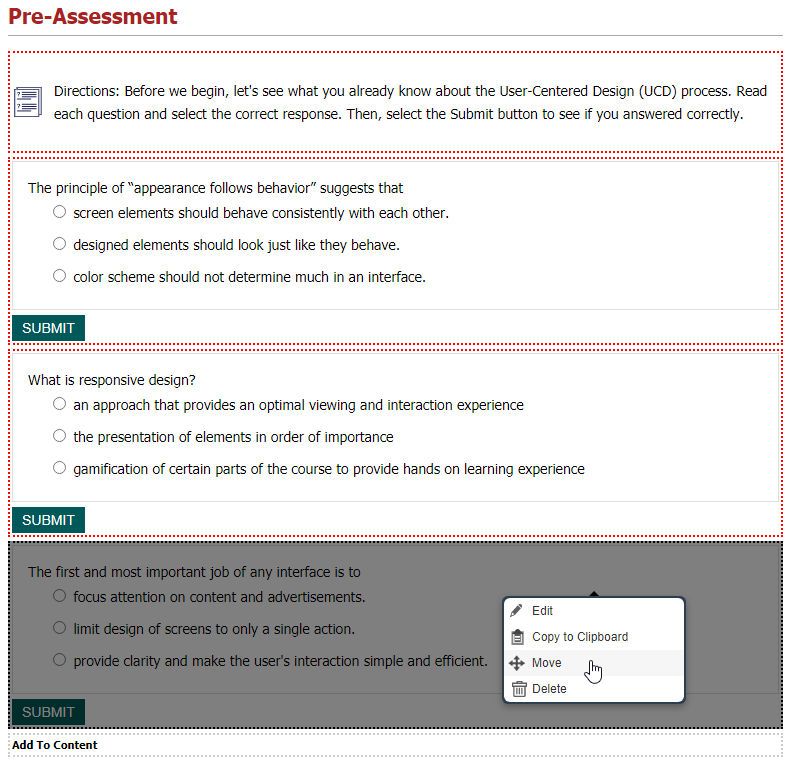
- Select the block to be moved by clicking the block and choosing Move.
- The cursor will change to a four-headed arrow. Click and drag the block to the new location. As it is being moved, the block will be partially transparent and its red-dotted border will turn gray.
Note: Other blocks on the page may temporarily shrink to allow the block being moved to be positioned more easily.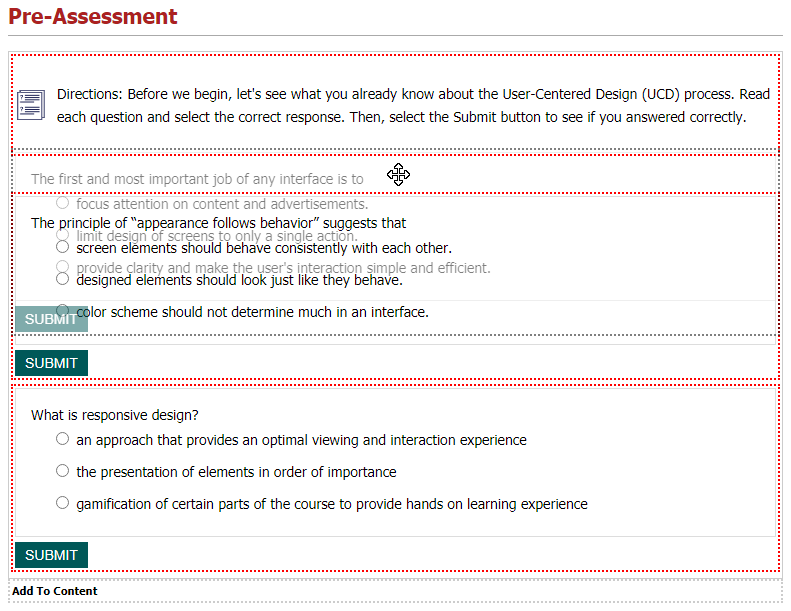
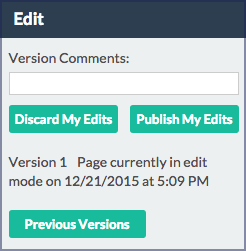
- Select Publish My Edits to save the edited block.
Was this article helpful?
That’s Great!
Thank you for your feedback
Sorry! We couldn't be helpful
Thank you for your feedback
Feedback sent
We appreciate your effort and will try to fix the article