To edit a block, the logged-in user must have permissions to edit the page.
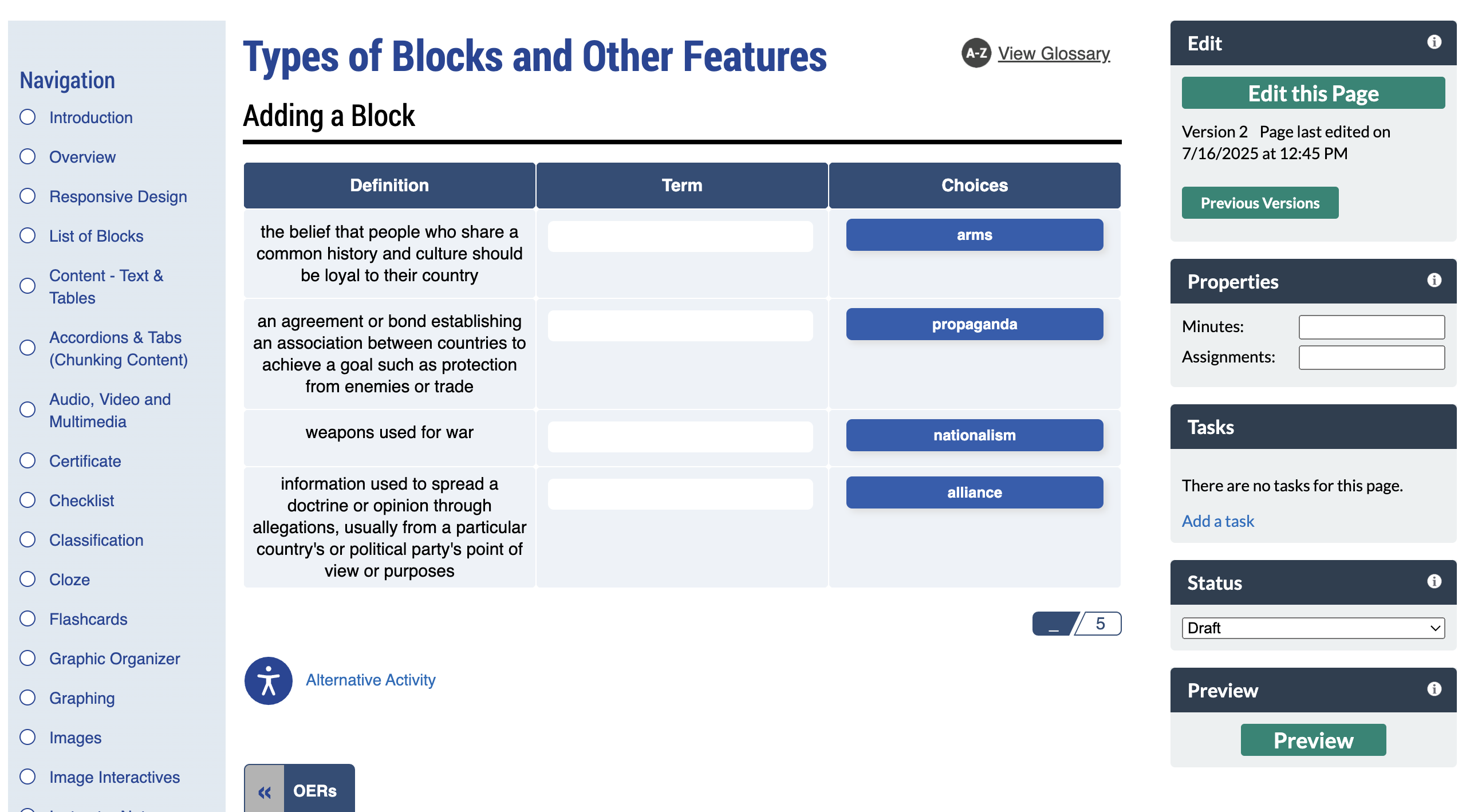
- Navigate to a page with a block that requires editing and select Edit this Page.
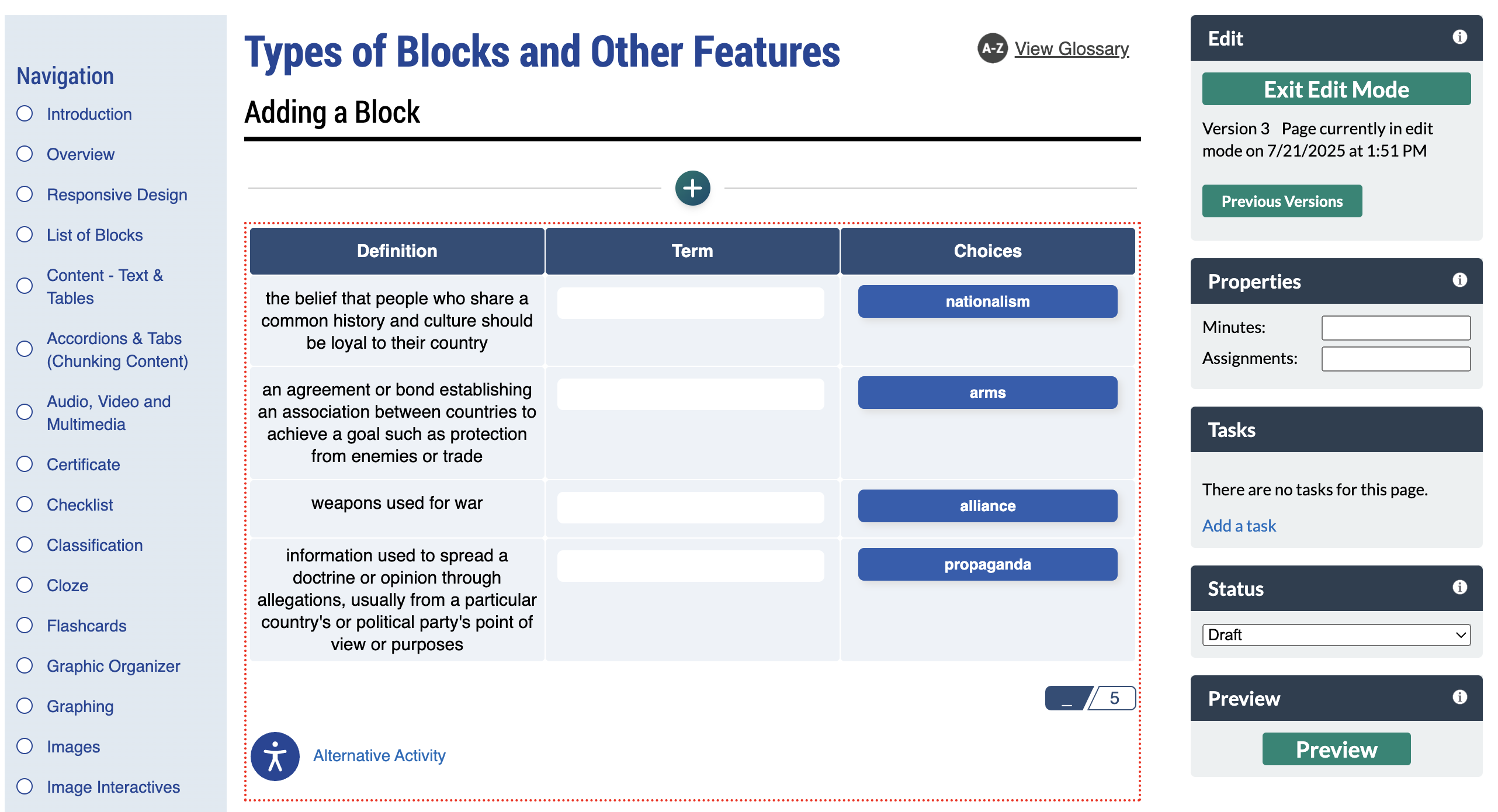
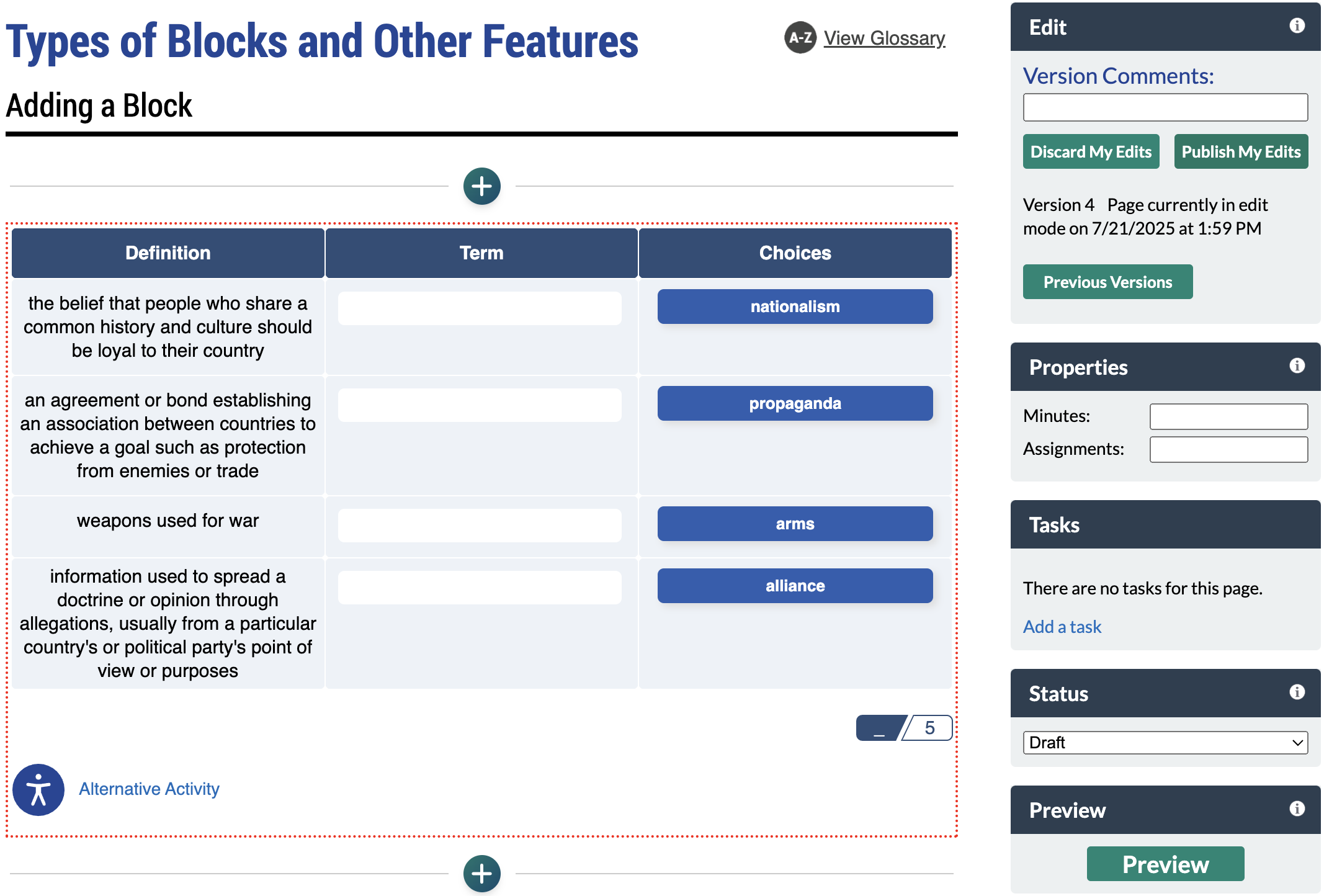
- The block appears on the page in Edit Mode with a red, dotted outline, indicating it's editable.
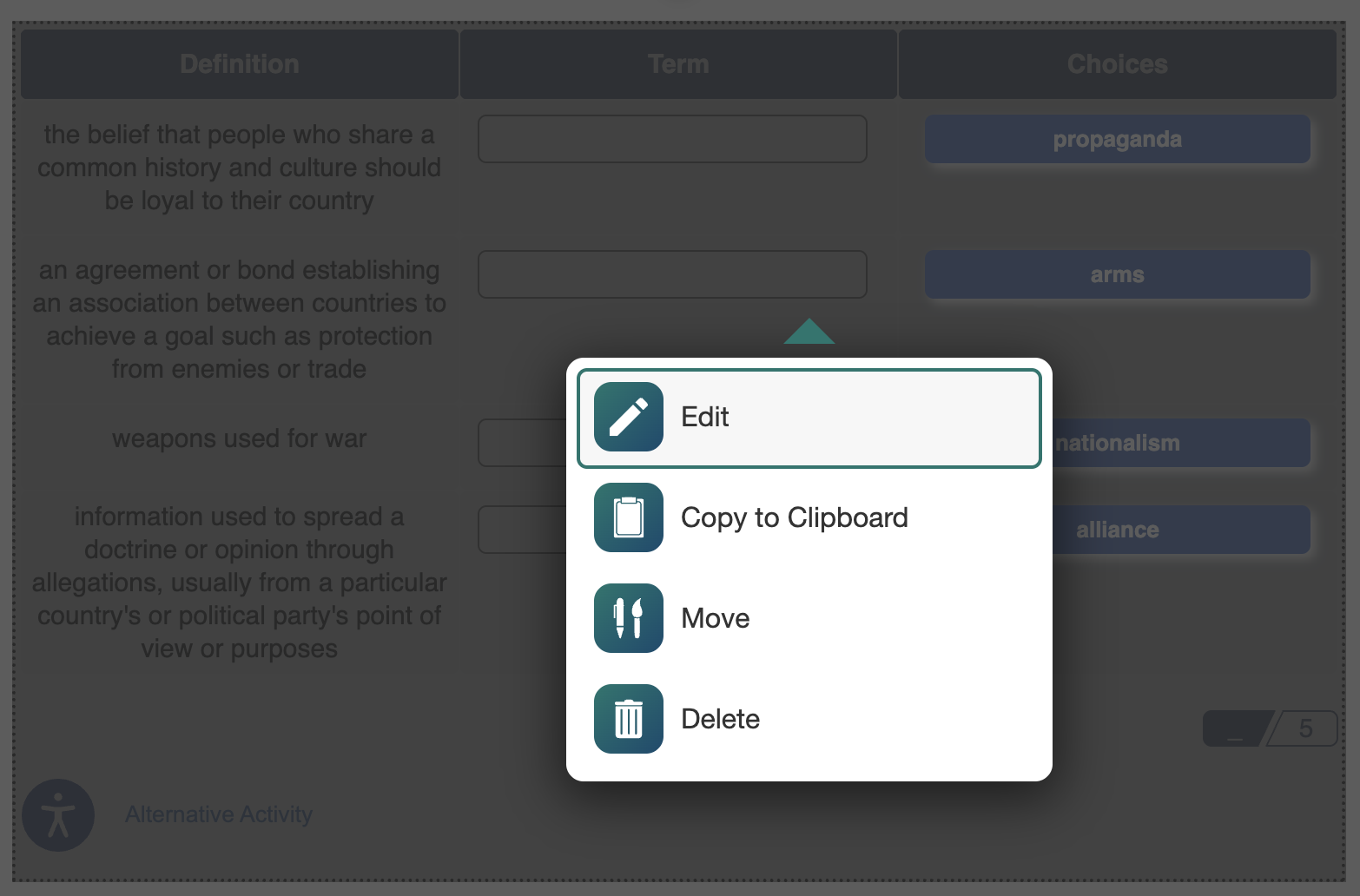
- To select a block for editing, hover the cursor over the block. When the block turns gray, click the block, and select Edit.
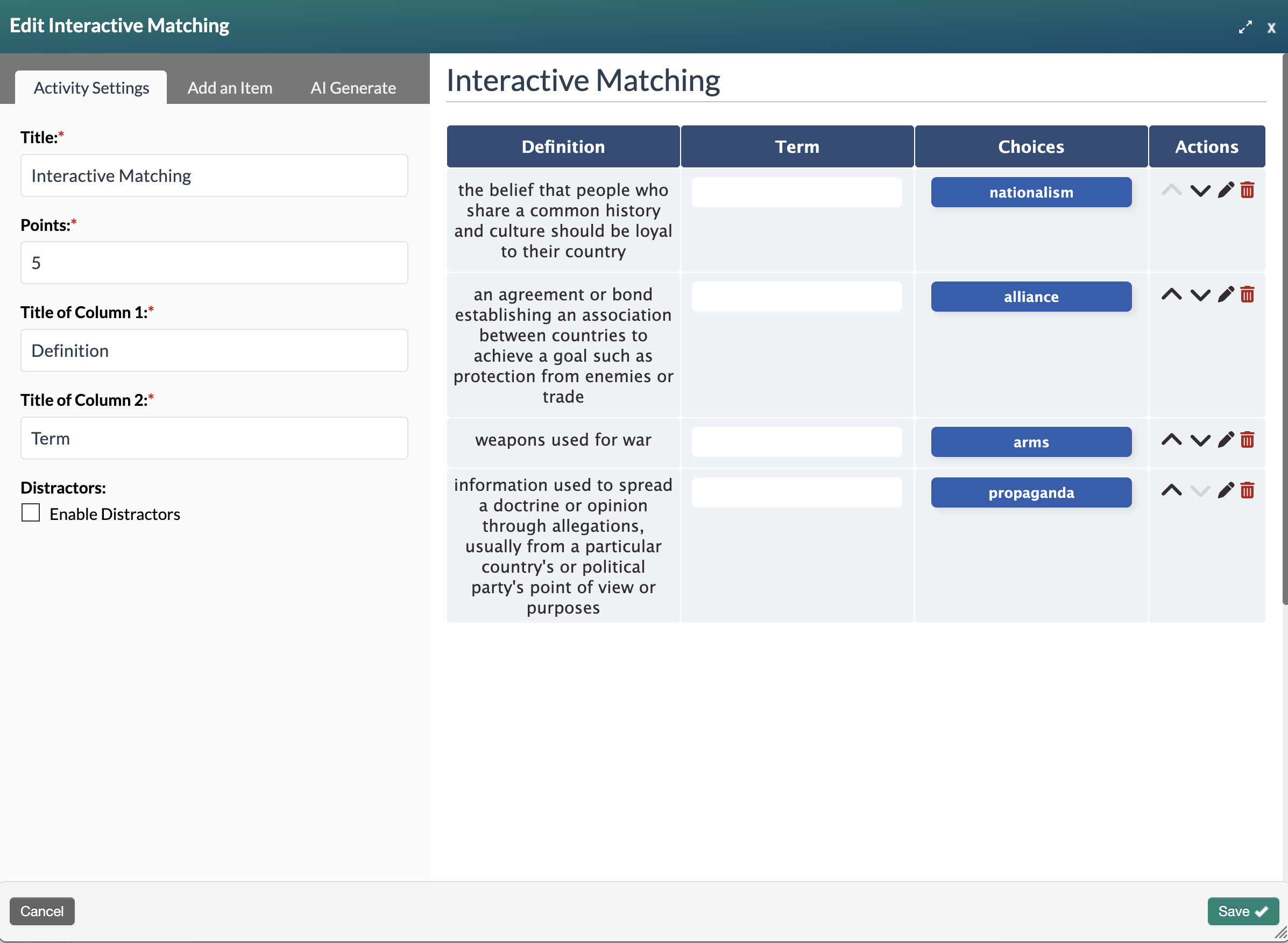
- The Edit Block form will appear. Edit the block and click the Save✔ button.
- Select Publish My Edits to save the edited block to the page.
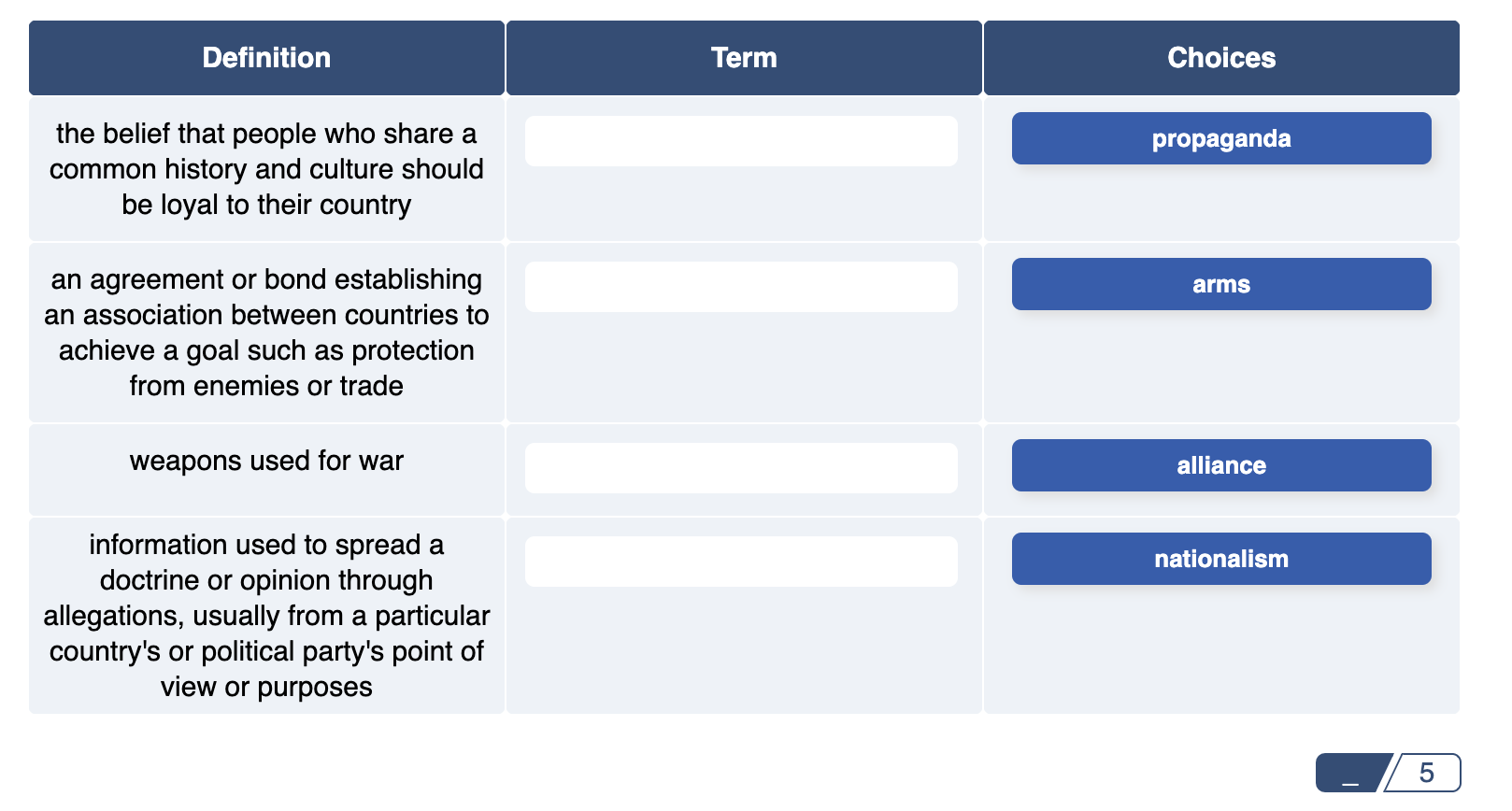
- The published view will display the block with the changes made.
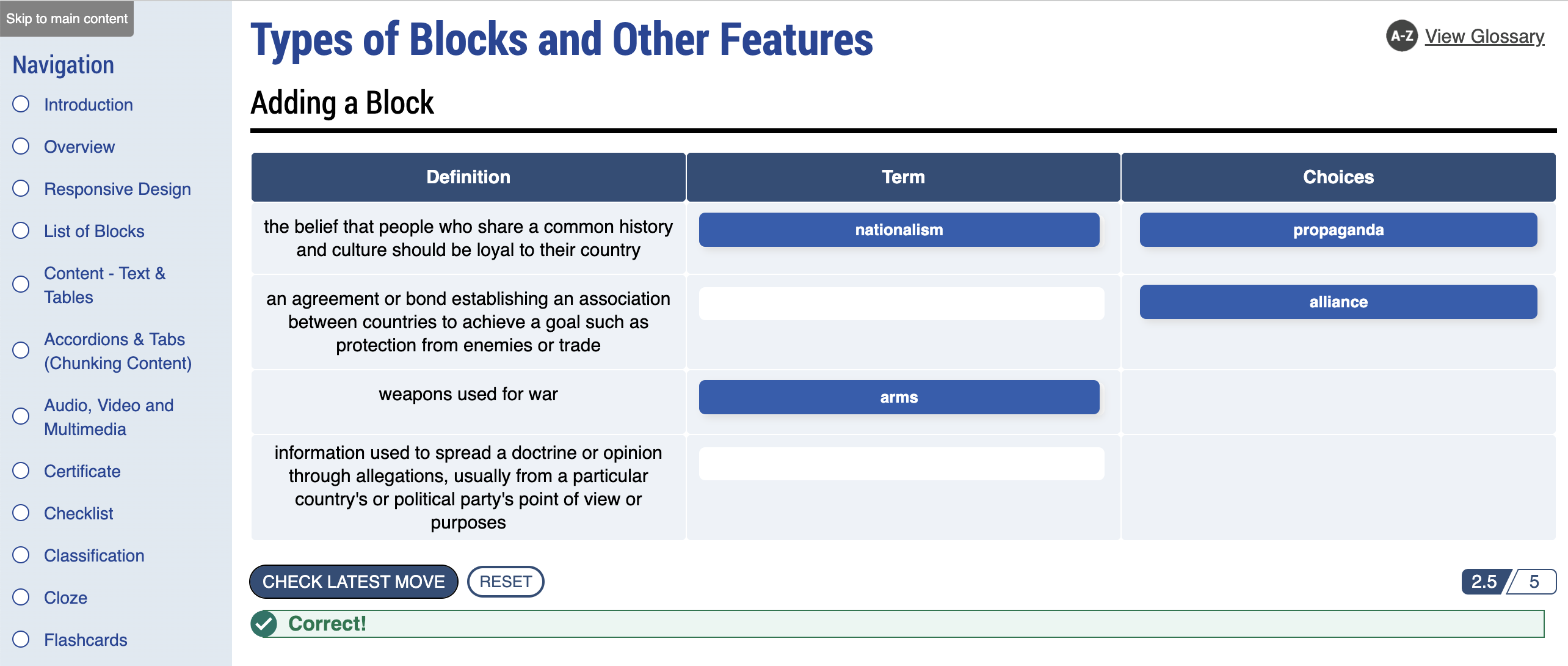
- Click Preview to view the content as it will appear to learners.
Was this article helpful?
That’s Great!
Thank you for your feedback
Sorry! We couldn't be helpful
Thank you for your feedback
Feedback sent
We appreciate your effort and will try to fix the article