Image alignment controls how an image is positioned on the page and how text wraps around it. It also helps define the visual reading order for screen readers.
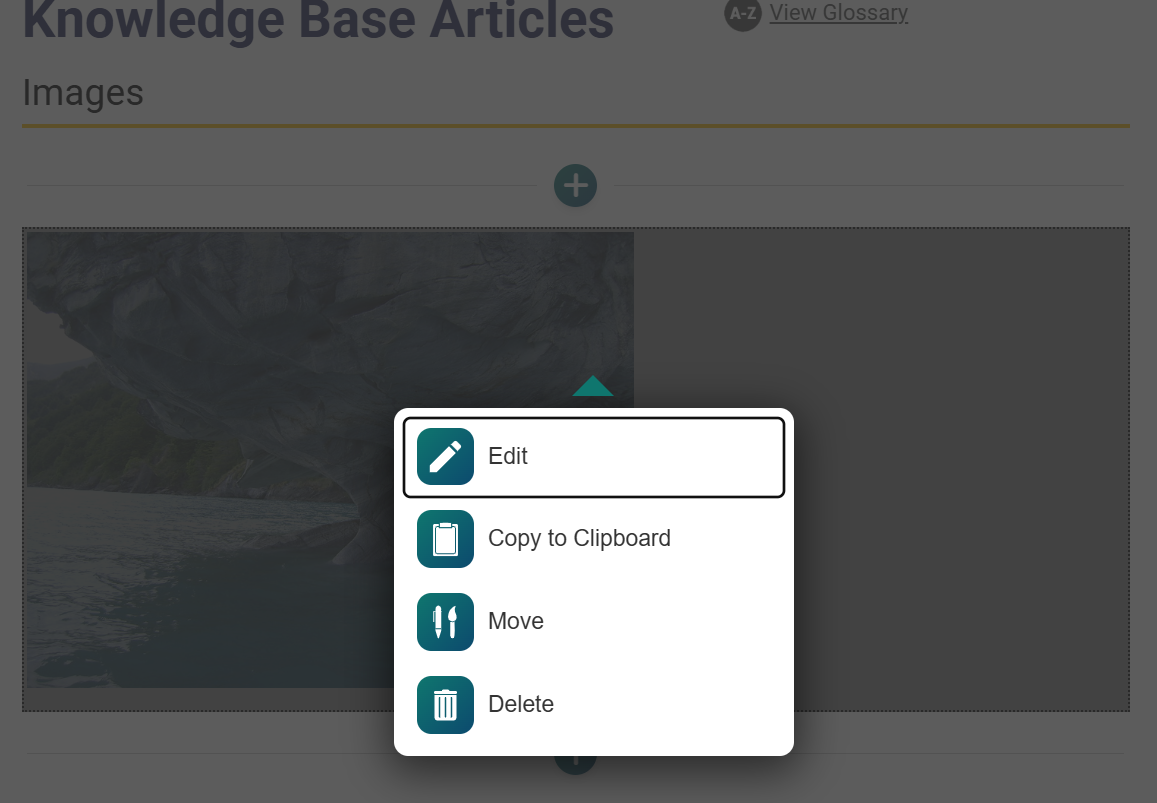
- To align an image, select the Image block while in Edit mode, then select Edit.
- From the Edit Image view, change the Image Alignment dropdown to one of the following options and then select the Save✔ button.
- None: The image appears left-aligned, and no content wraps around it.
- Left: The image appears on the left side of the page. Content blocks below it (such as text) will wrap to the right of the image.
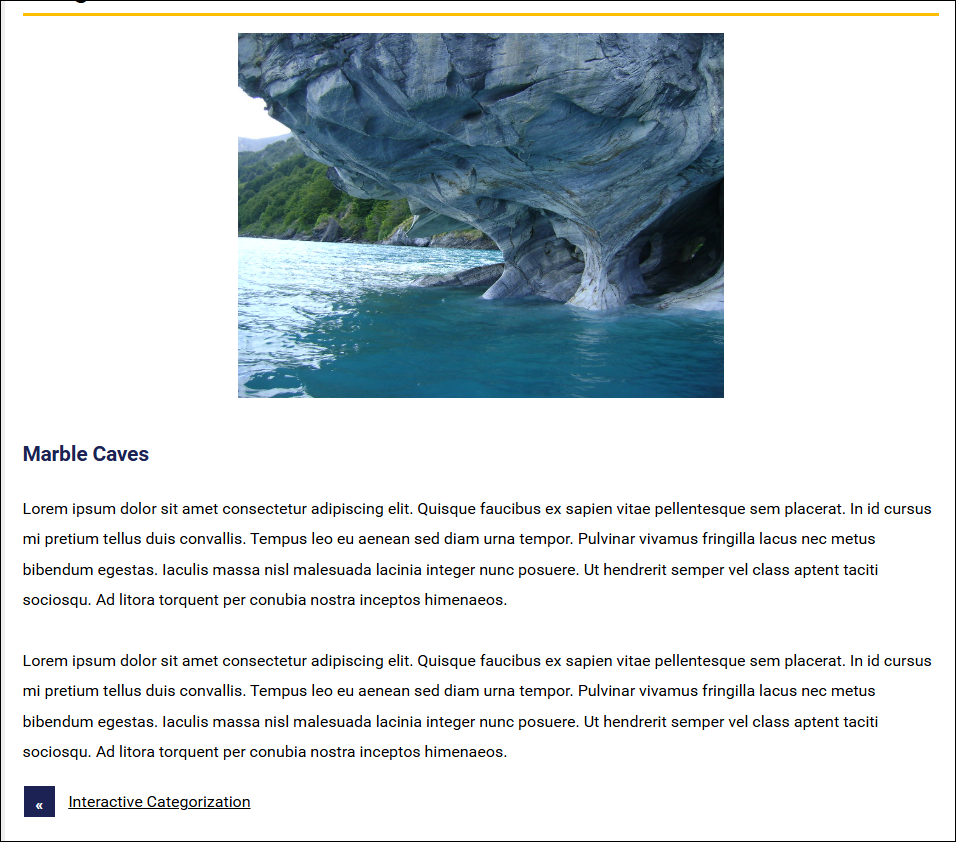
- Center: The image appears centered on the page, and no content wraps around it.
- Right: The image appears on the right side of the page. Content blocks below it (such as text) will wrap to the left of the image.
Note: Check out the How do I use the Section Break block? article to learn how to use CourseArc blocks to add visual breaks to pages without wrapping text.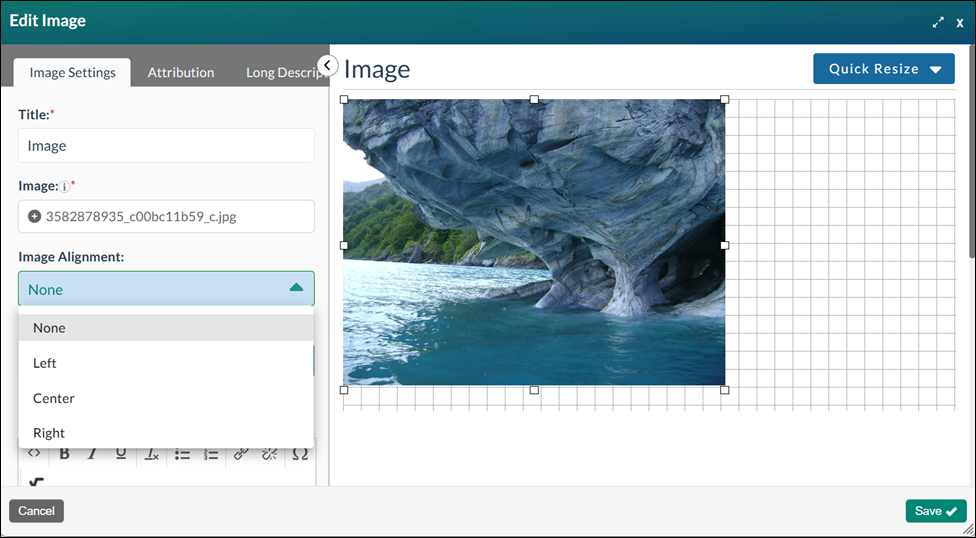
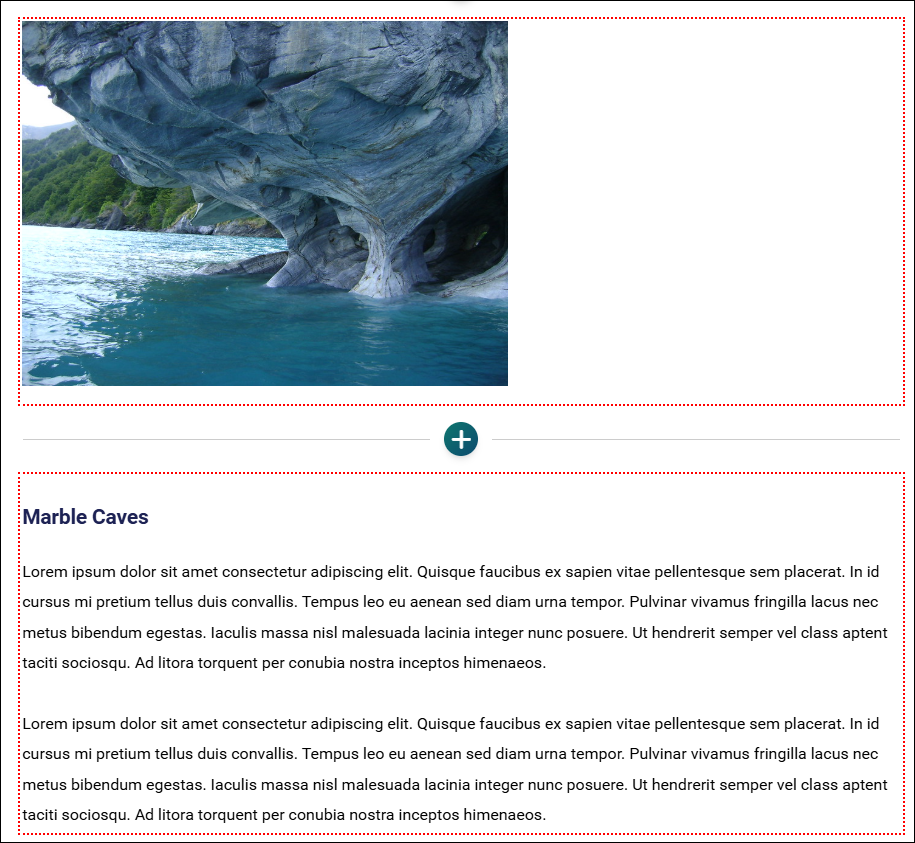
- The image will appear on the page in Edit Mode. The image alignment is only visible in the published or preview modes. A red, dotted line appears around the block to indicate that it's editable.
- Select the Preview button or Publish My Edits button to save the image to the course page and see the image alignment as it will appear to learners.
Image Alignment: Left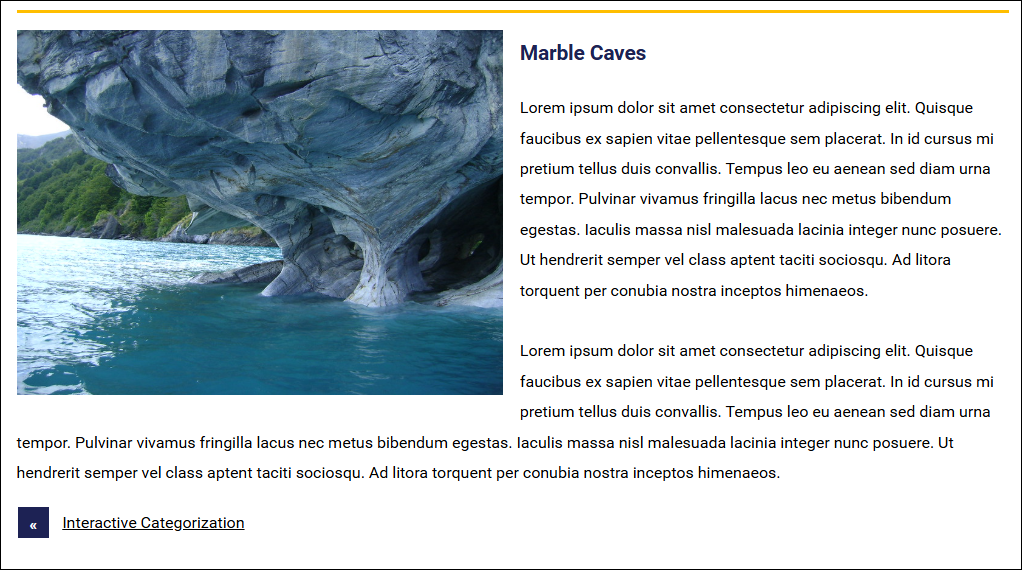
Image Alignment: Right
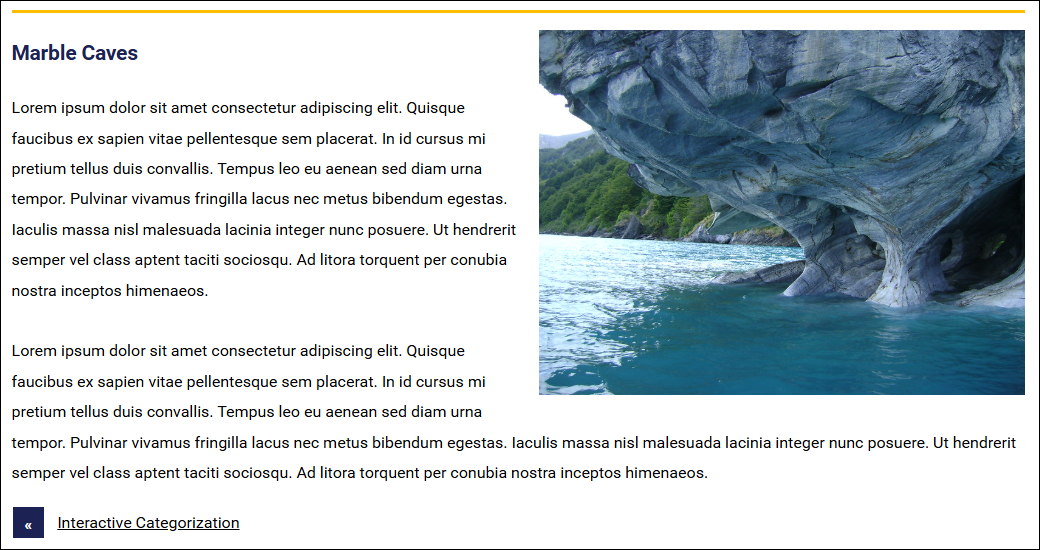
Image Alignment: Center
Section Breaks
- A Section Break block placed between Image and Content blocks prevents text from wrapping around an image regardless of the image's alignment settings. To learn more about using the Section Break block, check out How do I use the Section Break block?
In Edit mode, a red, dotted line appears around blocks. The Section Break block will only appear to the content creator in this mode.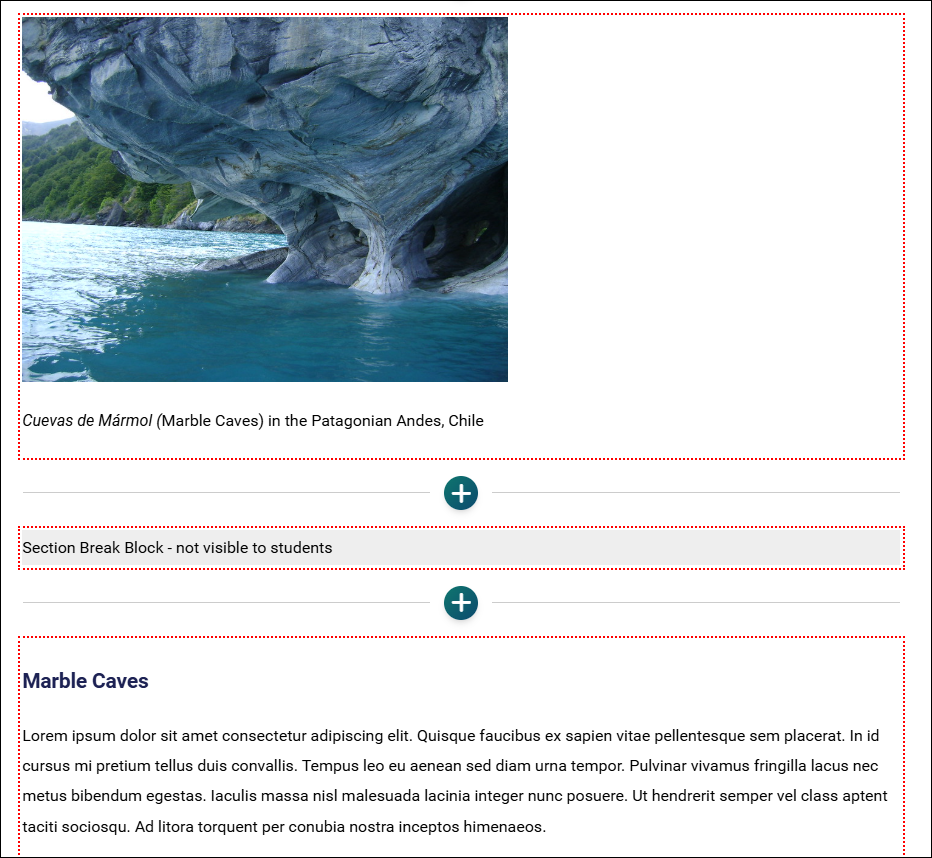
When the page is published, the learner will see that the image has been aligned to the left of the page, but the text will not wrap.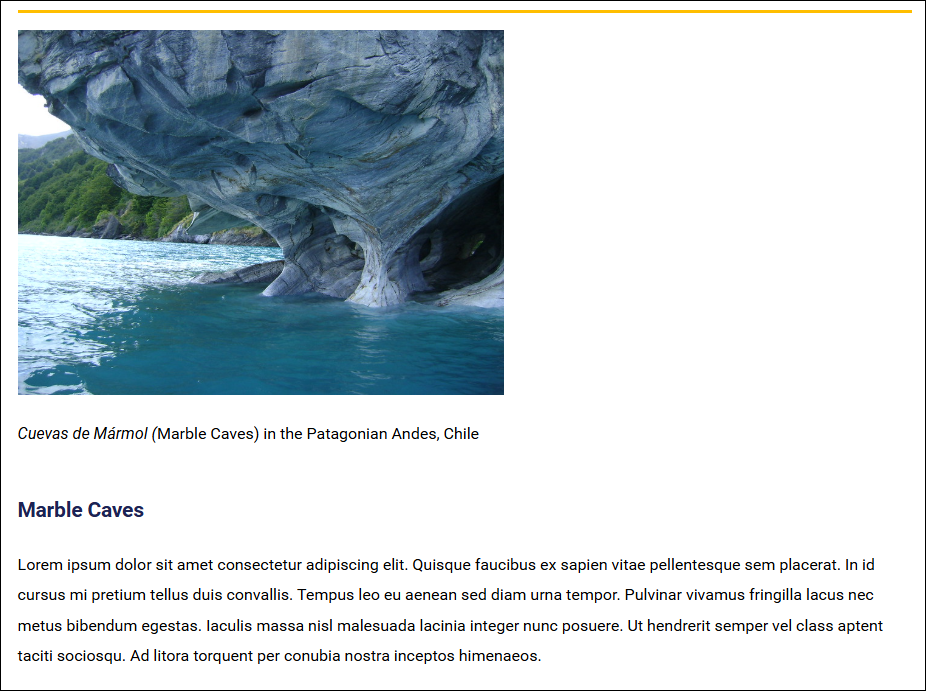
Check out What is the visual reading order? to learn more about aligning images and visual reading order.
Learn more:
How do I add an image?
How do I add an image from Flickr?
How do I give credit for a piece of work using the Citation block?
How do I link to a file?
How do I upload files to the File Manager?
Was this article helpful?
That’s Great!
Thank you for your feedback
Sorry! We couldn't be helpful
Thank you for your feedback
Feedback sent
We appreciate your effort and will try to fix the article