The Content: Text and Tables block is the primary tool for adding and formatting rich text content to your course pages. It uses a powerful WYSIWYG (What You See Is What You Get) editor, so the content you create in the editor closely reflects what learners will see. You can use it to add paragraphs, formatted text, headings, tables, lists, links, and more—no coding required.
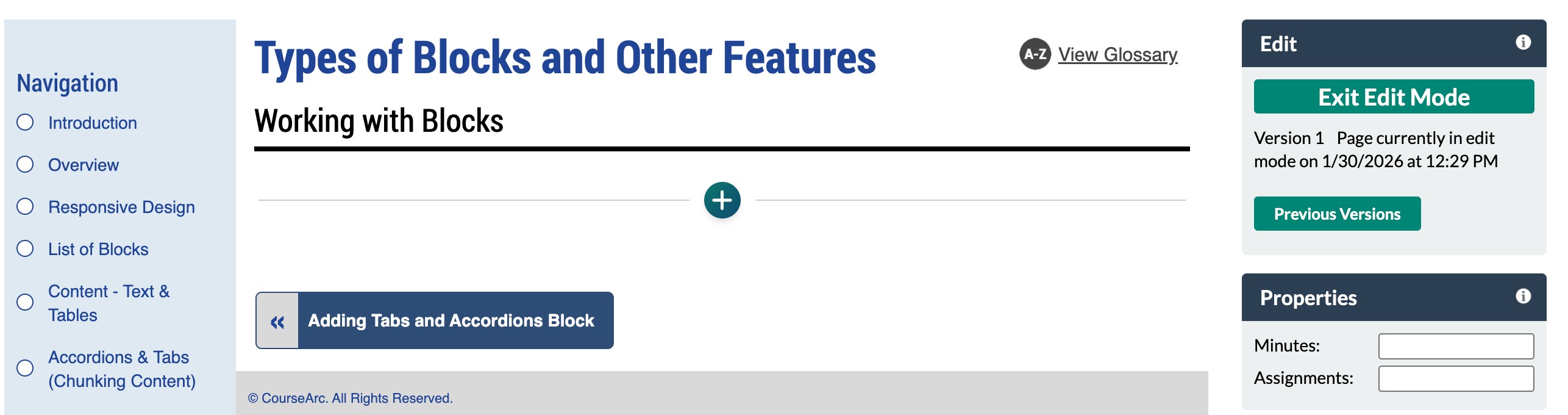
- Navigate to the page and select Edit this Page. Find the position where you want to add a block and select the plus (+) icon.
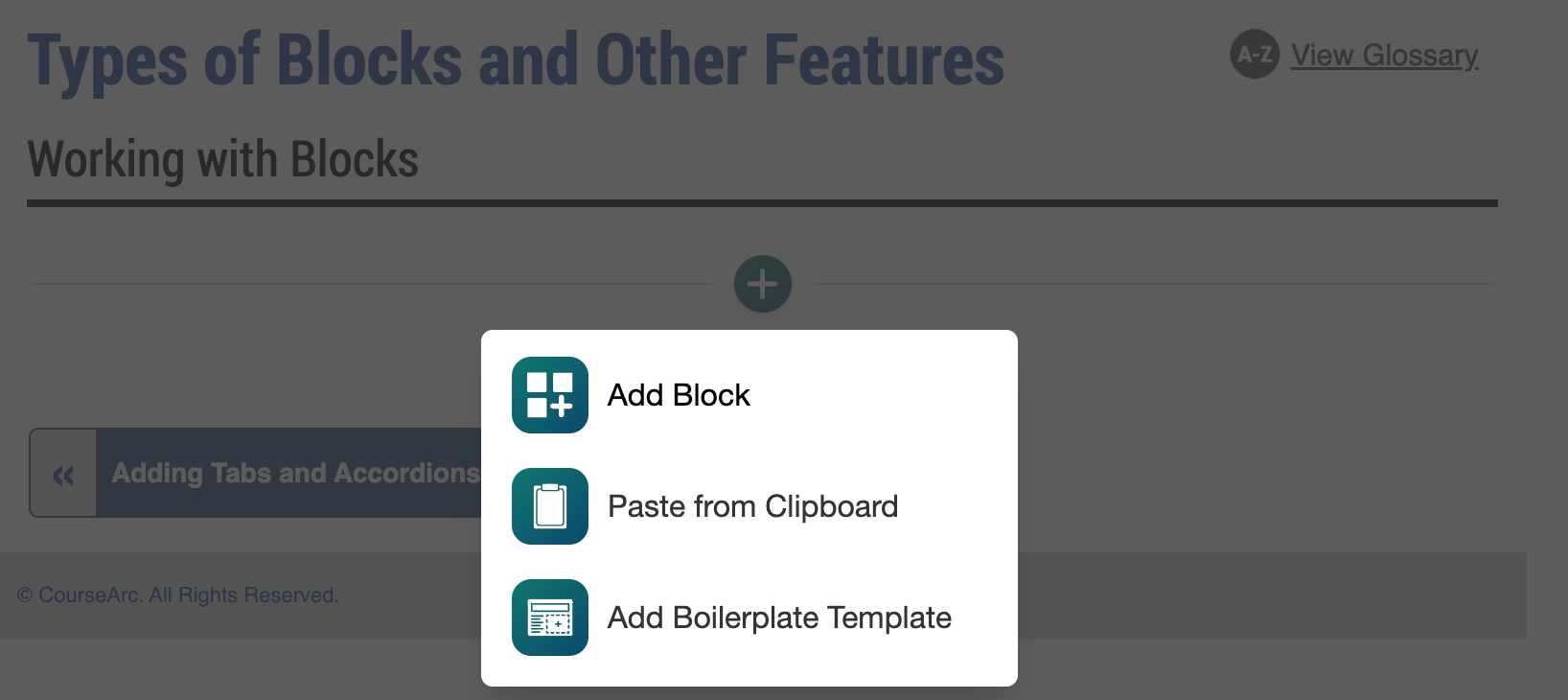
- From the dropdown, select Add Block.
- In the Add Block modal, either:
- Use the Search field to find a block by keyword
- Select a block from your custom list of Favorites
- Scroll through the list of All Blocks to select one
- Use the various Categories to filter by block type
- Select a star icon to add or remove blocks in your Favorites list
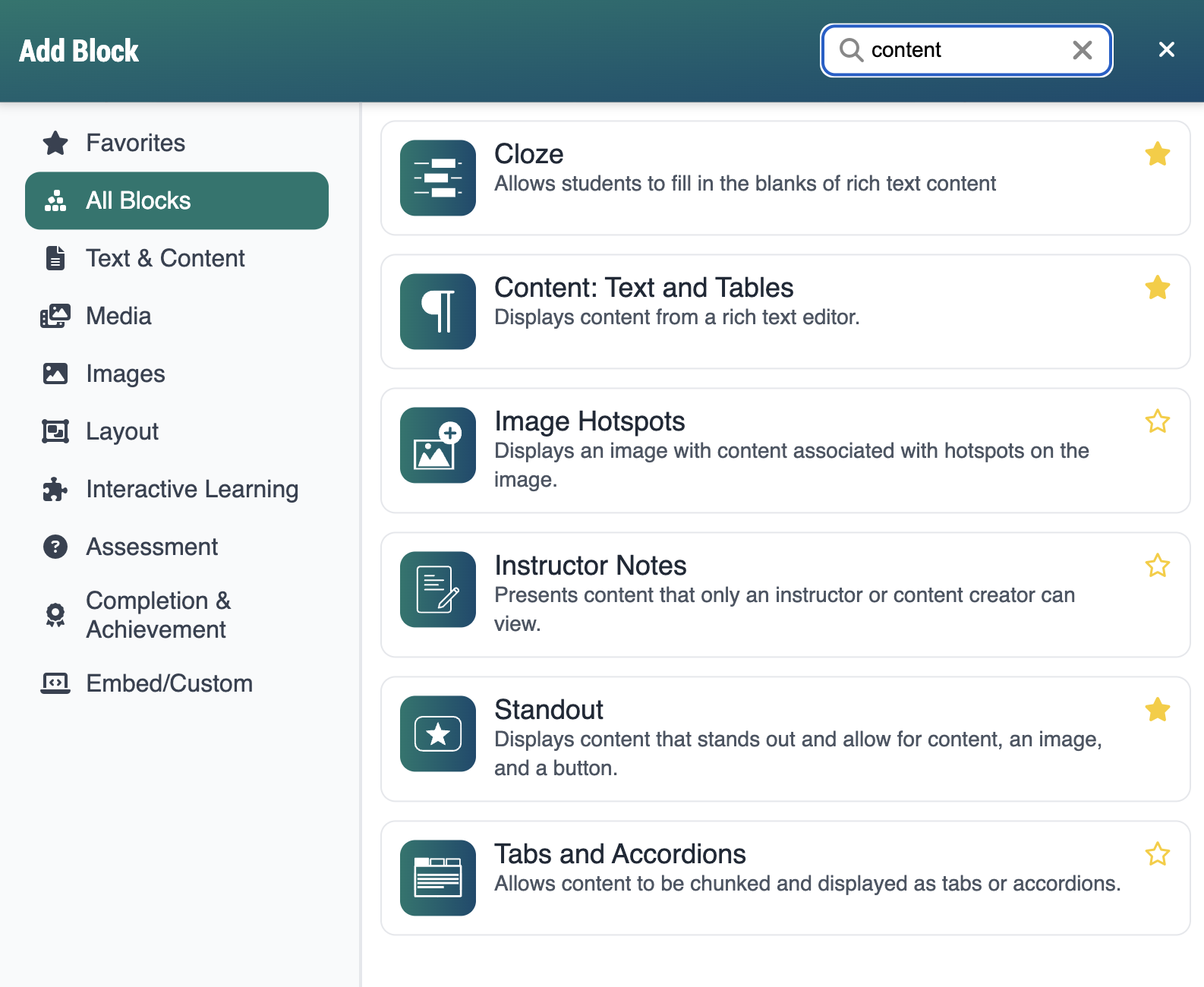
- Select the Content: Text and Tables block. The Content: Text and Tables editor will open.
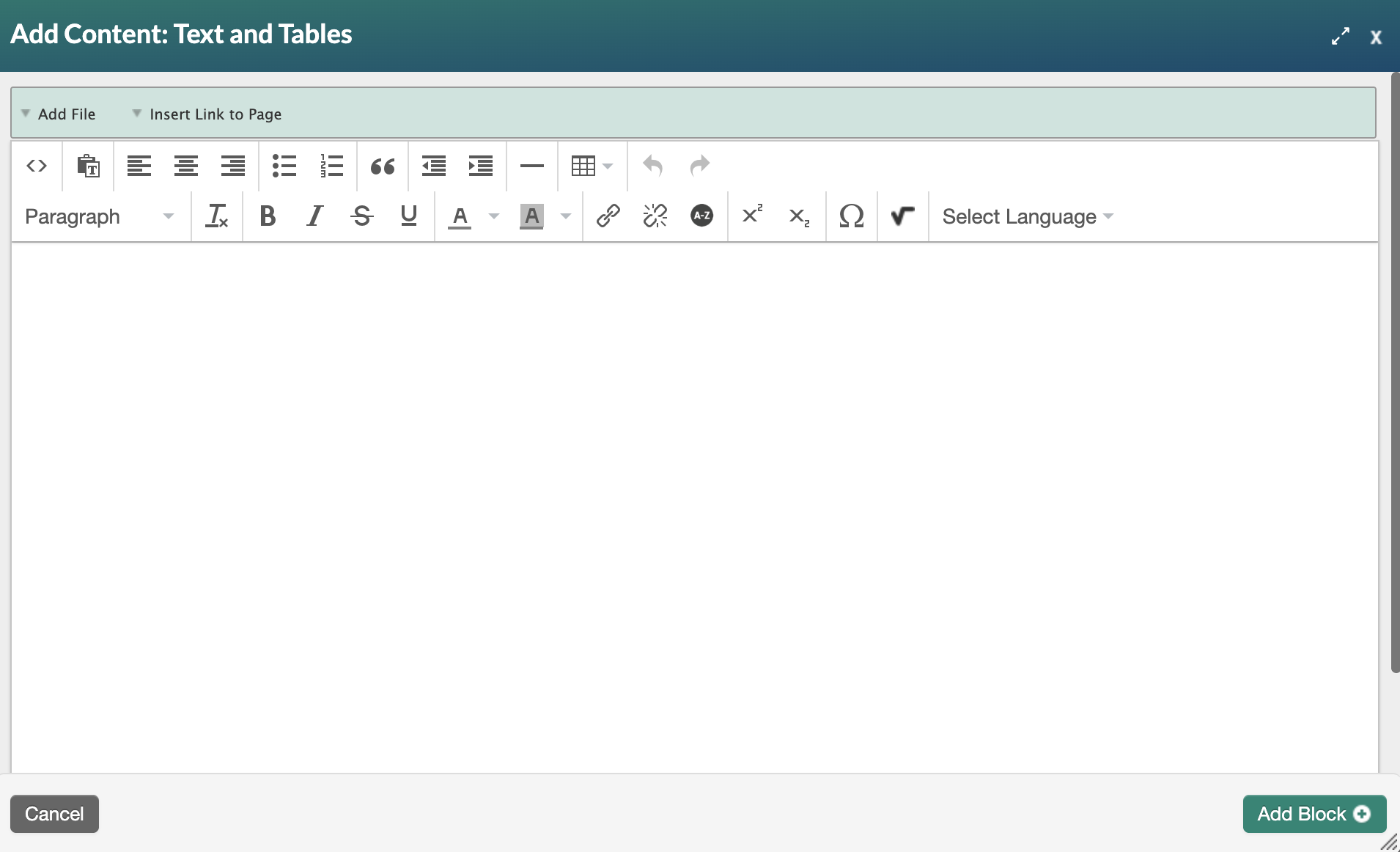
- Enter your text in the space provided. Use the toolbar to format your content—see below for a full description of all available toolbar tools. Select the Add Block+ button to add the block to the page.
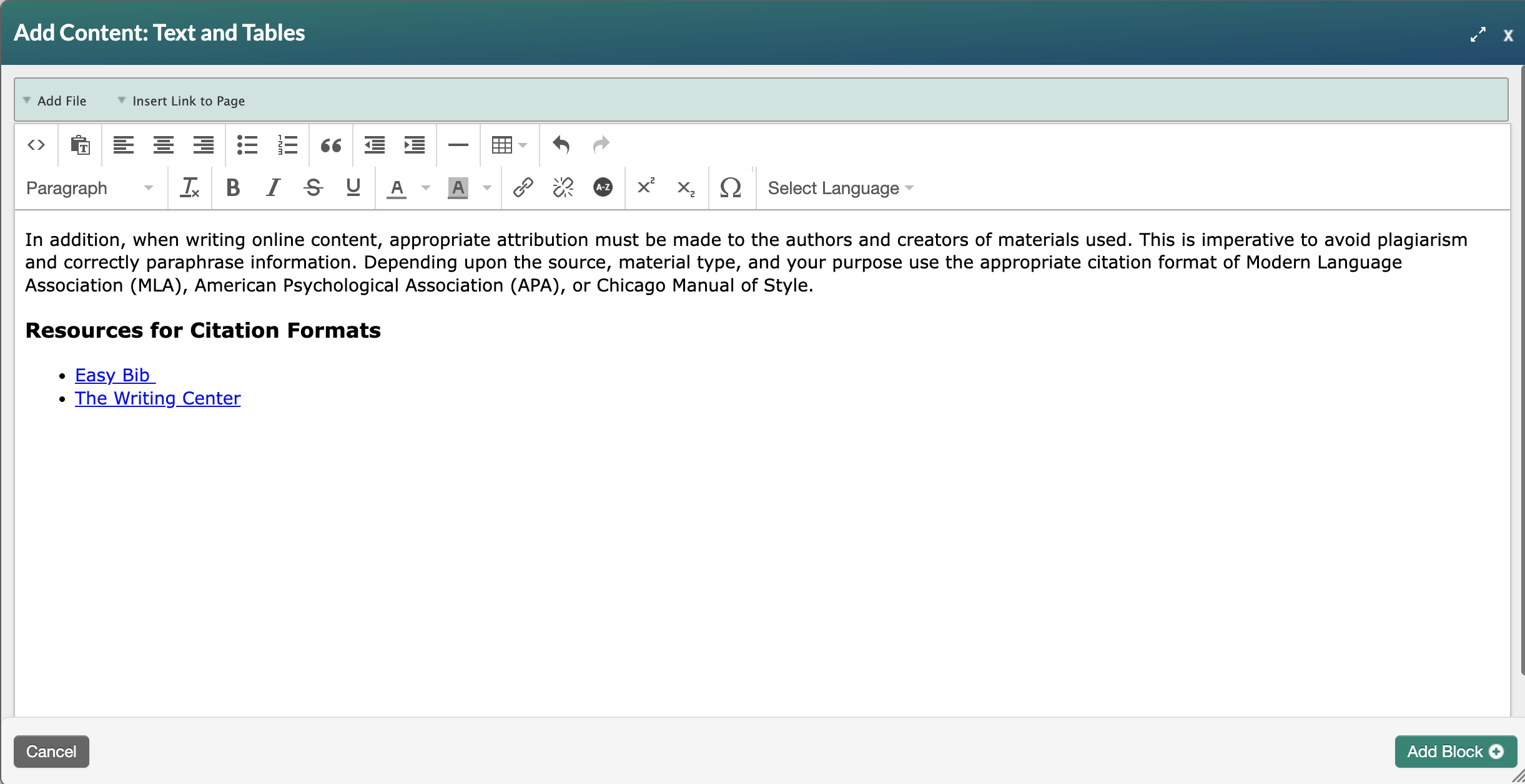
- The new block will appear on the page in Edit Mode with a red, dotted outline indicating it's editable.
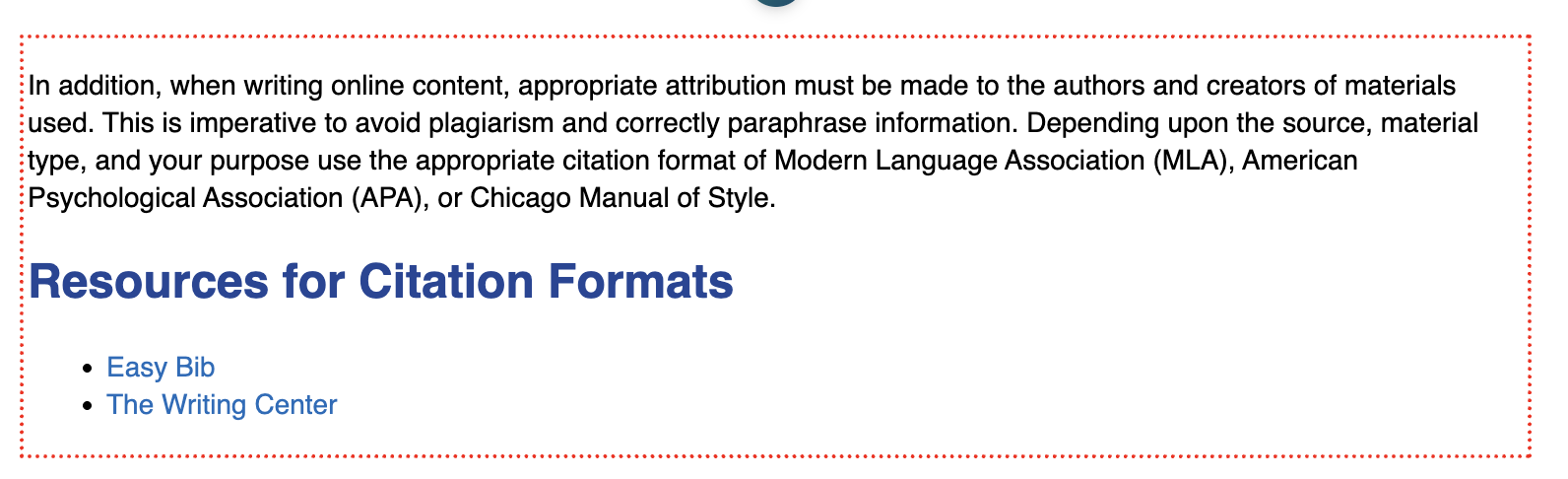
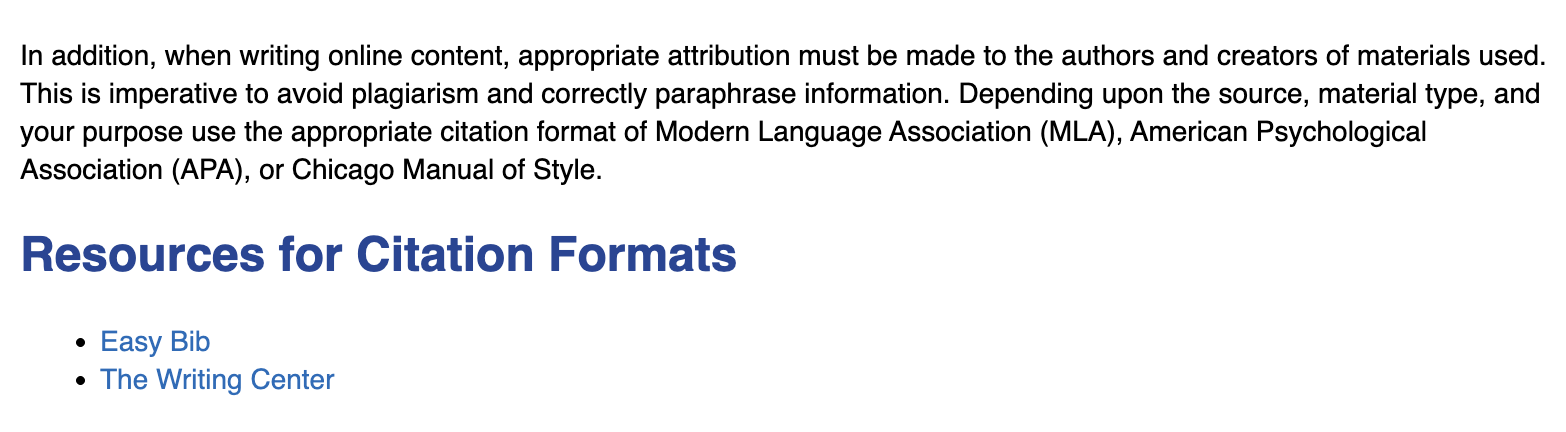
- Select the Publish My Edits button to save the block to the course page and see the content as it will appear to learners.
Text Formatting
These tools control the visual appearance of your text.
- Bold: Emphasizes text by making it heavier weight. Best used sparingly for key terms or important information.
- Italic: Adds subtle emphasis or is conventionally used for titles, technical terms, or foreign phrases.
- Strikethrough: Displays text with a line through it, useful for indicating removed or deprecated content.
- Underline: Underlines selected text. Use sparingly, as underlined text is commonly associated with hyperlinks and may confuse learners.
- Text Color: Changes the foreground color of selected text.
- Background (Highlight): Applies a background color behind selected text.
 Accessibility Note: Be cautious when changing text or background colors. Custom colors can create low-contrast combinations that are difficult or impossible for learners with visual impairments to read. Use resources, like WebAim's Color Contrast Checker, to verify that your color choices meet WCAG contrast standards (a minimum ratio of 4.5:1 for normal text). When in doubt, leave colors at their defaults.
Styles
The Styles dropdown lets you apply semantic structure to your content using heading levels and paragraph text.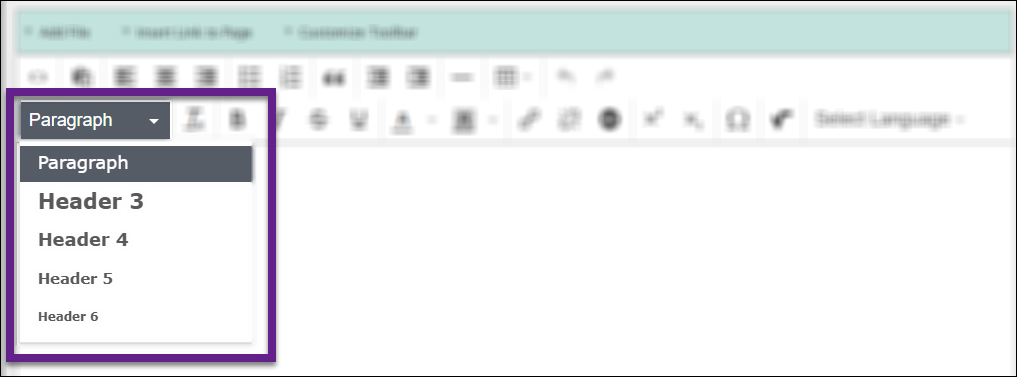
- Paragraph: The default style for body text.
- Heading 3 (H3) through Heading 6 (H6): Structural headings that organize your content into a hierarchy.
 Accessibility Note: Why does it start at H3? Every course page already has a page title (H1) and section title (H2) built in. Starting your in-block headings at H3 maintains proper heading hierarchy, which is essential for screen readers and assistive technology to navigate the page correctly. Using heading styles, rather than just making text bold or large, ensures your content is accessible and well-structured.
Layout and Lists
These tools help you organize and arrange content visually.
- Alignment: Controls how text is positioned horizontally: Left, Center, or Right.
- Bullets (Unordered List): Creates a bulleted list for items without a specific order.
- Numbering (Ordered List): Creates a numbered list for sequential steps or ranked items.
- Blockquote: Formats selected text as a quotation, visually setting it apart from surrounding content. Typically rendered with an indent or distinct styling. Use for direct quotes or content you want to highlight as a callout.
- Indentation: Increases or decreases the indent level of a paragraph or list item. Useful for creating nested lists.
- Section Break: Inserts a horizontal dividing line to visually separate sections of content.
Links
These tools manage hyperlinks and connections to other content.
- Add a File: Links to a file (such as a PDF or document) that learners can download.
- Insert Link to Page: Inserts a link to another page within the same course.
- Add Hyperlink: Links selected text to an external URL or web address.
- Remove Hyperlink: Strips the link from selected linked text while keeping the text itself.
- Link to a Glossary Item: Links selected text to a glossary term, allowing learners to click for a definition. (Appears only when the Glossary feature is enabled in your course.) To learn more about equations, refer to: How do I link to a glossary term in the Content block?
Utilities
These tools help you clean up, undo mistakes, and manage formatting.
- Paste Clean Text: Pastes copied content with all external formatting stripped out (e.g., from Word or a website). Recommended when pasting from external sources to avoid introducing unwanted styles.
- Clear Formatting: Removes all inline formatting (bold, color, etc.) from selected text, resetting it to the default paragraph style.
- Undo: Reverses your last action.
- Redo: Re-applies an action that was undone.
Special
These tools handle advanced or less common content needs.
- HTML: Opens the block's HTML source. For advanced users who need to fine-tune markup directly. Use with care, as invalid HTML can affect the display of your content.
- Superscript: Raises text above the baseline (e.g., footnote references like 1 or exponents like x²).
- Subscript: Lowers text below the baseline (e.g., chemical formulas like H₂O).
- Special Characters: Opens a picker to insert symbols and characters not available on a standard keyboard (e.g., ©, ™, em dashes, accented letters).
- Equation Editor: Lets you insert formatted mathematical equations using a visual editor. (Appears only when enabled for your installation.) To learn more about equations, refer to: How do I use the equation editor feature?
Table
The Table tool allows you to insert a structured grid of rows and columns to organize and present data clearly. Tables work best for displaying comparative information, schedules, reference data, or any content where relationships between rows and columns add meaning.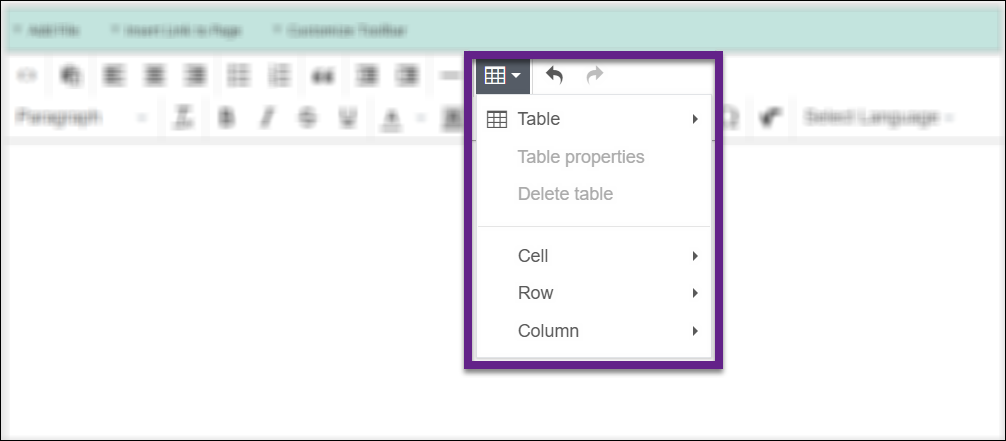
To learn more about inserting a table, refer to: How do I add a table with headers in a Content: Text and Tables block?
 Accessibility Note: Tables should only be used for data, not for controlling the visual layout of your page. Using tables for layout creates significant accessibility problems; screen readers announce the table structure to learners, which becomes confusing when a table contains layout content rather than data. If you need to arrange content side by side, use the layout tools built into the page structure instead.
Language
The language selector allows you to set the language for the content in the block. This is used by browsers and assistive technologies to apply correct spell-checking, text-to-speech pronunciation, and hyphenation rules. Set this when your content is in a language other than the course default. By default, languages supported for tagging include Czech, French, German, Dutch, Italian, Japanese, Polish, Portuguese, Latin, and Spanish. Other foreign language options may be configured to replace one or more of the default options.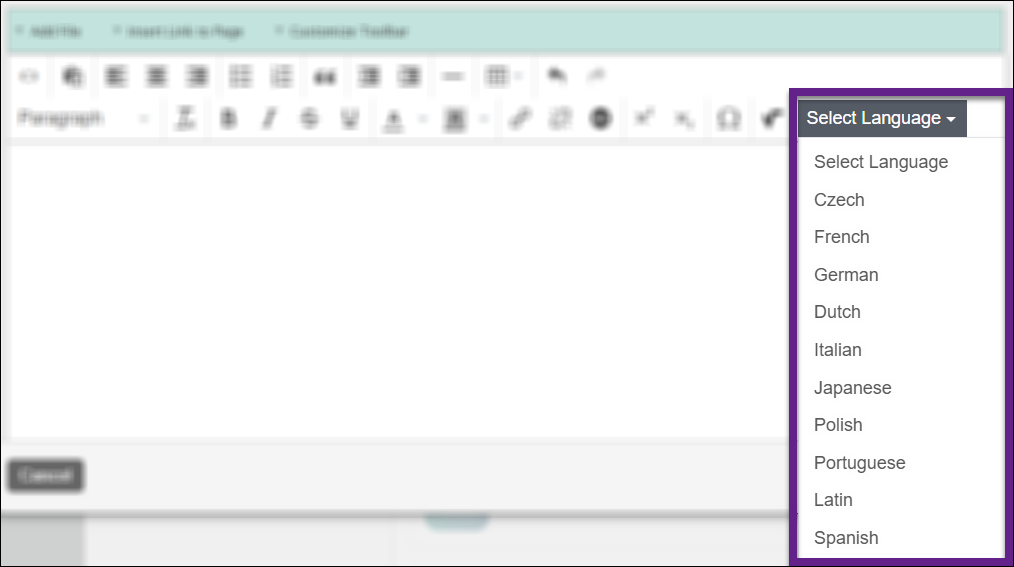
Was this article helpful?
That’s Great!
Thank you for your feedback
Sorry! We couldn't be helpful
Thank you for your feedback
Feedback sent
We appreciate your effort and will try to fix the article