The Icon and Link to Popup Text block allows content creators to pair an icon with a clickable link that, when selected, opens a modal overlay displaying additional text content. Icons are processed faster than plain text, helping learners quickly identify important or recurring concepts. This block is ideal for providing supplemental information, definitions, or expanded details without navigating away from the page—keeping learners focused while making extra content available on demand. Icon titles and link text are read by screen readers, supporting accessibility for keyboard and assistive technology users.
- Navigate to the page and select Edit this Page. Find the position you want to add a block and select the plus (+) icon.
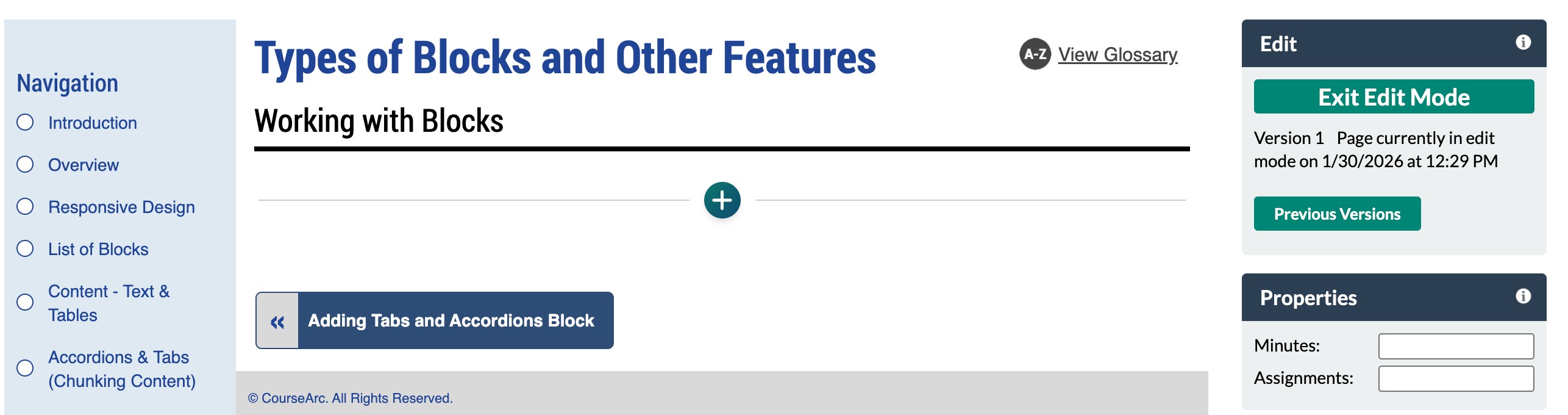
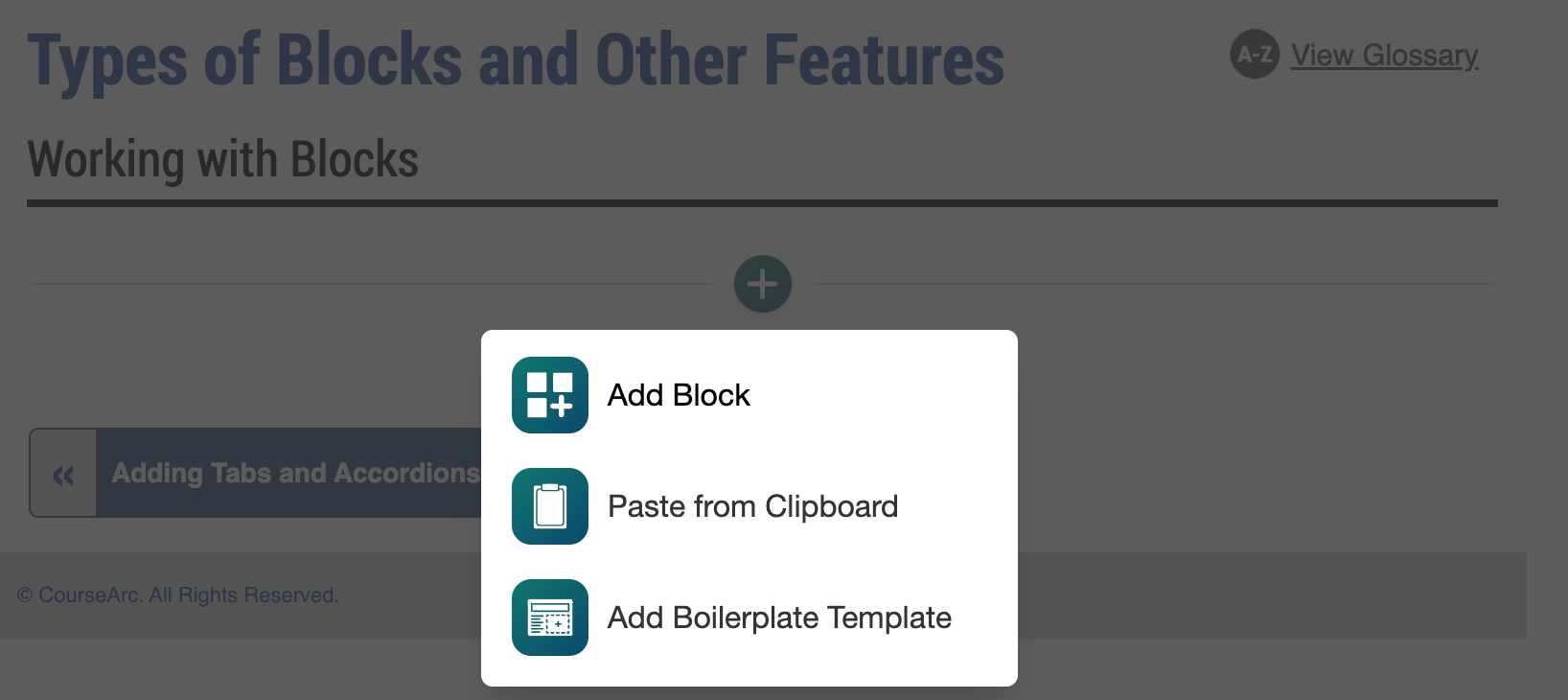
- From the dropdown, select Add Block.
- In the Add Block modal, either:
- Use the Search field to find a block by keyword
- Select a block from your custom list of Favorites
- Scroll through the list of All Blocks to select one
- Use the various Categories to filter by block type
- Select a star icon to add or remove blocks in your Favorites list
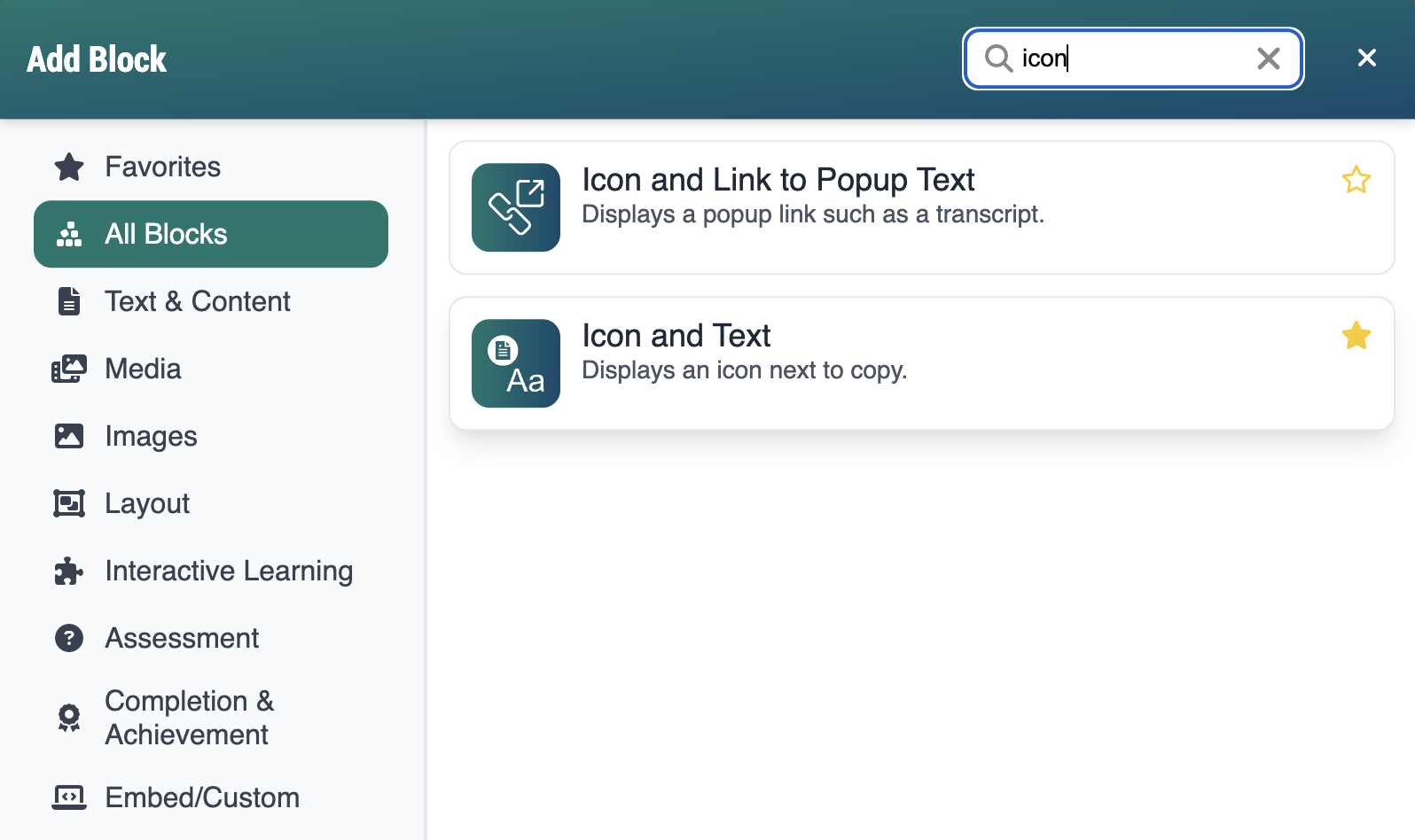
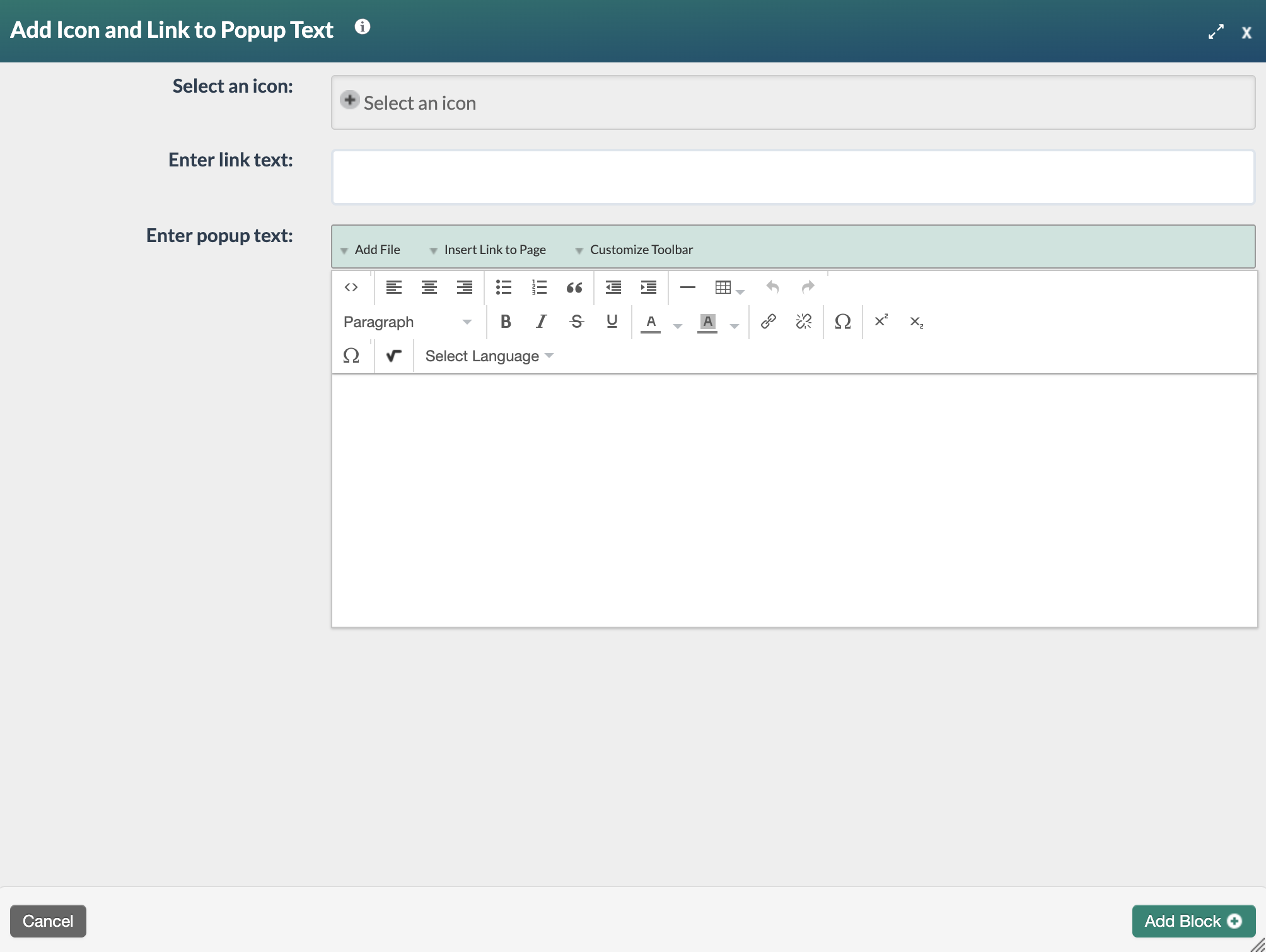
- Select the Icon and Link to Popup Text block. The Add Icon and Link to Popup Text form will open. Select the Select an icon field.
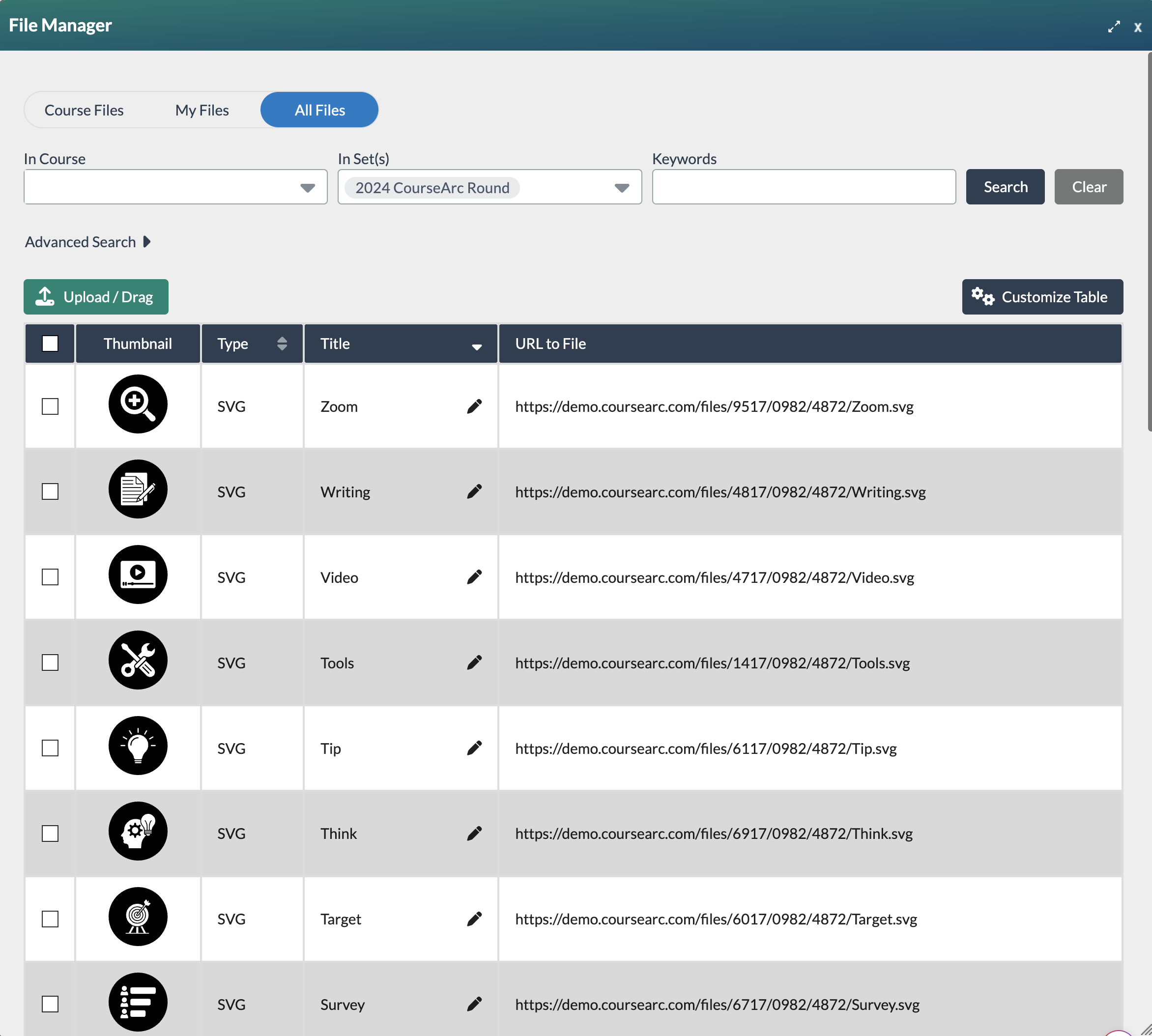
- The File Manager will appear, displaying the icons associated with the course. Select the checkbox for the desired icon.
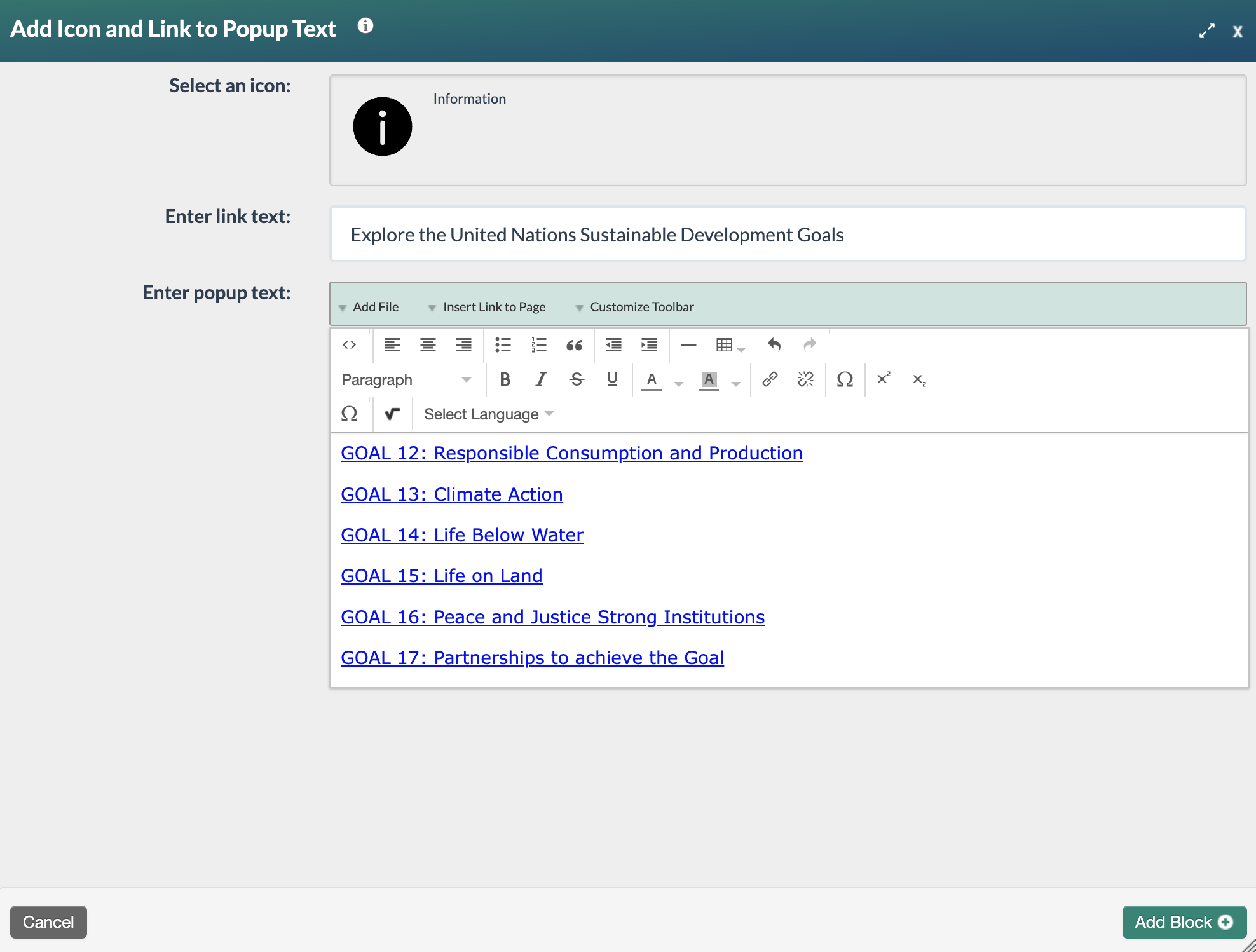
- The Add Icon and Link to Popup Text form will reappear with the chosen icon. Complete the link and popup text fields and then select Add Block+.
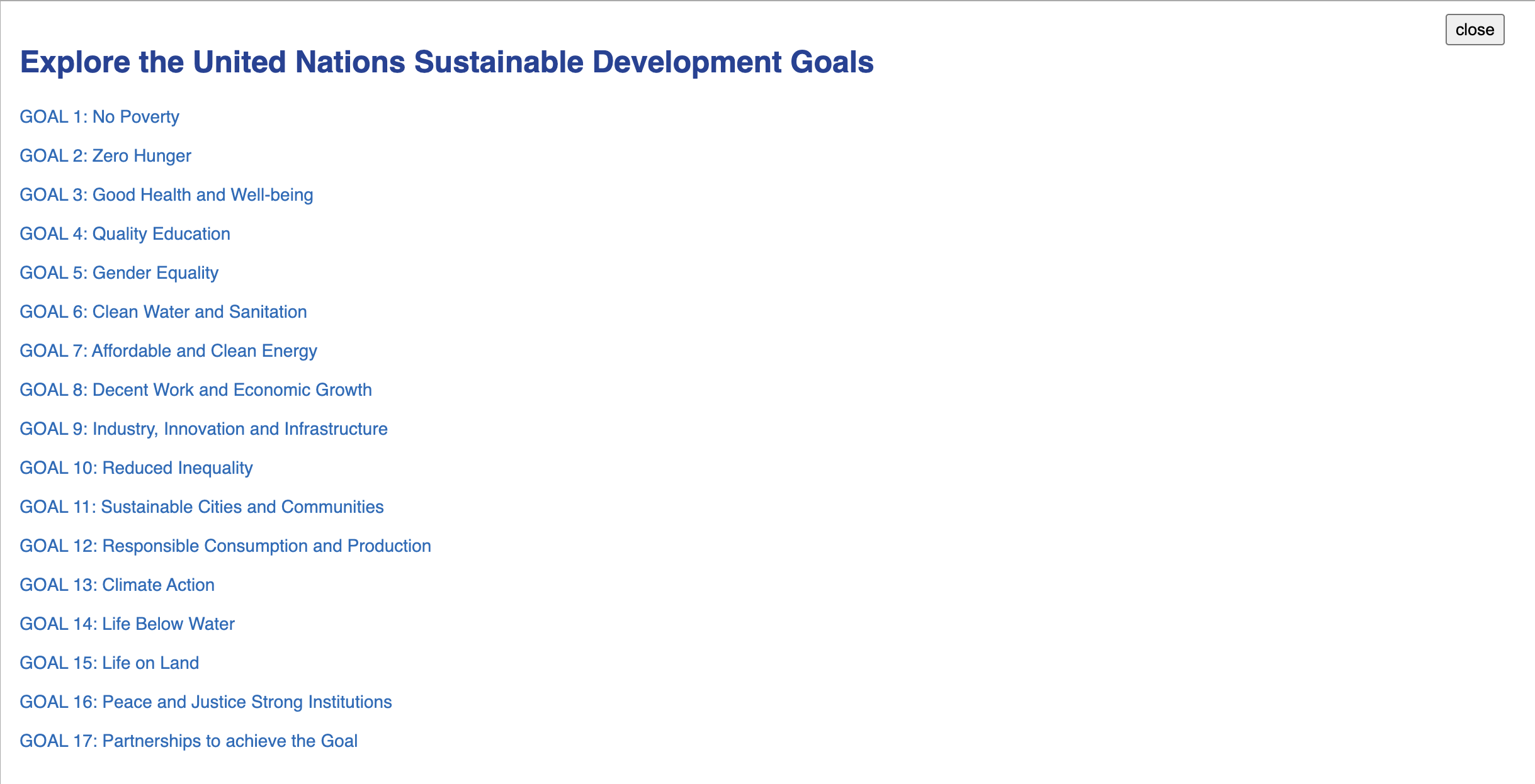
- The new block will appear on the page in Edit Mode with a red, dotted outline indicating it's editable.

- Select the Publish My Edits button to save the block to the course page and see the content as it will appear to learners.

Default Text
Each icon can be configured with default starter text, allowing administrators to establish consistent language across icons. This default text can be customized by users with the System Administrator or Graphic Designer global role.
System Administrators and Graphic Designers, refer to How do I create an icon set? for more information on how to set up this feature.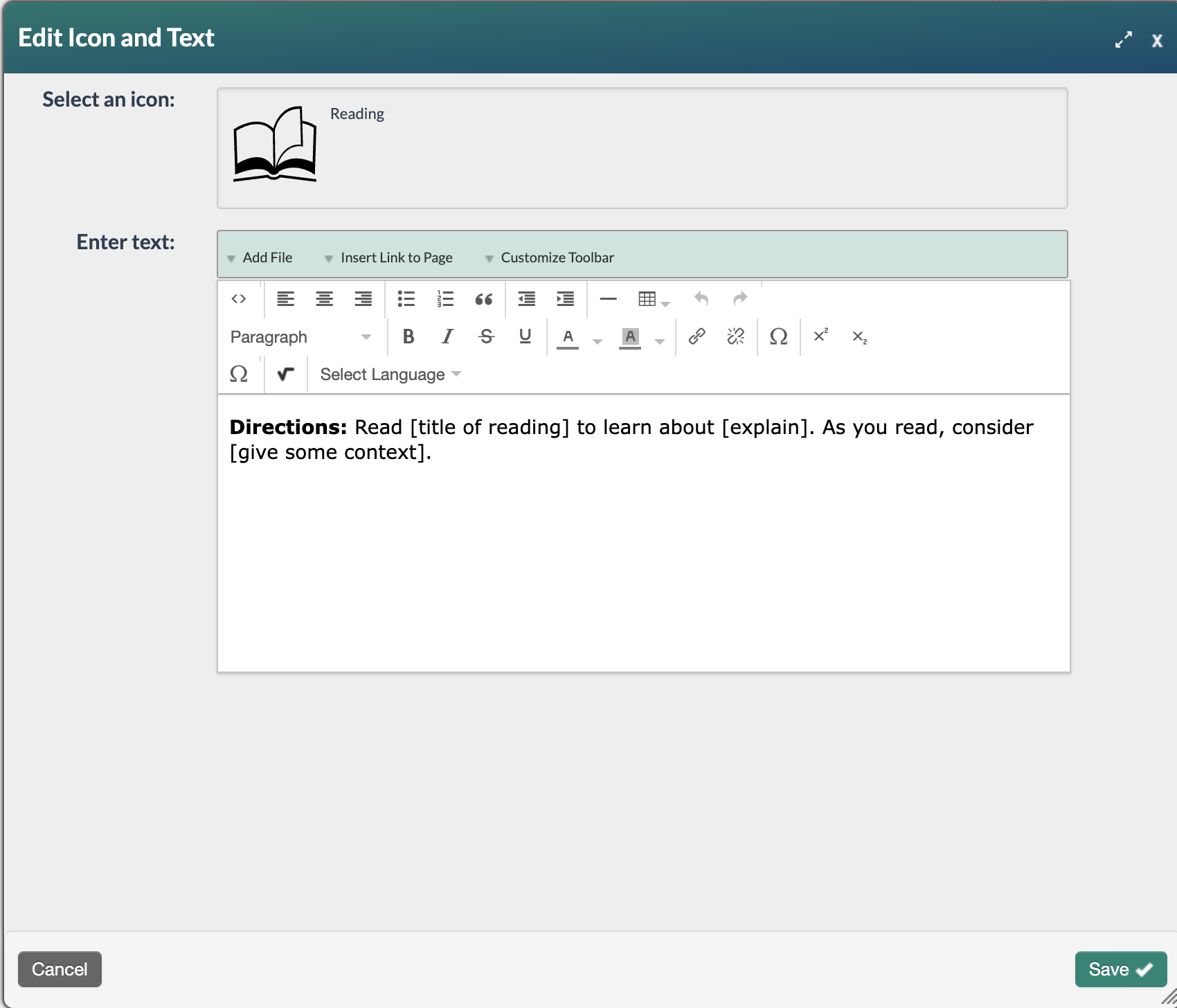
Example of default starter text for a reading icon.
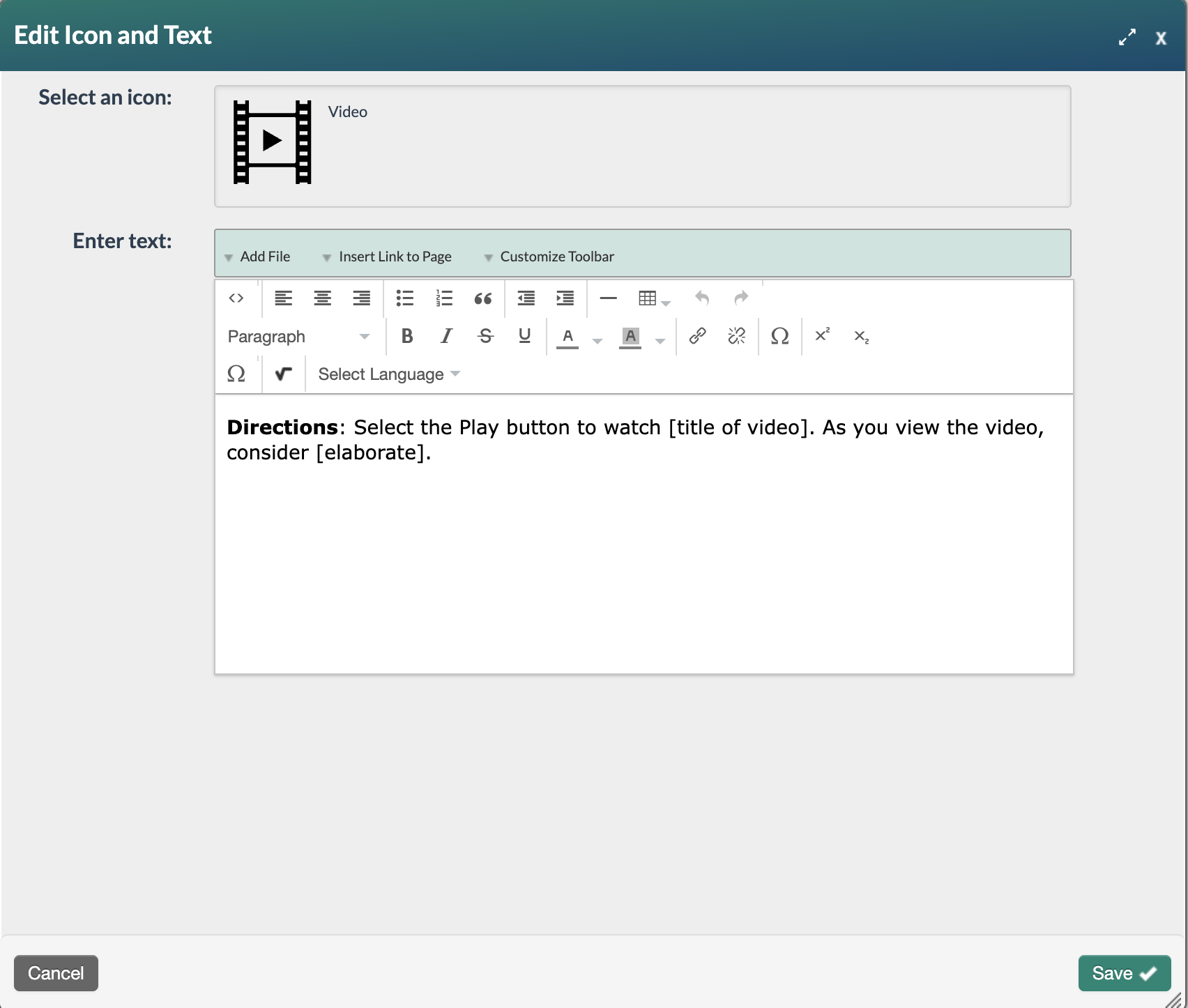
Example of default starter text for a video icon.
Was this article helpful?
That’s Great!
Thank you for your feedback
Sorry! We couldn't be helpful
Thank you for your feedback
Feedback sent
We appreciate your effort and will try to fix the article