The Tabs and Accordions block allows content creators to organize and chunk content into sections, displayed as either tabs or accordions. This helps reduce cognitive load by letting learners focus on one section at a time, and it's also a great tool for embedding other content blocks—such as images, videos, or HTML—within a section.
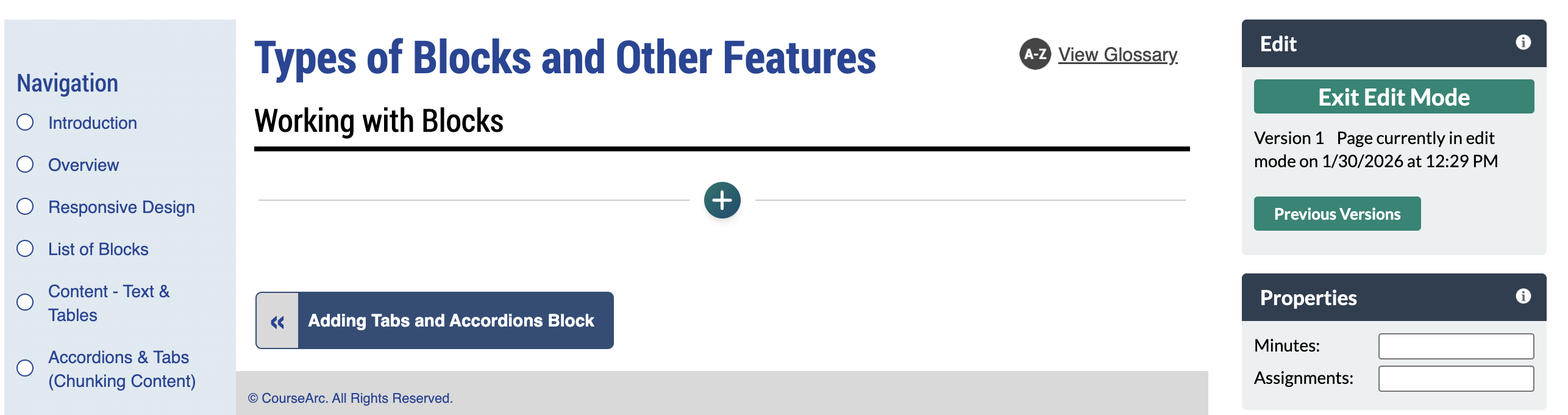
- Navigate to the page and select Edit this Page. Find the position you want to add a block and select the plus (+) icon.
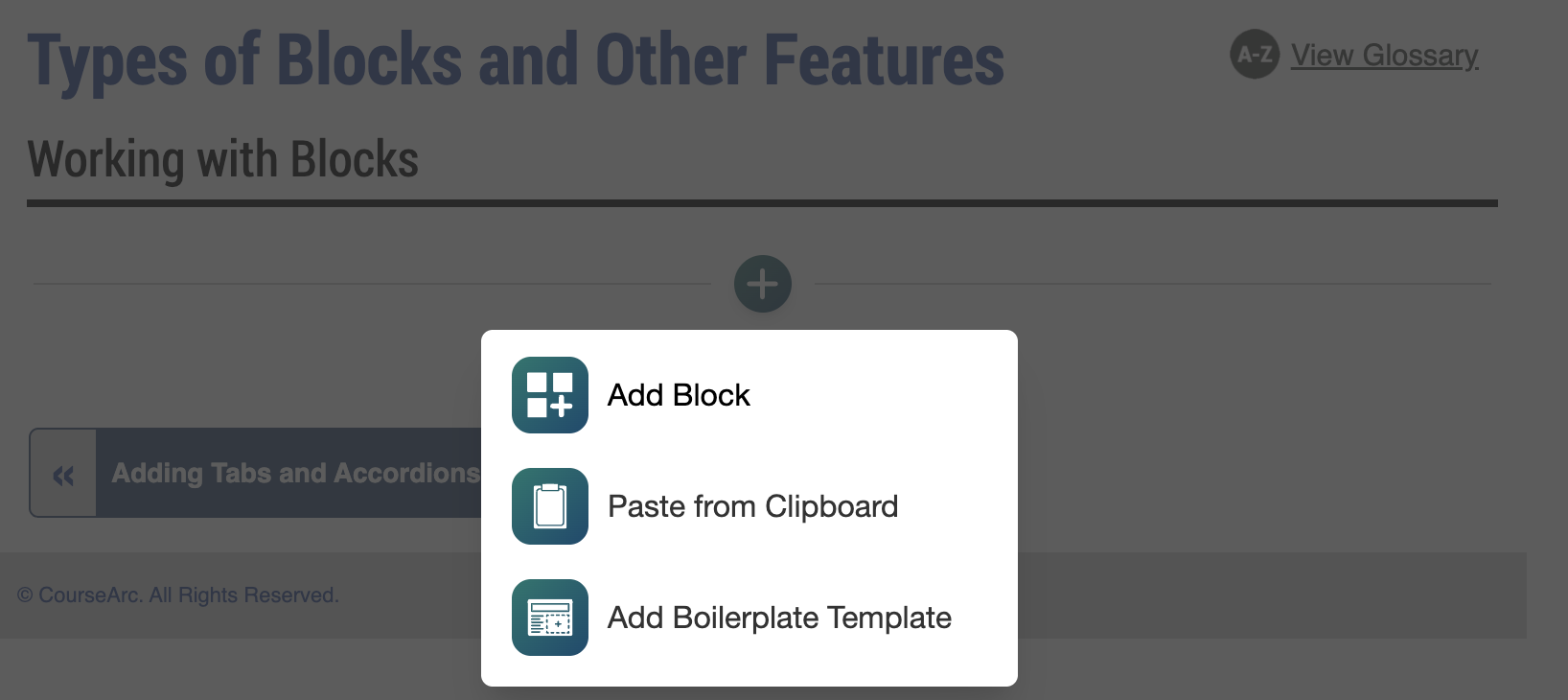
- From the dropdown, select Add Block.
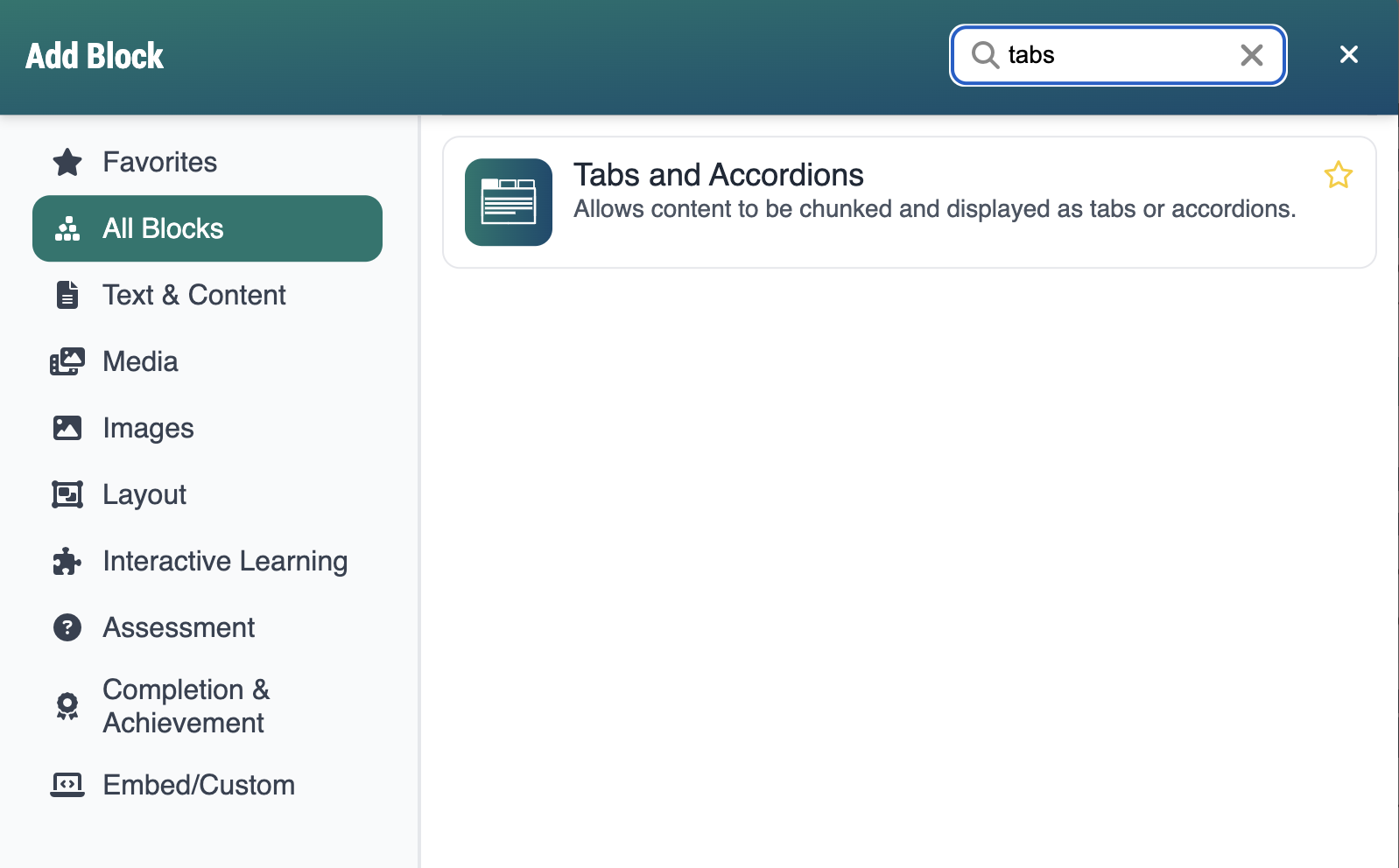
- In the Add Block modal, you can:
- Use the Search field to find a block by keyword
- Select a block from your custom list of Favorites
- Scroll through the list of All Blocks to select one
- Use the various Categories to filter by block type
- Select a star icon to add or remove blocks in your Favorites list
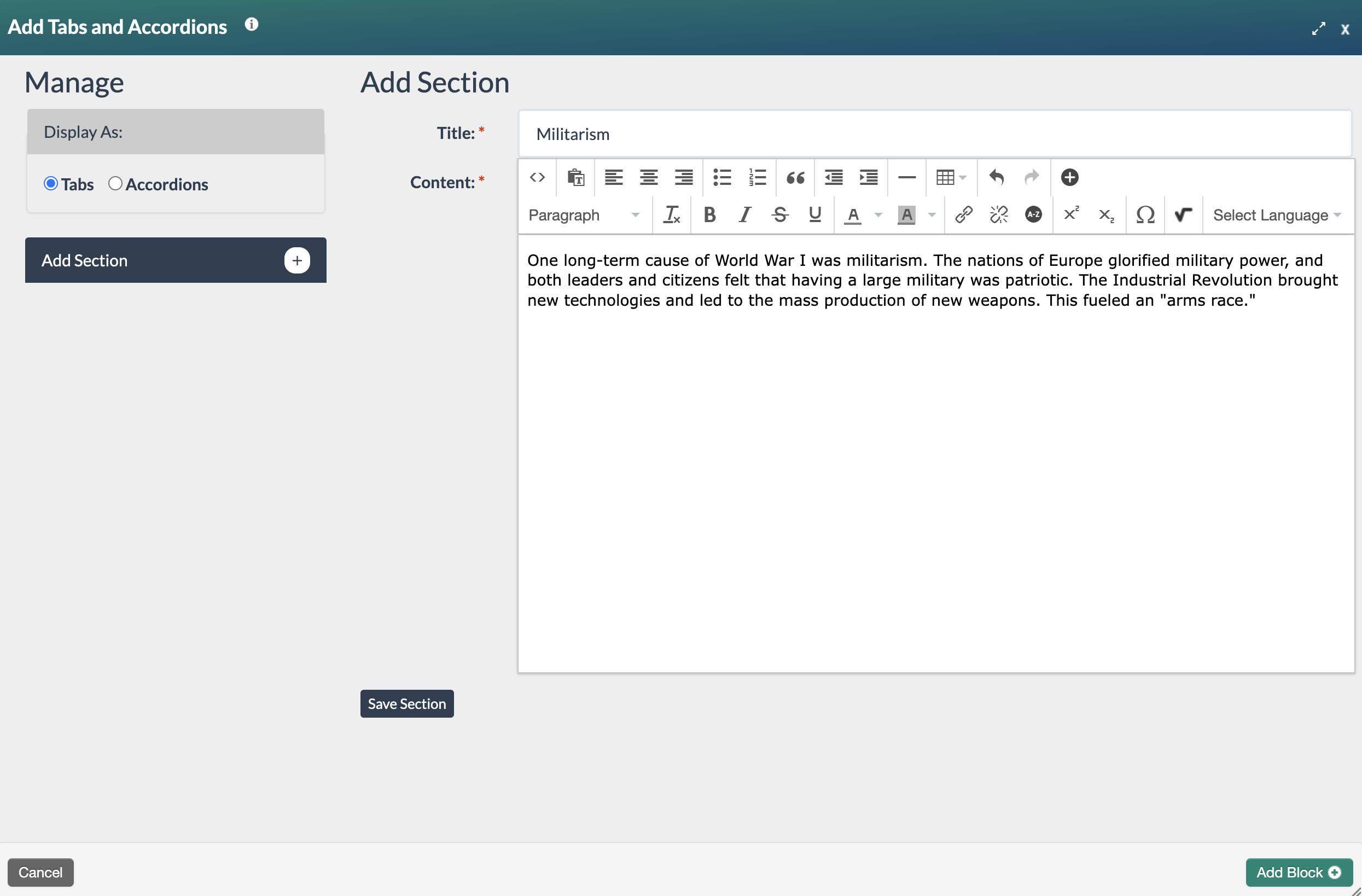
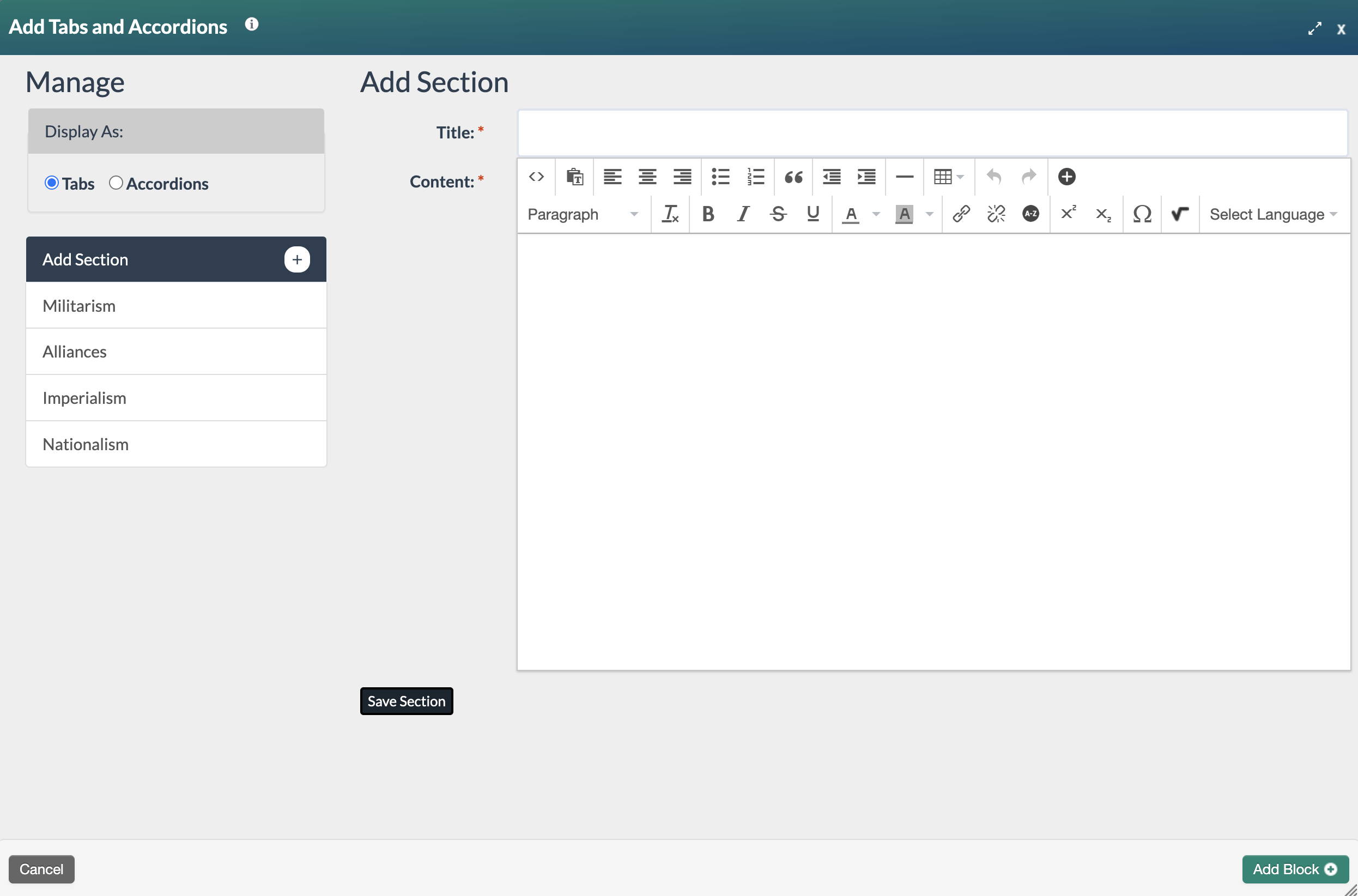
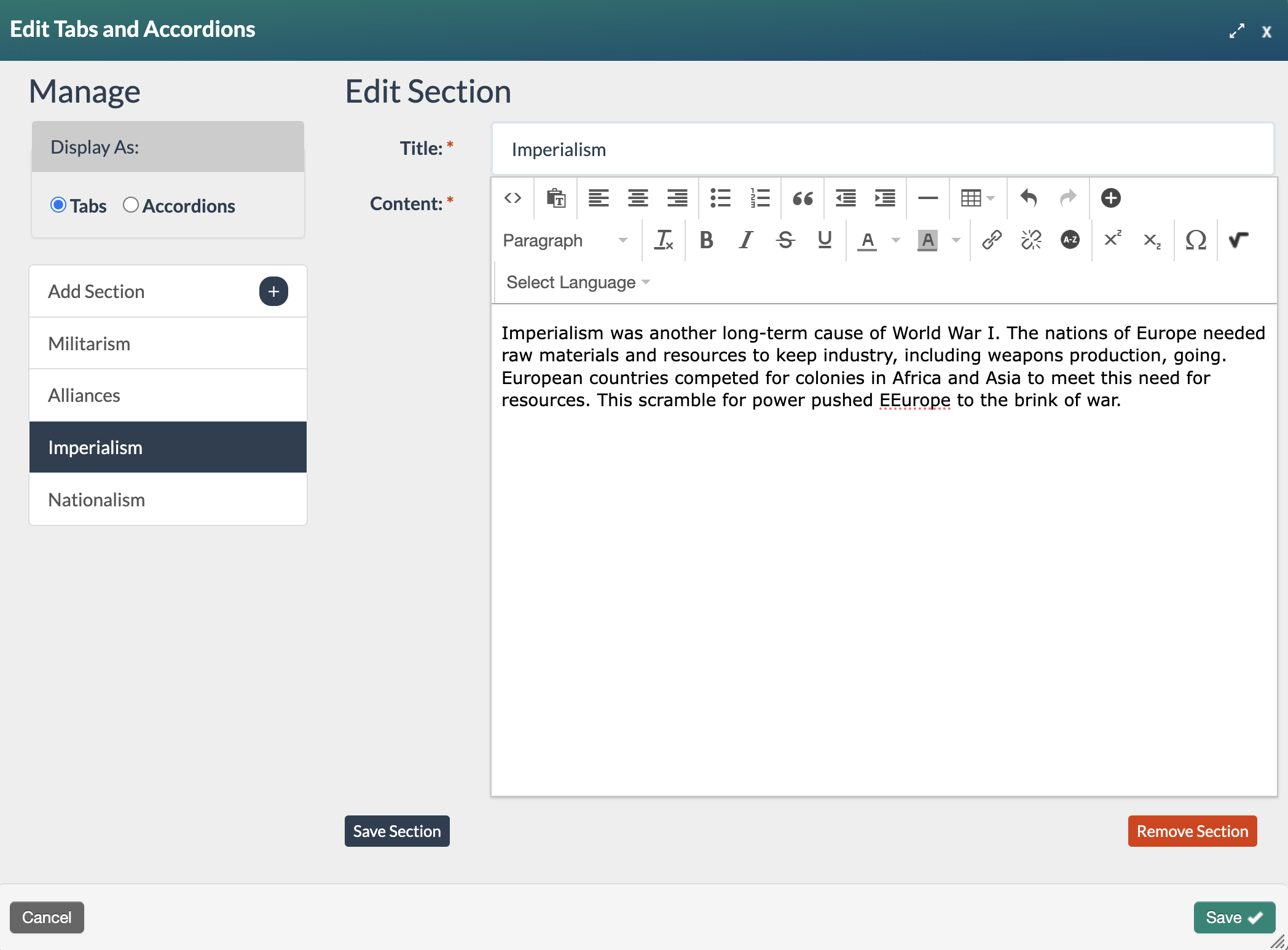
- Select the Tabs and Accordions block. The Add Tabs and Accordions form will open. Complete the form as follows:
- Display As: Select Tabs or Accordions.
- Title: Enter the section title.
- Content: Add content.
- Select the Save Section button and repeat, as needed.
- Once all the required sections have been saved, select the Add Block+ button to save the block to the page.
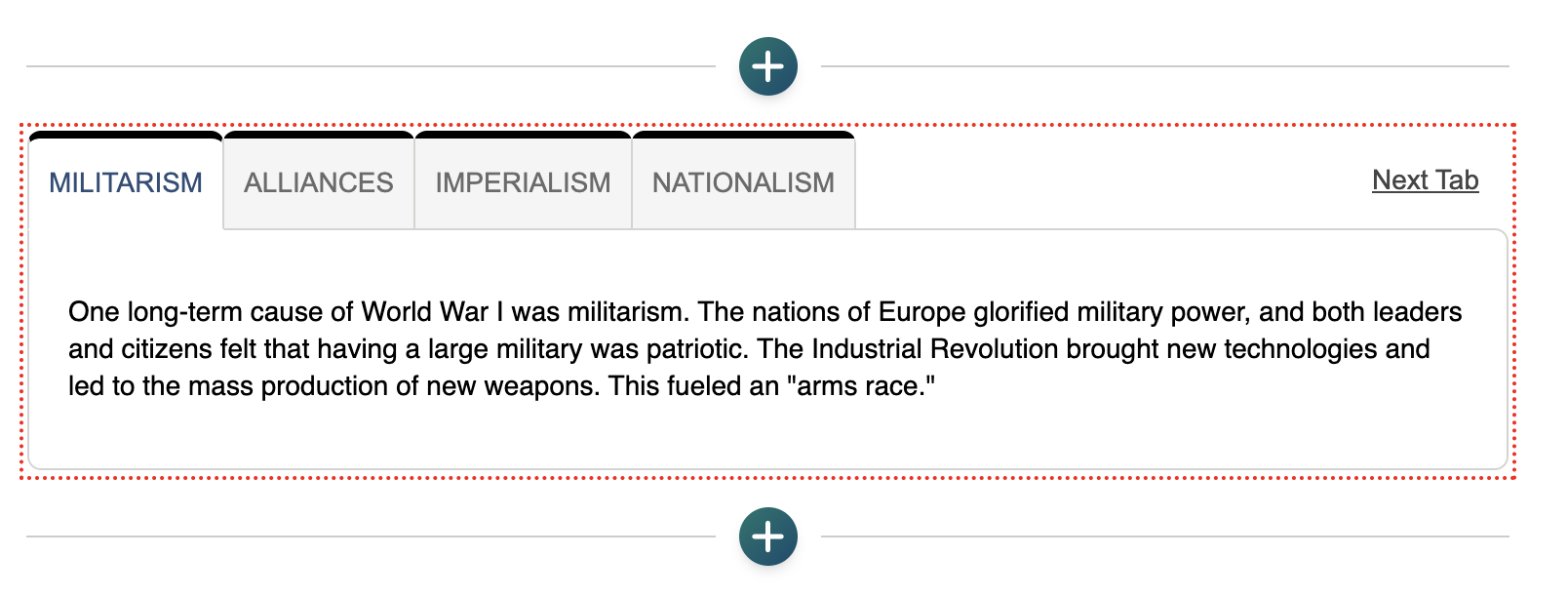
- The new block will appear on the page in Edit Mode with a red, dotted outline indicating it's editable.
- Select the Publish My Edits button to save the block to the course page and see the content as it will appear to learners.
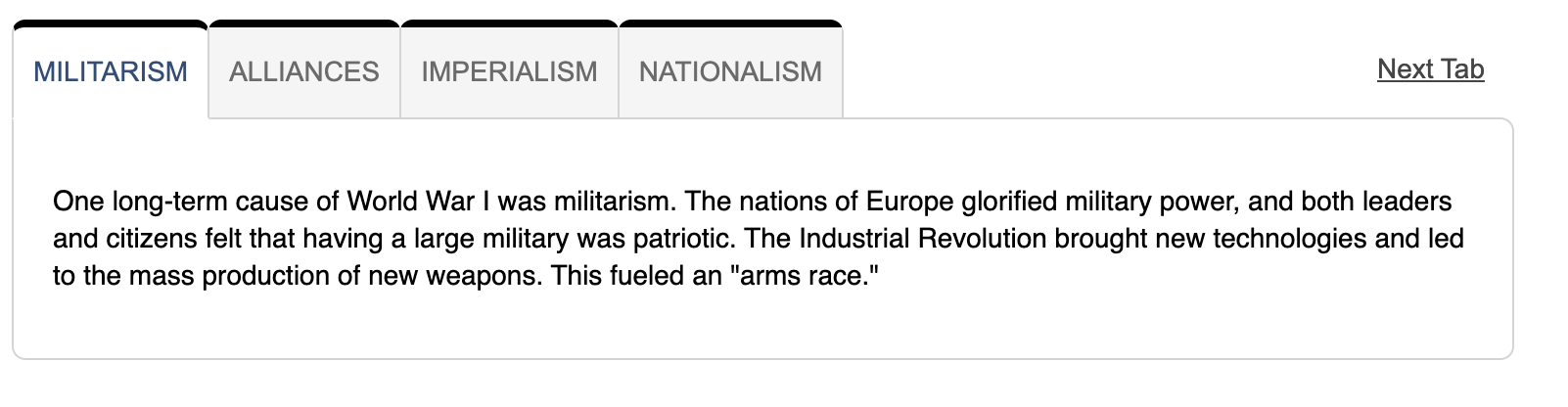
Sample Tab Display
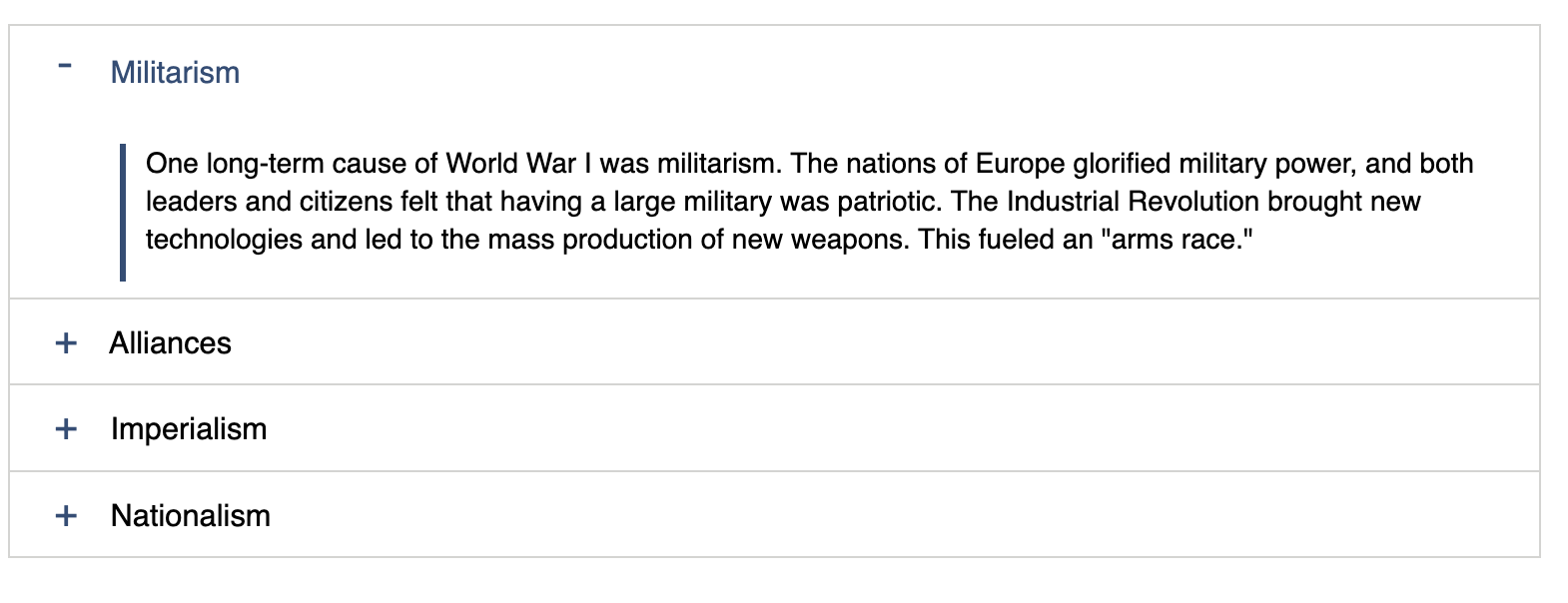 Sample Accordion Display
 - When mousing over the section titles under Manage, the cursor becomes a four-headed arrow that can change the order of the tabs or accordions via drag and drop. Select the Save✔ button to save any changes made to the order of the sections. View the following video for an example of this action.
- If the block needs to be edited, select the section title under Manage. Make the necessary changes and select the Save Section button. When editing is complete, select the Save ✔ button to save the changes made to the Tabs and Accordions block.
To learn how to place other blocks in the Tabs and Accordions block, refer to How do I embed content blocks in the Accordions and Tabs blocks?.
Was this article helpful?
That’s Great!
Thank you for your feedback
Sorry! We couldn't be helpful
Thank you for your feedback
Feedback sent
We appreciate your effort and will try to fix the article