Note: All AI features are an optional add-on that can be purchased with your CourseArc subscription.
Magic Course Builder converts your existing content, like lesson plans, slides, and documents, into structured, interactive, and accessible course modules.
What it does:
- Transforms existing materials into organized course modules
- Preserves your content's voice and expertise while improving clarity and structure
- Applies accessibility-first design automatically
Magic Course Builder is a tool to support your work, not replace it. Your expertise remains the foundation, it just makes turning that expertise into a finished course faster and easier.
Magic Course Builder uses AI credits to process and generate your course content.
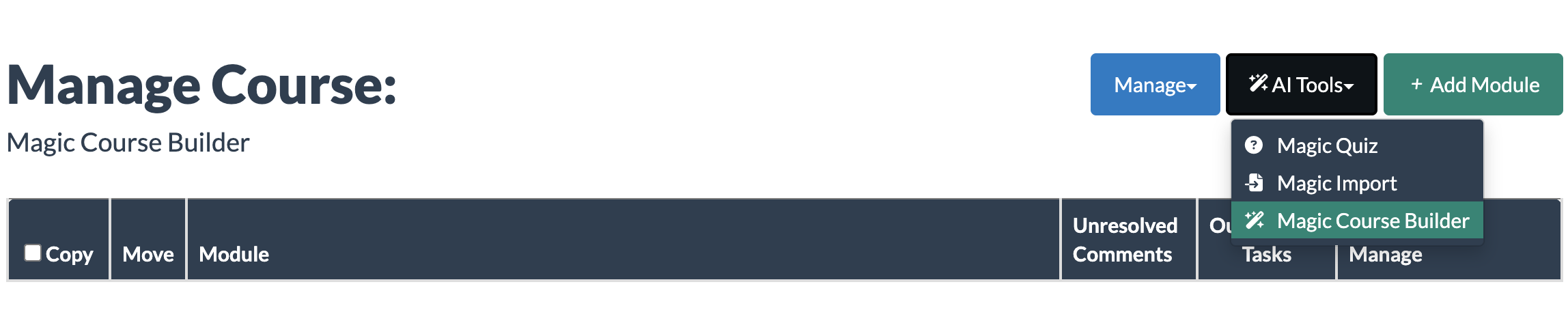
- In the Manage Course View, select Magic Course Builder from the AI Tools dropdown menu.
- Magic Course Builder has two sections: Input Content and Preview.
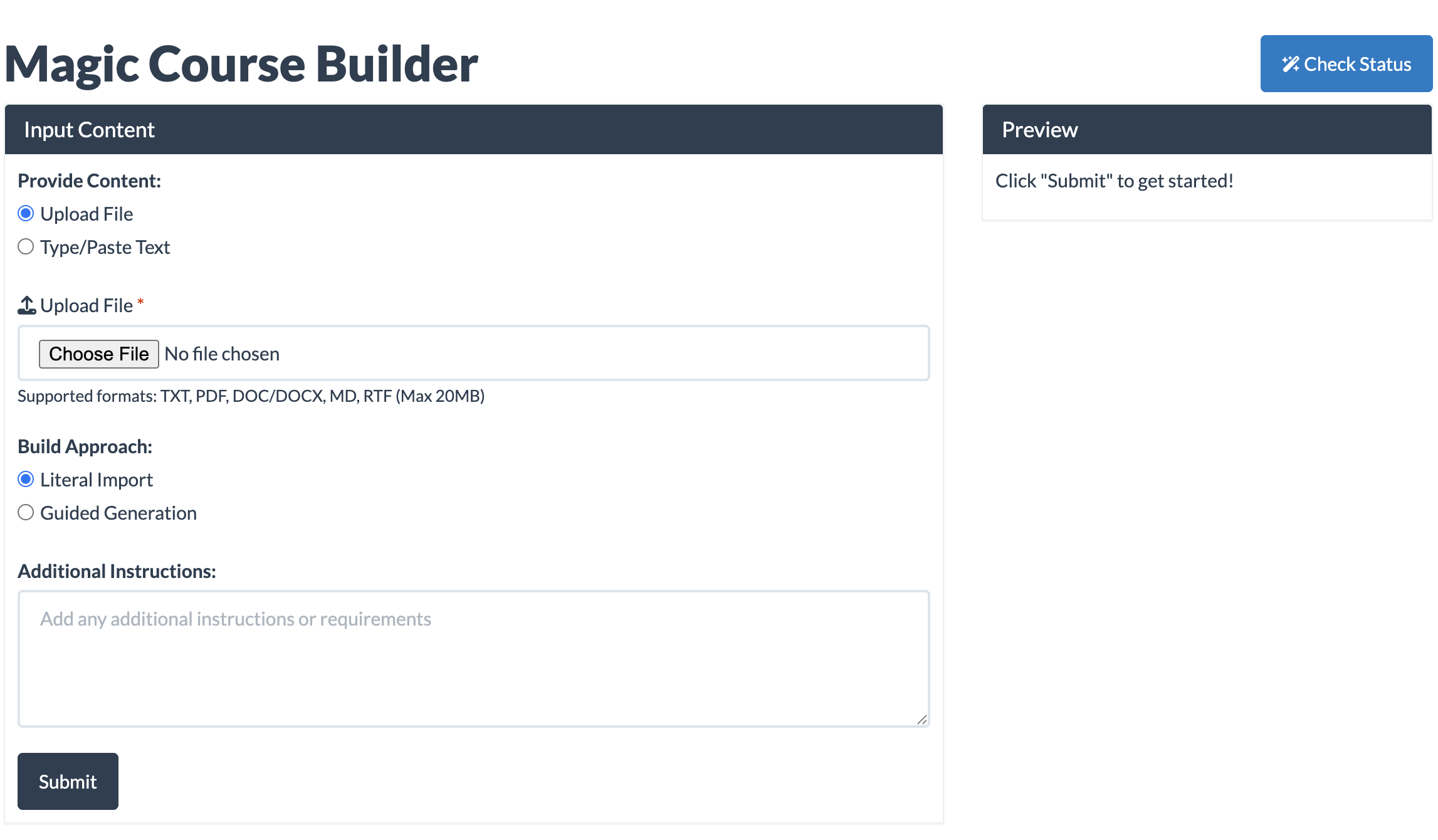
- Select how you want to provide your content:
- Upload File - Attach your file. A File Upload Complete indicator will appear when the upload is successful. Supported file types: TXT, PDF, DOC/DOCX, MD, RTF. Maximum file size: 20mb.
- Type/Paste Text - Type or paste your content into the field provided.
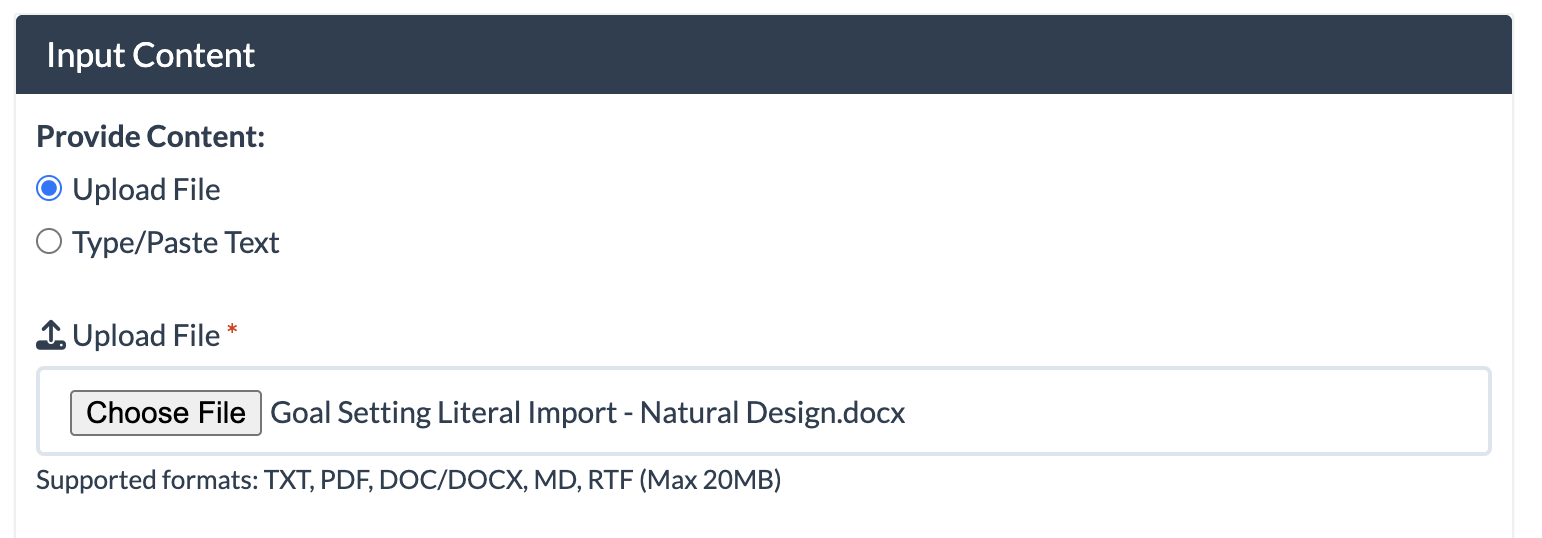 Sample of Upload File
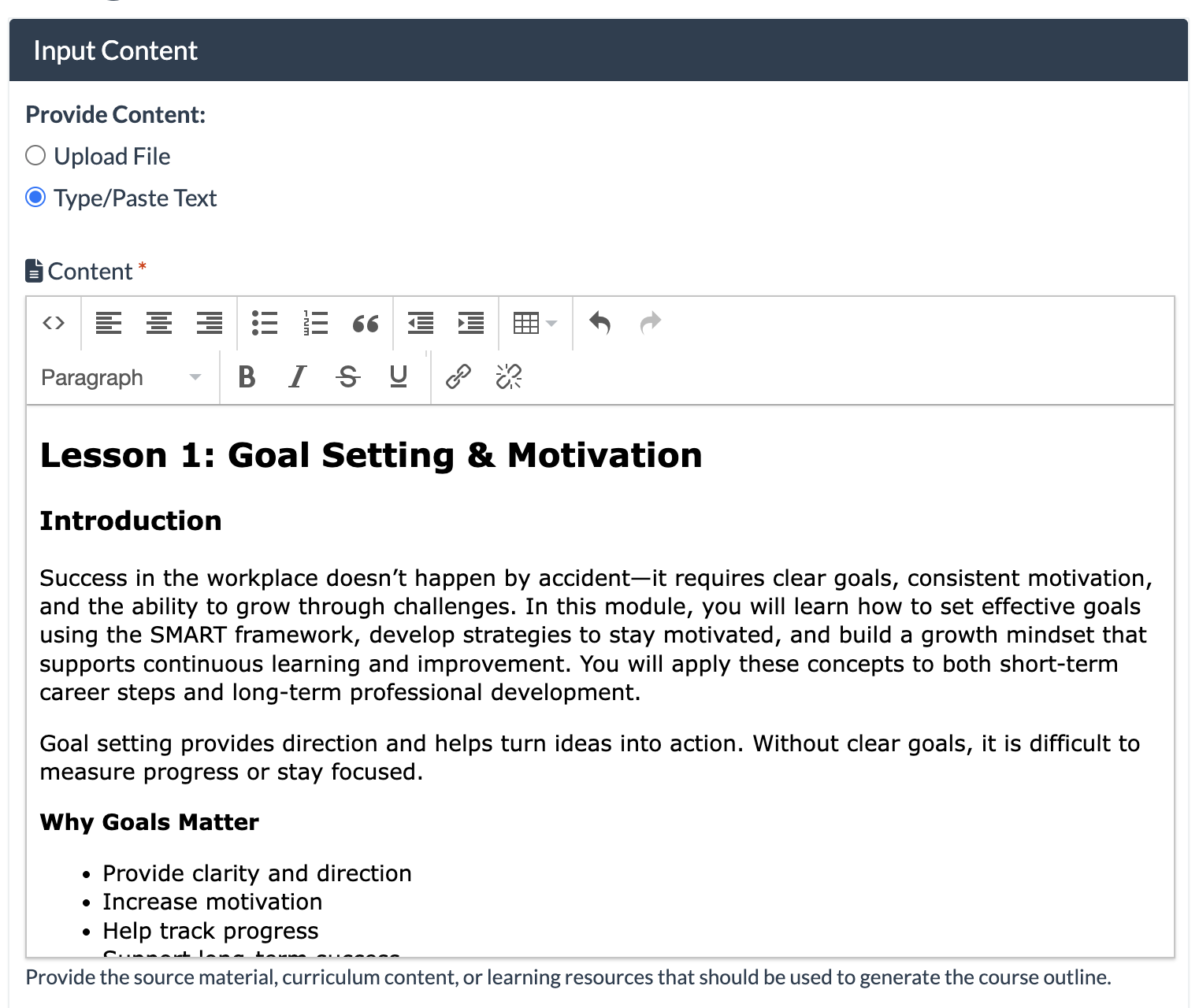 Sample of Type/Paste Text
- Upload File - Attach your file. A File Upload Complete indicator will appear when the upload is successful. Supported file types: TXT, PDF, DOC/DOCX, MD, RTF. Maximum file size: 20mb.
- Select the build approach:
- Literal Import: Preserves your existing structure, intent, and content as-is. Best for structured materials such as storyboards, course exports, and templated documents. This is ideal for instructional designers, faculty using templates, and/or teams migrating from another platform.
Recommended Volume: 1-4 lessons per import.
How can I format a document for Literal Import in the Magic Course Builder?
Sample Literal Import
- Guided Generation: Uses your content as a starting point to suggest course structure and build out learning components. Best for less structured materials such as slides, notes, and outlines. This is ideal for faculty and subject matter experts.
Recommended Volume: 1 lesson at a time.
- Literal Import: Preserves your existing structure, intent, and content as-is. Best for structured materials such as storyboards, course exports, and templated documents. This is ideal for instructional designers, faculty using templates, and/or teams migrating from another platform.
Literal Import
- Select Literal Import.

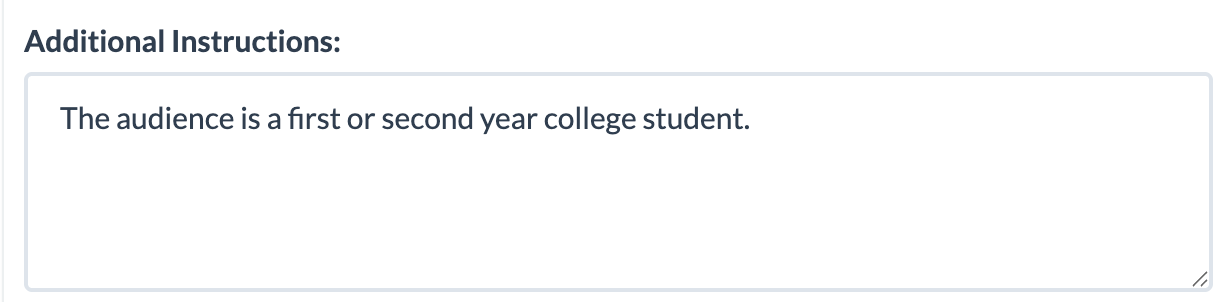
If needed, enter any additional instructions in the field provided. This may include information about your audience, the appropriate reading level, the writing tone/voice of the lesson, etc.
Select Submit. A Processing indicator will appear in the Preview area while your request is being handled.
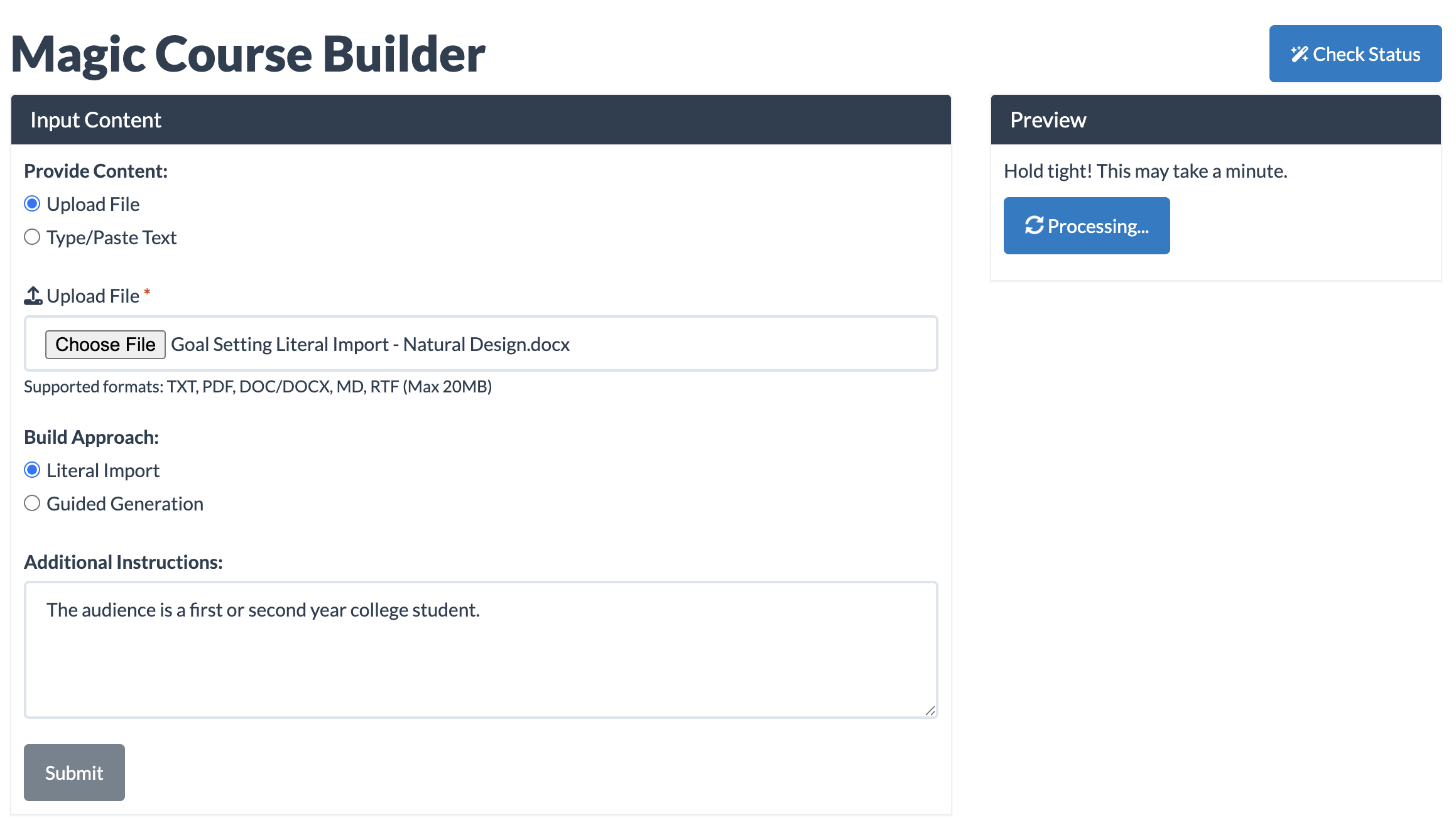
When processing is complete, a content preview will appear in the Preview area.
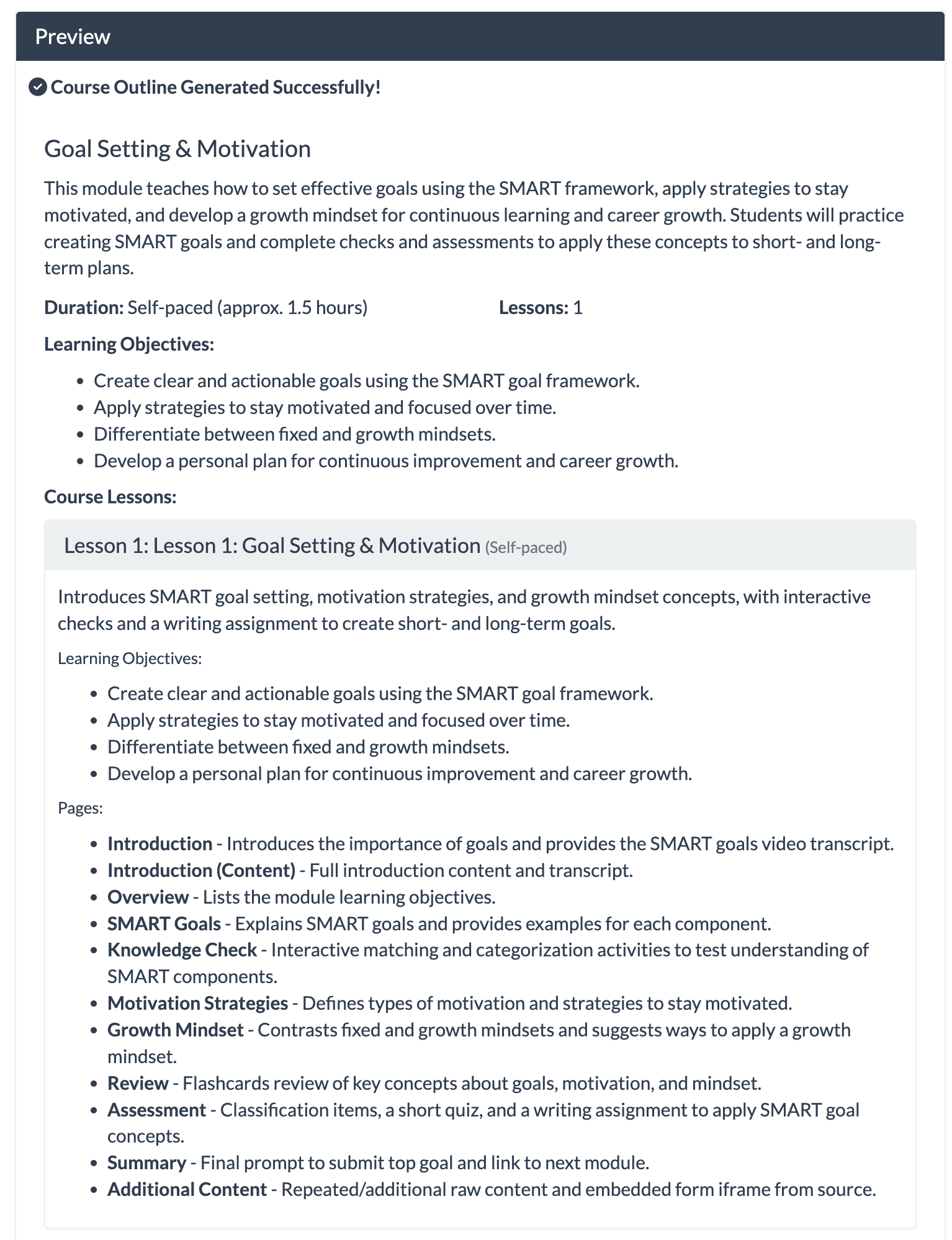
Review the preview. Select Request Revisions if you need to make changes.
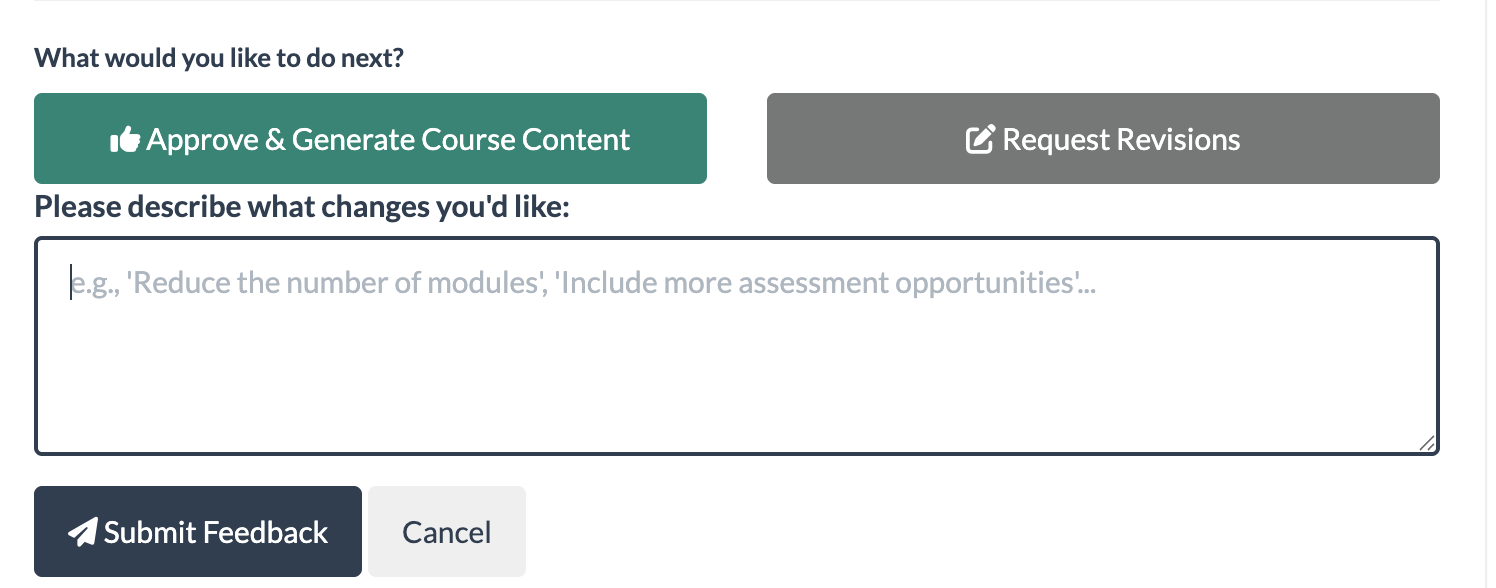
When satisfied with the content, select the Approve & Generate Course Content button.

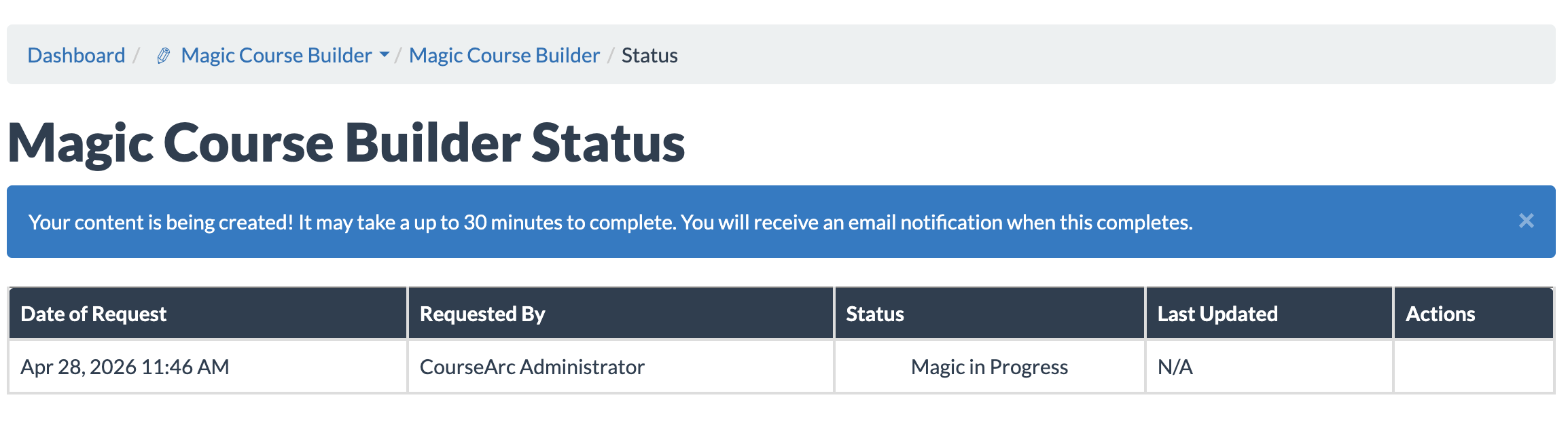
You will receive a notification email when the content is ready. You can also check progress at any time on the Status page.
Guided Generation
- Select Guided Generation.

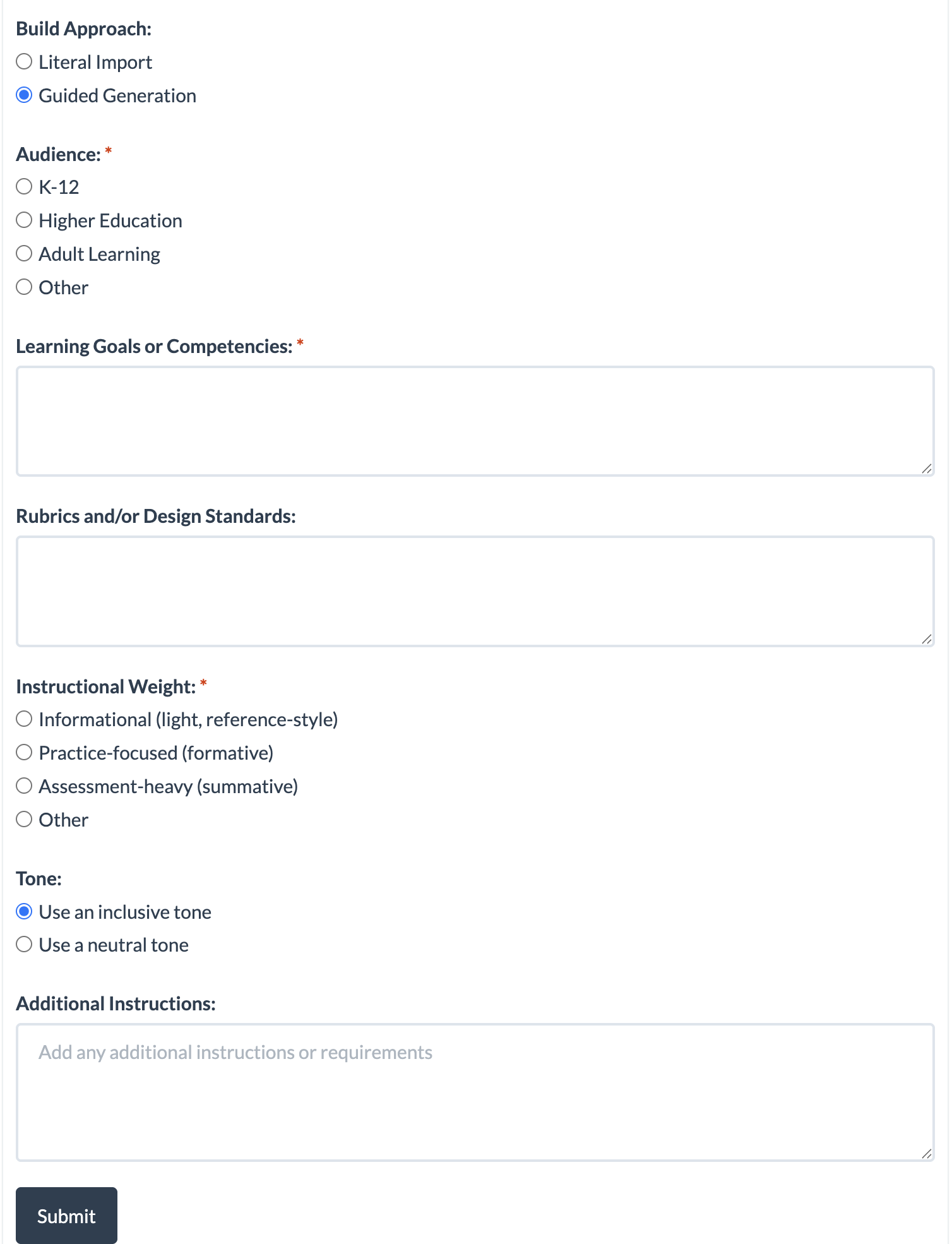
- Guided generation requires additional information. Complete the following:
- Audience: Select the appropriate audience for your content. (Required)
- Learning Goals or Competencies: Enter the learning goals or competencies for your course. (Required)
- Rubrics and/or Design Standards: Add any rubrics or design standards to apply to your content. (Optional)
- Instructional Weight: Specify the instructional weight for your content. (Required)
- Tone: Select the tone for your content. (Required)
- Additional Instructions: Enter any additional instructions to help generate your content. (Optional)
- Follow Steps 3-7 under Literal Import.
Was this article helpful?
That’s Great!
Thank you for your feedback
Sorry! We couldn't be helpful
Thank you for your feedback
Feedback sent
We appreciate your effort and will try to fix the article