The Interactive Categorization block lets content creators build activities where learners sort items into up to three categories. The activity can be graded to assess accuracy, and learners can check their progress as they go or reset the activity to try again.
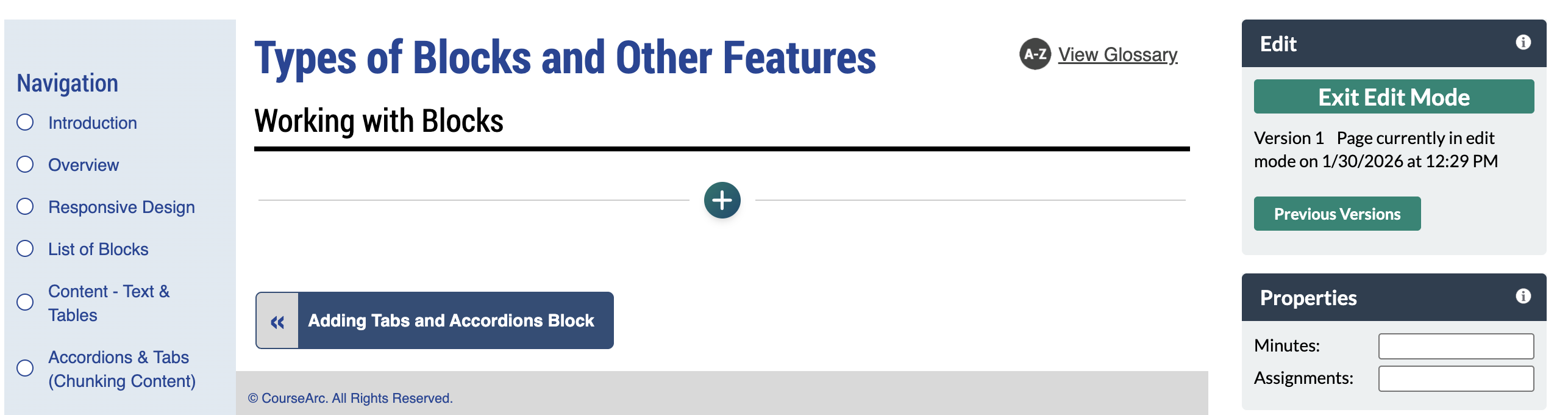
- Navigate to the page and select Edit this Page. Find the position you want to add a block and select the plus (+) icon.
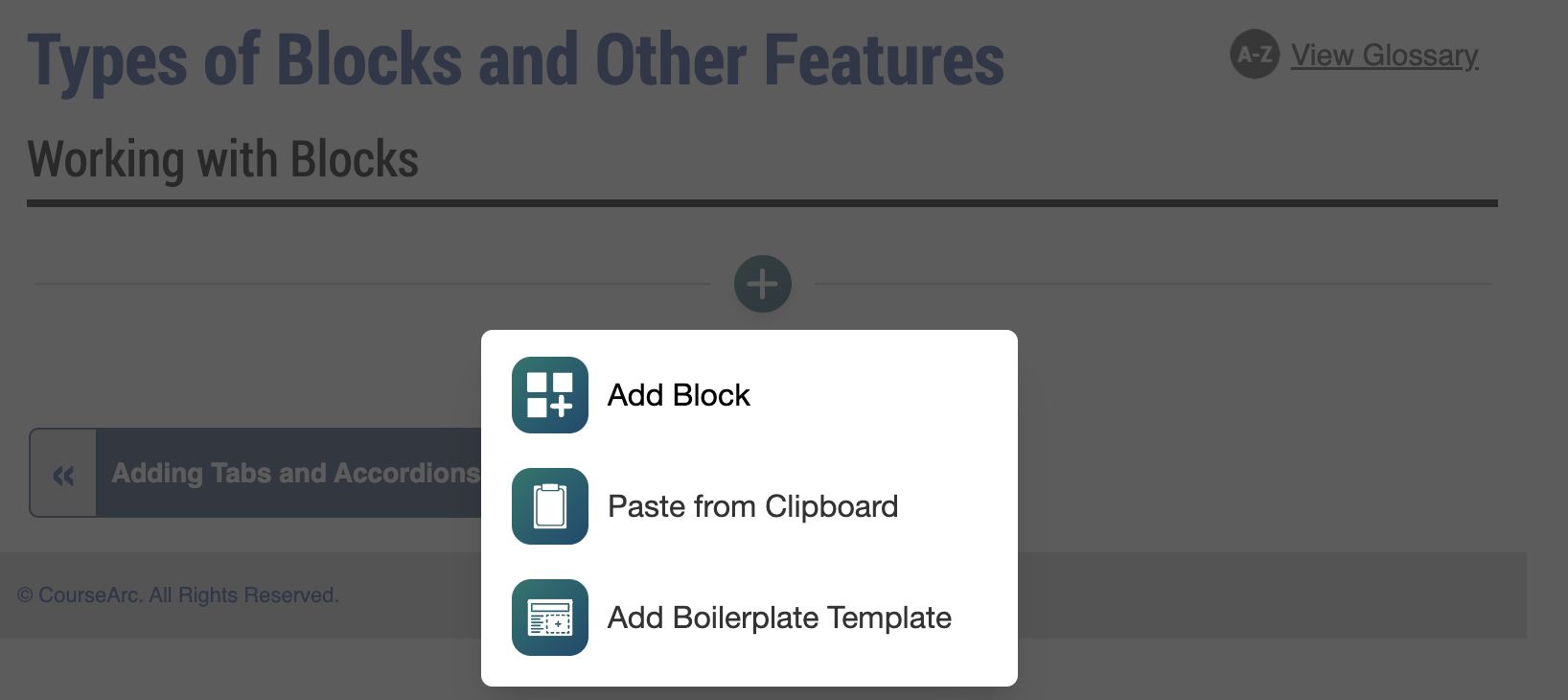
- From the dropdown, select Add Block.
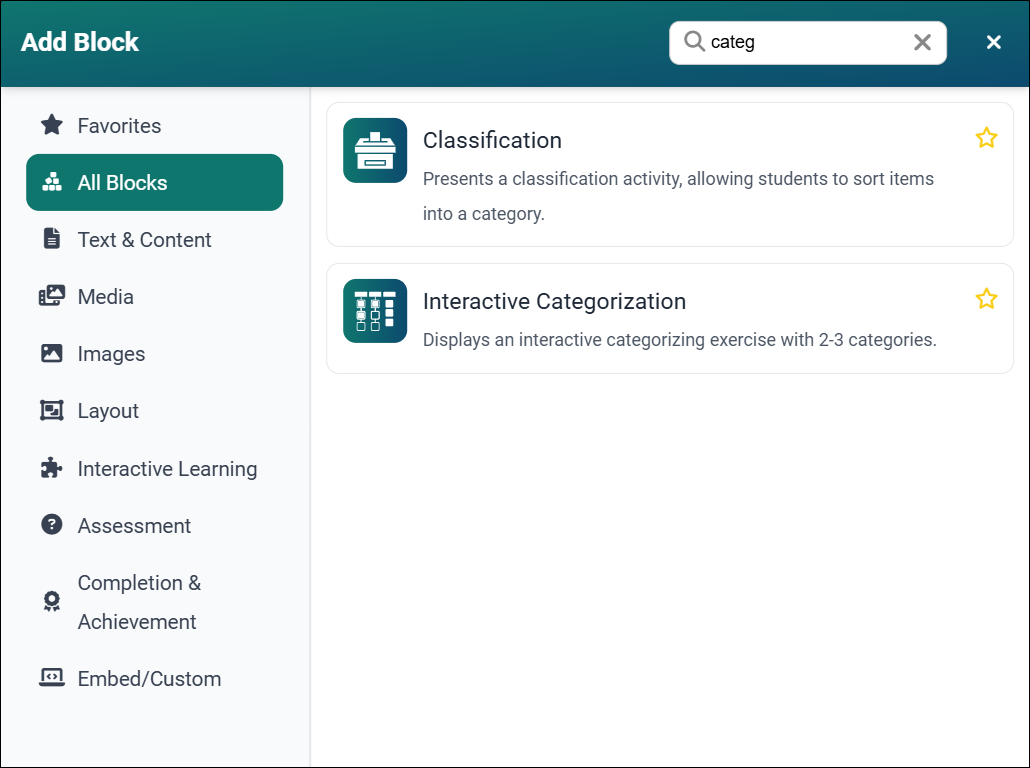
- In the Add Block modal, you can either:
- Use the Search field to find a block by keyword
- Select a block from your custom list of Favorites
- Scroll through the list of All Blocks to select one
- Use the various categories in the side panel to filter by block type
- Select the star icon to add or remove blocks in your Favorites list
Select the Interactive Categorization block. The Add Interactive Categorization form will open. The form has two areas: the editing pane and the preview pane. Changes made in the editing pane will show in the preview pane so that the activity can be visualized as it is being built. There are two tabs in the Interactive Categorization Block Form: Activity Settings and Add an Item.
Note: The AI Generate tab will also show if the AI Toolset package has been purchased, and if you have the AI Access global role. For instructions on generating an Interactive Matching block using AI, see the related How do I use the AI Generate feature to create an Interactive Categorization activity? article.
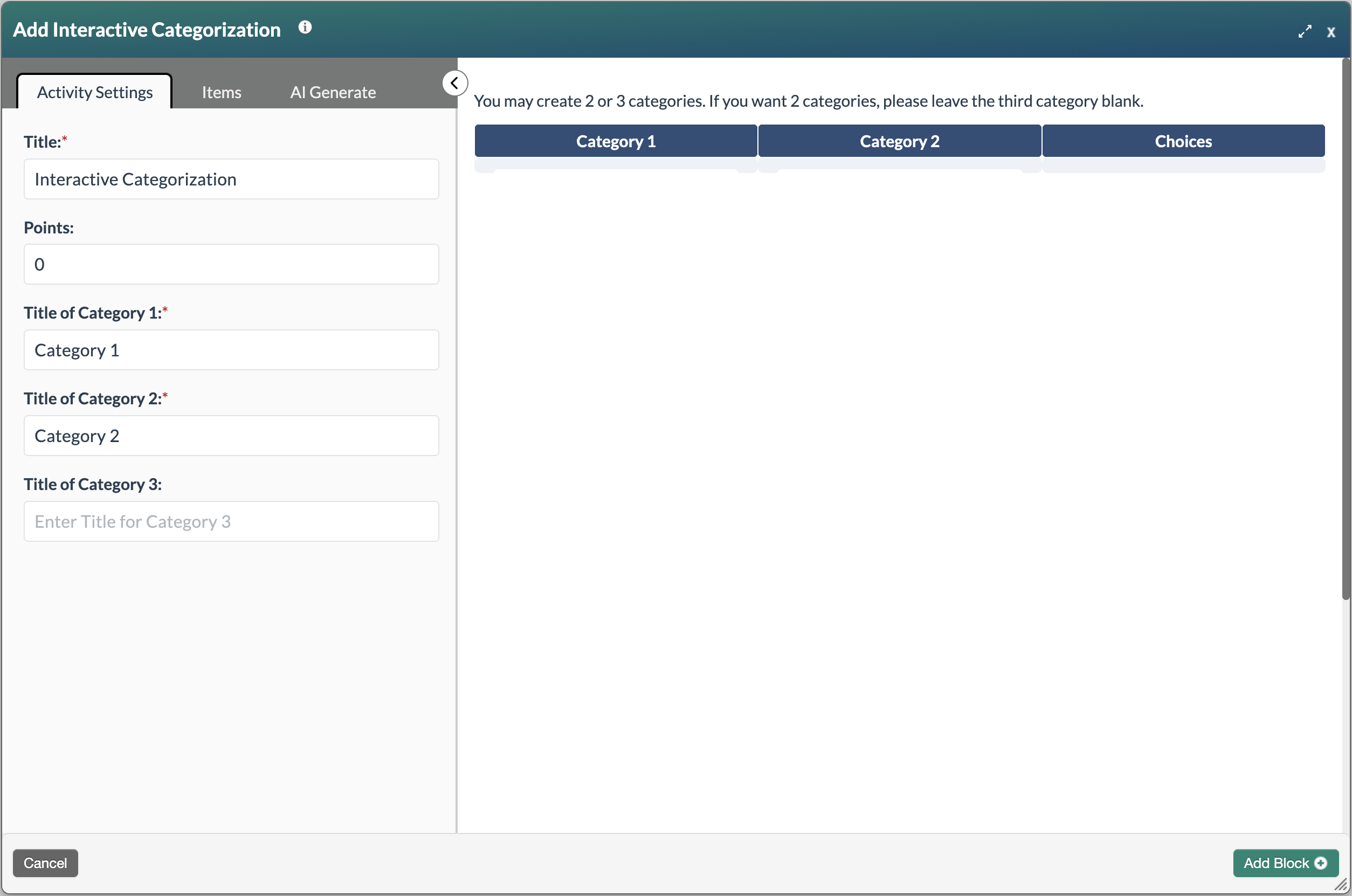
Complete the following fields under the Activity Settings tab:
- Title: The default title is Interactive Categorization. Enter a clear, descriptive title. Block titles may display in student-facing areas of the course, such as activity names in the Table of Contents.
- Points: The points field will only be displayed if the module is being graded. As a default, the point value is set to 0. Change the point value if needed.
- Title of Category: Enter category names in up to three fields.
Note: There is a character limit of 50 for the Title of Category fields to ensure that the activity displays properly on a mobile device.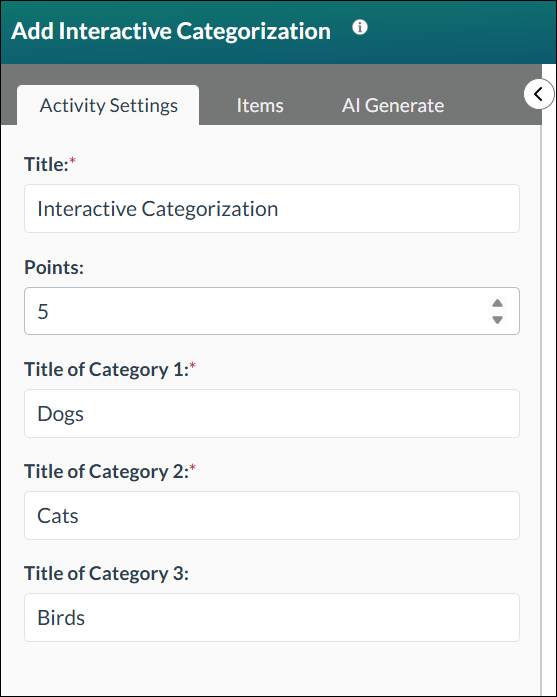
- Select the Items tab. Enter items in the correct category. A preview of the content block will appear on the right side of the form as you are building content.
Note: There is a character limit of 225 for the Item fields to ensure that the activity displays properly on a mobile device.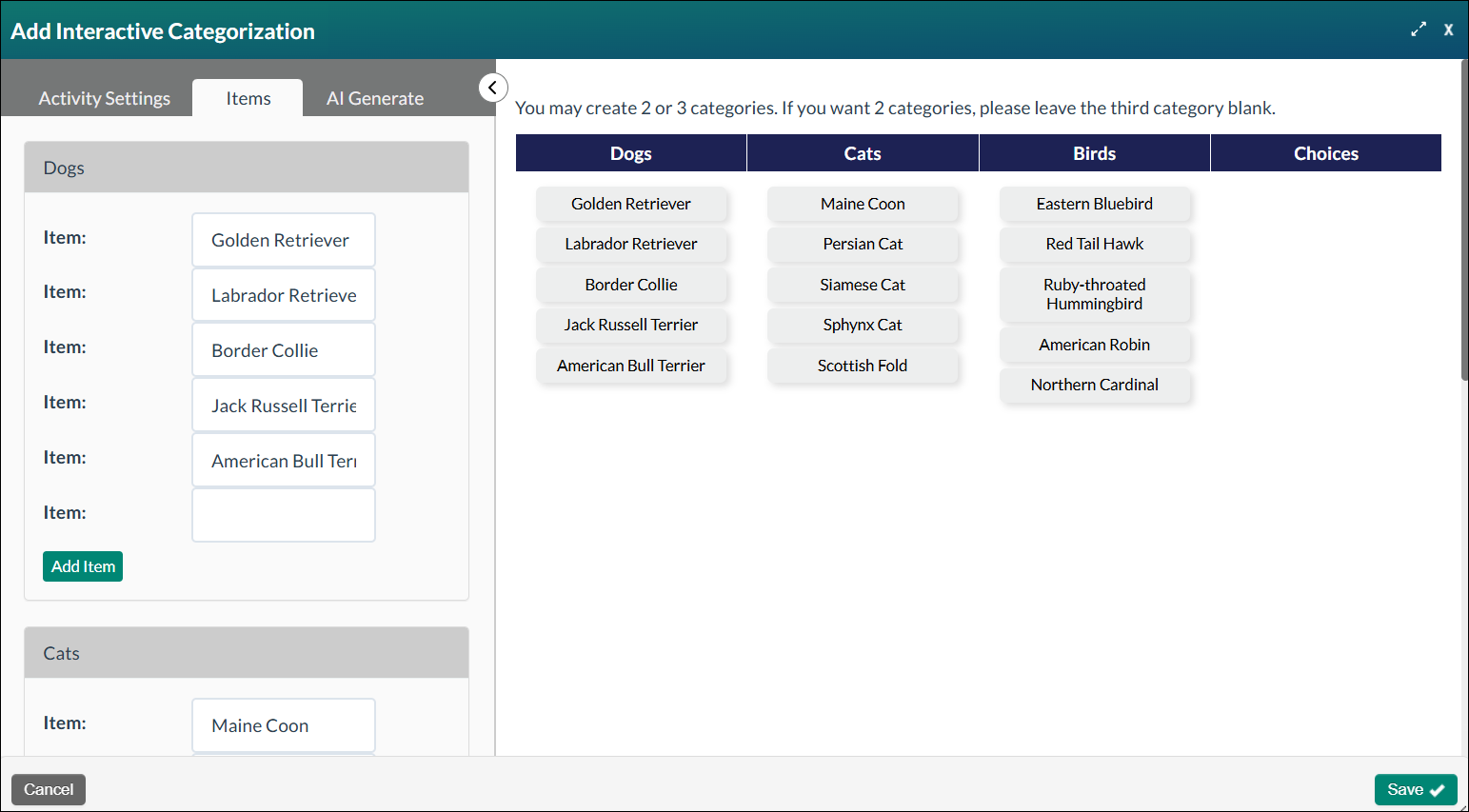
- Once all the needed items have been added, select the Add Block+ button to save the block.
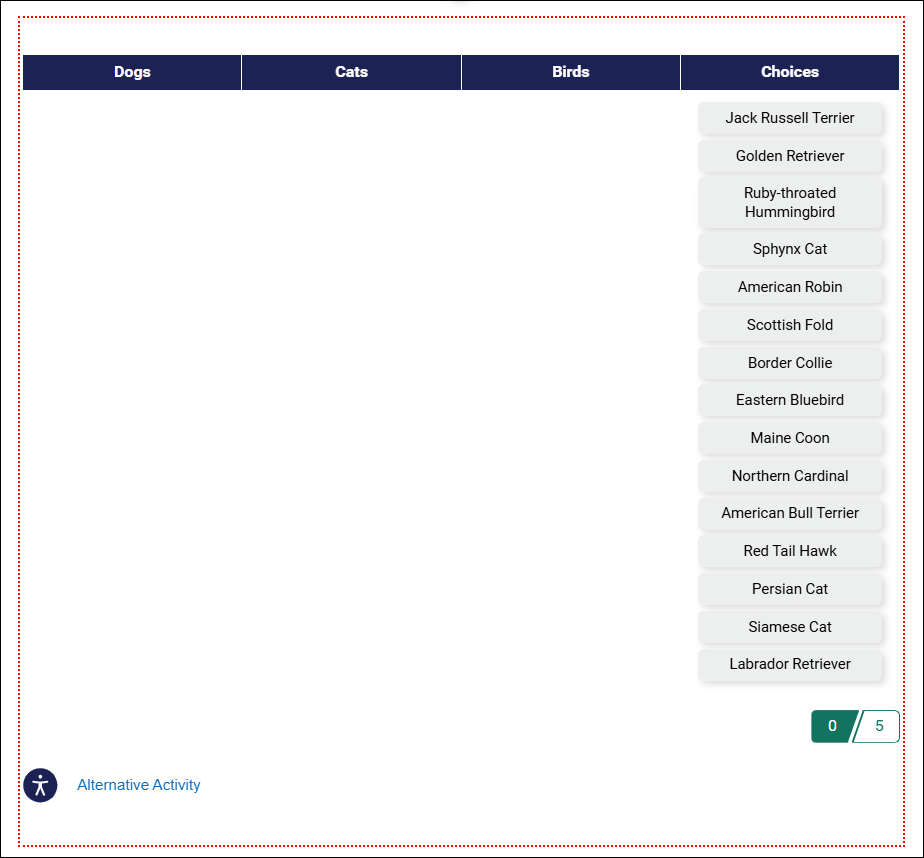
- The new Interactive Categorization block will appear on the page in Edit Mode. A red, dotted line appears around the block to indicate that it's editable.Note: An Alternative Activity is automatically generated to provide learners another option for interacting with this activity.
- Select the Publish My Edits button to save the block to the course page and see the content as it will appear to learners.
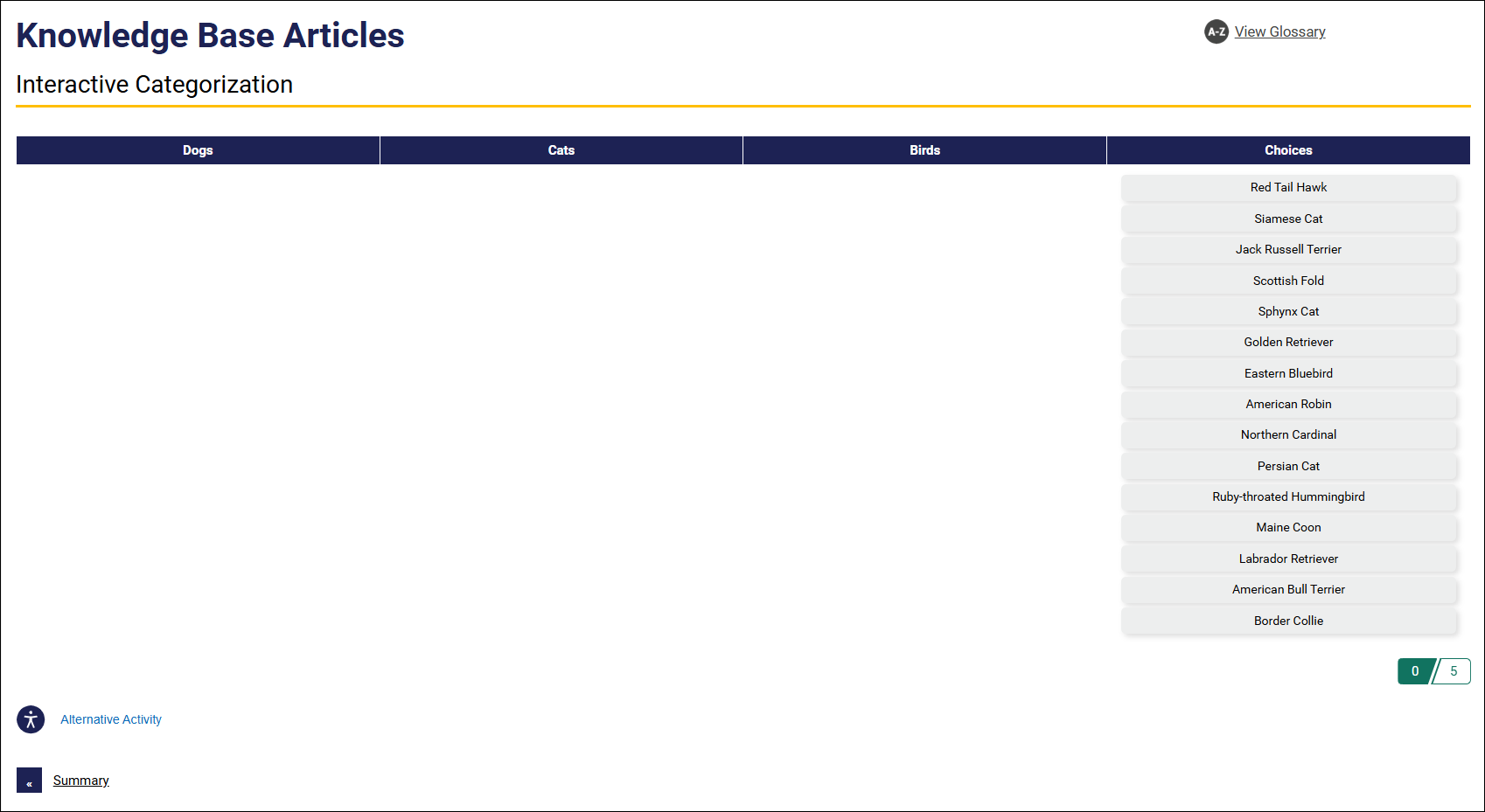
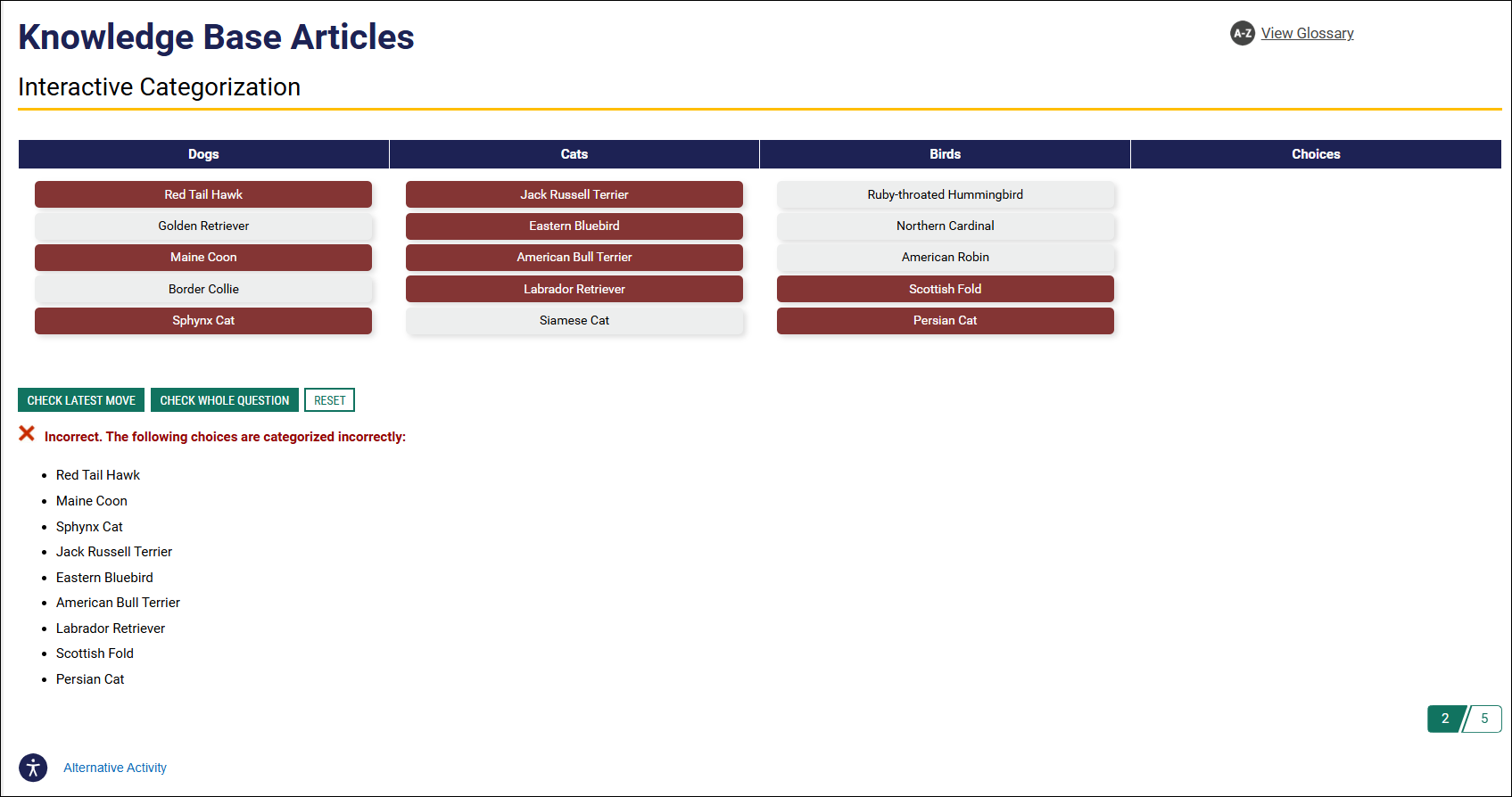
- Learners can use the CHECK LATEST MOVE or CHECK WHOLE QUESTION buttons to verify their answers. Incorrect answers will be highlighted and displayed on the page. Learners can reset the activity and try again to earn the maximum number of points, which are shown in the lower right hand corner of the page.
Was this article helpful?
That’s Great!
Thank you for your feedback
Sorry! We couldn't be helpful
Thank you for your feedback
Feedback sent
We appreciate your effort and will try to fix the article