The AI Generate feature is available as part of the AI Toolset package. Users must have the AI Access global role to access the AI Generate tab.
- Go to the Interactive Categorization form and select the AI Generate tab. For instructions on creating or editing an Interactive Categorization block, see the related How do I add an interactive categorization activity?.
- To generate an Interactive Categorization activity using AI, complete the following fields:
- Input Type: Choose the source for the categorization items: Text Input or Select from my content.
- Audience: Select the intended audience from the dropdown menu. If K-12 is selected, you will be prompted to specify a grade level.
- Desired number of items: Enter how many items you want the AI to create.
- Additional Context: Provide any extra guidance for the AI, such as formatting preferences or tone.
- Model: Select the AI model to use for generation. The default, gpt-4o-mini, meets most needs and uses the fewest credits. If your content includes math (with MathML), or you need more rigorous output, consider one of the following options:
- gpt-4o-mini (Default) – Best for simple, straightforward requests. Fastest and most credit-efficient.
- gpt-4o – Better for more complex content that does not involve math.
- gpt-5-mini – Handles simple requests that include math. More affordable, but slower than 4o-mini.
- gpt-5 – Best for complex content where details are being omitted or oversimplified. Slowest and highest credit cost.
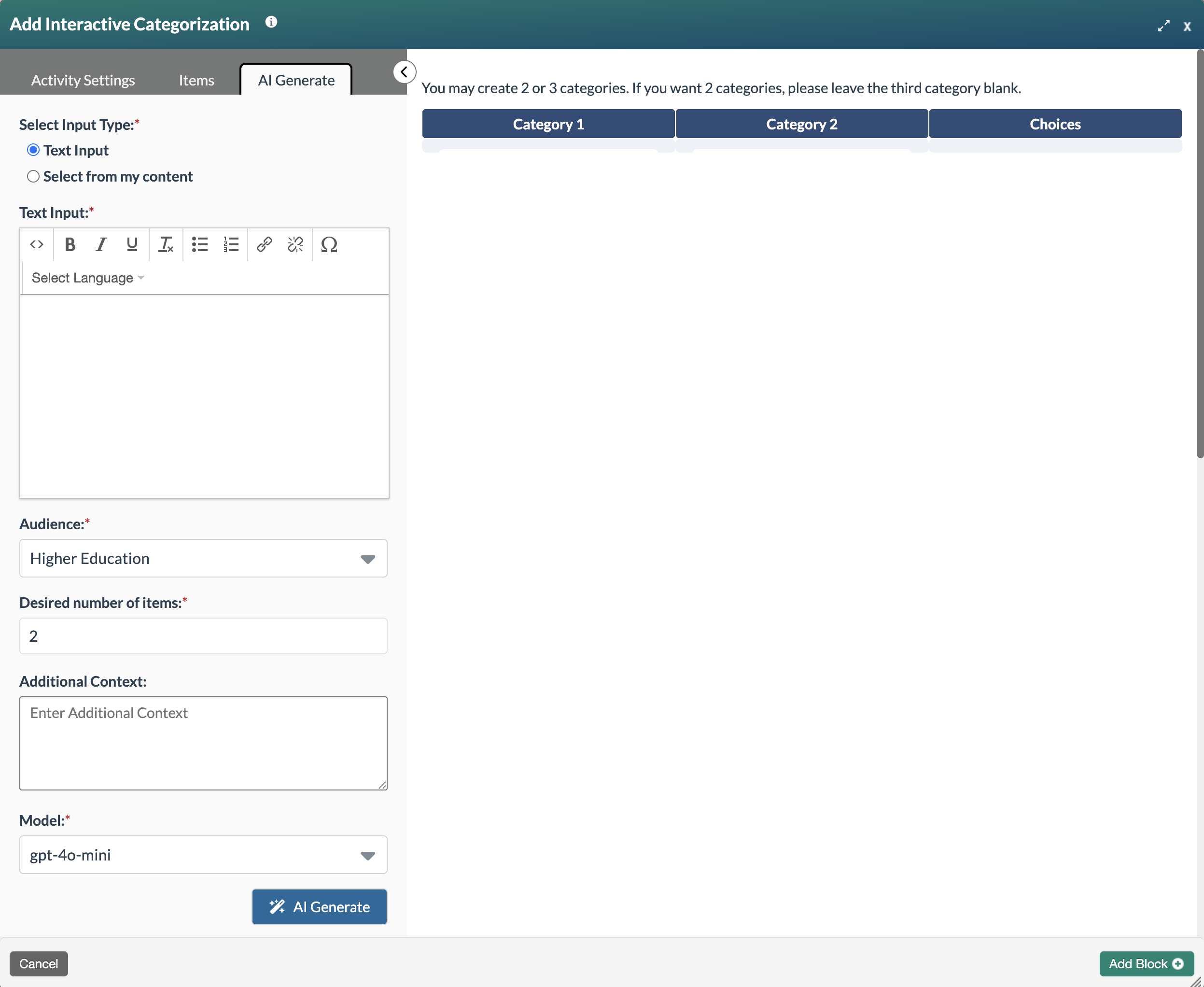
Text Input
- Text Input: Select this option, then paste the source text into the corresponding field. Complete the other fields and then select the AI Generate button.
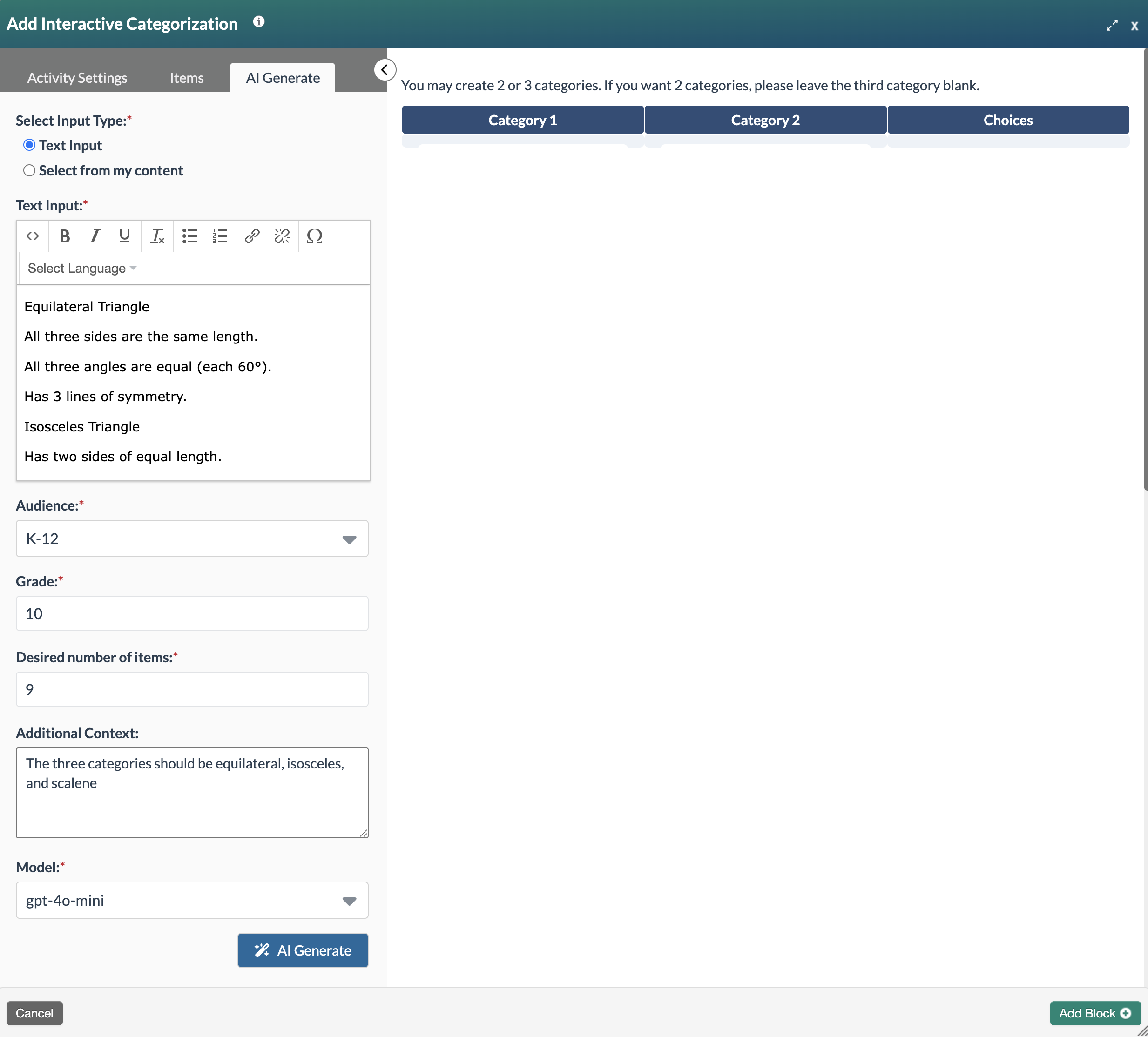
- The button will show a loading indicator while it processes the request.

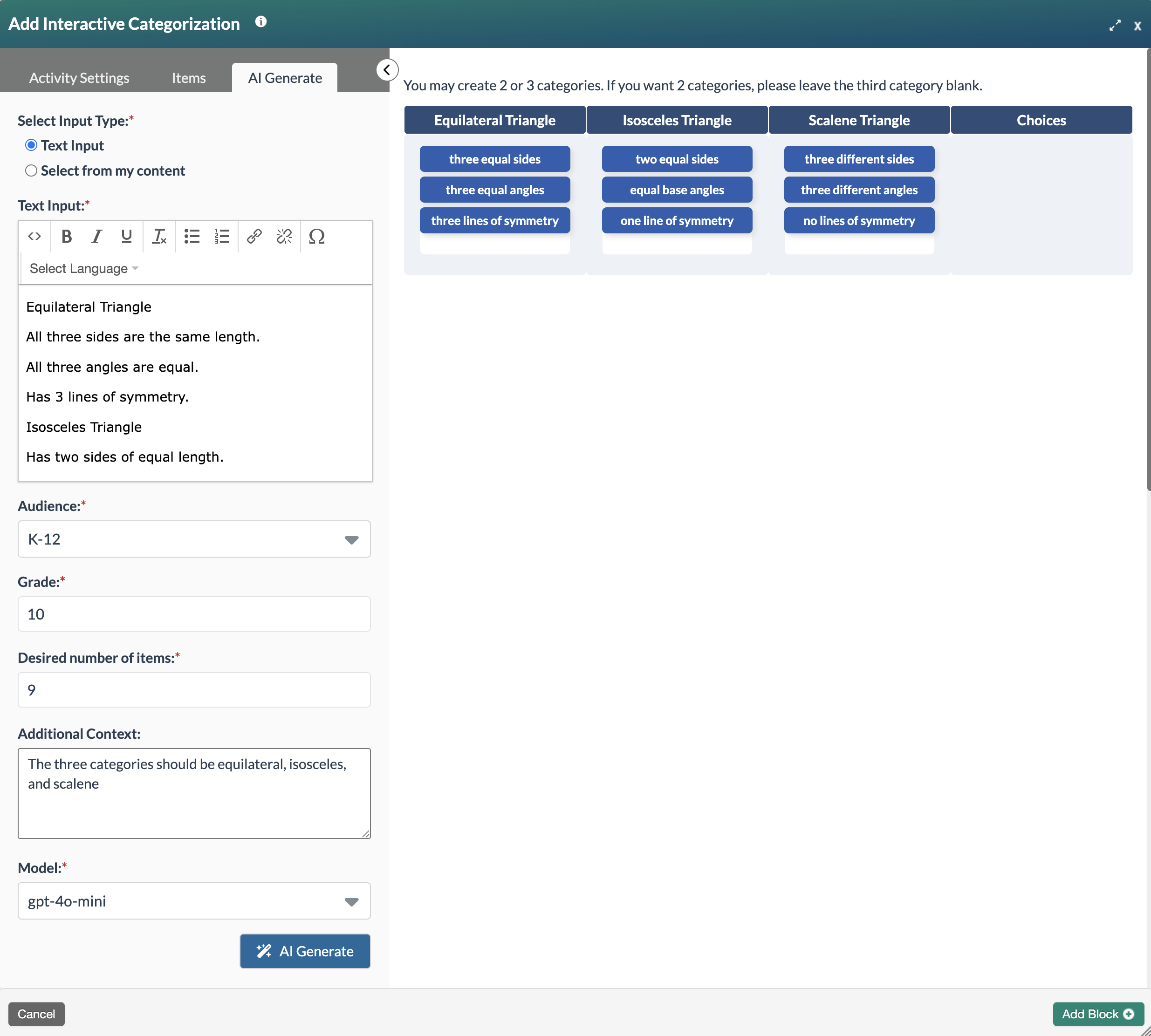
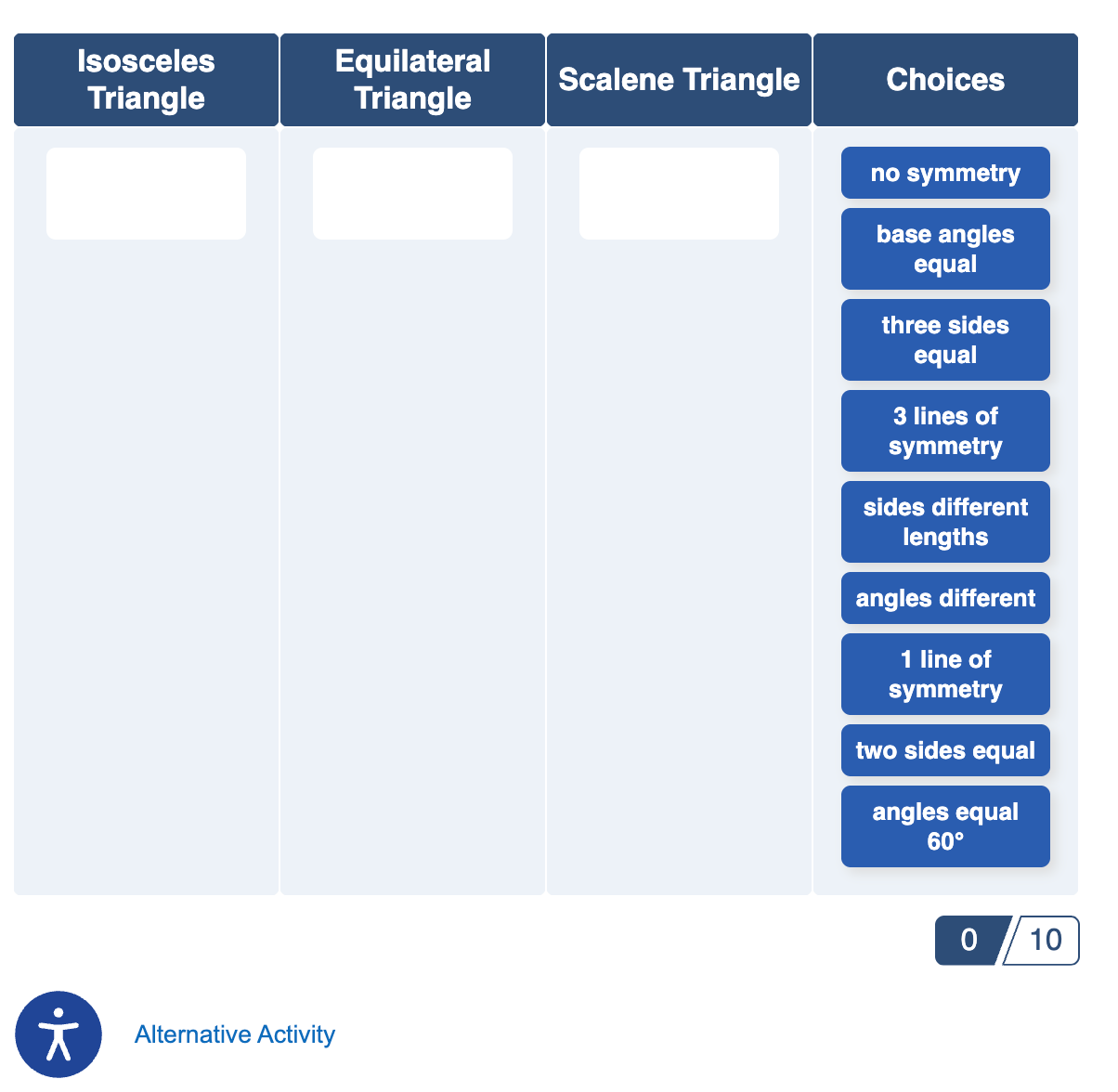
- Once the process is completed, the interactive categorization activity will appear in the preview pane. Carefully review the categories and choices and use the Activity Settings and Items tabs to make any necessary edits. Select the Add Block+ button to save the block to the page.
- The new block will appear on the page in Edit Mode with a red, dotted outline indicating it's editable.
Note: An Alternative Activity is automatically generated to provide learners another option for interacting with this activity.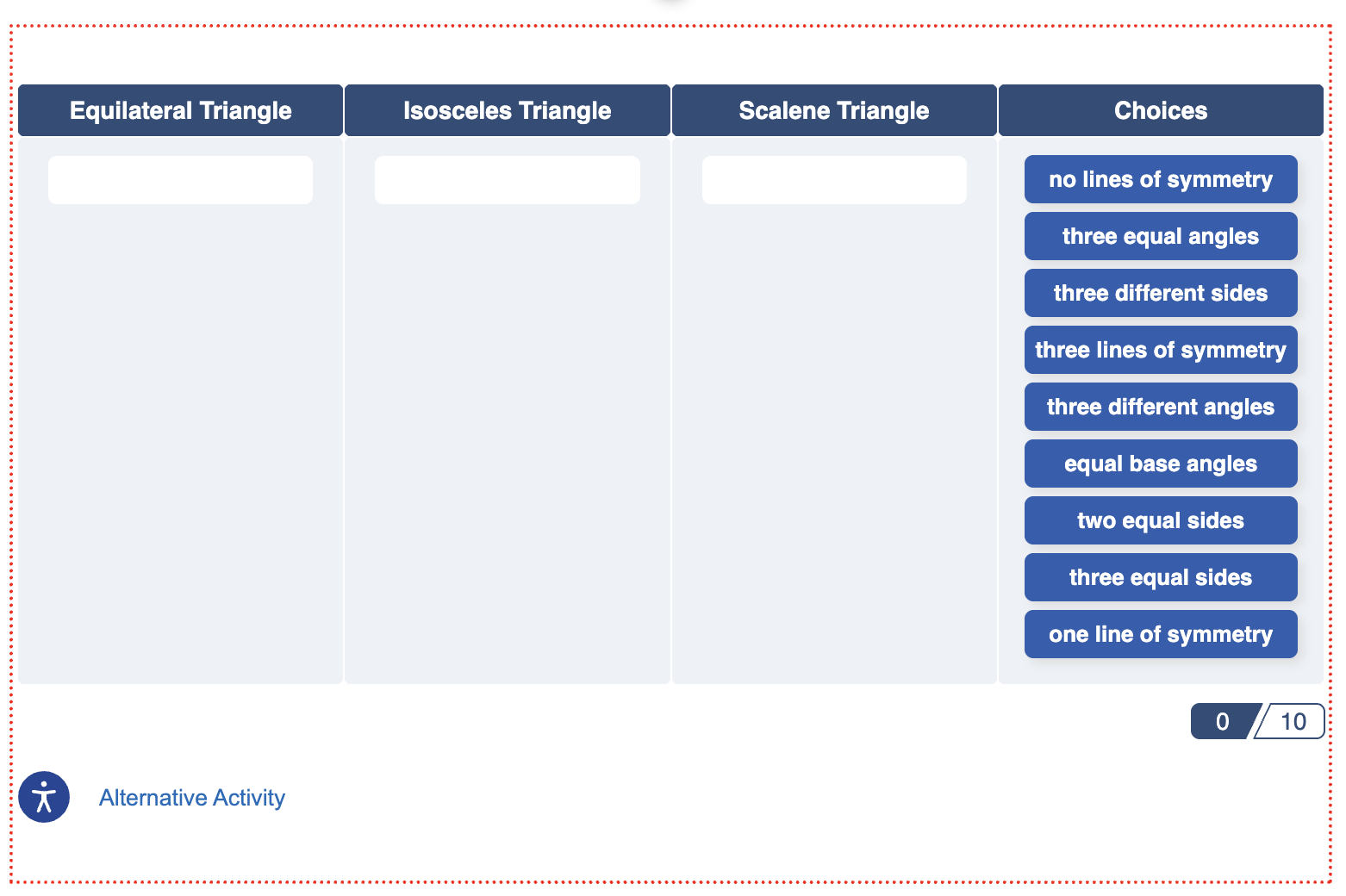
- Select the Publish My Edits button to save the block to the course page and see the content as it will appear to learners.
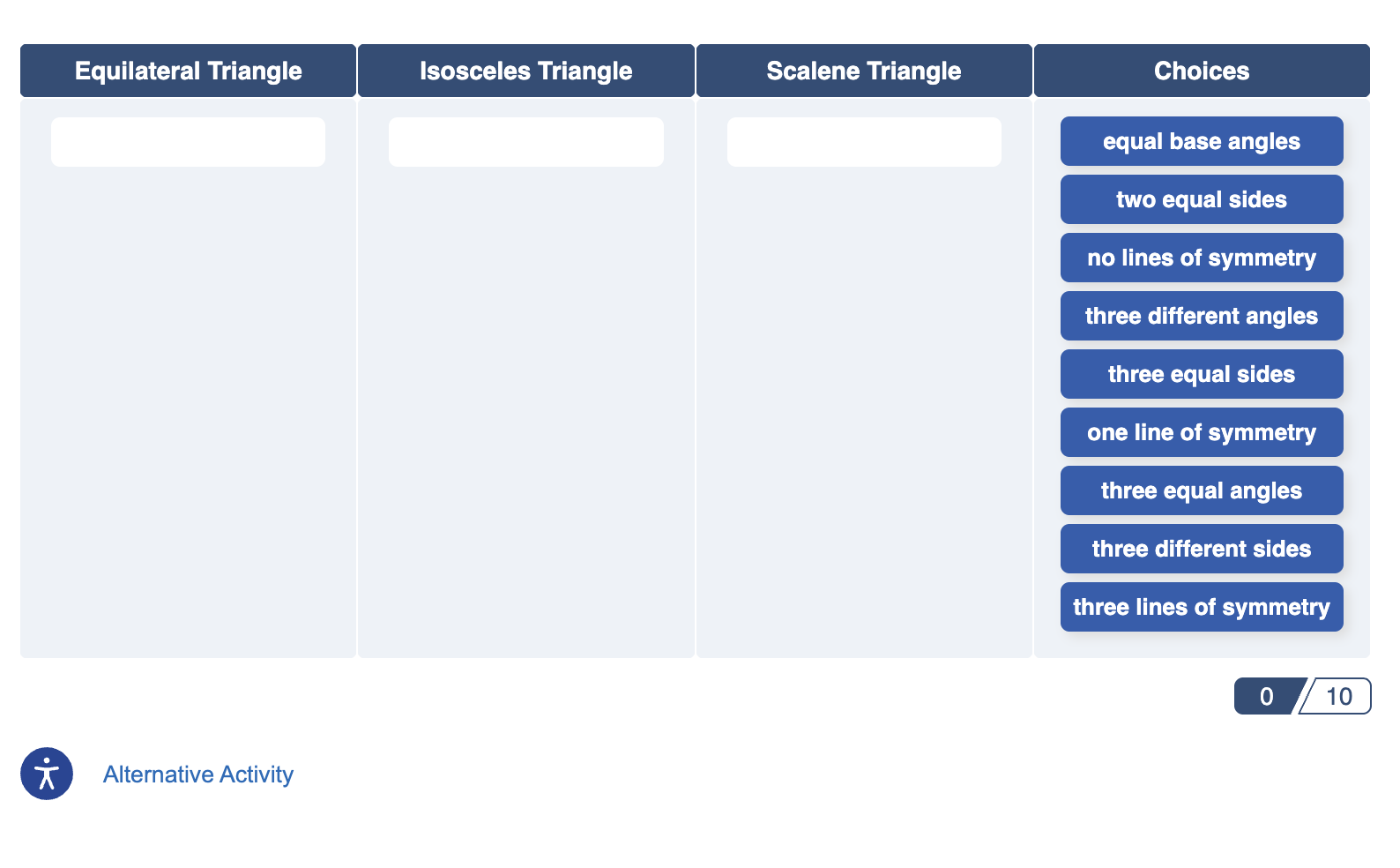
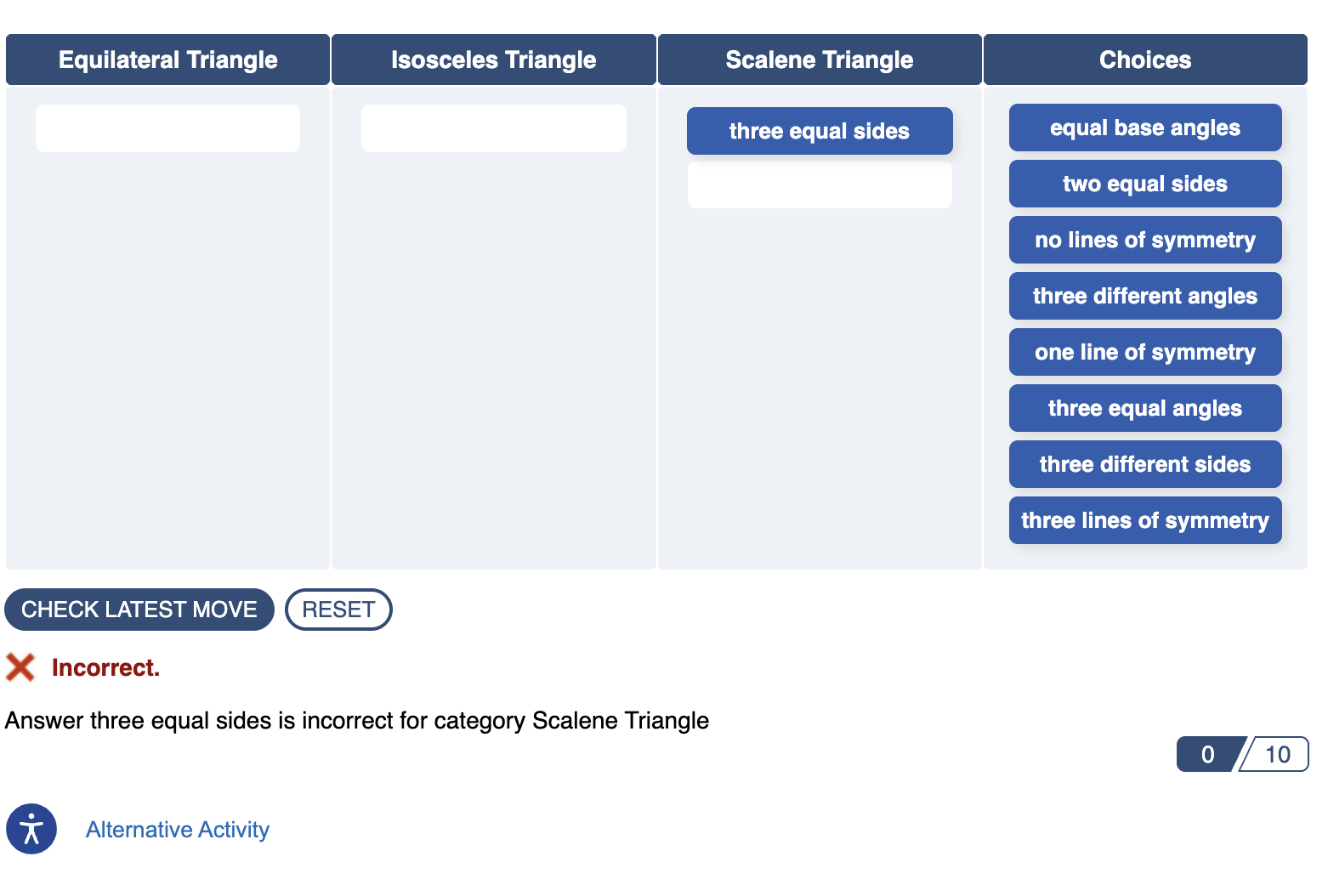
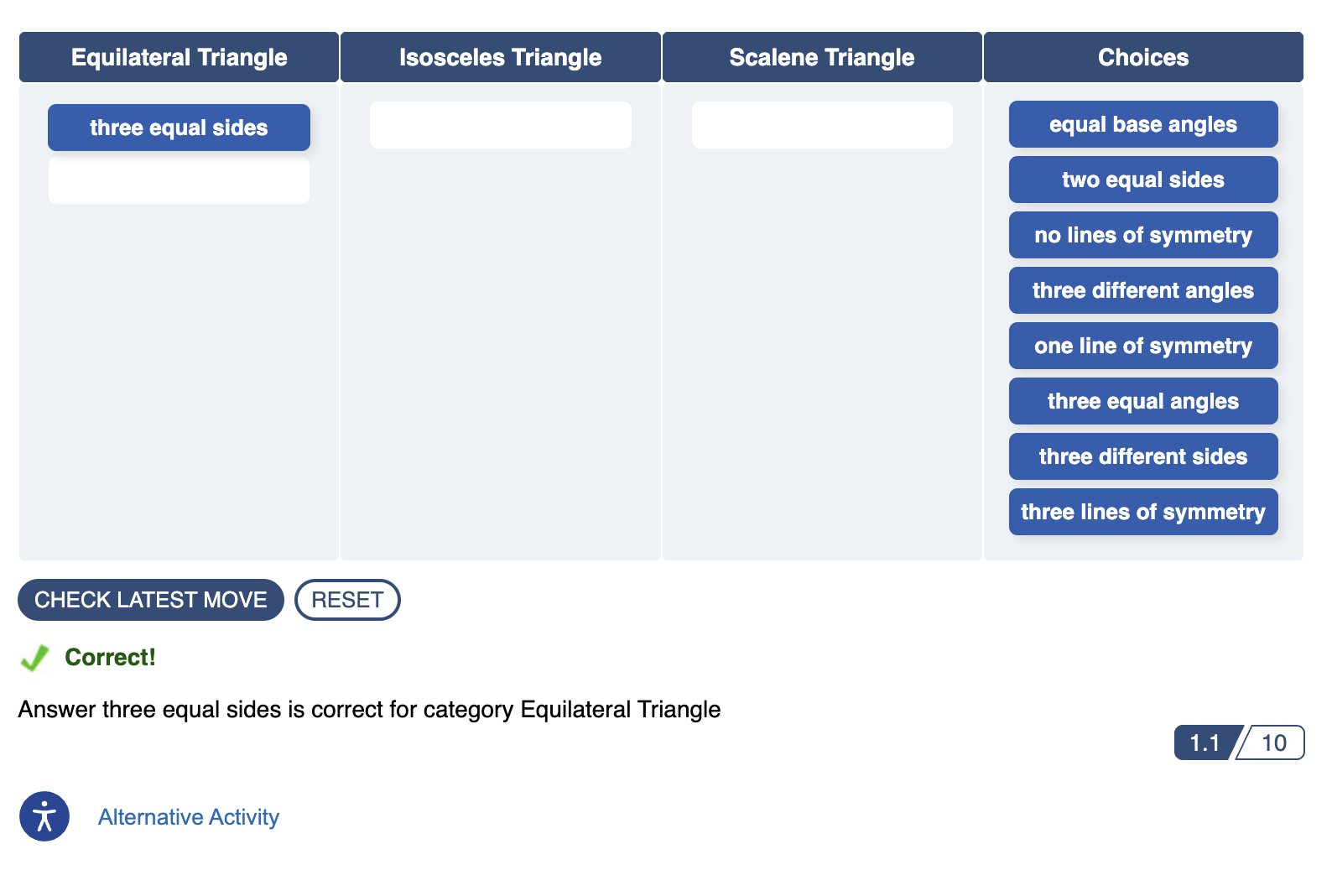
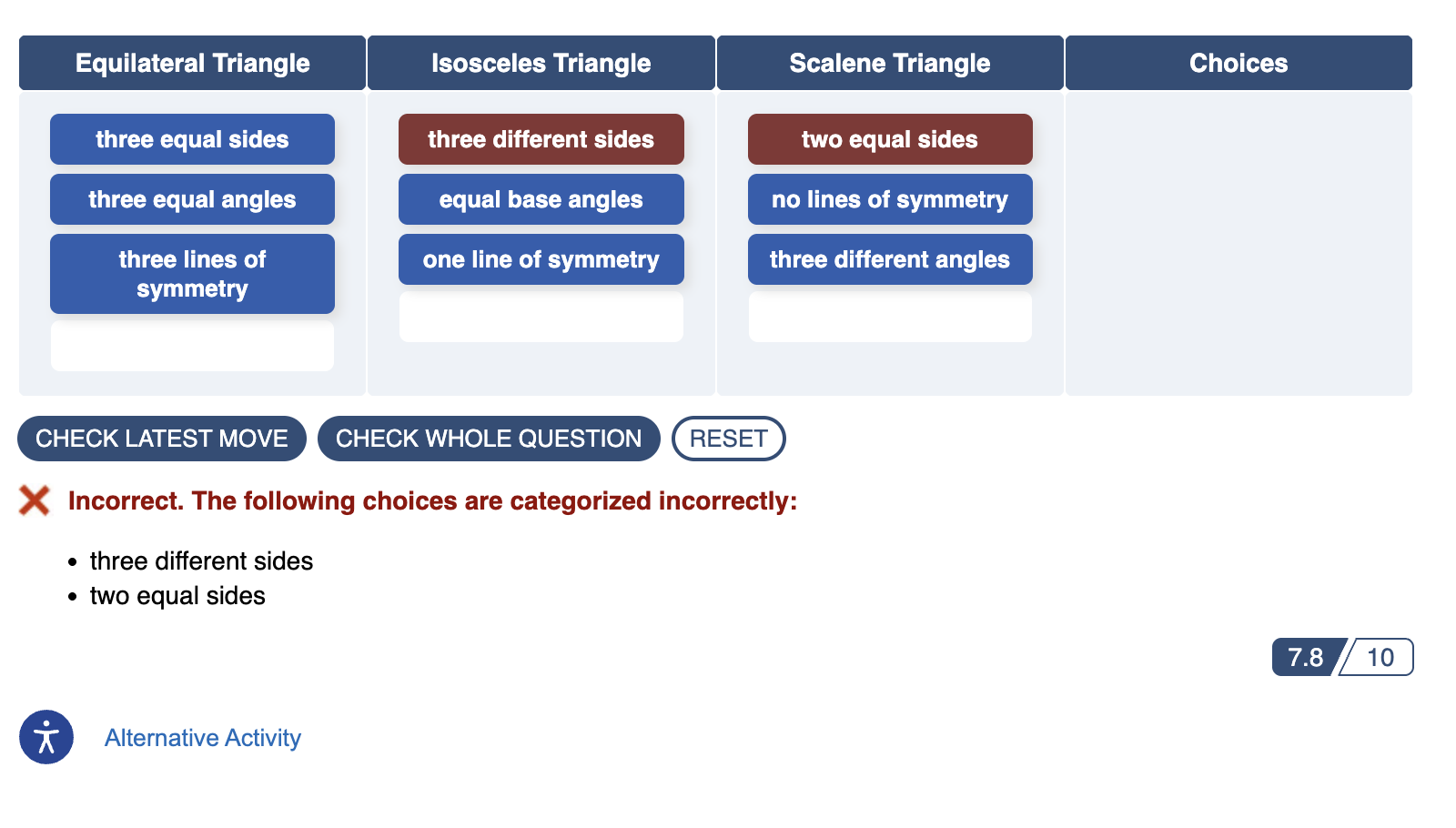
- When learners complete the Interactive Matching activity, they can use these CHECK LATEST MOVE or CHECK AND SUBMIT buttons.
Select from My Content
Select from My Content allows you to choose a content source—Glossary (Step 1), Modules (Step 2), or Pages (Step 3)—to generate the categorization items.
- Glossary: This option allows you to use the Course Glossary as the source for the activity.
- Select Glossary.
- Update the remaining fields as needed.
- Select the AI Generate button.
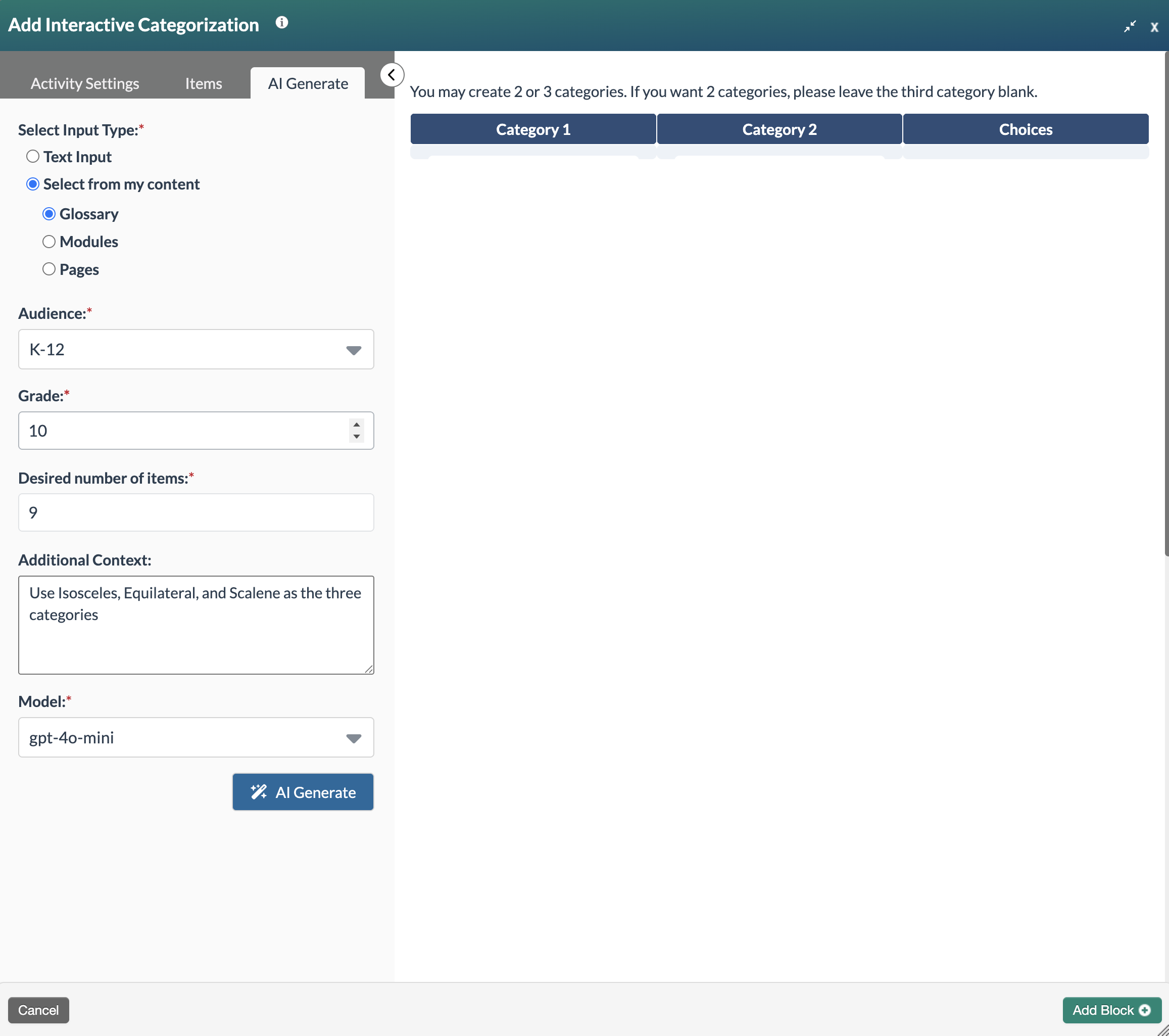
The button will show a loading indicator while it processes the request.
Once the process is completed, the interactive categorization activity will appear in the preview pane. Carefully review the choices and descriptions and use the Activity Settings and Items tabs to make any necessary edits. Select the Add Block+ button to save the block to the page.
- Modules: This option allows you to use entire course modules as the source for the categorization activity. Select Modules and then select Add Modules.
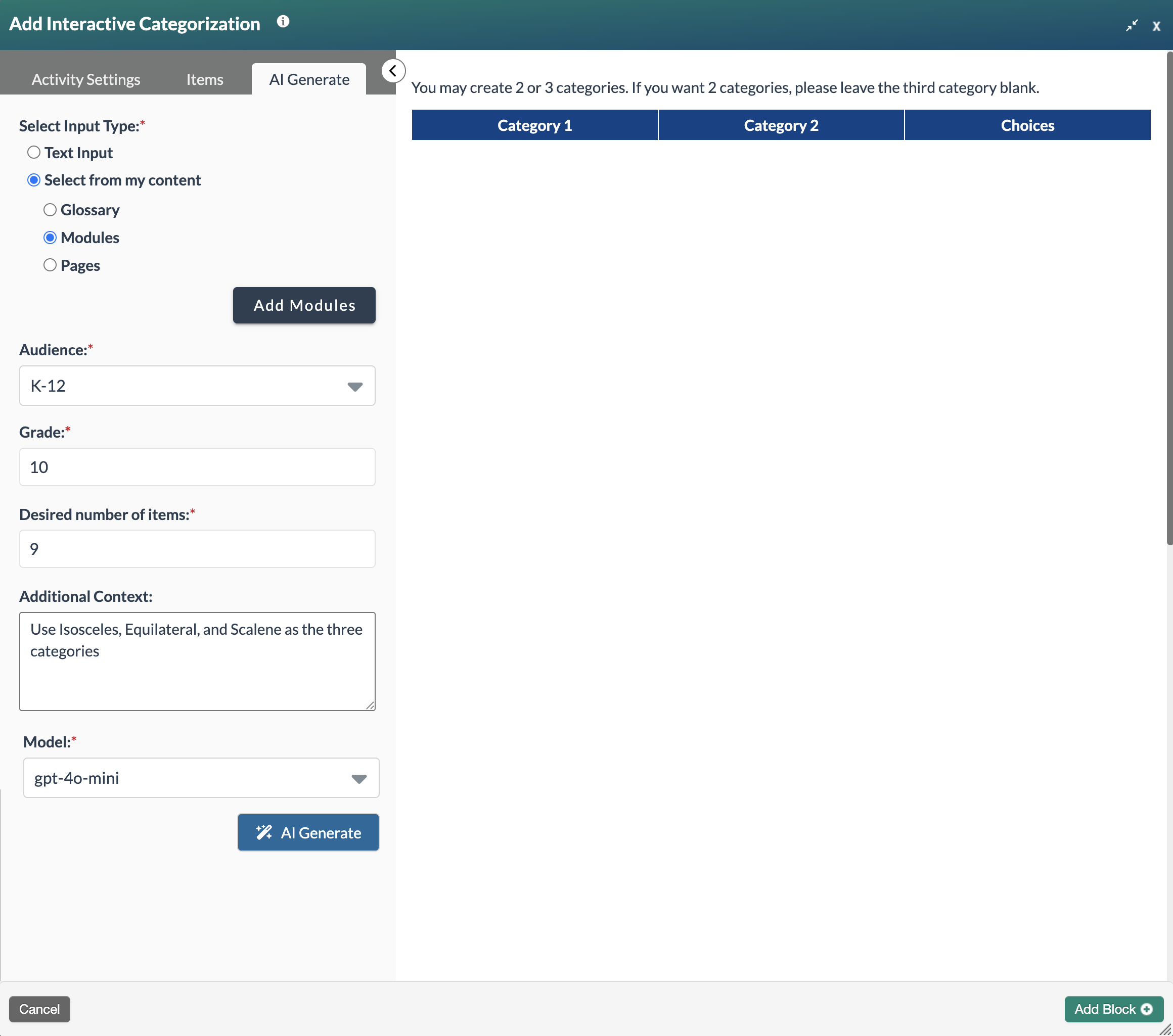
A modal appears with a list of course modules. Select one or more modules to generate the items, then select Confirm.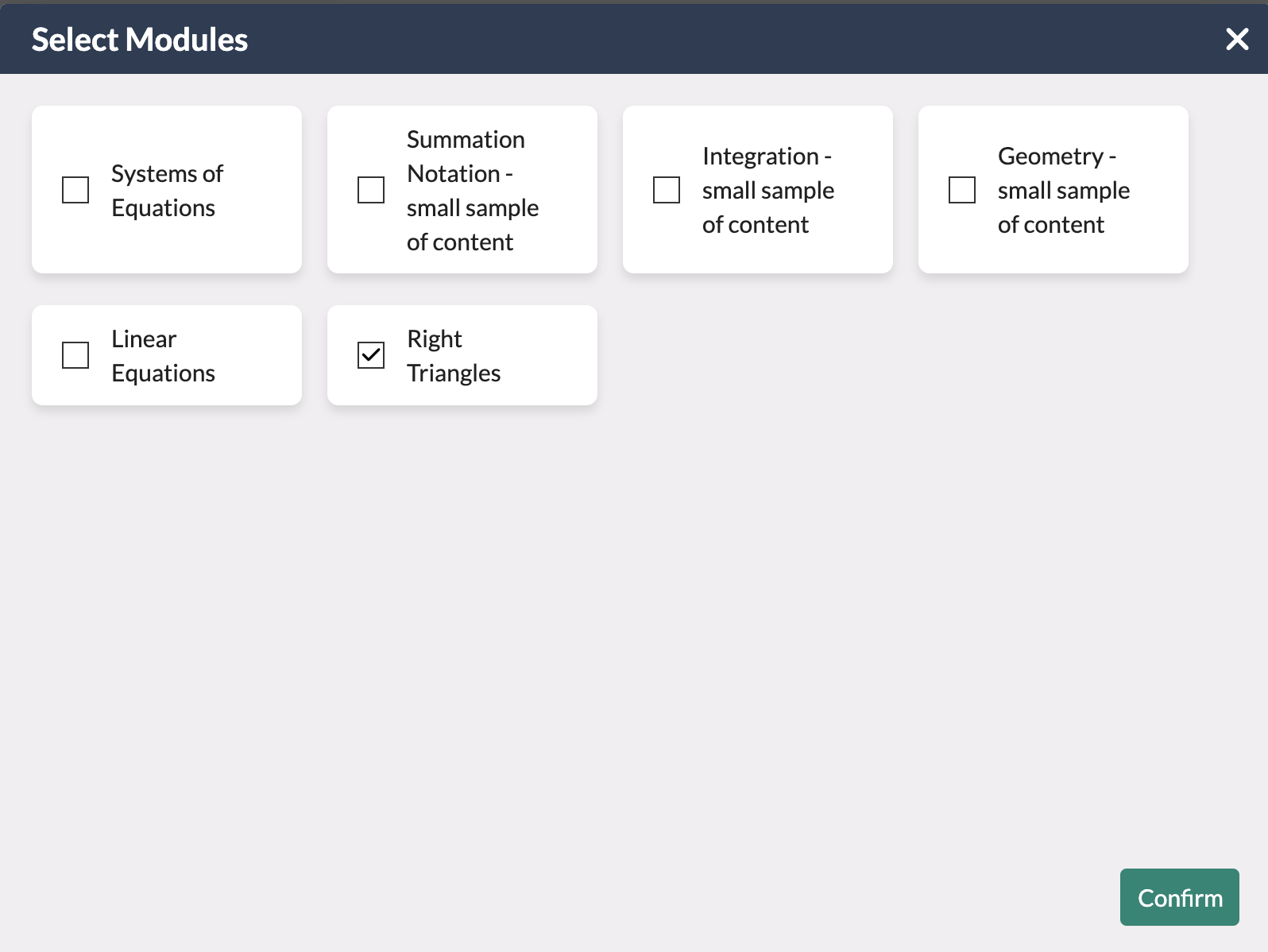
The form updates to show the selected modules. Update the remaining fields as needed, then select the AI Generate button.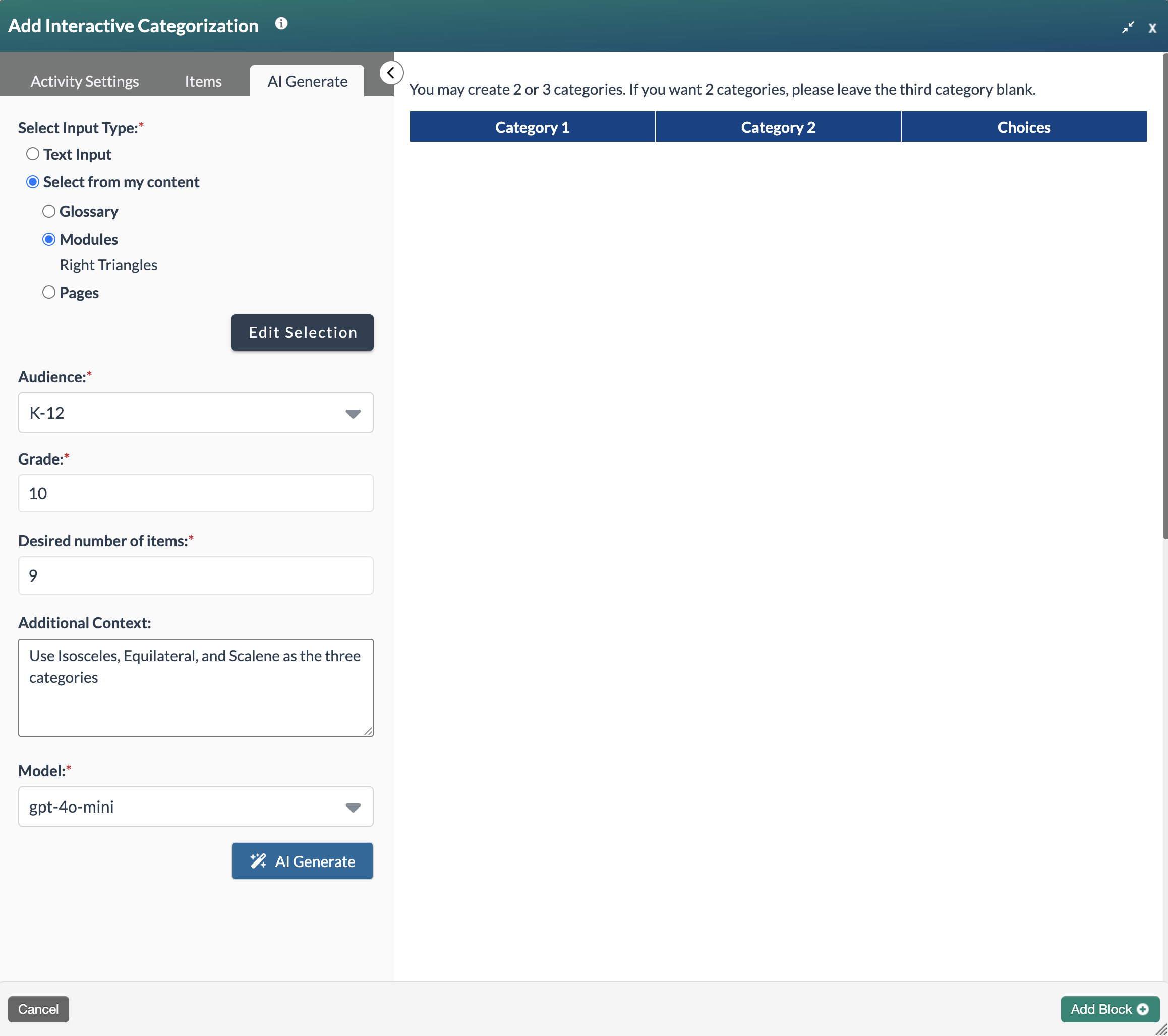
The button will show a loading indicator while it processes the request.
Once the process is completed, the categorization activity will appear in the preview pane. Carefully review the choices and descriptions and use the Activity Settings and Items tabs to make any necessary edits. Select the Add Block+ button to save the block to the page. - Pages: This option allows you to select certain pages within the current module as the source for matching questions. Select Pages and then select Add Pages.
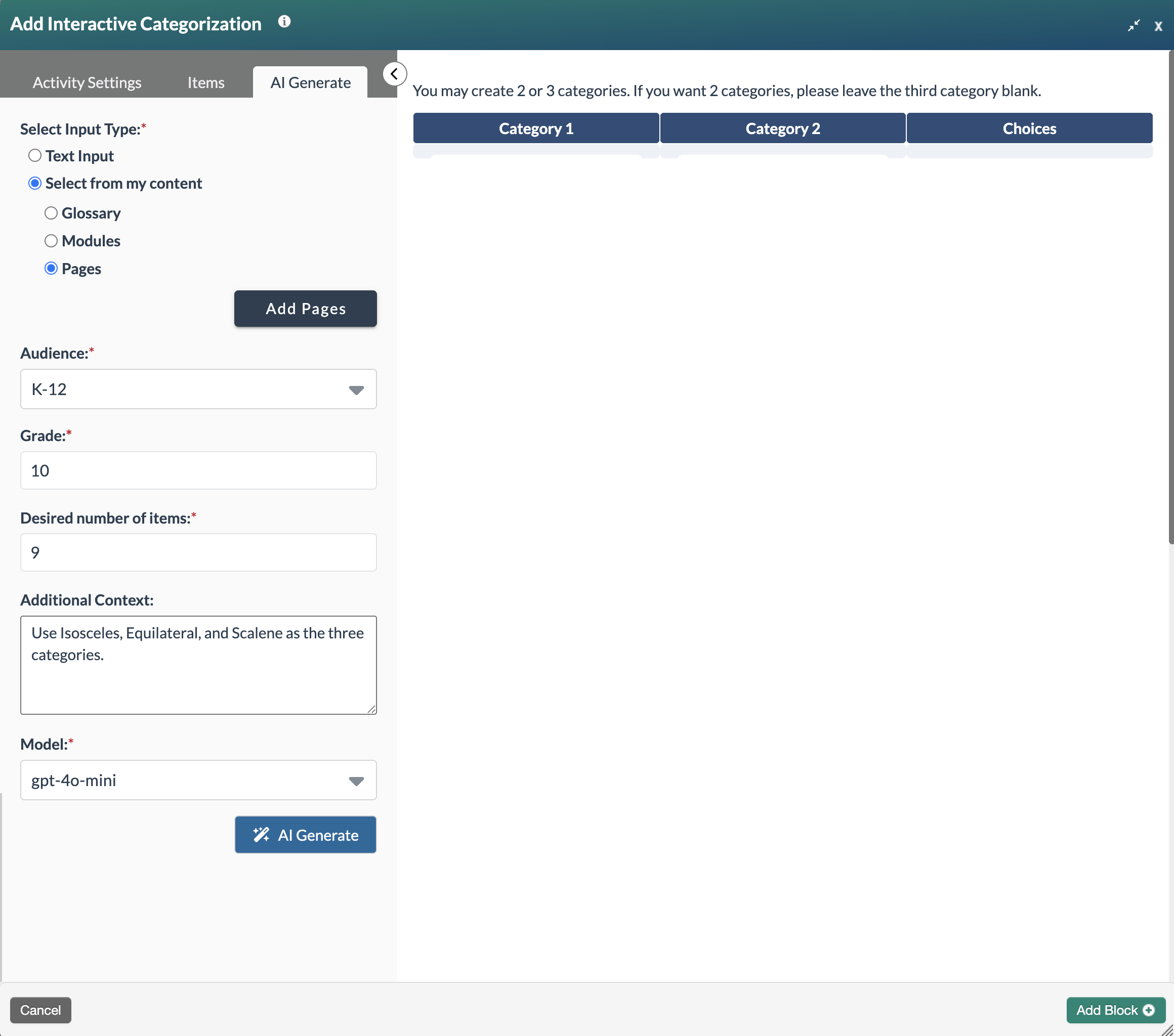
A modal appears with a list of pages with the current module. Select one or more pages to generate the questions, then select Confirm.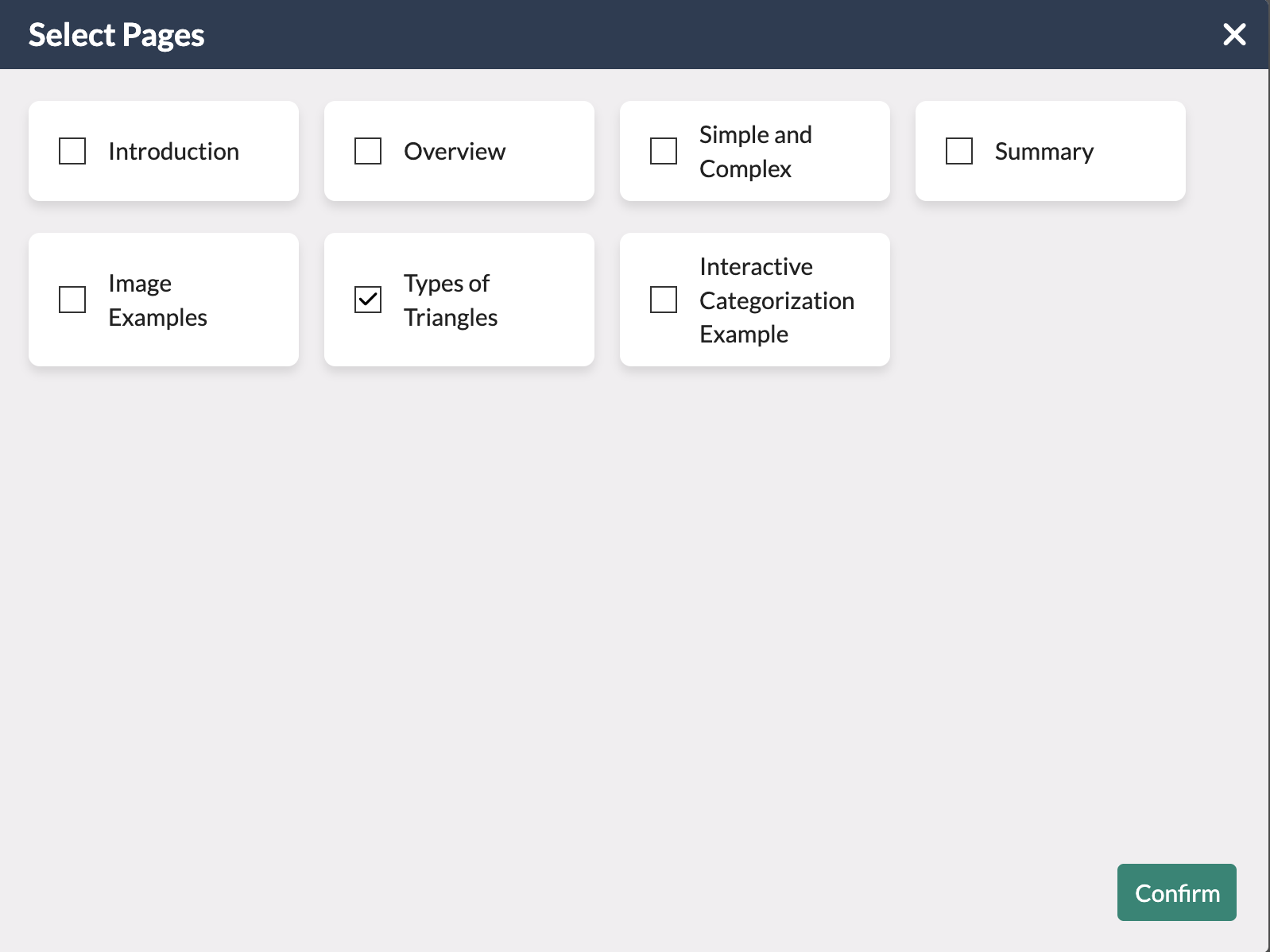
The form updates to show the selected pages. Update the remaining fields, then select the AI Generate button.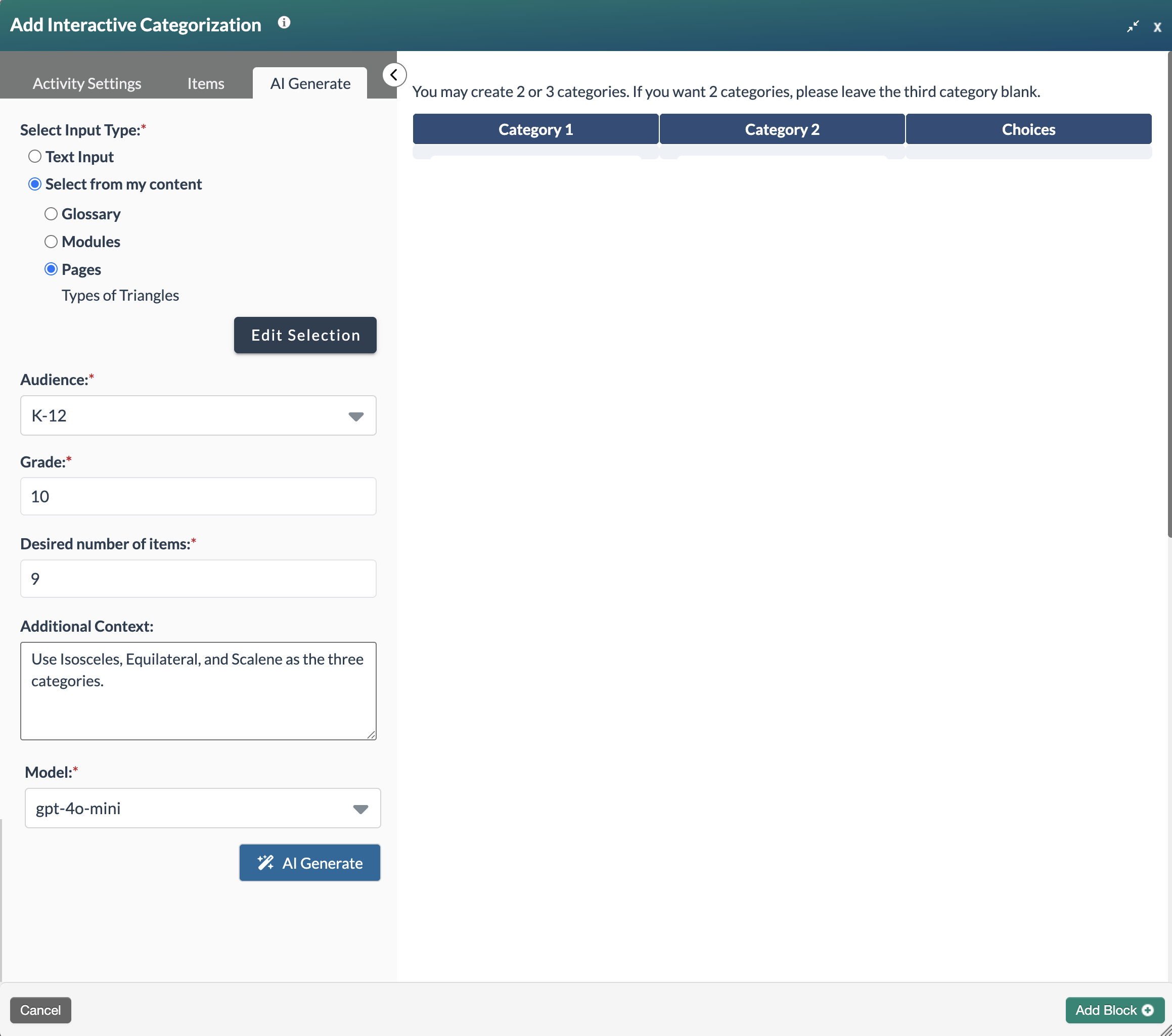
The button will show a loading indicator while it processes the request.
Once the process is completed, the matching activity will appear in the preview pane. Carefully review the choices and descriptions and use the Activity Settings and Items tabs to make any necessary edits. Select the Add Block+ button to save the block to the page. - The new block will appear on the page in Edit Mode with a red, dotted outline indicating it's editable.
Note: An Alternative Activity is automatically generated to provide learners another option for interacting with this activity.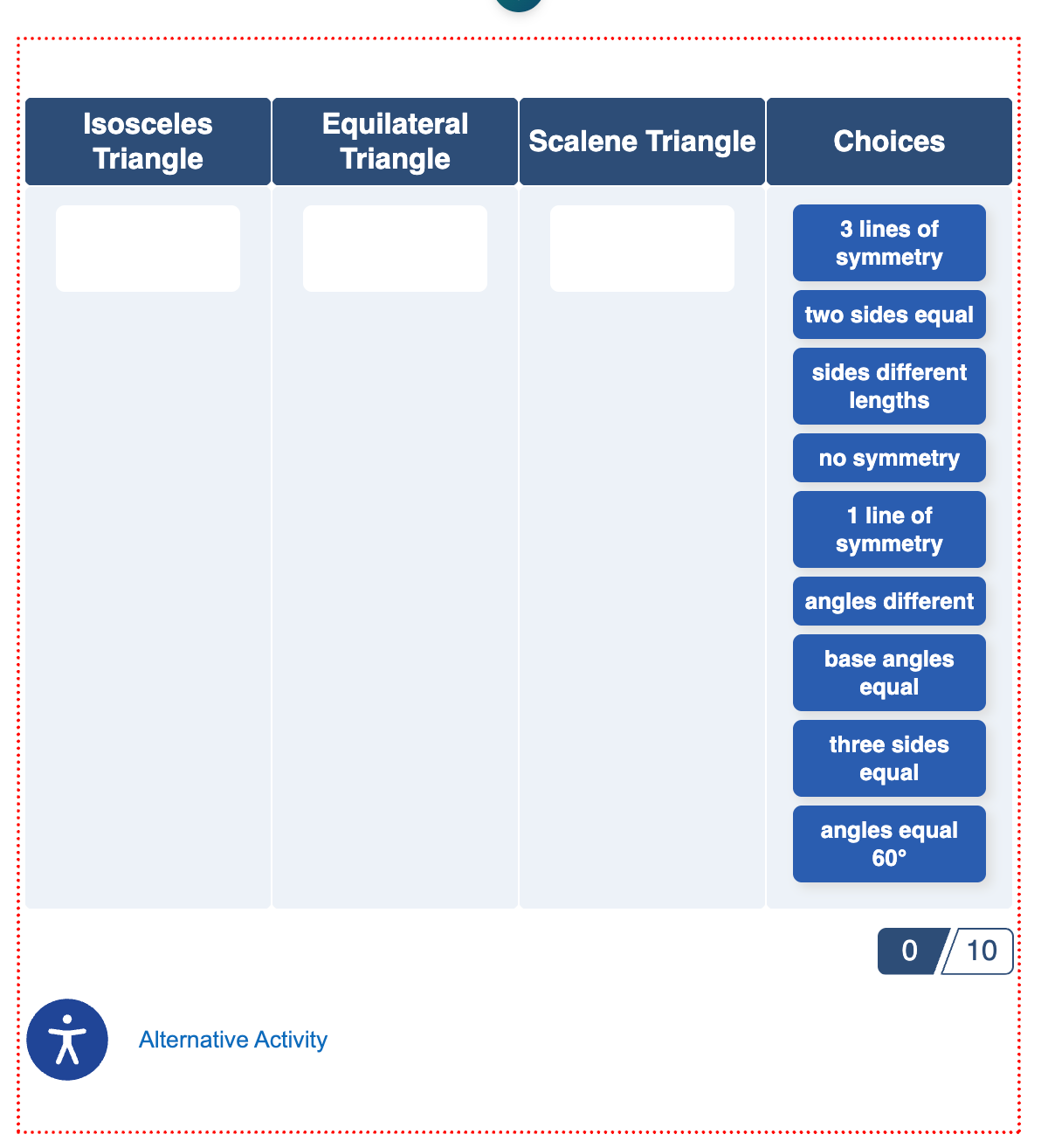
- Select the Publish My Edits button to save the block to the course page and see the content as it will appear to learners.
Was this article helpful?
That’s Great!
Thank you for your feedback
Sorry! We couldn't be helpful
Thank you for your feedback
Feedback sent
We appreciate your effort and will try to fix the article