When a Certificate block is set to be issued by an instructor, learners won’t see their certificate until you issue it. This article explains how to issue a certificate to individual students and preview what they will see.
Issuing a Certificate (LMS)
- While logged in the LMS as an instructor, go to the course page that contains the certificate. The instructor view of this page lists all enrolled students, and each name has an Issue Certificate? checkbox. Selecting a student’s checkbox makes a personalized certificate appear in that student’s view of the page.
Note: If a student is missing from the list, they haven’t yet accessed the module that contains the certificate. Their name will appear once they do.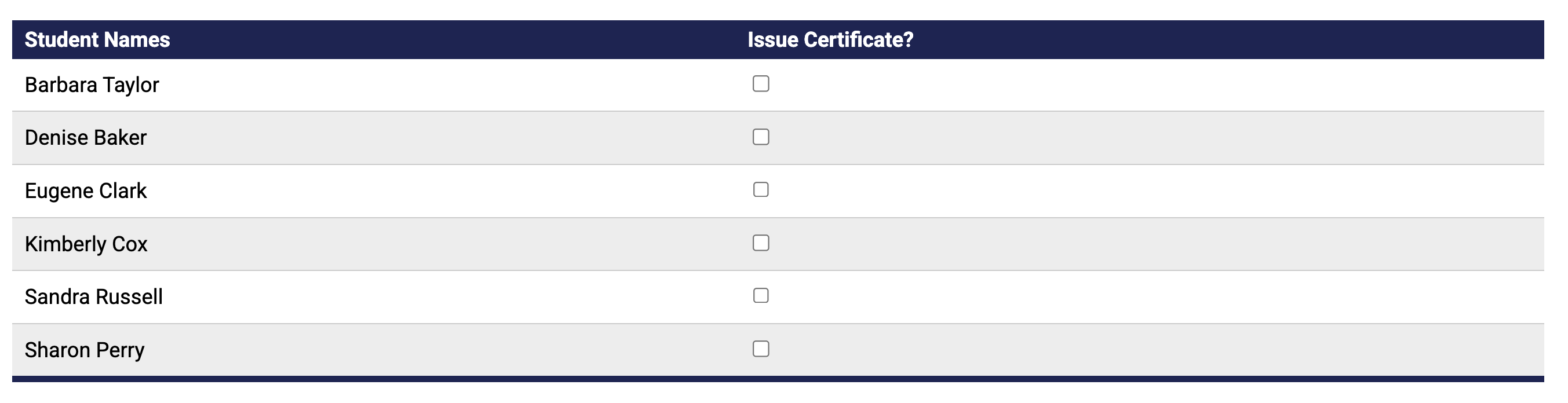
- Select the Issue Certificate? checkbox next to the name of the student you’re issuing the certificate to. Then choose that student’s name from the Select a Student dropdown list to view their certificate.
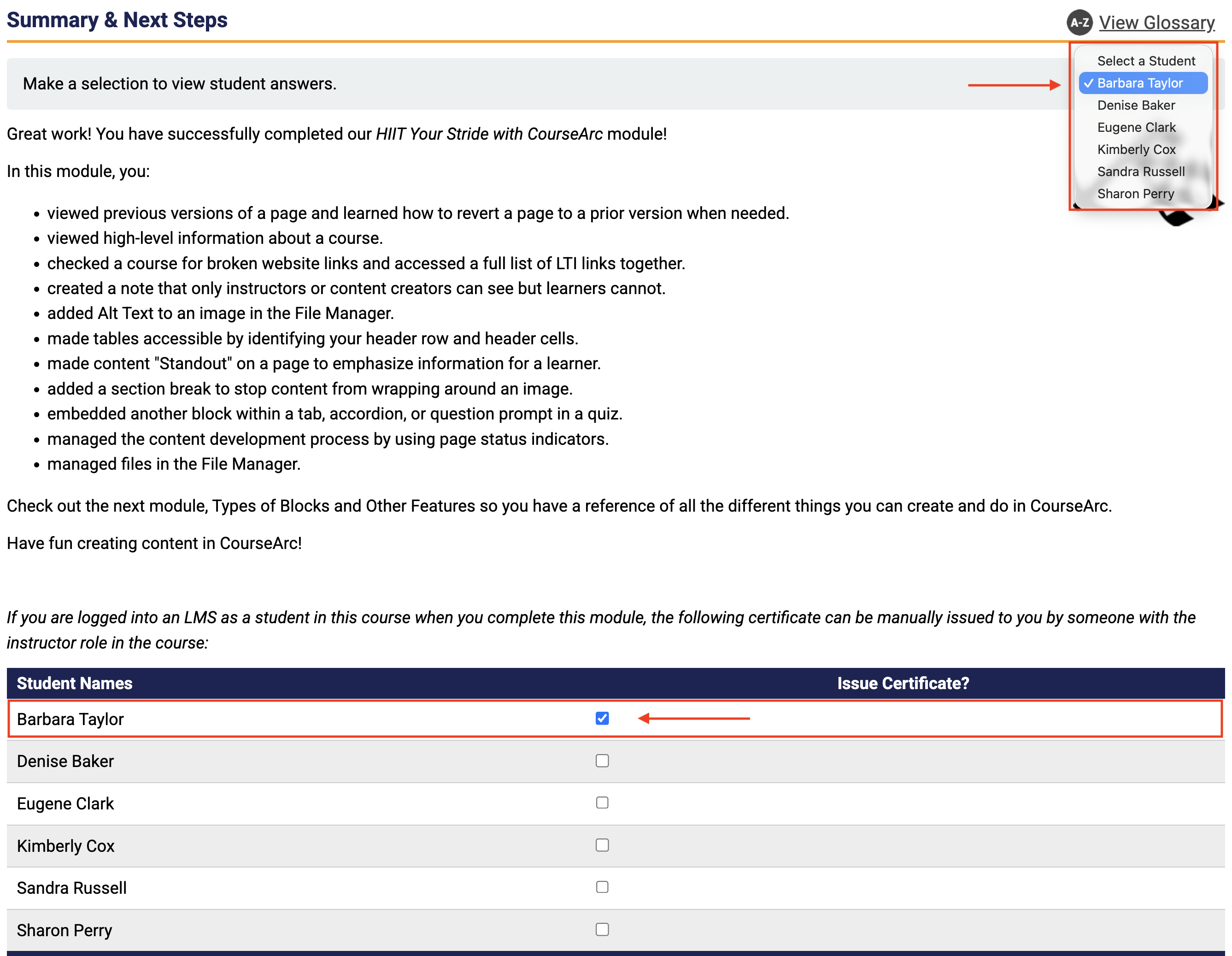
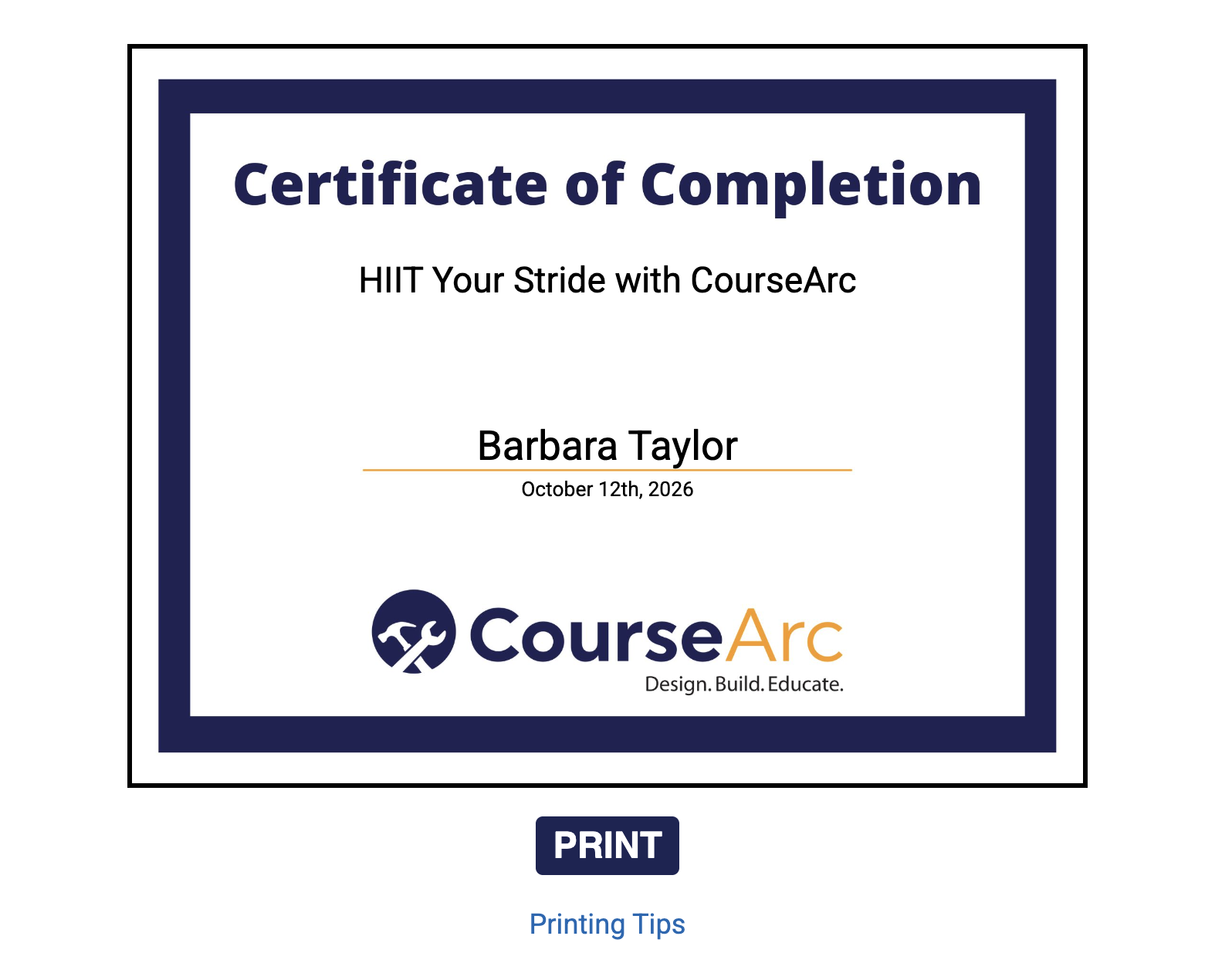
- A preview of the student’s certificate appears.
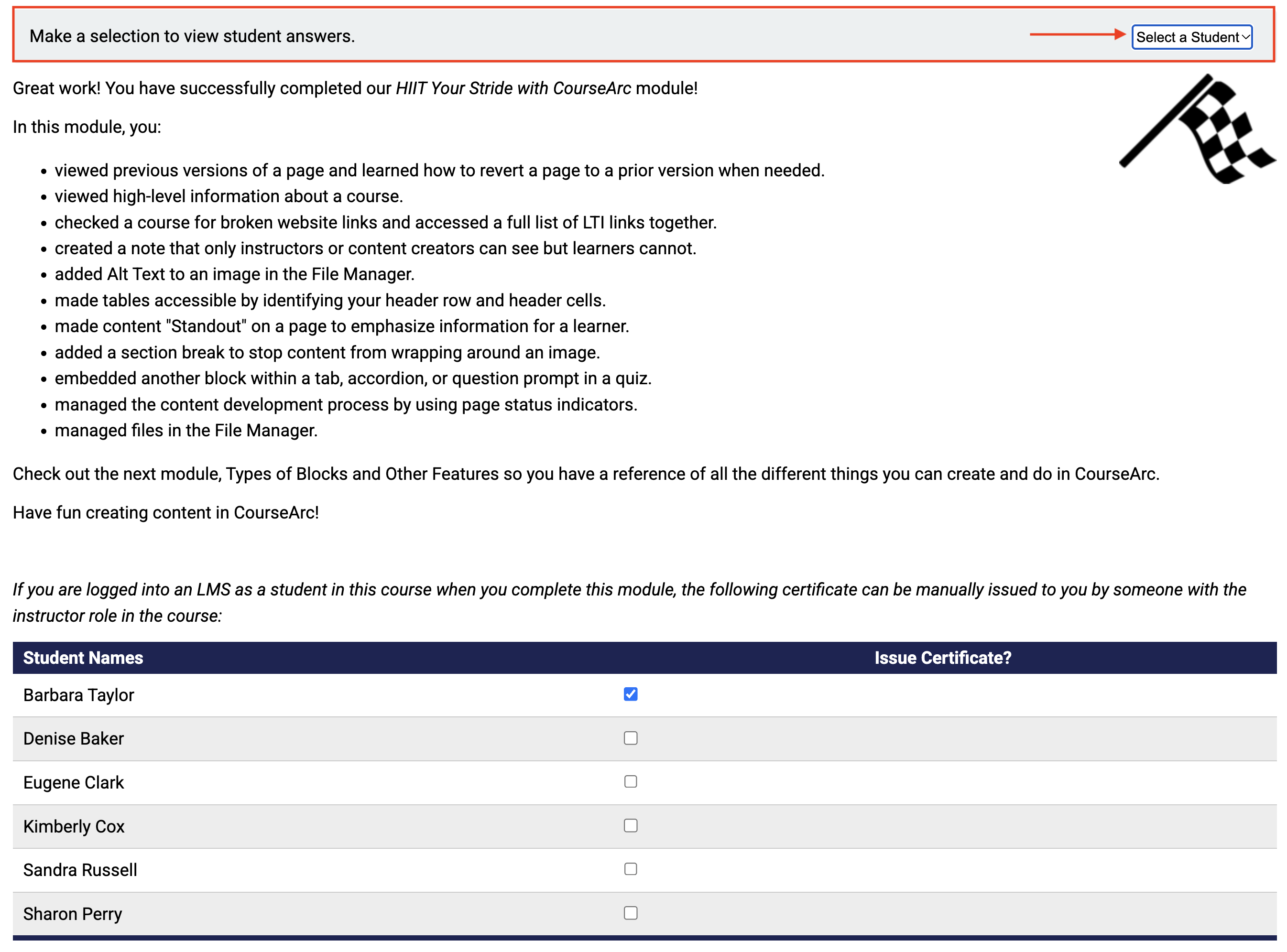
- To return to the previous view of the certificate issuing list, choose Select a Student from the dropdown list.
Was this article helpful?
That’s Great!
Thank you for your feedback
Sorry! We couldn't be helpful
Thank you for your feedback
Feedback sent
We appreciate your effort and will try to fix the article