Grade passback is how CourseArc sends a learner's score for a module back into the gradebook of the LMS (Canvas, Blackboard, etc.) that launches the course, so instructors don't have to track scores in two places. A few important points:
- It requires tracking to be turned on. CourseArc has to actually be recording learner progress/scores before there's anything to pass back.
- What gets passed back depends on the grading mode. Participation passes back a Percent Complete-style score; Cumulative passes back a percentage from point totals; No Tracking or Grading passes back nothing at all.
- It's a two-way setup. CourseArc has to be configured (tracking/grading + score syncing), and the LMS side has to be configured to accept an LTI connection and receive grades—one without the other won't work.
- Syncing can be automatic or manual. Depending on the Score Syncing setting, scores either push to the LMS gradebook as soon as they're earned, or only when a student/instructor manually triggers a sync.
Only a System Administrator, Course Administrator, or Course Leader can edit course grading settings. Gradebook passback requires student tracking to be enabled (see How do I enable the bookmarking and grading features?).
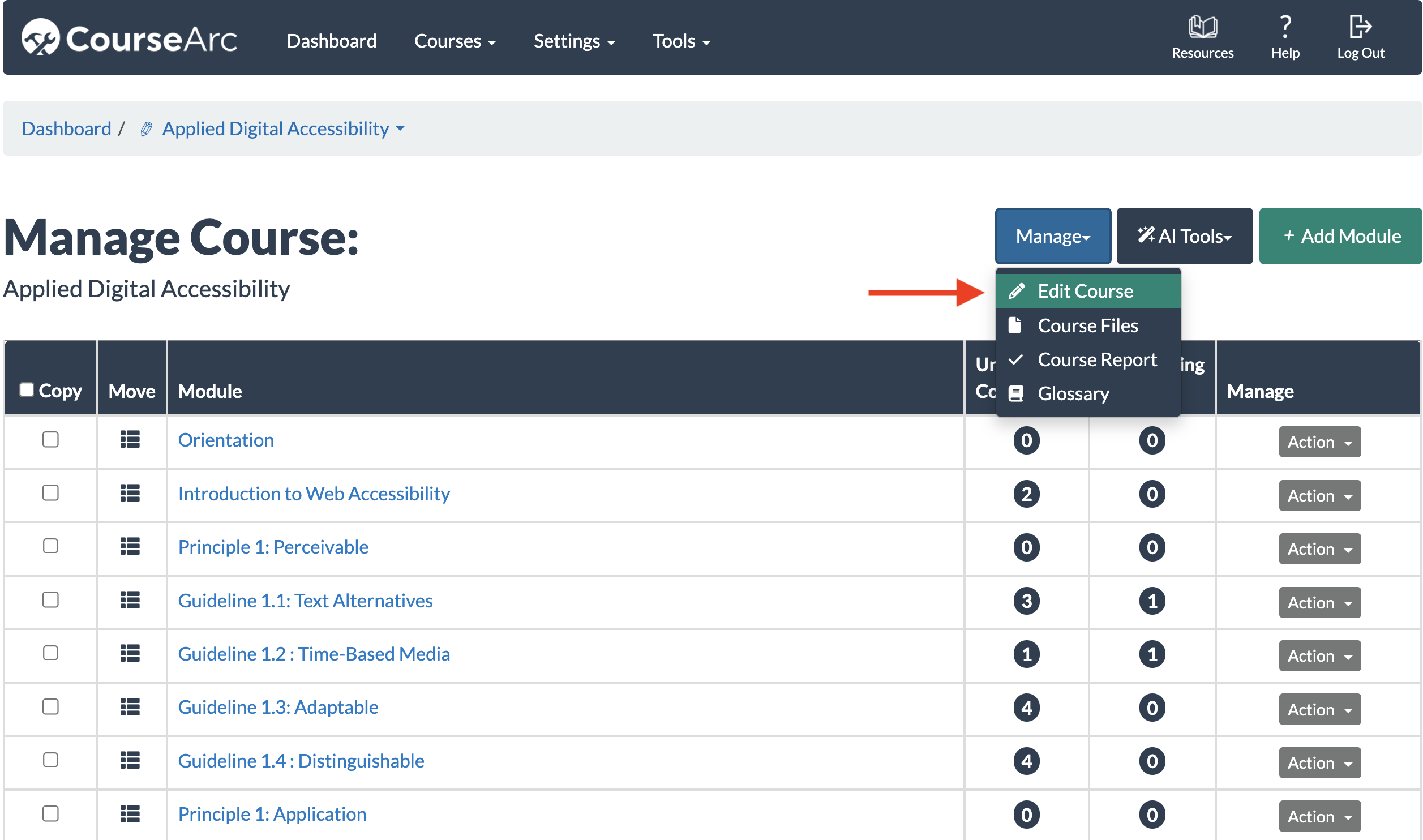
- Open the course's grading settings. Navigate to the course, go to the Manage Course dropdown menu, then select Edit Course.
- Scroll to the Tracking and Grading section.
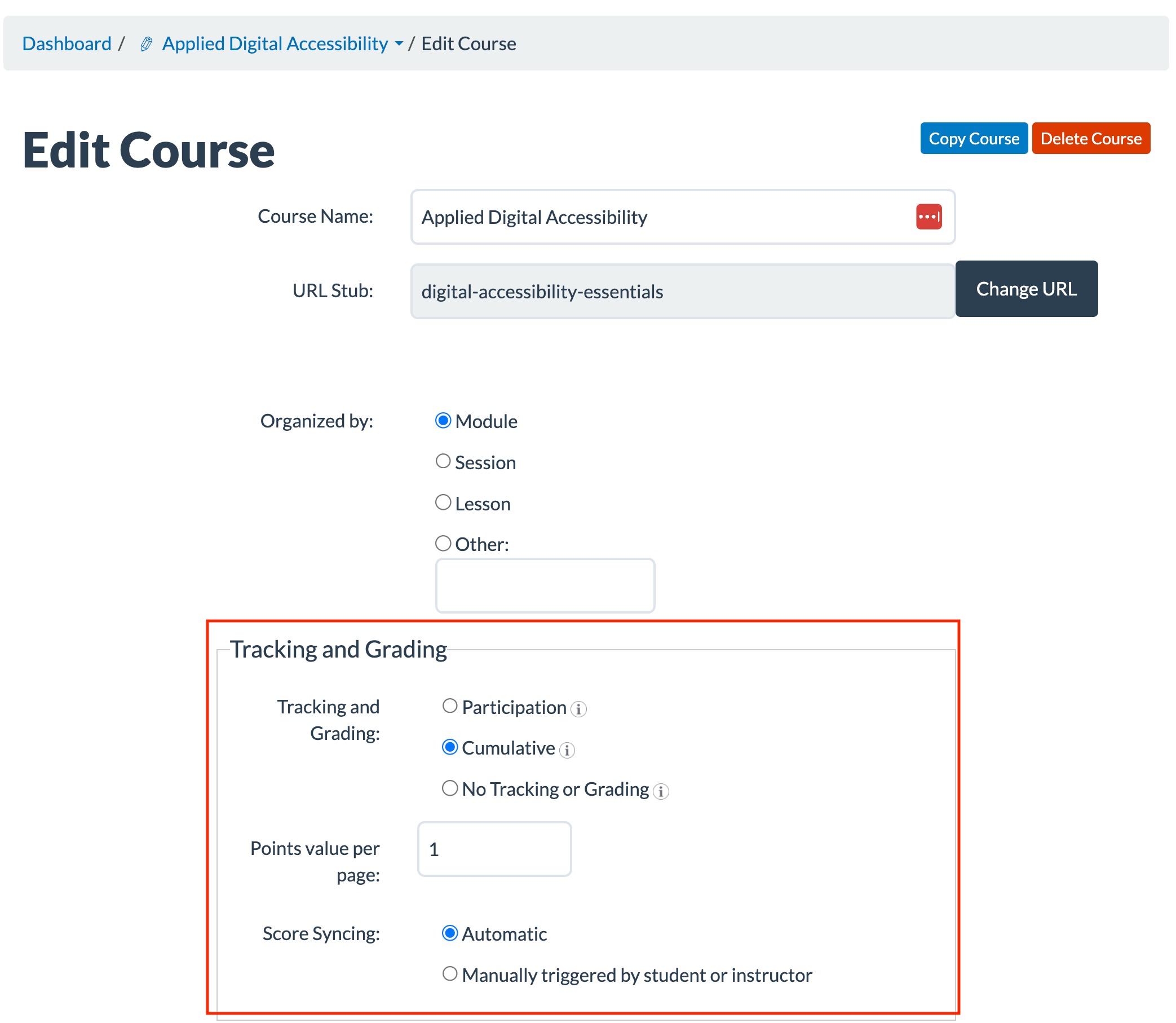
- Choose a Tracking and Grading option.
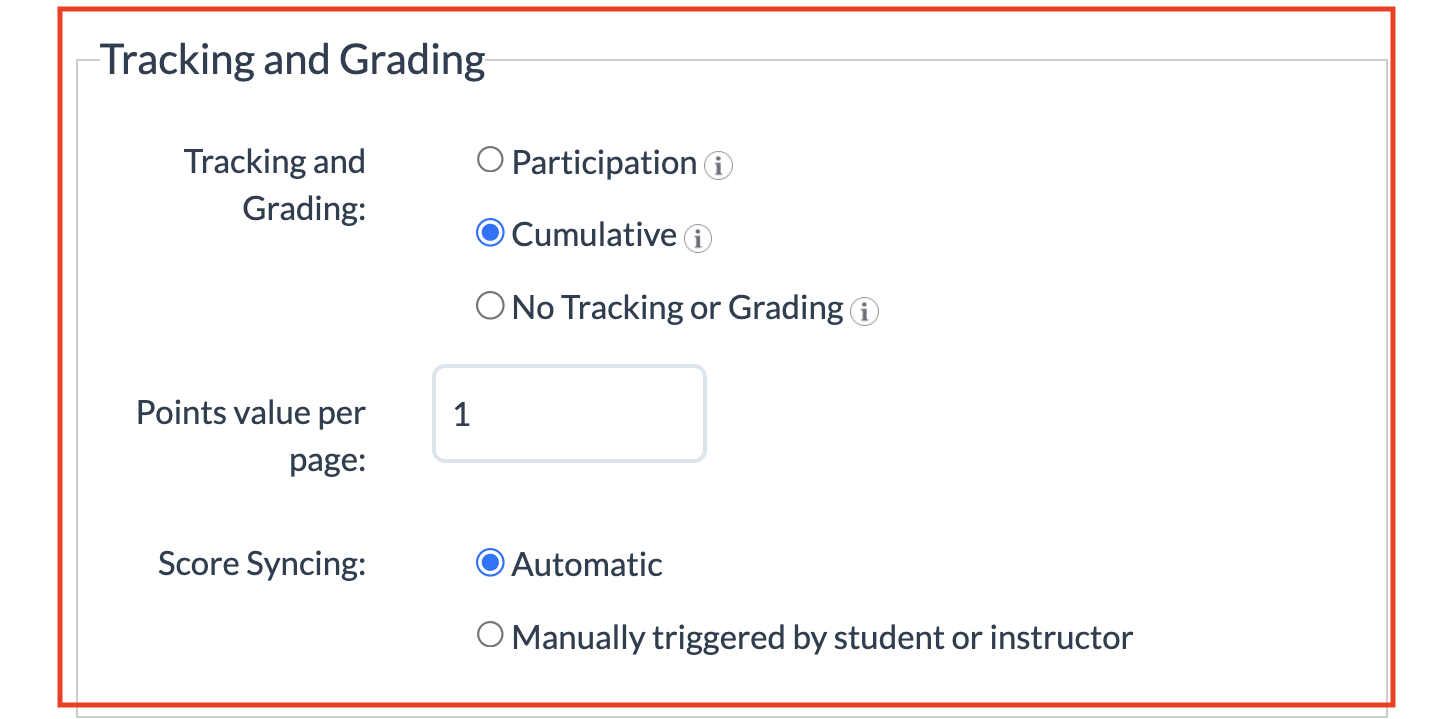
Setting How Scoring Works What Learners/Instructors See Participation Each module's score is based on the percentage of pages completed. Completing a page just requires interacting with its activities. Individual answers aren't evaluated (e.g., getting half a matching activity right still gives full credit for that page). No point totals appear on the Overview page, and activity blocks show no Points field. Learners see bookmarking (return-to-last-page), completed-page indicators, and a progress bar. Their passed-back score equals their percent complete. Cumulative (most widely used) You assign a participation point value per page (0 is allowed) and can additionally assign points to individual scorable activity blocks. Learners get full credit just for completing a page, but full/partial credit on scored activities based on accuracy. The Overview page shows point totals (pages with 0 points show a dash). Activity blocks show the available points. Learners see a running score in addition to bookmarking/progress. Instructors see both a progress percentage (pages completed) and a separate score (points earned). No Tracking or Grading Nothing is tracked. No progress indicators, no scores, nothing passed to the LMS.
Use the module's Overview page anytime to check total points. It's a good way to confirm your Cumulative points are correct and to cross-check against your LMS gradebook. - If using Cumulative, set Points value per page. Enter a value (0 is fine) for every page you want counted.
Configure Score Syncing. If the course is set to Participation or Cumulative, each module passes a score to the LMS gradebook:
- Automatic: scores sync as soon as they're earned
- Manually triggered by student or instructor: scores sync only when someone initiates it
Configure the LMS side. CourseArc also needs to be authorized in the LMS to send/receive this data. See LMS Integrations & LTI to see directions to set up a specific LMS.
Learn More
Watch the following video to learn more about setting up the Tracking and Grading settings.
Was this article helpful?
That’s Great!
Thank you for your feedback
Sorry! We couldn't be helpful
Thank you for your feedback
Feedback sent
We appreciate your effort and will try to fix the article