Courses can be shared with other CourseArc clients. To share content with another CourseArc client, submit a help desk ticket granting permission to share content with that client. When the help desk ticket is completed, the requested client will appear as an option in the Who do you want to share this content with? field.
The sharing process copies the original course content to the CourseArc client installation designated to receive it.
To learn about importing a shared course, visit How do I import a shared course?.
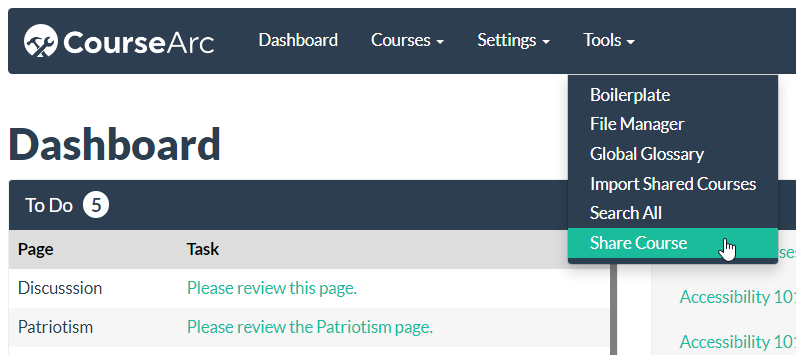
- From the Dashboard, select Share Course from the Tools menu.
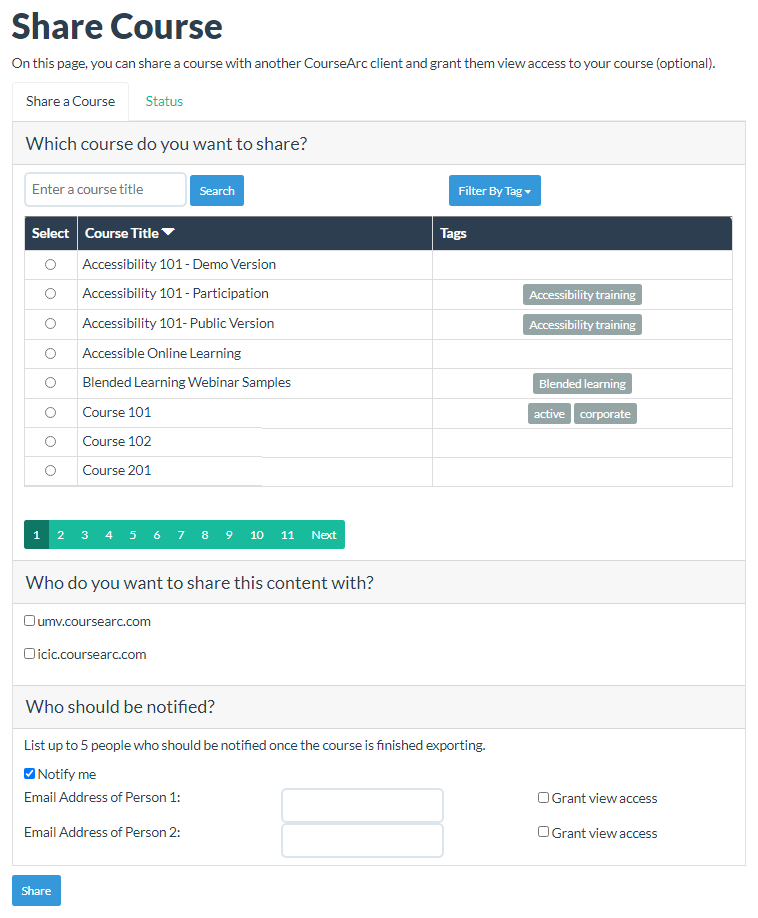
- The Share Course page displays.
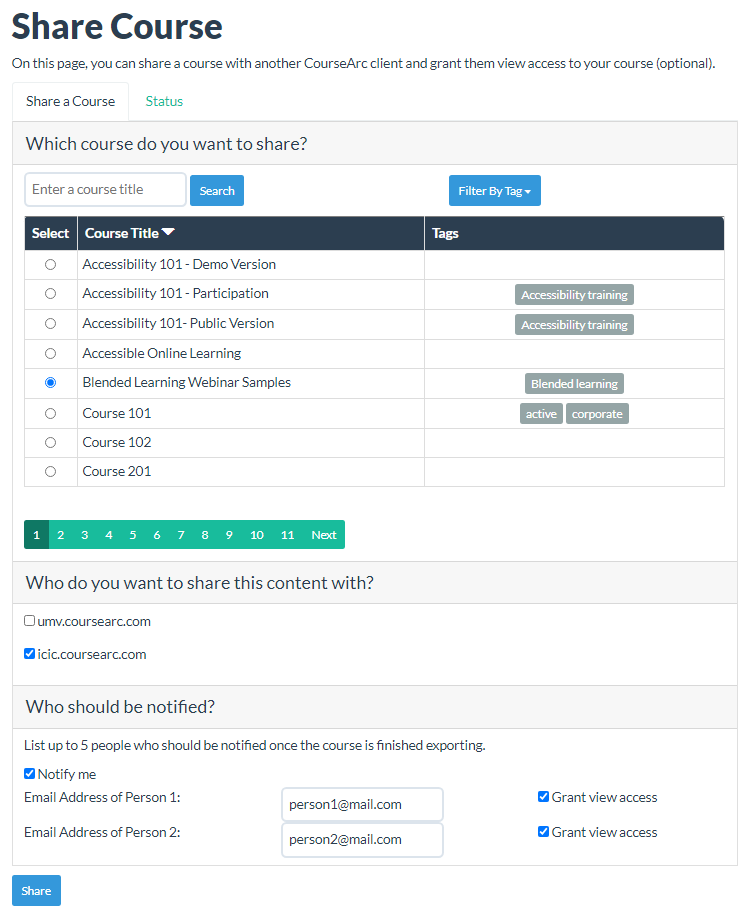
- Select the course to share, the institution to share with, and the individuals to notify when the course has been exported. Enable Grant view access if a recipient should have access to view the course in the source installation.
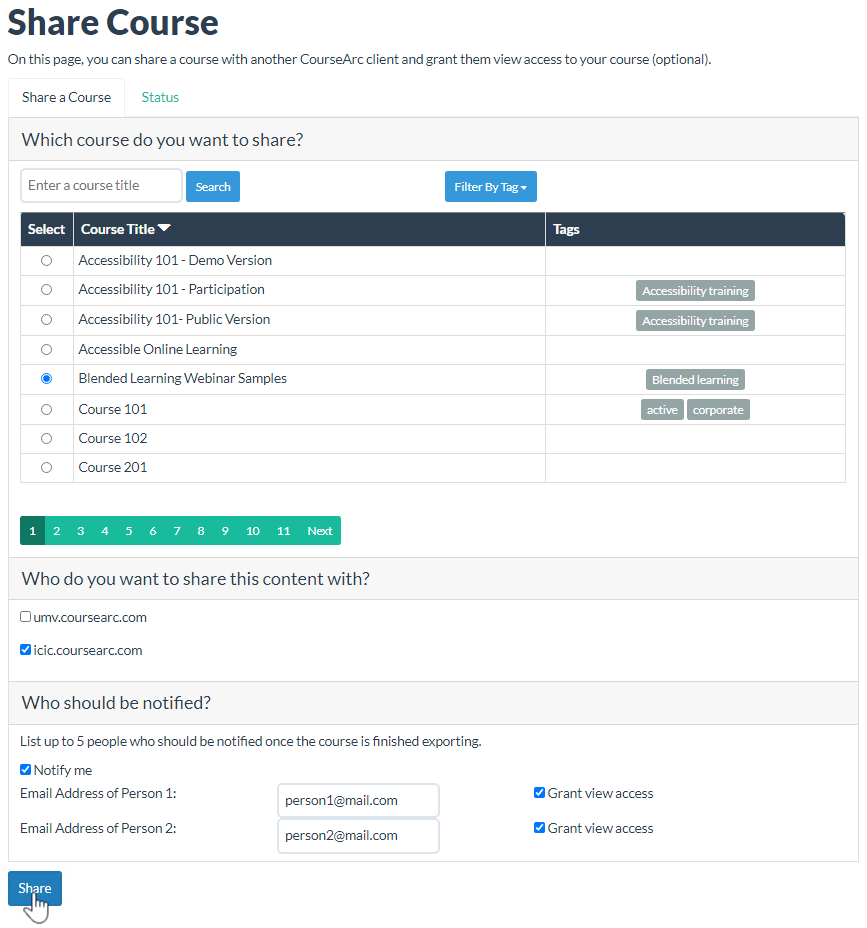
- Select the Share button to send the course to the designated recipients.
Was this article helpful?
That’s Great!
Thank you for your feedback
Sorry! We couldn't be helpful
Thank you for your feedback
Feedback sent
We appreciate your effort and will try to fix the article