▶Click here to watch a video demonstration of creating a new course.
By default, only a System Administrator or Course Administrator can create a course. A System Administrator can enable a setting that allows all users to create courses.
- From the Dashboard, click Courses and select +Add New Course.
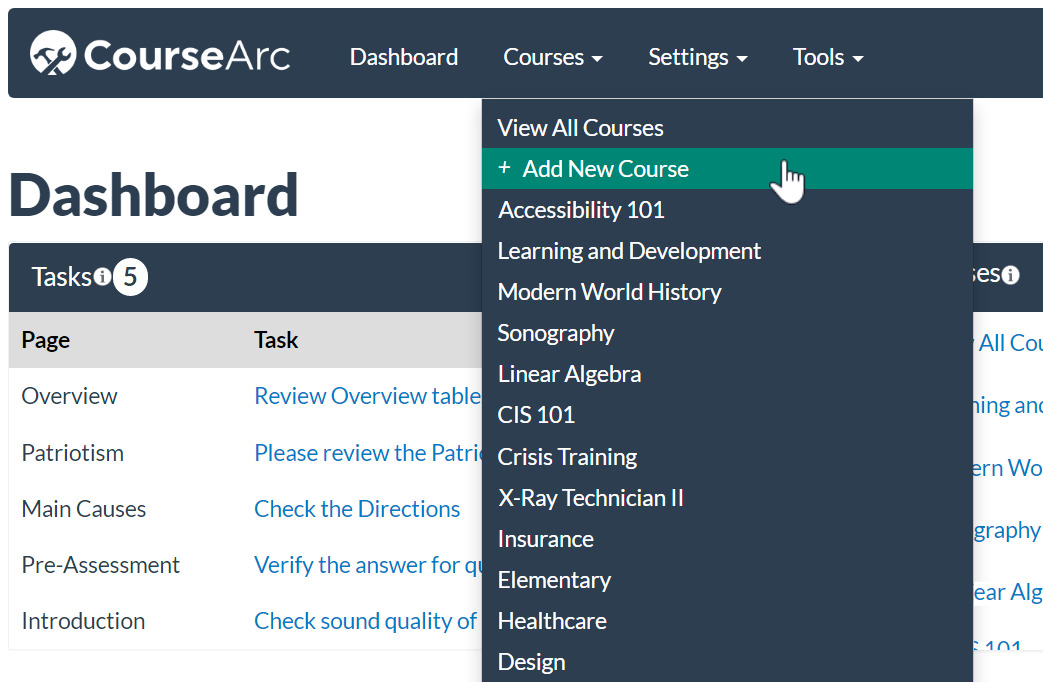
- The Add Course form will appear.
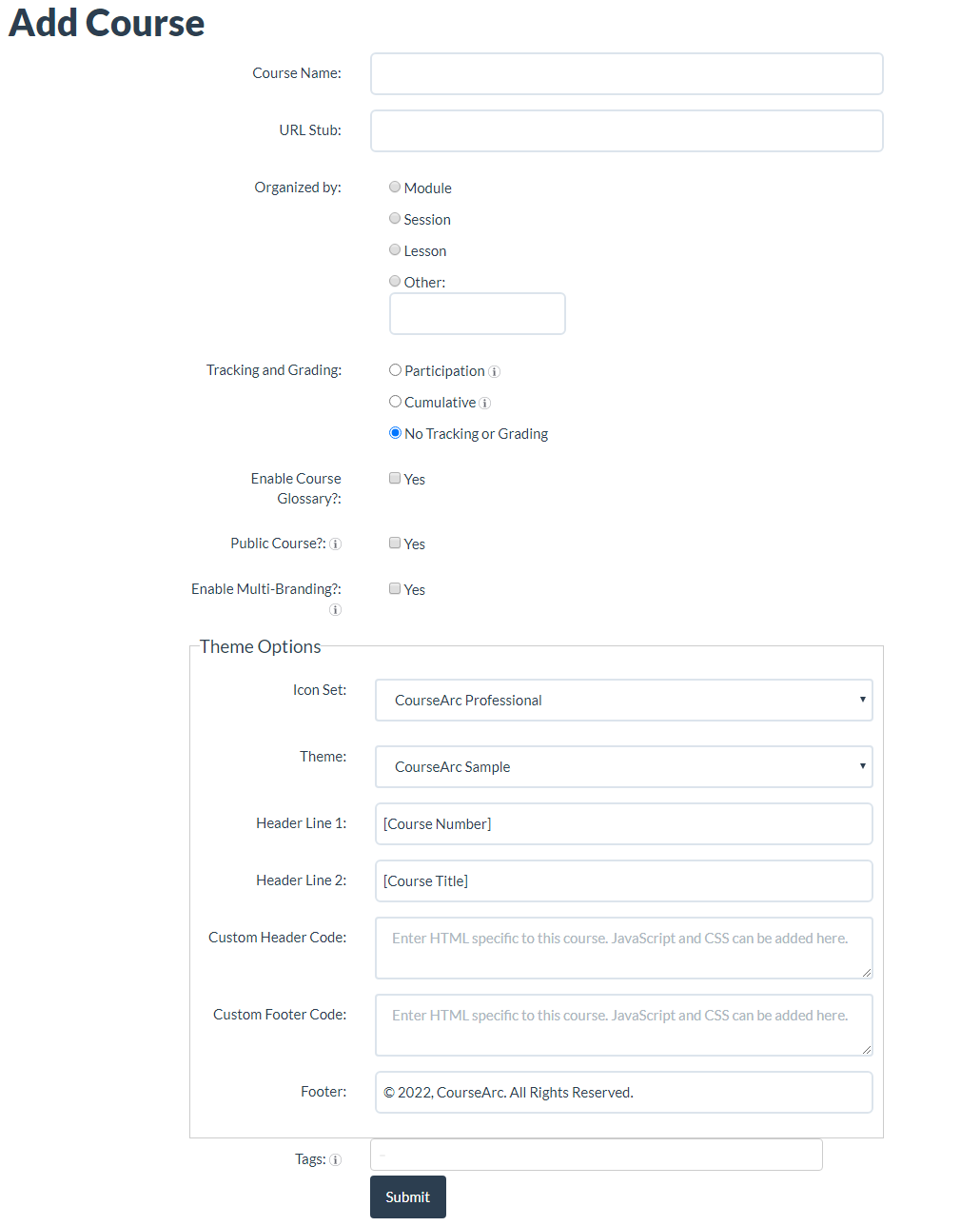
- Complete the first section.
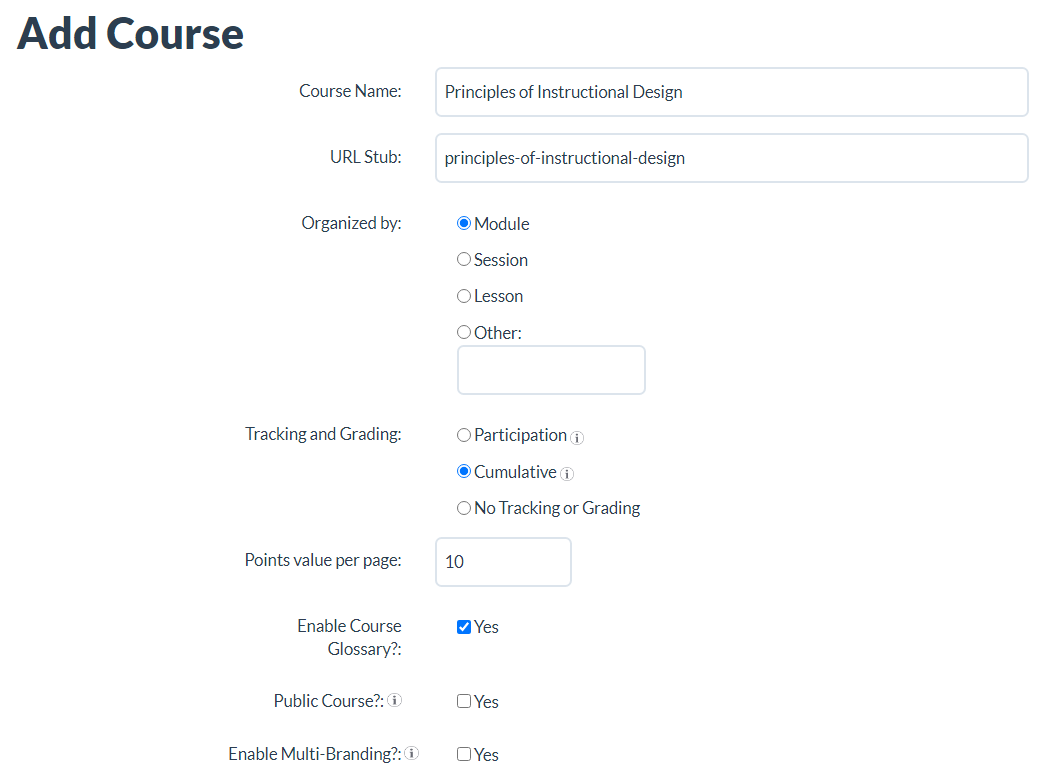
- Course Name: Enter the title of the course.
- URL Stub: The URL stub will be automatically generated. The URL stub can be changed if needed, but must be all lowercase letters with no spaces.
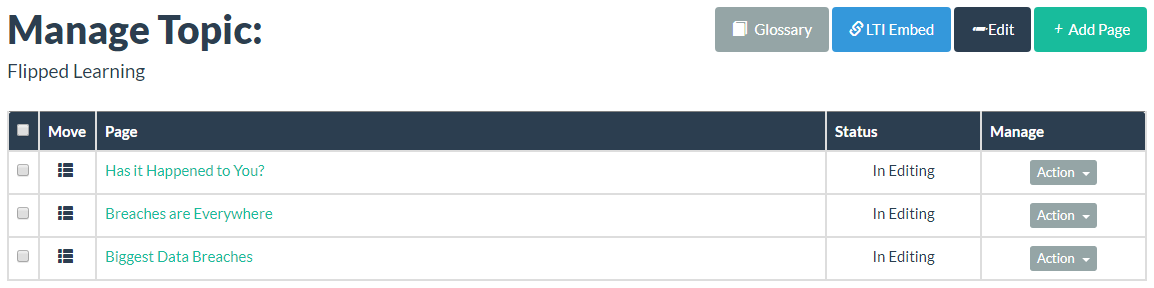
- Organized By: Select a term (Module, Session, Lesson, or Other) for the sections of content within the course.
- Tracking and Grading: The grading section will only appear if learner tracking is enabled in CourseArc's General Settings. Learn more about grading here.
- Participation—learners get full credit for participating in each page and interactive block, whether answers are correct or not
- Cumulative—learners get full credit for participating in each page and interactive block; and full or partial credit for answering interactive blocks
- No Tracking or Grading—learner activity is not tracked and grades are not calculated
- Enable Course Glossary: Check this option if the course requires a glossary.
- Public Course: If this course will be in an LMS using LTI, uncheck this option. If the course link will be sent directly to others, check this option.
- Enable Multi-Branding: If this course is going to be used and rebranded for other institutions/organizations, check this option. Learn more about multi-branding here.
- Customize the course theme in the Theme Options section.
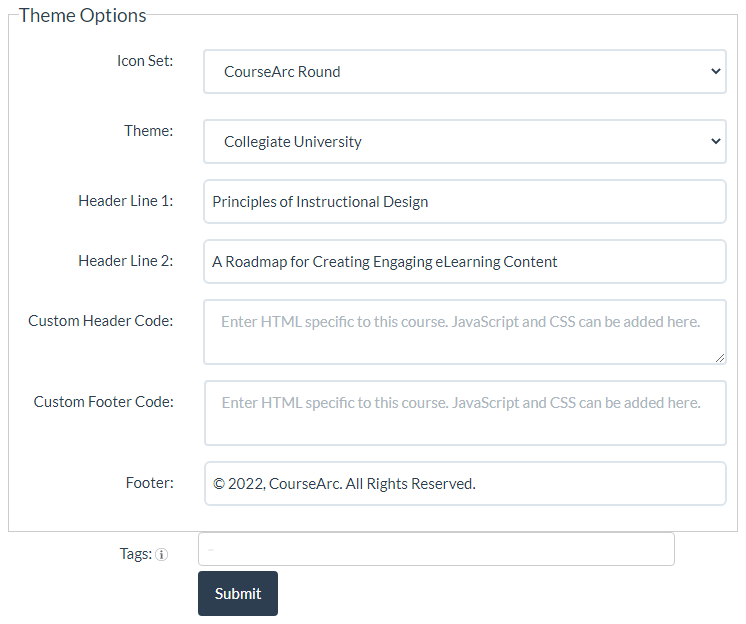
- Icon Set: Select one of the icon sets that the System Administrator or Course Administrator has enabled.
- Theme: Select one of the custom themes that the System Administrator or Course Administrator has enabled.
- Theme Customization Options (these options will change depending on the selected theme)
- CourseArc Colored Header
- Header Line 1: Enter line 1 of the header. Typically this will be a course code or the name of the institution/organization.
- Header Line 2: Enter line 2 of the header. Typically this will be the name of the course.
- Custom Header Code: and Custom Footer Code: Custom code that can be added at the course level—useful for making one-off changes to a course (e.g., changing a header font size to accommodate a long course name).
- Footer: Enter the footer to be displayed for the course; typically, this contains copyright information.
- CourseArc Generic
- Course Image: Upload a banner image for this course.
- Course Image Alt Text: Enter alternative text for the image. This text will be read to users using screen readers, so be sure to make it descriptive.
- Custom Header Code:
- Custom Footer Code:
- Footer: Enter the footer to be displayed for the course. Typically, the footer contains copyright information.
- CourseArc Colored Header
- Tags: Tags are words or phrases that describe the content of a course. The same tags can be added to multiple courses. Tags make it easier to organize and search for content.
- Click Submit to save the course.
Organize By: field set to Lesson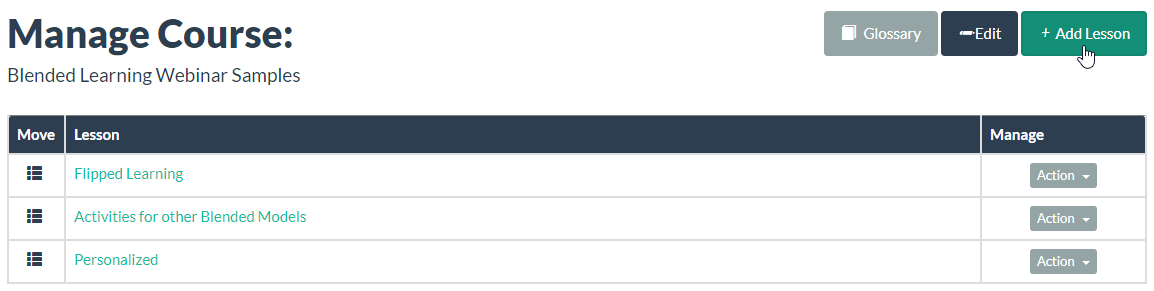
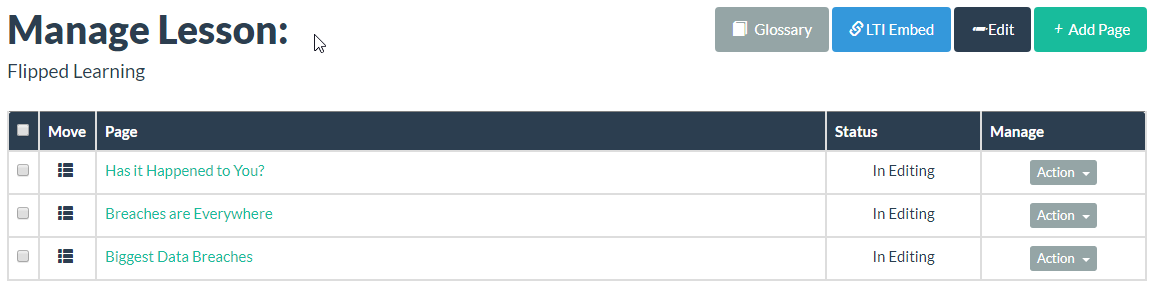
Organize By: field set to Other - Topic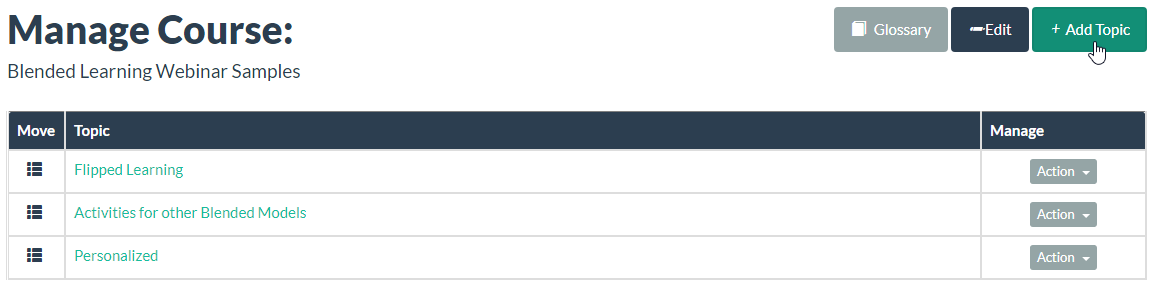
Video
Watch the video to learn more about creating courses.
Was this article helpful?
That’s Great!
Thank you for your feedback
Sorry! We couldn't be helpful
Thank you for your feedback
Feedback sent
We appreciate your effort and will try to fix the article